Best Open-Source Software in 2026: 12 Tools Compared
By ToolNimba Editorial Team November 12, 2026 11 min read

- Top pick
 LibreOffice
Office documents
Starting priceFreeCheck out LibreOfficeRead our review - Runner-up
 VLC Media Player
Video and audio playback
Starting priceFreeCheck out VLC Media PlayerRead our review - Also great
 Firefox
Private web browsing
Starting priceFreeCheck out FirefoxRead our review
How we researched this
We compared official pricing and feature pages, app store listings, privacy policies and public user reviews. Prices change, so check the provider's site before you pay.
Key takeaways
- Open-source software is free to use, and its code can be inspected, which gives you transparency that closed software cannot match.
- LibreOffice, VLC, and Firefox are the easiest starting points, because they replace paid software most people already use.
- GIMP, Blender, and Krita cover design and 3D work that once needed expensive licences, though they take time to learn.
- Audacity, OBS Studio, and Inkscape serve creators well, with active communities and regular updates.
- Free does not mean unsupported: check that a project is actively maintained before you rely on it for work.
Quick comparison
| Name | Best for | Starting price | Free plan | |
|---|---|---|---|---|
| LibreOffice | Office documents | Free | Yes | Visit |
| VLC Media Player | Video and audio playback | Free | Yes | Visit |
| Firefox | Private web browsing | Free | Yes | Visit |
 GIMP | Photo and image editing | Free | Yes | Visit |
 Blender | 3D modelling and animation | Free | Yes | Visit |
 Krita | Digital painting | Free | Yes | Visit |
 Audacity | Audio recording and editing | Free | Yes | Visit |
 OBS Studio | Recording and streaming | Free | Yes | Visit |
 Inkscape | Vector graphics | Free | Yes | Visit |
 7-Zip | File compression | Free | Yes | Visit |
 Notepad++ | Text and code editing | Free | Yes | Visit |
 Thunderbird | Email and calendar | Free | Yes | Visit |
The best open-source software
Open-source software covers almost every job a computer does, from writing documents to editing video, and it does so without licence fees or subscriptions. The best open-source tools are not just free copies of paid apps: many are mature, well maintained, and used by professionals every day. The list below mixes everyday essentials with creative powerhouses, so you can build a full toolkit without paying for software.
We compared official project pages, features, platform support, and maintenance status. We did not claim hands-on testing, and we did not invent user counts or ratings. All twelve tools are free, so starting price is Free throughout, and none requires a paid plan for its core features. Note that some projects offer optional donations, which help keep development going.
LibreOffice is the open-source office suite most people should install first. Writer handles documents, Calc handles spreadsheets, Impress handles presentations, and Draw and Base cover diagrams and databases. For everyday work, it does everything a home user or small business needs, without a subscription.
Compatibility with Microsoft Office files is good for ordinary documents, though very complex files with heavy formatting, macros, or tracked changes can shift. If you exchange simple documents, that rarely matters. For a free office suite that works offline and on all major systems, LibreOffice is the clear pick.
- Full suite with Writer, Calc, and Impress
- Good Microsoft Office compatibility
- Runs on Windows, Mac, and Linux
- Interface feels less polished than Microsoft Office
- Complex Office files can shift in formatting
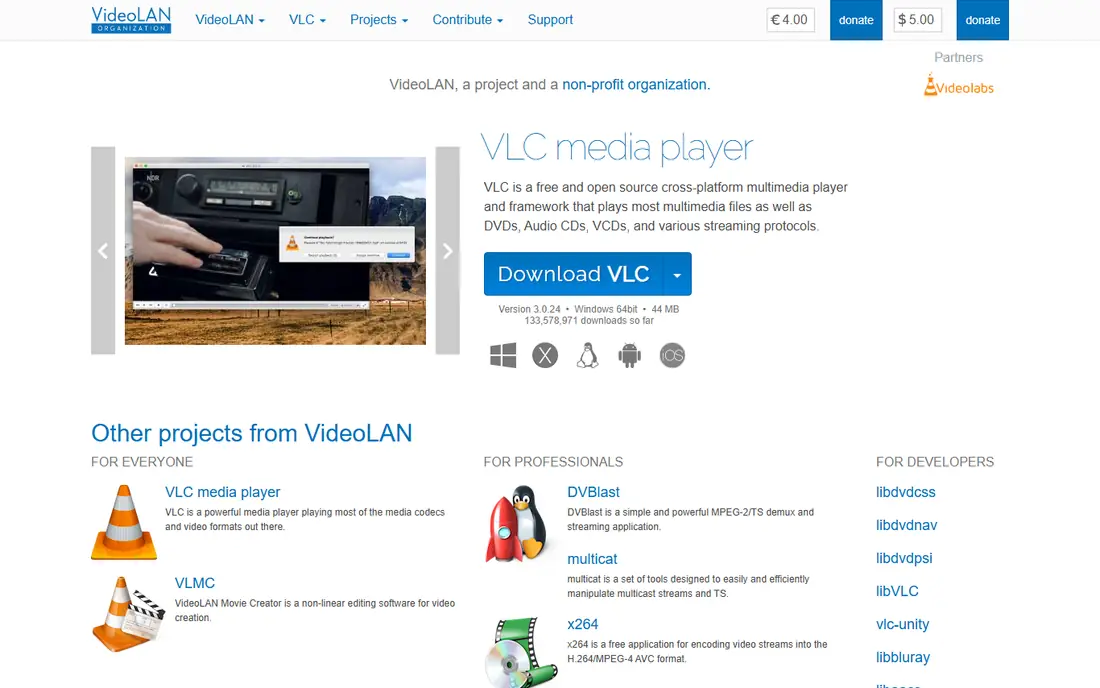
VLC, from VideoLAN, is the media player that just plays the file. It handles almost every format without codec packs, supports subtitles, streaming, and playlists, and runs on Windows, Mac, Linux, and mobile. When a video will not play in another player, VLC usually will, which is why it has been a default install for years.
The settings menu is dense, because VLC can do a great deal, from converting files to streaming over a network. Most users never need those depths, and the basic play, pause, and subtitle controls are simple. For playback alone, no other free player matches its range.
- Plays almost every video and audio format
- No codec packs needed
- Streaming and subtitle support
- Menu system can feel dense for new users
- Interface is functional rather than stylish

Firefox, from Mozilla, is the leading independent open-source browser, and it is a strong choice for readers who care about privacy. Tracking protection, container tabs, and a large extension library let you shape the browser to your needs, without tying your browsing to a single advertising platform. Sync across devices works with a free Mozilla account.
Some websites are tested first in Chrome, so an occasional site may render better there, and laptop battery use can be higher than a leaner browser. For most daily browsing, Firefox is fast, private, and fully capable, and it keeps the web more open by existing.
- Strong privacy controls
- Large extension library
- Independent of the major tech platforms
- Some sites are optimized first for Chrome
- Battery use on laptops can be higher
GIMP, the GNU Image Manipulation Program, is the open-source answer to Photoshop for photo editing and image work. Layers, masks, retouching tools, filters, and plugin support cover most editing jobs, from fixing a photo to designing a graphic. It is lighter than many paid editors and runs well on older hardware.
The interface is the learning curve. It does not copy Photoshop exactly, so a Photoshop user will need time to relearn shortcuts and menus. For a free editor with real depth, that investment pays off, especially for users who cannot justify a monthly photo subscription.
- Layer editing, retouching, and filters
- Plugin support
- Runs on Windows, Mac, and Linux
- Interface takes time to learn
- No built-in non-destructive adjustment layers in older workflows
Blender is a full 3D creation suite, covering modelling, sculpting, animation, rendering, and video editing, all for free. It is used by independent filmmakers, game artists, and studios, and its tutorial community is one of the largest in open source. For a student or hobbyist, it removes the licence barrier to 3D work entirely.
Learning Blender takes real time, because 3D work itself is complex, and heavy scenes need a capable graphics card. Start with the official tutorials and a simple project, and the depth becomes an asset rather than a barrier. No other free tool offers this range in 3D.
- Full 3D pipeline from modelling to rendering
- Used by professionals
- Huge tutorial community
- Steep learning curve
- Needs a capable computer for complex scenes
Krita is built for digital artists, with a brush engine, layer tools, and animation features designed around painting and illustration rather than photo repair. Tablet support with pressure sensitivity feels natural, and the brush presets cover watercolour, ink, and oil styles. For an illustrator, comic artist, or concept artist, it is a focused and powerful free tool.
Photo editing is not its strength, so pair it with GIMP for retouching. Large canvases with many layers also need decent hardware. For painting alone, Krita is often more enjoyable than a general editor, because every feature serves the artist.
- Brush engine built for painting
- Animation tools
- Tablet support
- Less suited to photo editing than GIMP
- Large canvases need good hardware
Audacity is the go-to free audio editor for podcasts, voiceovers, and simple music editing. Multi-track recording, cut and splice editing, effects, and noise reduction cover most audio jobs, and it exports to common formats. Podcasters in particular rely on it for cleaning up recordings and assembling episodes.
The interface looks dated, and it is not a full music production workstation with virtual instruments and MIDI sequencing. For recording and editing spoken audio, that simplicity is a strength. For music production, pair it with a dedicated workstation, or use it for editing finished tracks.
- Multi-track recording and editing
- Effects and noise reduction
- Wide format support
- Interface is dated
- Not a full digital audio workstation for music production
OBS Studio is the free standard for screen recording and live streaming, used by streamers, teachers, and presenters. Scenes let you switch between a camera, a screen, and slides, with audio mixing and filters, and there is no watermark or recording time limit. It streams to YouTube, Twitch, and other platforms, and records locally in high quality.
First setup takes patience, because scenes, sources, and audio routing need configuring before a smooth stream. Once set up, it is reliable and flexible, and the plugin community adds features for specific needs. For anyone who records tutorials or streams regularly, OBS is essential free software.
- Scene-based recording and live streaming
- Audio mixing
- No watermark or time limit
- Setup takes time for a first stream
- Needs a decent computer for high-quality output
Inkscape is the open-source vector graphics editor, ideal for logos, icons, diagrams, and illustrations that need to scale cleanly. Its native SVG format is a web standard, so graphics export well for websites and print. Drawing tools, path editing, and text handling cover professional vector work, and the community offers many tutorials.
Very complex files with thousands of objects can slow it down, and an Illustrator user will need to relearn some workflows. For a small business that needs a logo or a diagram without a design subscription, Inkscape delivers professional results for free.
- Full vector drawing tools
- SVG native format
- Good for logos and diagrams
- Performance can lag on very complex files
- Interface differs from Illustrator
7-Zip is a small utility that earns its place by doing one job extremely well: compressing and extracting archives. It handles ZIP, 7z, RAR, TAR, ISO, and many other formats, with AES-256 encryption for sensitive archives, and it integrates into the Windows right-click menu. The 7z format often compresses better than ZIP, which helps with large files.
The main app is Windows only, though the format is supported elsewhere, and the interface is plain. For a Windows user, it is a must-install utility that replaces paid archiving software entirely.
- Handles ZIP, 7z, RAR, TAR, and ISO
- AES-256 encryption
- Very light and fast
- Windows only for the main app
- Interface is plain
Notepad++ is a fast, free text and code editor for Windows, far beyond the built-in Notepad. Syntax highlighting for many programming languages, multi-tab editing, search across files, and plugins make it useful for coding, editing configuration files, and taking notes. It opens instantly and handles large text files well.
It is Windows only, and it lacks the built-in debugging and integrated terminal of a full code editor such as Visual Studio Code. For quick editing, log reading, and scripting, Notepad++ remains a favourite, and many developers keep it alongside a larger editor.
- Syntax highlighting for many languages
- Multi-tab editing
- Plugin support
- Very fast
- Windows only
- Not a full code editor with built-in debugging
Thunderbird, from Mozilla, is a free desktop email client that brings mail, calendar, and contacts together offline. It suits users who want their email on their own computer, with local folders, filters, and search, rather than only in a web browser. Privacy controls and extension support let you shape it, and it works with most email providers.
The interface is traditional compared with modern webmail, and setting up some webmail accounts needs a few extra steps for app passwords or authentication. For a user who manages several accounts or wants offline access to years of email, Thunderbird is a dependable, private choice.
- Email, calendar, and contacts in one app
- Strong privacy controls
- Extension support
- Interface feels traditional
- Setup for some webmail accounts takes a few steps
How we picked these
We compared official project pages, features, platform support, and maintenance activity, focusing on tools that are actively developed, widely used, and truly open source, not just free. We left out freeware that is not open source, and we left out projects that appear unmaintained, because an abandoned tool can become a security risk. All twelve tools are free for core use, so pricing is straightforward.
Getting started with open-source software
Start with the replacements for software you already pay for: LibreOffice for office work, Firefox for browsing, VLC for media, and Thunderbird for email. That swap alone can remove several subscriptions without changing how you work much. Add creative tools one at a time, starting with the one that matches your next project, rather than installing everything at once.
Support comes from communities, not a help desk, so use official forums, documentation, and tutorials when you get stuck. Donating to a project you rely on, even a small amount, helps keep it maintained, and reporting a bug with clear steps is a useful contribution even if you never write code.
Open source, free software, and privacy
Open source means the code is available to inspect, which lets independent reviewers check for security issues and hidden tracking. That transparency is a privacy advantage, but it does not guarantee a tool collects no data, so check the privacy policy for any online features, such as sync or telemetry. For fully offline tools such as LibreOffice, GIMP, and 7-Zip, your files stay on your computer by default.
Sources
Frequently asked questions
What is the best open-source software for everyday use?
LibreOffice, Firefox, VLC, and Thunderbird cover office work, browsing, media, and email for most users, all for free. Start with those, then add creative tools as you need them.
Is open-source software really free?
Yes, the tools on this list are free to download and use, with no licence fee for core features. Some projects accept donations to fund development, but donations are optional.
Is open-source software safe?
Actively maintained open-source projects can be very safe, because their code is inspected by many reviewers. Stick to official download pages, keep the software updated, and avoid abandoned projects for sensitive work.
Can open-source software replace Microsoft Office?
For most users, yes. LibreOffice handles documents, spreadsheets, and presentations, with good compatibility for ordinary files. Very complex Office files with macros or heavy formatting may shift, so test those files before switching fully.
What is the best open-source photo editor?
GIMP is best for photo editing and retouching, while Krita is best for digital painting. Many artists use both, with GIMP for photos and Krita for illustration.
Do I need technical skills to use open-source software?
No, the everyday tools on this list are designed for ordinary users. Creative tools such as Blender and GIMP take time to learn, but that is true of their paid equivalents as well.