Best PDF Compression Services in 2026: 8 Services Compared
By ToolNimba Editorial Team November 9, 2026 9 min read

- Top pick
 PDF24
Free compression for most people
Starting priceFreeCheck out PDF24Read our review - Runner-up
 Smallpdf
Full PDF toolkit with good integrations
Starting price$12 per monthCheck out SmallpdfRead our review - Also great
 iLovePDF
Regular compression plus mobile apps
Starting price$7 per monthCheck out iLovePDFRead our review
How we researched this
We compared official pricing and feature pages, app store listings, privacy policies and public user reviews. Prices change, so check the provider's site before you pay.
Key takeaways
- PDF24 is the best free option for most people, with free online tools and a free desktop app.
- Smallpdf and iLovePDF suit regular users who want a full PDF toolkit, not just compression.
- Sejda suits occasional users who need larger files handled online without a subscription.
- For sensitive documents, prefer a desktop tool or a service with clear deletion terms, since online tools upload your file.
Quick comparison
| Name | Best for | Starting price | Free plan | |
|---|---|---|---|---|
| PDF24 | Free compression for most people | Free | Yes | Visit |
| Smallpdf | Full PDF toolkit with good integrations | $12 per month | Yes | Visit |
| iLovePDF | Regular compression plus mobile apps | $7 per month | Yes | Visit |
 Sejda | Larger files online occasionally | $7.50 per month | Yes | Visit |
 Adobe Acrobat | Professional PDF work and compliance | $19.99 per month | Free trial | Visit |
 PDF2Go | Quick online compression and editing | Free | Yes | Visit |
 PDF Candy | Simple online tools plus desktop option | Free | Yes | Visit |
 Foxit PDF Editor | Desktop editing with compression | See website | Free trial | Visit |
The best pdf compression services
A good PDF compressor shrinks a file enough to email or upload it, without making text unreadable. These eight do that online, on desktop, or both.
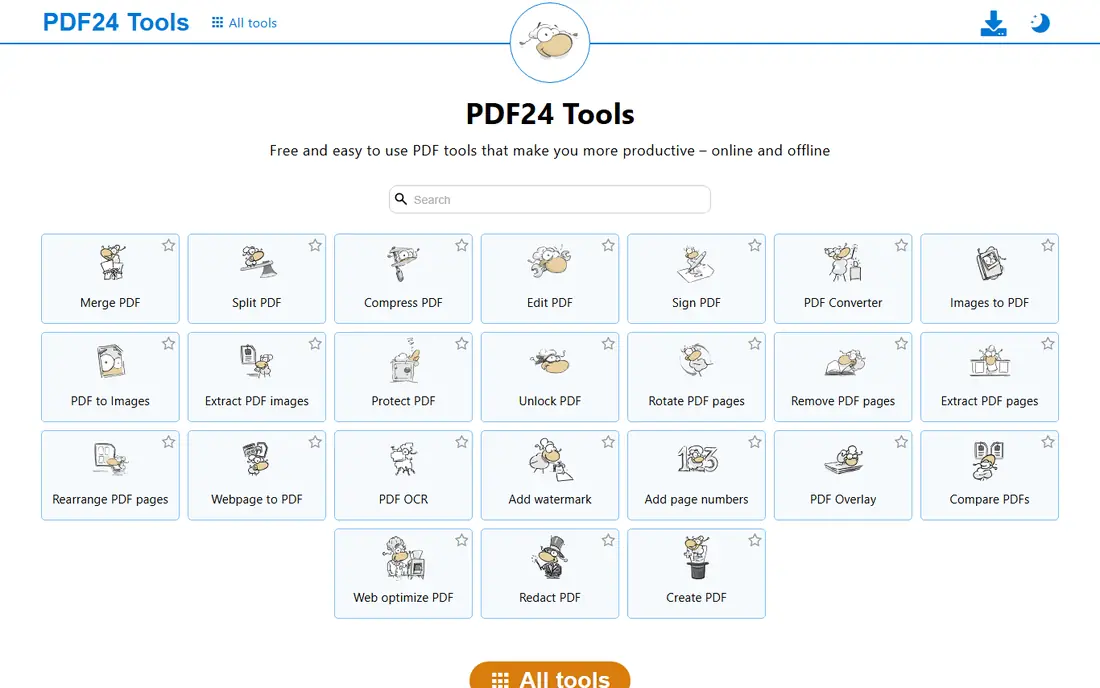
PDF24 is our pick for most people because compression is free, without a daily task limit that blocks occasional use. Upload a PDF, choose a compression level, download the smaller file, and you are done. The desktop Creator app offers the same tools offline, which helps for larger files or slower connections.
The trade-off is polish. PDF24 is ad supported and its interface feels practical rather than premium. For pure compression, that does not matter. If you need a full business PDF suite with signing, forms, and team features, a paid tool will serve you better. For shrinking PDFs for email, upload, or school, PDF24 is hard to beat on price.
- Free online tools
- Free desktop Creator app
- No account needed for basic use
- Ad supported
- Interface is functional rather than polished
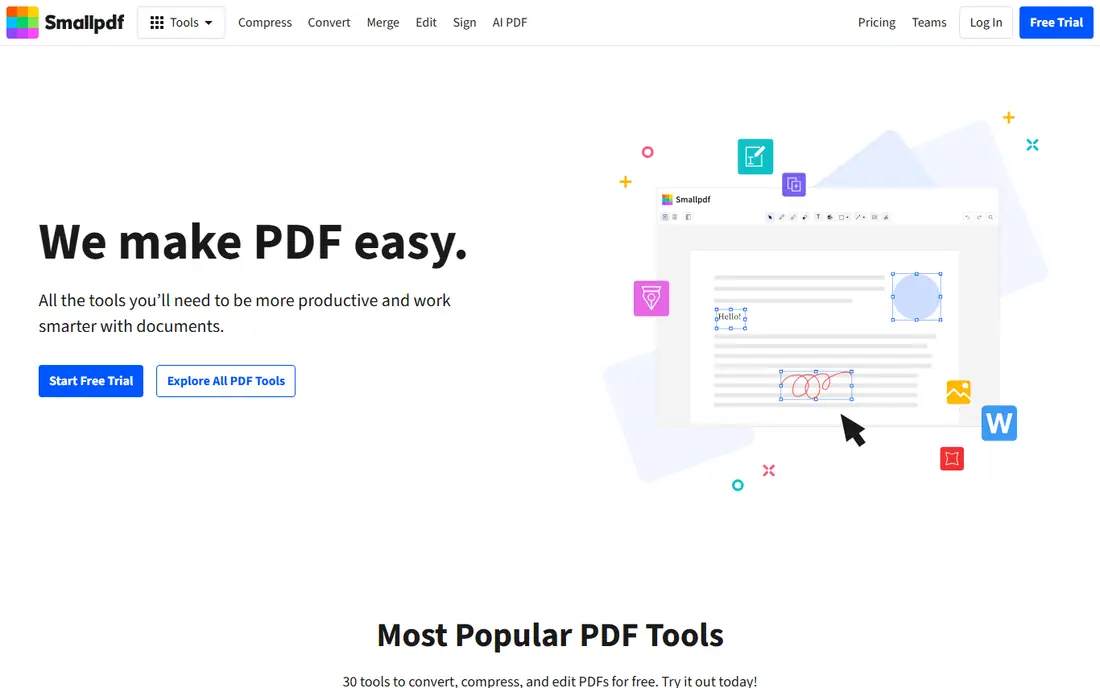
Smallpdf suits people who compress PDFs as part of wider document work. Beyond compression, it covers conversion, merging, splitting, editing, signing, and protection in one clean interface. Integration with Google Workspace and Dropbox makes it easy to pull a file from cloud storage, compress it, and save it back.
The free plan limits you to a small number of tasks per day, commonly two, which is enough for occasional use but not for daily work. Pro removes those limits and adds batch processing and stronger tools. Files are uploaded to Smallpdf servers and deleted after about an hour, according to the vendor. For regular use, Smallpdf is a polished, reliable choice.
- Clean interface
- Strong Google Workspace and Dropbox integration
- Full PDF toolkit beyond compression
- Free plan limits tasks per day
- Pro is $12 per month on recent listings, higher on monthly billing
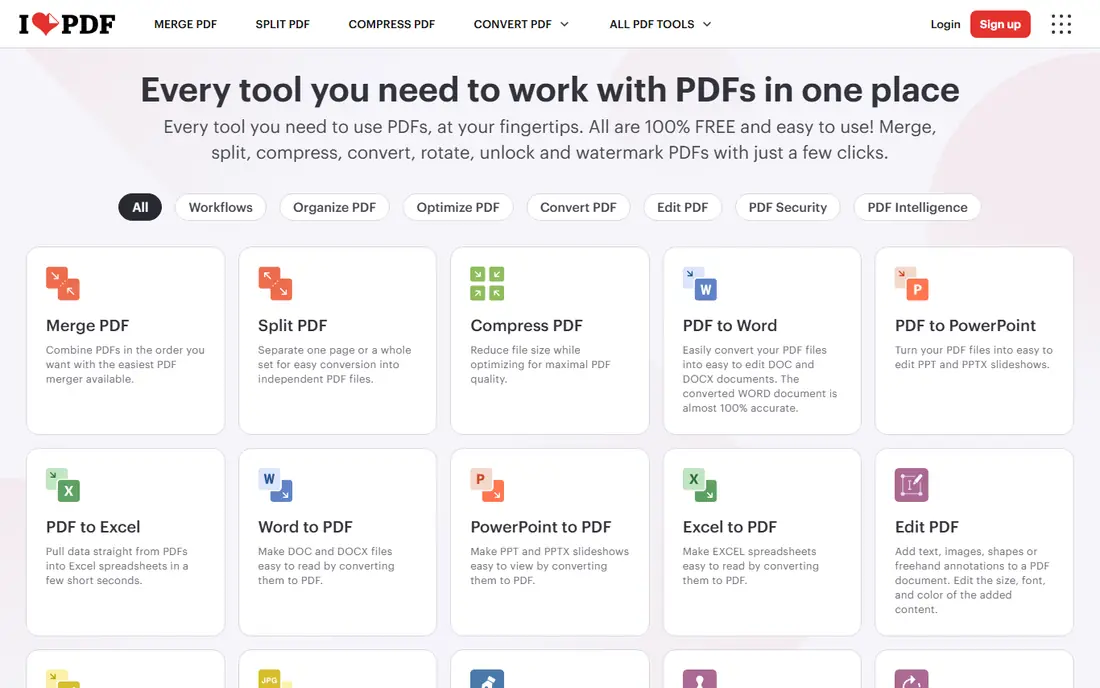
iLovePDF is a strong alternative to Smallpdf, with a similar full toolkit and a free tier that many users find more generous for occasional tasks. Compression offers several quality levels, so you can choose a smaller file or better image quality depending on the document. Mobile apps make it easy to compress a PDF from a phone before sending it.
Premium, listed around $7 per month on annual billing in recent comparisons, removes limits and adds batch processing and advanced features. Files are stored on servers in the European Economic Area as a rule and deleted within about two hours. For regular compression plus mobile use, iLovePDF is good value.
- Clean free tier
- Apps for web, desktop, and mobile
- API for developers
- Premium is around $7 per month on annual billing
- Some editing features need Premium
Sejda suits people who occasionally need to compress a larger PDF online. The free tier accepts files up to 50 MB or 200 pages, which covers most scanned documents and reports, while the paid web tier accepts up to 500 MB. That headroom matters when a scanned contract or ebook exceeds the limits of other free tools.
Paid pricing is listed around $7.50 per month on annual billing. A desktop version is also available for offline work. Sejda files are processed online on the free web tool, so sensitive documents deserve the same caution as with any online compressor. For large occasional files, Sejda is a practical pick.
- Free tier handles files up to 50 MB or 200 pages
- Paid tier handles up to 500 MB
- Desktop app available
- Free plan limits tasks per day
- Interface is plainer than Smallpdf
Adobe Acrobat is the professional standard, and compression is one feature inside a complete PDF system. It handles OCR on scanned pages, so a scanned document can be compressed and made searchable at the same time. E-signatures, forms, redaction, and enterprise compliance features make it the right choice for legal, finance, and business teams.
The price reflects that scope. Acrobat Pro is listed around $19.99 to $23.99 per month depending on plan and billing, which is far more than a compression only tool. If you only shrink a PDF a few times a year, use PDF24 or a free tier instead. If PDFs are central to your work, Acrobat is the safest long term choice.
- Best PDF quality and compatibility
- OCR for scanned documents
- E-signatures and compliance features
- Pro is $19.99 per month or more on some plans
- Overkill if you only compress PDFs
PDF2Go is a straightforward online tool for quick jobs. Upload a PDF, compress it, and download the result, with options to edit, convert, merge, or split PDFs on the same site. No install is needed, which helps on a shared or borrowed computer.
Free use has limits on file size and tasks, so heavy users will need a paid plan, with pricing listed on the vendor site. Like other online tools, PDF2Go uploads your file for processing, so avoid it for highly sensitive documents unless you check its privacy and deletion terms. For a quick shrink before an email attachment, it works well.
- Free online compression
- Editing, conversion, and merging in one site
- No install needed
- Free limits apply to file size and tasks
- Paid plans needed for heavy use
PDF Candy covers compression alongside a wide set of PDF tools, including conversion, merging, splitting, and protection. The interface is simple, which helps when you just want to shrink a file and move on. A desktop version is available for users who prefer offline processing or who handle files regularly.
Free use covers basic tasks, with paid plans removing limits and adding batch features. Pricing is listed on the vendor site and varies by plan length. PDF Candy is a good middle option: simpler than Acrobat, more complete than a single purpose compressor, and available offline through its desktop app.
- Wide set of free online PDF tools
- Desktop version for offline work
- Simple interface
- Some advanced features need a paid plan
- Batch limits on free use
Foxit PDF Editor is a desktop alternative to Adobe Acrobat, with PDF optimization and compression built into a full editor. You can reduce file size, adjust image quality, and remove unused objects, while also editing text, adding comments, and signing documents. Working on desktop keeps sensitive files off a web server, which is a privacy plus.
Pricing varies by license type and platform, so check the Foxit site for current individual and team prices. Foxit is more complex than a one click online compressor, and that complexity is unnecessary for a single file. For teams that edit PDFs daily and want desktop control, it is a strong Acrobat alternative.
- Full desktop PDF editing
- Compression and optimization controls
- Good for business teams
- Pricing varies by license and platform
- More complex than online compressors
How we picked these
We compared official feature pages, pricing pages, and recent PDF tool comparisons active in October 2026. We favored services with a working compression tool, a published free tier or trial, and clear file handling. We did not claim hands-on testing; our comparison is based on published features, pricing, and public reviews.
How to get a smaller PDF without ruining it
Start by choosing the right compression level. A light setting preserves image quality for printing, while a strong setting shrinks the file more but can blur photos and scans. For email or upload, a medium setting usually works. If the PDF is mainly text, compression will be large with little quality loss. If it is scanned images, expect a trade-off.
Check the result before you send it. Open the compressed file, zoom into photos and small text, and confirm pages are intact. If quality suffers, try a lighter setting or compress in two steps. Also check the file size against your email or upload limit, since some systems cap attachments at 10 MB or 25 MB. A file just under the limit is safer than one that bounces.
Privacy matters for online tools
Online compressors upload your file to a server, process it, and delete it after a set time. Smallpdf deletes files after about an hour, and iLovePDF within about two hours, according to vendor and comparison pages. That is acceptable for a resume or a brochure, but not ideal for a contract, medical record, or financial statement.
For sensitive documents, use a desktop tool such as PDF24 Creator, Foxit, or Adobe Acrobat, where the file stays on your computer. If you must use an online tool, remove sensitive pages first, or redact them properly with a tool that removes the underlying text, not just covers it. Never assume a free online tool is private by default.
Sources
Frequently asked questions
What is the best PDF compression service?
PDF24 is our pick for most people because compression is free and effective, with a desktop app for offline use. Smallpdf and iLovePDF suit regular users who want a full PDF toolkit. Adobe Acrobat suits professionals who need OCR, signing, and compliance features as well as compression.
How can I compress a PDF for free?
Use PDF24 online tools or PDF24 Creator for free, or use the free tiers of Smallpdf, iLovePDF, Sejda, or PDF2Go. Free tiers limit tasks per day, file size, or advanced features, so pick based on your file size and frequency. For a single occasional file, any free tier here will work.
Does compressing a PDF reduce its quality?
It can, depending on the setting and the content. Text based PDFs compress well with little visible change. Image heavy or scanned PDFs lose quality at strong compression settings, especially in photos. Choose a medium setting for email use, and check the result before sending it.
Is it safe to compress a PDF online?
For ordinary documents, yes, provided you use a known service with clear deletion terms. Files are uploaded, processed, and deleted after a short period, often one to two hours. For sensitive documents such as contracts or financial records, use a desktop tool instead, so the file never leaves your computer.
What is the best PDF compression software for large files?
Sejda paid handles files up to 500 MB online, while PDF24, Foxit, and Adobe Acrobat handle large files on desktop without upload limits. For a very large scanned file, a desktop tool is usually faster and more reliable than an online upload. Check free tier size limits before uploading a large file.