Best PDF Editor Software in 2026: 9 Editors Compared
By ToolNimba Editorial Team November 9, 2026 8 min read

- Top pick
 Adobe Acrobat
Compatibility and full features
Starting price$14.99 per monthCheck out Adobe AcrobatRead our review - Runner-up
 Foxit PDF Editor
Acrobat-level features for less
Starting priceSee websiteCheck out Foxit PDF EditorRead our review - Also great
 Nitro PDF Pro
Windows teams and collaboration
Starting priceSee websiteCheck out Nitro PDF ProRead our review
How we researched this
We compared official pricing and feature pages, app store listings, privacy policies and public user reviews. Prices change, so check the provider's site before you pay.
Key takeaways
- Adobe Acrobat Standard at $14.99 per month remains the compatibility benchmark, while Pro adds OCR, redaction and comparison tools.
- Foxit and PDFelement offer most of the same desktop editing for less, with PDFelement the stronger value pick.
- PDFgear is the best genuinely free desktop editor, while Smallpdf suits quick browser-based jobs.
- If you edit PDFs rarely, start free and only subscribe when you need OCR, forms or batch work regularly.
Quick comparison
| Name | Best for | Starting price | Free plan | |
|---|---|---|---|---|
| Adobe Acrobat | Compatibility and full features | $14.99 per month | Free trial | Visit |
| Foxit PDF Editor | Acrobat-level features for less | See website | Free trial | Visit |
| Nitro PDF Pro | Windows teams and collaboration | See website | Free trial | Visit |
 PDFelement | Best value full desktop editing | See website | Free trial | Visit |
 PDF-XChange Editor | Low-cost perpetual license | See website | Free trial | Visit |
 Smallpdf | Quick browser-based editing | See website | Yes | Visit |
 PDFgear | Free desktop editing | Free | Yes | Visit |
 PDF Expert | Mac and iPad editing | See website | Free trial | Visit |
 ABBYY FineReader PDF | Accurate OCR from scans | See website | Free trial | Visit |
The best pdf editor software
A real PDF editor lets you change text, move pages, fill and sign forms, redact sensitive parts and convert files, not just view them. Free readers cover viewing, but editing, OCR and form creation usually need a paid app or a strong free editor. These picks cover desktop power, browser speed and Mac-specific polish.
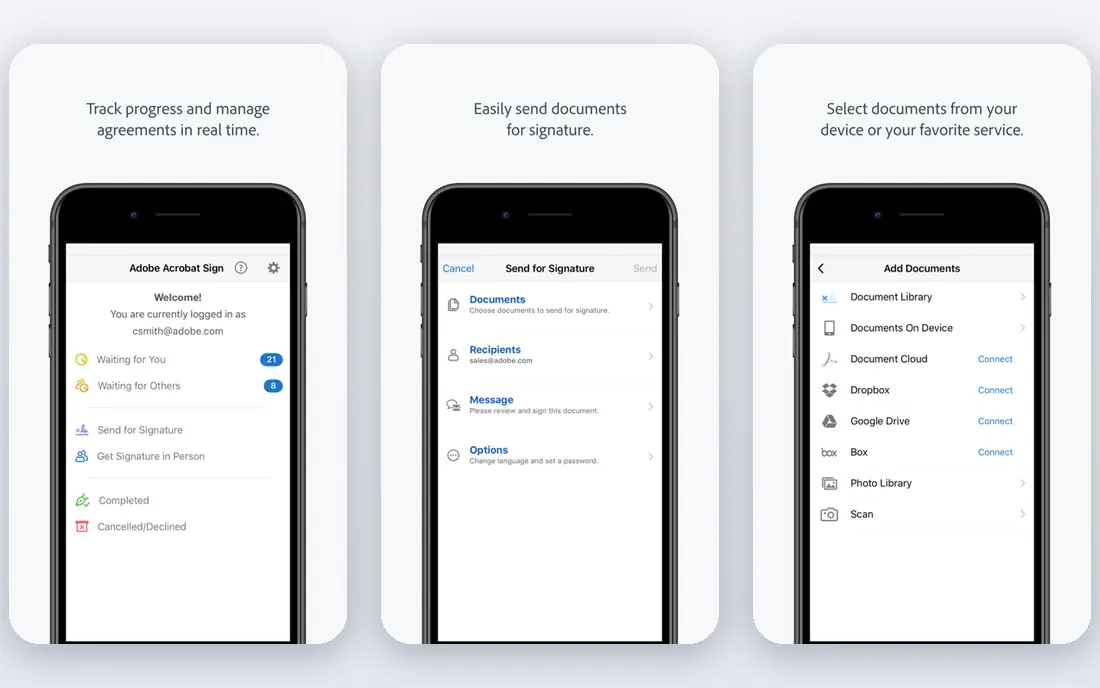
Adobe Acrobat sets the standard other editors are judged against, because Adobe created the PDF format. Standard at $14.99 per month covers editing, conversion, organization and e-signatures, while Pro at $19.99 per month adds OCR, redaction, document comparison and advanced forms. If a file renders oddly elsewhere, it usually renders correctly here.
The price is the drawback. Acrobat costs more than every rival on this list, and casual users may pay for depth they never use. Our pick for professionals who handle client or legal documents daily is Acrobat, because accuracy and compatibility matter more than saving a few dollars a month.
- Best compatibility with complex PDFs
- Strong OCR, redaction and forms
- E-signature workflows
- Highest subscription cost
- More features than casual users need
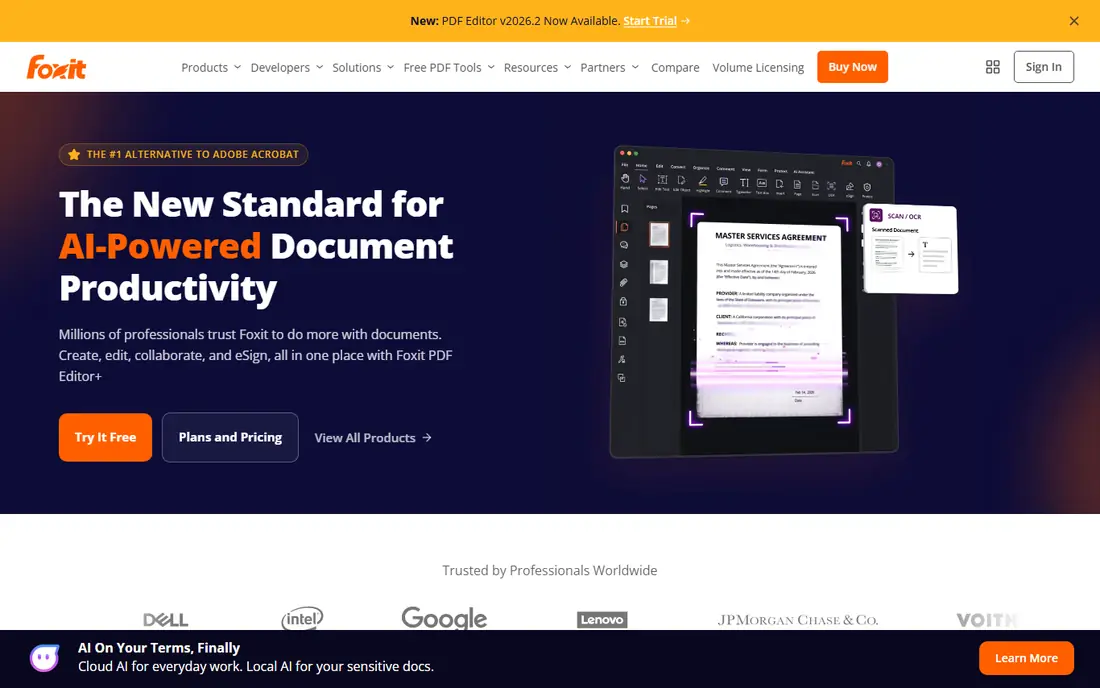
Foxit PDF Editor is the closest full-featured alternative to Acrobat, and it costs less while covering editing, OCR, redaction and form handling. It feels lighter on system resources than Acrobat, which helps on older machines, and it sells a perpetual license alongside subscriptions, a welcome choice for buyers who dislike renting software.
Foxit is not a perfect clone. Its interface borrows heavily from Acrobat, and its mobile apps are weaker than the desktop app. For a business that wants Acrobat capability at a lower price, Foxit is the first alternative to test.
- Close to Acrobat on editing, OCR and forms
- Lighter on system resources
- Perpetual license option
- Interface closely imitates Acrobat
- Mobile apps lag the desktop version
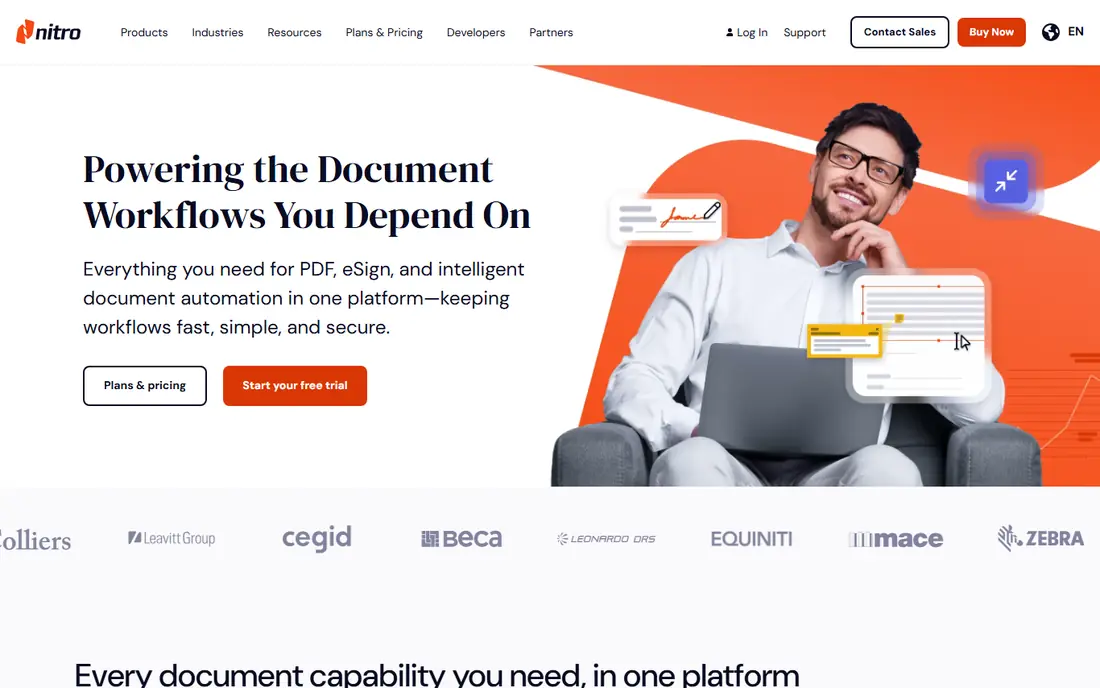
Nitro PDF Pro suits Windows-based teams that want one standard editor for editing, conversion, signing and collaboration. It handles Office conversions well, supports e-signatures, and includes document assistant tools for summarizing and working with long files. Small teams often find its collaboration workflow simpler than managing Acrobat licenses.
Nitro is less strong for Mac-only users, and license options can confuse first-time buyers, with subscription and longer-term licenses on offer. Check which license fits your team size before buying, and test conversion quality on your own documents.
- Strong editing and conversion
- Collaboration tools
- Document assistant features
- Windows-focused
- Pricing varies by license type
PDFelement from Wondershare offers most of what Acrobat does at a lower price, including OCR, batch processing, form creation and AI-assisted summaries. Its interface is friendlier than Foxit for new users, and it runs across Windows, Mac, iOS and Android, so one purchase covers several devices.
The honest catch is OCR quality on poor scans, where Adobe and ABBYY still lead. For clean, modern PDFs and everyday editing, PDFelement is our value pick, and the trial is enough to judge it on your own files.
- Strong price-to-feature ratio
- OCR, batch processing and forms
- Friendly interface
- OCR accuracy trails Adobe and ABBYY on poor scans
- AI features vary by plan
PDF-XChange Editor appeals to buyers who want to pay once and keep the software. Perpetual licenses start at a low price compared with subscriptions, and the app is fast, light and strong on annotation and markup. It suits users who mark up documents daily but do not need cloud collaboration.
It is Windows only, and its interface looks dated beside Acrobat or PDF Expert. If you work on Windows and dislike subscriptions, PDF-XChange is hard to beat on long-term cost.
- Perpetual licenses from a low price
- Fast and light
- Strong annotation tools
- Windows only
- Interface feels dated next to newer editors
Smallpdf is the pick for quick jobs in a browser. Merging, splitting, compressing, converting and signing a file takes minutes with no install, and the interface is simple enough for anyone. It suits occasional users, students and anyone working on a borrowed computer.
The free tier limits how many jobs you can run per day, and it cannot match desktop editors for heavy editing, OCR or form design. Use Smallpdf for speed, and move to a desktop editor when PDF work becomes a daily task.
- No install needed
- Fast merge, split, compress and convert tools
- Simple interface
- Free tier has daily limits
- Deep desktop editing is limited
PDFgear stands out because it offers full desktop editing free, without a subscription. You can edit text, annotate, convert, merge and sign, and it runs across major platforms. For users who edit PDFs a few times a month and refuse to pay a subscription, it is the best free route.
It does not match Acrobat on OCR depth, form design or enterprise features, and its support base is smaller. Still, PDFgear should be the first stop for anyone who wants to test whether free editing covers their needs.
- Full editing free with no subscription
- Works on Windows, Mac, iOS and Android
- AI chat features
- Smaller feature set than Acrobat
- Support and updates are less established
PDF Expert is the Mac-first editor that Apple users tend to keep. It is fast, polished and easy to use, with strong annotation, form filling and signing on Mac and iPad. If your workflow lives in the Apple ecosystem, it feels more native than ported Windows editors.
Windows users get a weaker version, and some advanced features need higher plans. PDF Expert fits Mac and iPad owners who want editing that feels built for their devices, not adapted to them.
- Polished Mac and iPad experience
- Fast and easy to use
- Good annotation and signing
- Windows and Android versions are limited
- Advanced OCR sits on higher tiers
ABBYY FineReader PDF is the pick when your PDFs start as scans or photos. Its OCR turns scanned pages into accurate, searchable text better than most rivals, and it handles document comparison and conversion cleanly. Offices digitizing paper archives or working with poor-quality scans benefit most.
As a general editor it is less focused than Acrobat or Foxit, and it costs more than value picks. Buy ABBYY when scan accuracy is the job, and pair it with a cheaper editor if you also need heavy everyday editing.
- Excellent OCR accuracy
- Strong scan-to-text conversion
- Good document comparison
- Higher price than value editors
- Editing is less central than OCR
How we picked these
We compared official feature pages and pricing pages for desktop, browser and mobile editors, plus public comparisons of OCR quality, editing depth and license types. We favored editors that are actively maintained in 2026, handle real editing rather than viewing alone, and state their pricing or free tier clearly. Where a vendor does not publish a simple starting price, we say so.
What to check before you buy a PDF editor
Start with your most common job: simple text edits, form filling, signing, scanning or batch conversion. Test that exact job on your own files during a trial, because OCR quality and conversion results vary by document. Check platform support carefully, since several strong editors are Windows-only or Mac-first.
Compare license types, not just monthly prices. A perpetual license can beat a subscription over three years for steady users, while a subscription suits teams that need updates and cloud features. Finally, check security needs: redaction must truly remove text, not just cover it, and signing should meet the standard your clients or regulators expect.
Sources
- https://www.adobe.com
- https://www.foxit.com
- https://www.gonitro.com
- https://pdf.wondershare.com
- https://www.pdf-xchange.com
- https://smallpdf.com
- https://www.pdfgear.com
- https://pdfexpert.com
- https://www.abbyy.com
- https://aiproductivity.ai/blog/best-pdf-editors-2026/
- https://www.flozic.ai/blog/best-pdf-editor-apps
Frequently asked questions
What is the best free PDF editor?
PDFgear is the best free desktop editor for full editing without a subscription. Smallpdf is the best free browser option for quick merge, split and convert jobs, though its free tier has daily limits.
Is Adobe Acrobat worth the price?
For professionals who handle complex, client or legal PDFs daily, yes, because compatibility, OCR and redaction are the most reliable on this list. For occasional editing, Foxit, PDFelement or PDFgear cover most needs for less or free.
Can I edit PDF text for free?
Yes, with limits. PDFgear and Smallpdf let you edit text free, and most paid editors offer trials. Free tools may limit OCR, batch work or advanced forms, so test your exact files before relying on a free tier.
What is OCR in a PDF editor?
OCR, or optical character recognition, turns scanned images of text into searchable, editable text. It matters when your PDFs come from a scanner or photos rather than a word processor, and accuracy varies widely between editors.
Do I need Acrobat Pro or is Standard enough?
Standard covers editing, conversion, organization and signing for most users. Pro adds OCR, redaction, document comparison and advanced forms, so choose Pro if you work with scans, sensitive documents or complex forms regularly.
Are PDF editors safe for sensitive documents?
Reputable editors handle files locally on desktop, which is safer than uploading sensitive files to an unknown web tool. Use true redaction for sensitive text, check the vendor privacy policy, and avoid browser tools for confidential documents when a desktop editor is available.