Best PDF Extraction App for Phone in 2026: 9 Apps Compared
By ToolNimba Editorial Team November 9, 2026 11 min read

- Top pick
 Adobe Scan
Best all-round phone OCR
Starting priceFreeCheck out Adobe ScanRead our review - Runner-up
 Google Lens
Fast free text grabs
Starting priceFreeCheck out Google LensRead our review - Also great
 Apple Notes
Built-in iPhone scanning
Starting priceFreeCheck out Apple NotesRead our review
How we researched this
We compared official pricing and feature pages, app store listings, privacy policies and public user reviews. Prices change, so check the provider's site before you pay.
Key takeaways
- Adobe Scan is the best all-round phone choice for turning paper and PDFs into searchable, copyable text.
- Google Lens is the fastest free option for grabbing a short passage from a page or a sign.
- Apple Notes is the best built-in option on iPhone, with on-device text recognition and no extra app needed.
- OCR accuracy drops on handwriting, small type, and glare, so always check names and numbers against the original page.
Quick comparison
| Name | Best for | Starting price | Free plan | |
|---|---|---|---|---|
| Adobe Scan | Best all-round phone OCR | Free | Yes | Visit |
| Google Lens | Fast free text grabs | Free | Yes | Visit |
| Apple Notes | Built-in iPhone scanning | Free | Yes | Visit |
 Microsoft OneDrive | Built-in Android and iOS scanning | Free | Yes | Visit |
 CamScanner | Batch scanning and export | Free | Yes | Visit |
 PDFelement | Full PDF editing with OCR | See website | Free trial | Visit |
 SwiftScan | Fast document scanning | Free | Yes | Visit |
 Genius Scan | Simple, clean scanning | Free | Yes | Visit |
 Microsoft OneNote | Notes with text extraction | Free | Yes | Visit |
The best PDF extraction apps for phone
PDF extraction on a phone usually means one of two jobs: pulling text out of an existing PDF, or scanning a paper page and turning it into searchable text. The apps below cover both, with OCR, which is optical character recognition, as the core feature. All are available on iOS or Android, and most offer a free tier.
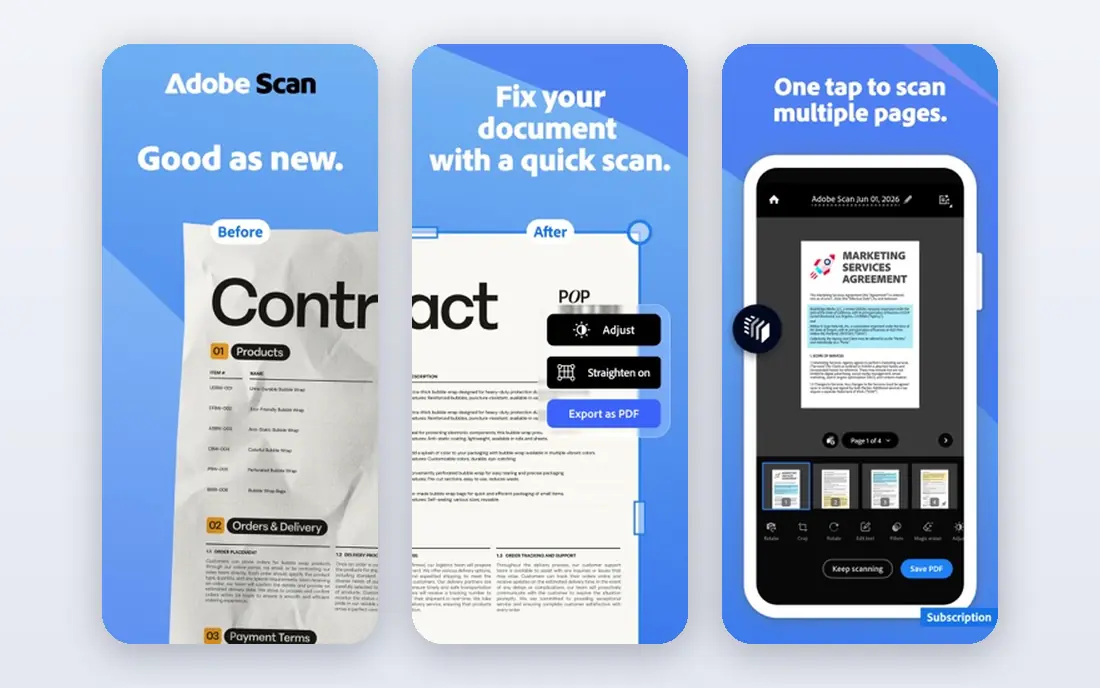
Adobe Scan is our pick for most phone users who need PDF text extraction. Point the camera at a page, and the app detects edges, cleans up the image, and creates a searchable PDF with OCR text that can be copied. That workflow covers receipts, contracts, study notes, and forms in one app.
The free version handles core scanning, OCR, and PDF creation, while a paid plan adds more OCR pages, file combining, and export to Word, Excel, and PowerPoint. Integration with Acrobat Reader lets users annotate, highlight, and sign scanned PDFs. Sync through Adobe Document Cloud keeps files available on phone, tablet, and computer.
The limits are in editing and export. Recognizing text is not the same as editing it, and full text editing in a scanned PDF requires an Acrobat subscription. OCR also has monthly page limits on some plans, so heavy users should check the current limits. For everyday extraction, though, Adobe Scan is the most complete phone option.
- Strong OCR
- Auto edge detection
- Syncs with Adobe Document Cloud
- Advanced export needs a paid plan
- Text editing needs Acrobat
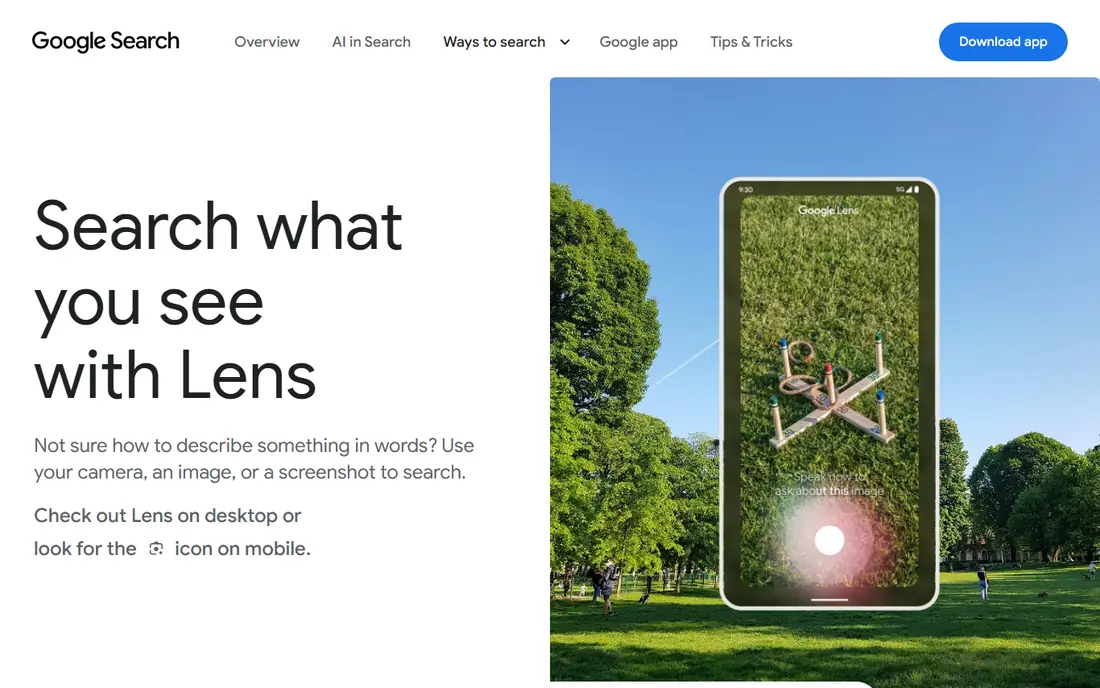
Google Lens is the fastest way to extract a short passage without opening a scanner app. Point the camera at printed text, select the passage, and copy it to the phone or to a computer through Chrome. It supports many languages and can translate text on the spot, which helps with menus, signs, and foreign documents.
Lens is built into Android and the Google app on iPhone, so most users already have it. There is no subscription, no file limit for casual use, and no setup beyond opening the camera. For a quote, an address, or a paragraph from a book, Lens is quicker than a full scan.
The trade-off is scope. Lens is not designed for multi-page PDFs, batch extraction, or keeping layout intact. Long documents, tables, and small type can produce errors, and results need checking. Use Lens for quick grabs, and Adobe Scan or PDFelement for full documents.
- Free
- Instant camera text capture
- Translation and copy to computer
- Not a full PDF editor
- Accuracy varies on long documents
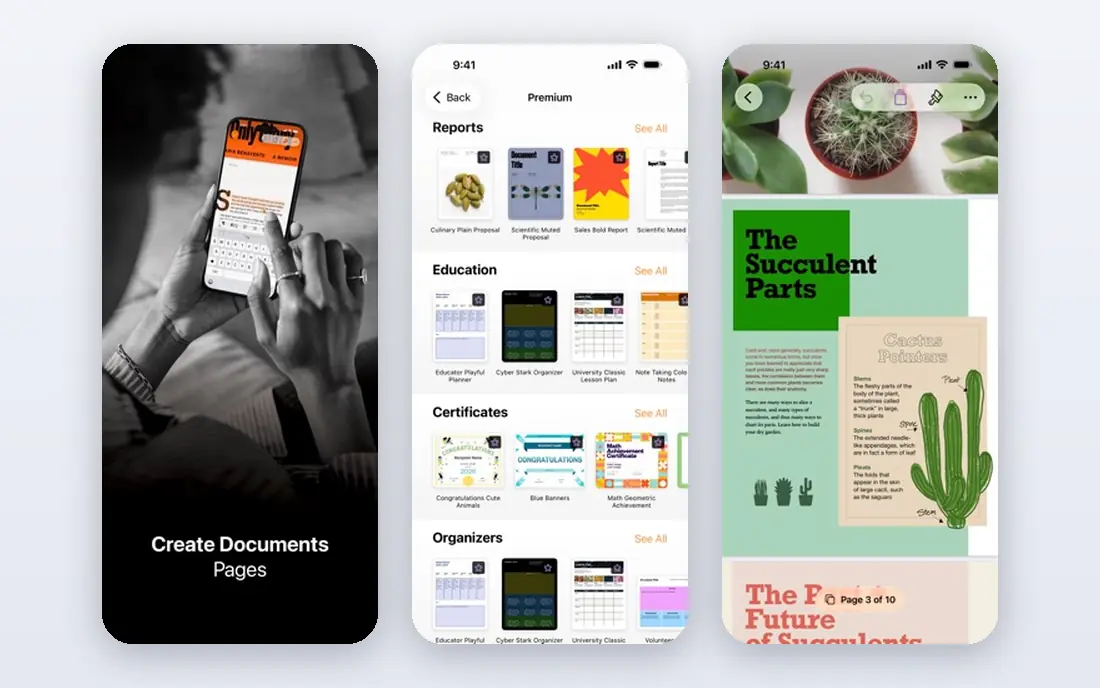
Apple Notes is the best built-in option for iPhone users who want PDF extraction without a new app. The camera scan feature captures documents, and Live Text makes text in scans selectable and searchable on device. That on-device processing is a privacy plus, since images do not need to leave the phone for basic recognition.
Scans save as PDFs or images inside a note, where users can annotate, share, and search them. The workflow is simple: open a note, tap the camera, scan, and copy text from the scan. For receipts, forms, and study notes, that is often enough without a paid scanner.
The limits are platform and depth. Apple Notes only runs on Apple devices, and it lacks the batch OCR, layout retention, and export options of dedicated PDF apps. Users who need to extract tables or convert many PDFs to Word should use Adobe Scan or PDFelement instead. For quick iPhone extraction, Notes is excellent.
- Built into iPhone and iPad
- On-device text recognition
- No extra account needed
- IPhone and iPad only
- Limited export formats compared with dedicated scanners
Microsoft OneDrive now carries the scanning role that Microsoft Lens once held, after Lens was retired in early 2026. The OneDrive mobile app includes a scan feature that captures documents and saves them as PDFs, with text recognition that makes scans searchable. That makes OneDrive a practical default for Microsoft 365 users.
Files sync to OneDrive cloud storage, so scans are available on phone, tablet, and computer without manual transfer. The free tier includes 5 GB of storage, and Microsoft 365 plans add much more. Sharing from OneDrive is straightforward, with link permissions and expiry options.
The OCR is lighter than Adobe Scan for complex layouts, and the best experience comes with a Microsoft account and, for larger storage, a paid plan. OneDrive suits users who already store files in Microsoft cloud and want scanning built in, rather than a separate scanner app.
- Built-in scanner in OneDrive app
- Syncs across devices
- Free storage tier
- OCR depth is lighter than Adobe Scan
- Best with a Microsoft account
CamScanner is a long-running mobile scanner with strong batch features. Users can scan many pages in one session, enhance images, and export as PDF, JPG, Word, or text in supported plans. OCR turns scanned pages into searchable text that can be copied or exported, which covers the core extraction job well.
The app suits students and office workers who scan stacks of paper at once. Auto-crop, perspective correction, and image enhancement help with skewed photos and poor lighting. Sharing options include links, email, and cloud drives, which make it easy to send extracted files to colleagues.
The free version has limits, including watermarks on some exports and caps on OCR and batch features. A subscription, starting around 4.99 dollars per month in some listings, removes those limits. CamScanner is best for batch work, but casual users may prefer the free depth of Adobe Scan or Apple Notes.
- Batch scanning
- Many export formats
- Good auto-crop and enhancement
- Free version has limits and watermarks on some exports
- Subscription needed for full features
PDFelement, from Wondershare, is a full PDF editor with strong OCR on mobile and desktop. On a phone, users can open a PDF, run OCR, extract text, and edit or annotate the result. That makes it a good pick when extraction is only the first step and editing follows.
Layout retention is a strength. Tables, columns, and formatting survive extraction better than in simple camera apps, which matters for reports and forms. The mobile app syncs with desktop versions, so a file started on a phone can be finished on a computer. Pricing starts around 6.99 dollars per month in some listings, with annual plans available.
The downside is weight and cost. PDFelement is more complex than Adobe Scan or Google Lens, and full OCR requires a paid plan. Casual users who only need a short passage should use Lens or Notes. Users who edit PDFs regularly will find PDFelement worth the subscription.
- Full PDF editing plus OCR
- Good layout retention
- Desktop and mobile apps
- Subscription needed for full OCR
- Heavier than a simple scanner
SwiftScan, formerly Scanbot, is a fast, clean scanner for iPhone and Android. It captures documents quickly, enhances images, and exports as PDF or JPG, with OCR that makes scanned text searchable and copyable in supported plans. The interface stays simple, which helps users who scan often and want speed over extras.
The app suits receipts, business cards, and multi-page documents, with folders and cloud upload to common storage services. SwiftScan also supports QR code scanning and workflow shortcuts that send scans to email or cloud folders. That speed makes it a good daily driver for office use.
The limits are plan-based. Some OCR and export features require a paid plan, and the ecosystem is smaller than Adobe Document Cloud. SwiftScan is best for users who value speed and a clean interface, and who do not need deep PDF editing.
- Fast scanning
- Clean interface
- Good PDF and JPG export
- OCR features vary by plan
- Smaller ecosystem than Adobe
Genius Scan is a simple scanner that focuses on doing one job well: capture a document, clean it up, and save it as a PDF. Auto-detection finds page edges, perspective correction straightens skewed photos, and batch scanning handles multi-page documents. OCR in supported versions makes text searchable.
The interface is uncluttered, which suits users who find larger scanner apps overwhelming. Files can be exported to email, cloud storage, and other apps, and the app works offline for capture, which helps in areas with weak signal. A one-time purchase option has been offered in some regions, which appeals to users who dislike subscriptions.
The OCR depth is lighter than Adobe Scan or PDFelement, and editing tools are basic. Genius Scan is best for users who want a simple, reliable scanner with occasional text extraction, rather than a full PDF workstation on a phone.
- Simple interface
- Good auto-detection
- One-time purchase option in some regions
- OCR is lighter than Adobe Scan
- Fewer editing tools
Microsoft OneNote is a useful extraction tool for note-takers, since it can copy text from any image dropped into a note. Users can photograph a page, paste it into OneNote, and extract the text for editing, searching, or sharing. That workflow suits students and professionals who already keep notes in OneNote.
Sync across Windows, Mac, iOS, Android, and web keeps extracted text available everywhere. OneNote also handles handwriting recognition reasonably well in supported languages, which helps with handwritten notes. The core app is free, with full Microsoft 365 adding more storage and features.
The limits are format and layout. OneNote extraction works on images, not as a full PDF editor, and tables or complex layouts may not survive cleanly. Users who need to extract text from a long PDF with layout intact should use PDFelement or Adobe Scan. For notes and short passages, OneNote is a strong free option.
- Copy text from pictures in notes
- Syncs across devices
- Free core app
- OCR is image-based, not full PDF editing
- Layout can shift
How we picked these
We compared official app pages, app store listings, OCR features, export options, and pricing, and we checked that each homepage loads and belongs to the listed product. We favored apps with current availability on iOS or Android, a clear extraction workflow, and a free tier or trial. We did not claim hands-on OCR accuracy testing, and we excluded Microsoft Lens, which was retired in early 2026.
How to get cleaner extractions
Good input matters more than app choice. Photograph pages in bright, even light, keep the phone steady and parallel to the page, and avoid shadows and glare. For existing PDFs, use a dedicated OCR tool rather than a camera app, since born-digital PDFs often contain text already.
Checking and exporting results
Always proofread extracted text, especially names, numbers, dates, and table values, since OCR can misread similar characters. Export to a format that fits the next step: plain text for quotes, Word for editing, or searchable PDF for archiving. Keep the original scan or PDF as a backup until the extracted text is verified.
Sources
- https://www.adobe.com/acrobat/mobile/scanner-app.html
- https://lens.google
- https://www.apple.com/notes
- https://www.onedrive.com
- https://www.camscanner.com
- https://pdf.wondershare.com
- https://swiftscan.app
- https://thegrizzlylabs.com/genius-scan
- https://www.onenote.com
- https://pdf.wondershare.com/ocr/image-to-text-converter-app.html
- https://thedolceway.com/blog/document-scanner-apps-free-vs-paid
Frequently asked questions
What is the best PDF extraction app for phone?
Adobe Scan is the best all-round phone app for PDF extraction, with strong OCR, auto edge detection, and cloud sync. Google Lens is best for quick free grabs, while Apple Notes is best built-in on iPhone. The right pick depends on whether you need full documents or short passages.
Can I extract text from a PDF on my phone for free?
Yes, Adobe Scan, Google Lens, Apple Notes, and OneDrive all offer free text extraction for basic use. Free tiers may limit OCR pages, batch size, or export formats. For occasional extraction, a free tier is usually enough, while heavy users may need a paid plan.
Does Adobe Scan extract text from PDFs?
Yes, Adobe Scan uses OCR to make scanned text searchable and copyable, and it can export text to other formats in paid plans. Recognizing text is different from fully editing it, which requires an Acrobat subscription. Check the current OCR page limits before scanning a large archive.
How accurate is phone OCR?
Phone OCR is accurate on clean printed text in good light, but accuracy drops on handwriting, small type, glare, skewed photos, and complex tables. Always check important details against the original page. For critical documents, such as contracts, verify every number and name by hand.
What happened to Microsoft Lens?
Microsoft retired Microsoft Lens from app stores in early 2026 and stopped new scans in March 2026. Microsoft now recommends the built-in scanner in the OneDrive app. Users who relied on Lens should move to OneDrive, Adobe Scan, or another scanner on this list.
Can I extract text from a scanned PDF without an app?
On iPhone, Apple Notes and Live Text can extract text from scans without a separate scanner app. On Android, Google Lens can extract text from a camera view or image. For full multi-page PDFs, a dedicated app such as Adobe Scan or PDFelement gives cleaner results.