Best PDF Remover Tool in 2026: 8 Tools Compared
By ToolNimba Editorial Team November 9, 2026 9 min read

- Top pick
 Smallpdf
Quick online page removal
Starting priceFreeCheck out SmallpdfRead our review - Runner-up
 iLovePDF
All-round online PDF tools
Starting priceSee websiteCheck out iLovePDFRead our review - Also great
 PDF24 Tools
Free unlimited online tools
Starting priceFreeCheck out PDF24 ToolsRead our review
How we researched this
We compared official pricing and feature pages, app store listings, privacy policies and public user reviews. Prices change, so check the provider's site before you pay.
Key takeaways
- For a one-off job, a free browser tool such as PDF24 or Smallpdf is fastest, with no install needed.
- If the document is sensitive, pick a tool that processes files in your browser or offline, such as PDFsam Basic or PDFpresso.
- Free tiers cap daily tasks or hourly tasks, so heavy users should check limits before relying on a free plan.
- Adobe Acrobat is the safest pick for legal or compliance work, where bookmarks, links, and form fields must survive.
- Always keep a copy of the original PDF, since page deletion cannot be undone once you export and close the file.
Quick comparison
| Name | Best for | Starting price | Free plan | |
|---|---|---|---|---|
| Smallpdf | Quick online page removal | Free | Yes | Visit |
| iLovePDF | All-round online PDF tools | See website | Yes | Visit |
| PDF24 Tools | Free unlimited online tools | Free | Yes | Visit |
 Sejda | Privacy-conscious online editing | Free | Yes | Visit |
 Adobe Acrobat | Professional and legal work | See website | Free trial | Visit |
 PDFsam Basic | Free offline page removal | Free | Yes | Visit |
 Foxit | Free online tools plus desktop suite | Free | Yes | Visit |
 PDFpresso | Private in-browser deletion | Free | Yes | Visit |
The best PDF remover tool
Removing pages from a PDF should take under a minute, but the right tool depends on privacy, volume, and whether the rest of the document must stay intact. The eight tools below cover quick browser jobs, free offline work, and professional editing, with honest notes on limits.
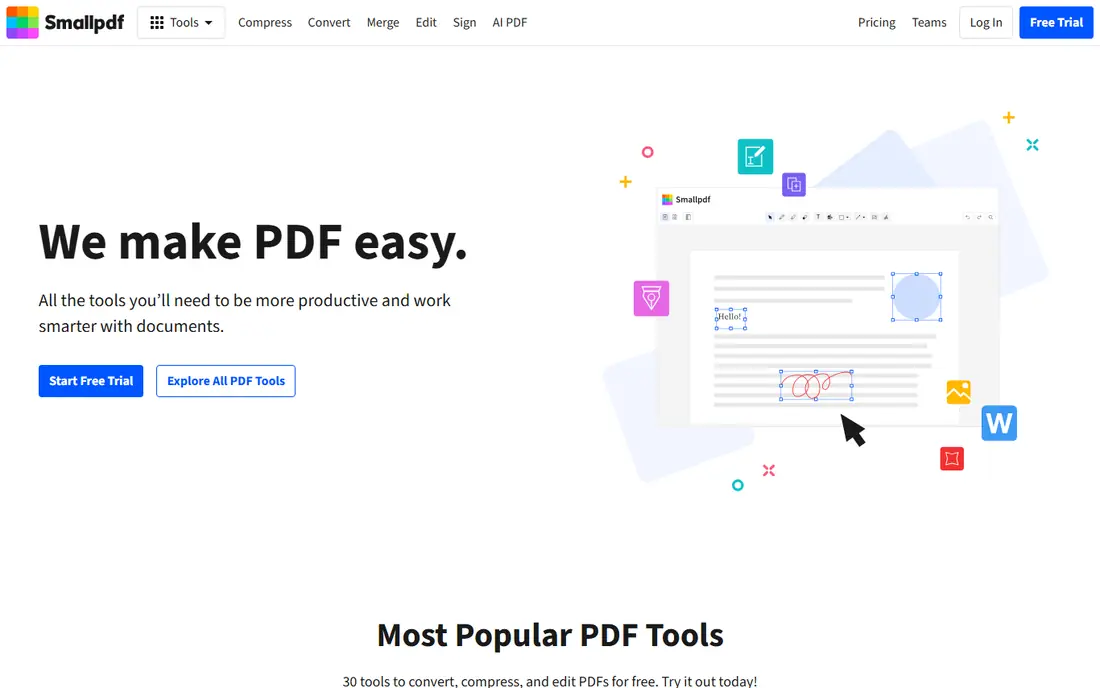
Smallpdf is the tool most people reach for first, and for good reason. Upload a PDF, click the thumbnails of the pages you want gone, and download the trimmed file. The interface is clear, it works on any device with a browser, and the basic delete-pages tool needs no account.
The limit is volume. The free tier allows only a couple of tasks per day, so it suits occasional use rather than daily document work. Paid Pro plans start around $12 per month on monthly billing and remove those limits. If you delete pages a few times a month, Smallpdf is the simplest pick; if you do it daily, look at PDF24 or PDFsam.
- Clean thumbnail interface
- No sign-up for basic use
- Fast processing
- Free tier limits daily tasks
- Files are uploaded to Smallpdf servers
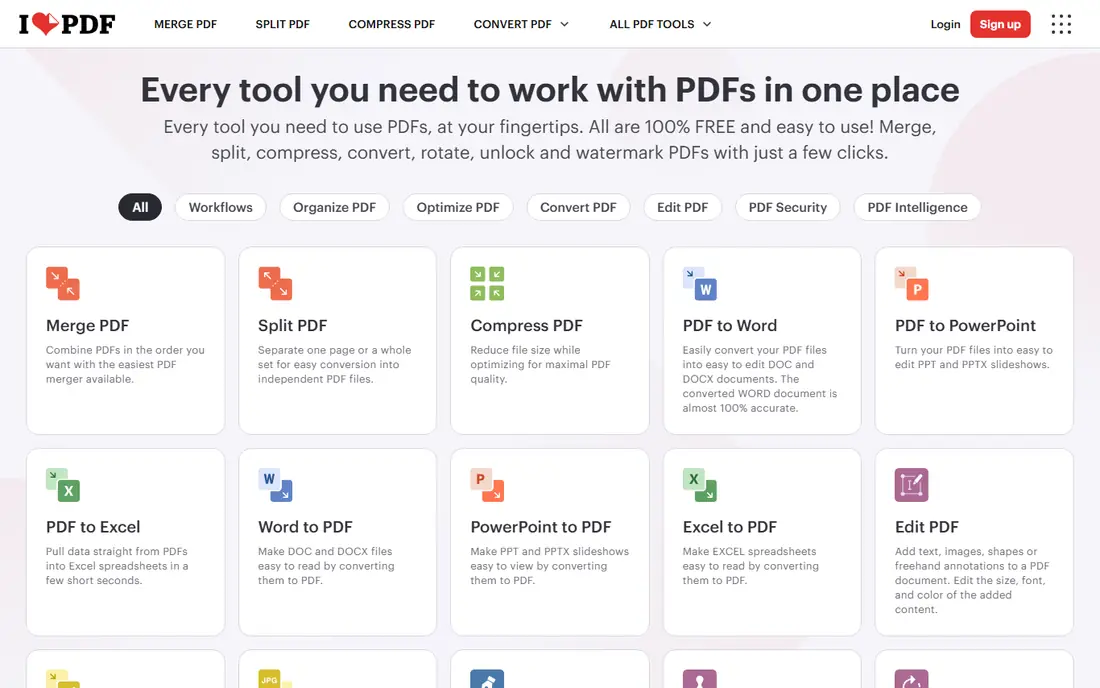
iLovePDF suits people who delete pages as one job among many. Beyond page removal, it merges, splits, compresses, converts, and signs PDFs, so one account covers most document chores. Its apps for web, mobile, and desktop mean a file started on a phone can finish on a computer.
Free use has per-task file caps, and the fuller editor needs Premium, so confirm the current price on the iLovePDF site before paying. Page-level operations such as deleting, reordering, and rotating pages are available on the free tier, which covers this article's job. For a household or small office that touches PDFs weekly, iLovePDF is a practical all-rounder.
- Wide PDF toolkit beyond page removal
- Mobile and desktop apps
- Simple interface
- Free tier has per-task limits
- Full editing features need Premium
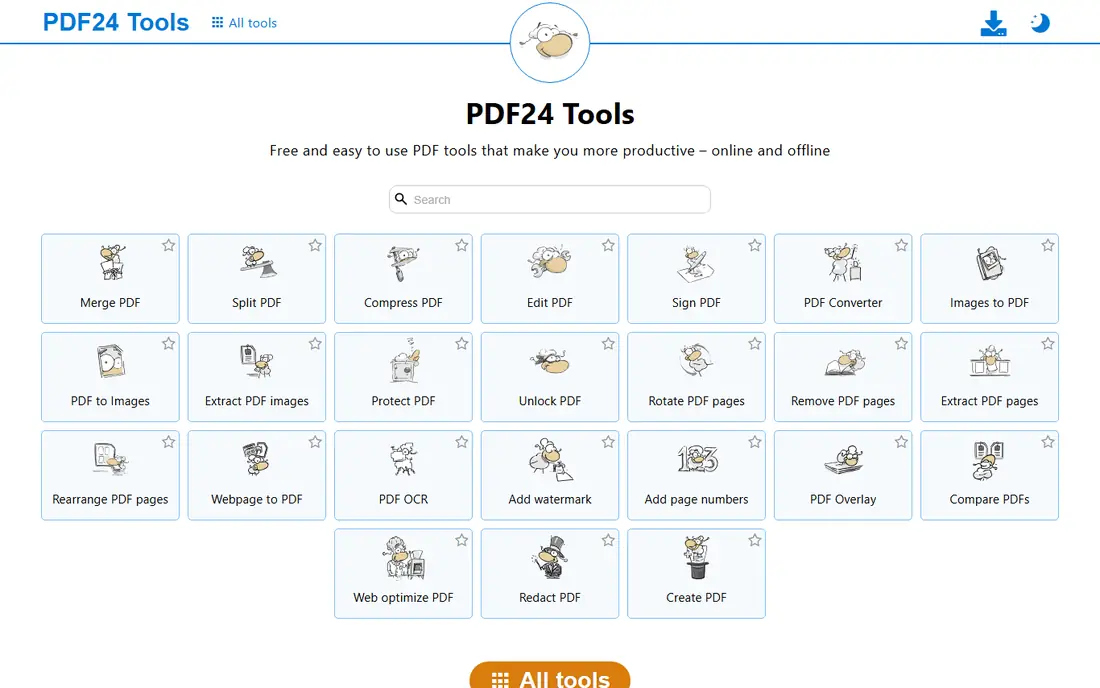
PDF24 Tools is the best free online option for frequent use. Its delete-pages tool has no account requirement and no published daily limit, and the wider toolkit covers merging, splitting, compressing, and converting. A desktop app is available for users who prefer working offline for some jobs.
The trade-off is privacy and polish. Files are uploaded for processing, so sensitive documents deserve a browser-local or offline tool instead. The interface is functional rather than beautiful. If your priority is free, unlimited, no-sign-up page removal for ordinary documents, PDF24 is hard to beat.
- No account and no stated task limits
- Large toolkit
- Desktop app available
- Files are uploaded to PDF24 servers
- Interface feels less modern than rivals
Sejda earns its place on privacy and clarity. Its free tier deletes pages without adding a watermark, and files are removed from Sejda servers after processing, with a stated retention window. The interface shows page thumbnails clearly, so you can see exactly what you are removing before you commit.
The limit is frequency: the free plan allows only a few tasks per hour, which frustrates batch work. Paid plans start around $7.50 per month billed annually and raise those caps. For occasional sensitive documents where you want a clean, watermark-free result, Sejda is a strong pick, provided you are not in a hurry.
- No watermark on free output
- Files deleted from servers after processing
- Clear task limits
- Free plan allows only a few tasks per hour
- Larger files need a paid plan
Adobe Acrobat is the professional standard for a reason. Its Organize Pages view lets you delete, reorder, rotate, and extract pages, and it preserves the parts of a PDF that cheaper tools can break, such as bookmarks, links, and form fields. For contracts, filings, and client documents, that reliability matters more than saving a few dollars.
The cost is the barrier. Acrobat Pro is a subscription product, with pricing that varies by plan and region, so check the Adobe site for the current figure, and a free trial covers short-term needs. If you only delete pages once a year, a free tool will do. If documents carry legal weight, Acrobat is the safe choice.
- Most reliable preservation of links, bookmarks, and form fields
- Trusted for compliance work
- Online and desktop tools
- Paid plans are expensive for a single job
- Online free tools are limited
PDFsam Basic is the best free offline option. It runs on Windows, Mac, and Linux, processes files on your own computer, and has no task limits, so sensitive documents never leave your device. It is open source, which means its behavior is transparent and its future does not depend on one company's pricing change.
The workflow is slightly indirect: you remove pages by splitting a PDF around the unwanted pages or by merging the ranges you want to keep, rather than clicking a trash icon. That takes a minute to learn, but it is reliable once learned. For regular, private, or large-file work, PDFsam Basic is the tool we would install first.
- Free and open source
- Fully offline
- No file size or task limits
- Requires installation
- Page removal works through split and merge rather than a single delete button
Foxit covers both quick online jobs and serious desktop editing. Its free online tool lets you open a PDF in thumbnail view, delete pages with a click, and save the result, with files handled over secure connections and auto-deleted after processing. The desktop Foxit PDF Editor adds the deeper editing, forms, and signing features that offices need.
The online tool uploads your file, so it is not the pick for highly sensitive documents, and the desktop suite's full features sit behind a paid plan with a free trial. For teams already using Foxit, or users who want a free online tool from an established PDF company, it is a solid, low-friction choice.
- Free online delete-pages tool
- Files auto-deleted after processing
- Desktop PDF editor available
- Online tool uploads files to Foxit servers
- Full desktop features need a paid plan
PDFpresso is the privacy-first browser option. Page deletion runs in your browser, so the file never leaves your device, and it costs nothing with no account and no task limit for deletion itself. The thumbnail grid makes it easy to see exactly which pages you are cutting before you download.
The honest catch matters for text documents: PDFpresso rebuilds pages as images, so text in the output is no longer selectable or searchable. For scans and photographed documents, that changes nothing. For text PDFs where the text layer must survive, pick Smallpdf, PDF24, or PDFsam instead. For private, quick deletions of scans, PDFpresso is excellent.
- Page deletion is free and processed in your browser
- Visual thumbnail selection
- No account needed
- Output pages are rebuilt as images, so text is no longer selectable
- Paid features cover compression and merging
How we picked these
We compared official product and pricing pages and recent independent comparisons, and kept only tools that delete PDF pages today without watermarks on the core job, except where noted. We favored tools with clear free limits, stated file handling, and intact output, and we left out tools that only split PDFs into single pages or require a paid plan for any deletion. Prices change often, so confirm the current figure on each vendor site before you buy.
How to delete pages safely
Start by saving a copy of the original PDF under a new name. Deletion is permanent once you export, and a backup is the only undo button. Then choose by sensitivity: for ordinary documents, any browser tool works; for contracts, medical forms, or financial records, use PDFsam Basic offline or PDFpresso in your browser.
After deletion, open the result and check it before sending. Flip through the remaining pages, confirm the page order, and test any links, bookmarks, or form fields that matter. If the file must stay small for an upload portal, compress it as a separate step, since deletion alone rarely shrinks a file much. A two-minute check avoids the embarrassment of sending a document with a missing section.
When to pay instead of using a free tool
Pay when volume, privacy, or document integrity demands it. Daily users hit free task caps quickly, and a paid plan removes that friction. Legal and compliance teams should pay for Acrobat or a desktop editor that preserves document structure. Everyone else can stay free: PDF24 for volume, PDFsam for privacy, and Smallpdf or Sejda for occasional polished jobs cover most needs.
Sources
Frequently asked questions
Can I delete pages from a PDF for free?
Yes. PDF24, PDFsam Basic, PDFpresso, and the free tiers of Smallpdf, iLovePDF, and Sejda all delete pages without payment. Free online tiers usually limit how many tasks you can run per day or per hour, so check the limit if you process many files.
Will deleting pages break links or bookmarks?
It can. Links pointing to a removed page will break, and page-number references may now be wrong. Adobe Acrobat preserves document structure best, so use it for documents where links, bookmarks, or form fields matter, and check the result before sending.
Is it safe to upload a sensitive PDF to an online tool?
For ordinary documents, reputable tools use secure connections and delete files after processing. For sensitive documents, prefer a tool that processes files in your browser, such as PDFpresso, or offline, such as PDFsam Basic, so the file never reaches a server.
Can I delete pages on my phone?
Yes. Browser tools such as Smallpdf, iLovePDF, and PDF24 work on mobile browsers, though selecting thumbnails on a small screen is fiddlier than on a computer. For frequent mobile work, the iLovePDF or Smallpdf apps are easier than a browser tab.
How do I delete only some pages, not a whole range?
Most tools here show page thumbnails. Click each page you want gone, including non-consecutive pages, then confirm and download. PDFsam Basic handles this through split ranges, which takes a little more setup but gives the same result.
Why is my PDF still large after deleting pages?
Most of a PDF's size sits in images and fonts, not page count. Deleting pages helps, but compressing the file as a separate step, with a tool such as Smallpdf or PDF24, usually shrinks it far more.