Best PDF Software in 2026: 9 Options Compared
By ToolNimba Editorial Team November 9, 2026 12 min read

- Top pick
 Adobe Acrobat
Reference PDF editor for professionals
Starting price$12.99 per monthCheck out Adobe AcrobatRead our review - Runner-up
 Foxit PDF Editor
Acrobat-level editing for less
Starting price$10.99 per monthCheck out Foxit PDF EditorRead our review - Also great
 PDFelement
Best value full desktop editor
Starting price$9.08 per monthCheck out PDFelementRead our review
How we researched this
We compared official pricing and feature pages, app store listings, privacy policies and public user reviews. Prices change, so check the provider's site before you pay.
Key takeaways
- Adobe Acrobat is the reference editor, but its subscription is the most expensive here.
- PDFelement and Foxit give you most Acrobat features for less, with perpetual options in some cases.
- Smallpdf and iLovePDF suit quick browser jobs, while PDFgear and PDF-XChange suit free desktop use.
- For sensitive files, prefer a desktop editor that processes files locally over a browser tool that uploads them.
Quick comparison
| Name | Best for | Starting price | Free plan | |
|---|---|---|---|---|
| Adobe Acrobat | Reference PDF editor for professionals | $12.99 per month | Yes | Visit |
| Foxit PDF Editor | Acrobat-level editing for less | $10.99 per month | Yes | Visit |
| PDFelement | Best value full desktop editor | $9.08 per month | Yes | Visit |
 Nitro PDF Pro | Windows teams standardising on one tool | $15 per month | Free trial | Visit |
 PDF Expert | Mac and iPad users who want a polished editor | $79.99 per year | Yes | Visit |
 Smallpdf | Quick browser conversions and merges | $12 per month | Yes | Visit |
 iLovePDF | Browser PDF tools with a low yearly price | See website | Yes | Visit |
 PDF-XChange Editor | Free desktop editing with a one-time Pro option | $62 one-time | Yes | Visit |
 PDFgear | Free full editing without a subscription | Free | Yes | Visit |
The best PDF software
Most people need only a few PDF jobs: read, sign, merge, compress, and edit text. Free tools cover the first group well. Paid desktop editors earn their price when you edit text often, handle scans with OCR, redact sensitive content, or work with forms at volume.
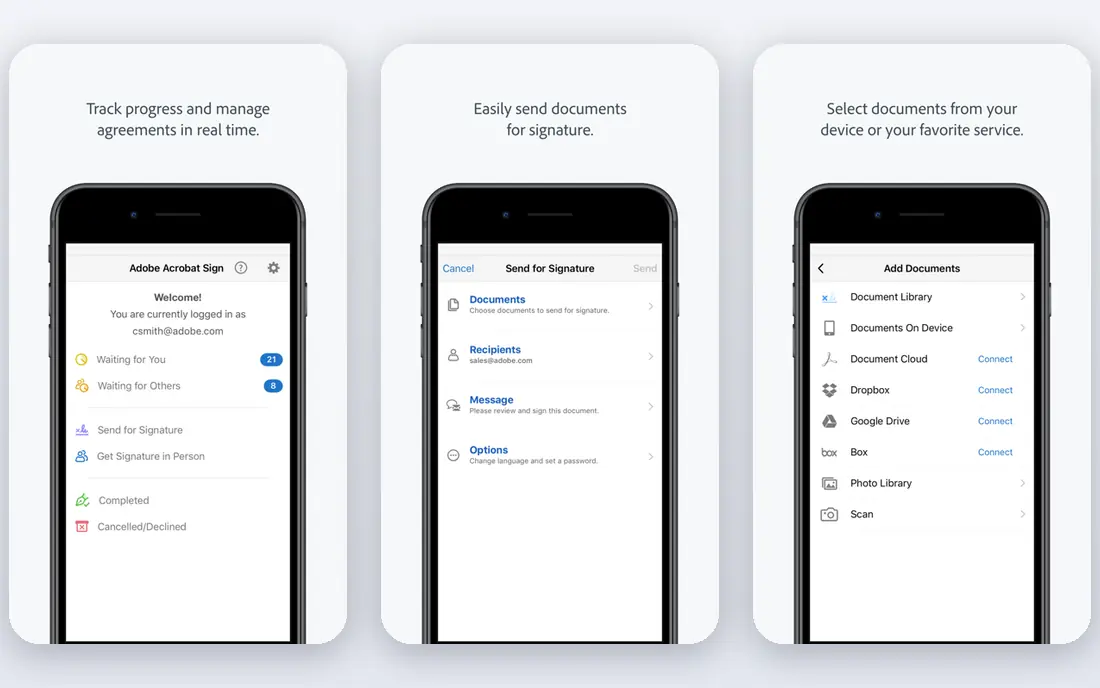
For readers who want reference pdf editor for professionals, Adobe Acrobat is a natural place to start. Acrobat sets the standard for PDF editing, with reliable text editing, OCR for scans, form tools, and redaction. If a client or court expects a standard tool, this is the safe pick. That focus matters because it shapes what you see each day, what you pay for, and what you can skip. We compared its official feature and pricing pages with what other users report, and the picture is consistent: the core tools work as described, while the extras vary in value.
The price and the annual-plan cancellation fee are the downsides. Standard starts near $12.99 a month and Pro near $19.99 to $22.99, so casual users will overpay. Before you commit, check the current price at checkout, read the cancellation terms, and try the free tier or trial if one is offered. If the fit feels right, it is a sensible pick. If it feels forced, move on rather than paying for features you will not use.
- Full text and image editing
- Strong OCR
- Forms, signing, and redaction
- Subscription only
- Pro is pricier
- Cancellation terms on annual plans need care
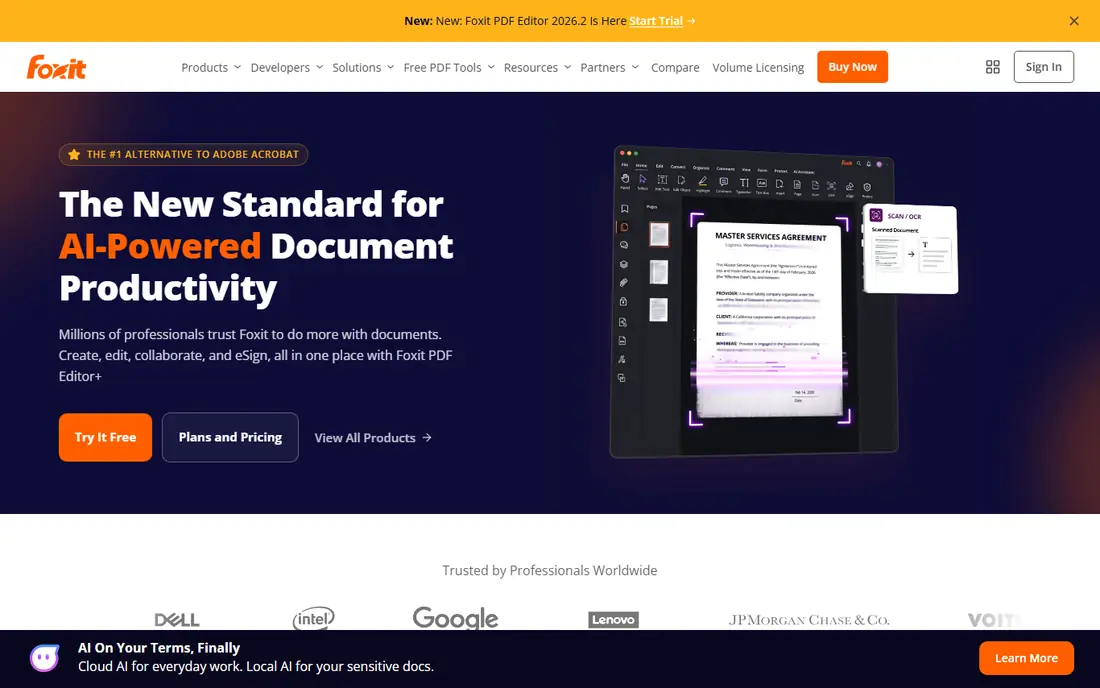
Foxit PDF Editor suits readers who put acrobat-level editing for less first, and it shows in how the service is set up. Foxit covers most Acrobat jobs, including editing, forms, and redaction, at a lower monthly price. It also offers a perpetual licence in some listings, which suits buyers who dislike subscriptions. That focus matters because it shapes what you see each day, what you pay for, and what you can skip. We compared its official feature and pricing pages with what other users report, and the picture is consistent: the core tools work as described, while the extras vary in value.
The base AI allowance is small, and the interface packs in many tools. It is best for regular editors who will use the depth, not for one-off merges. Before you commit, check the current price at checkout, read the cancellation terms, and try the free tier or trial if one is offered. If the fit feels right, it is a sensible pick. If it feels forced, move on rather than paying for features you will not use.
- Full editing
- OCR and forms
- Collaboration tools
- Perpetual option in some listings
- AI credits are limited on base plans
- Interface is busy
- Price varies by tier
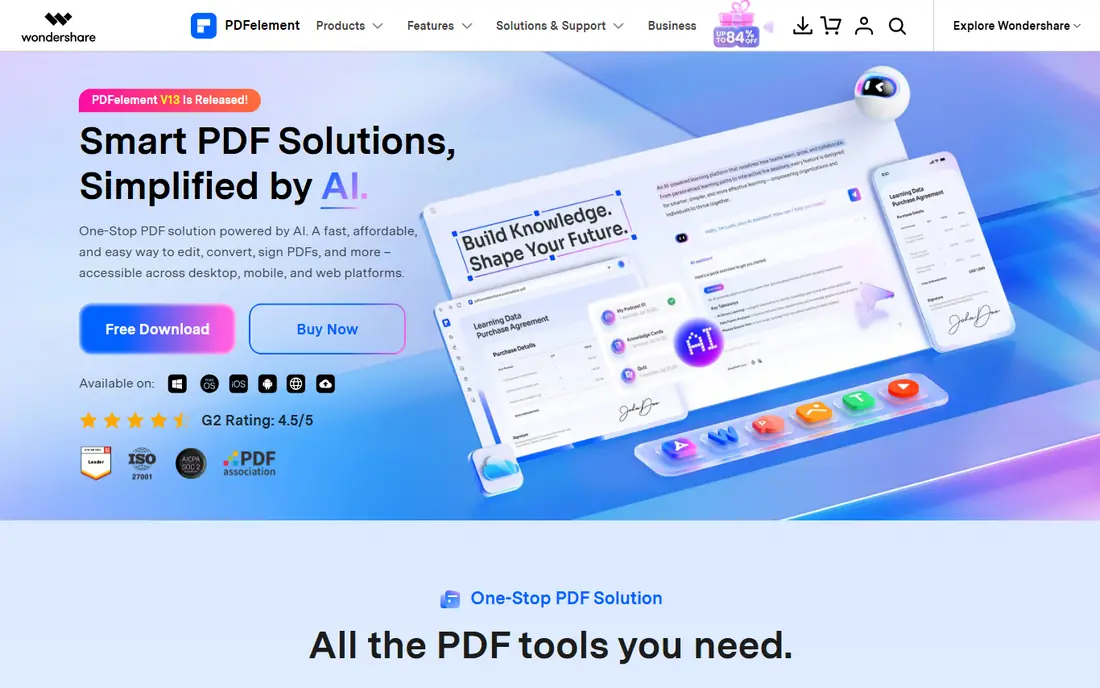
If best value full desktop editor is your main goal, PDFelement deserves a close look before you pay anywhere else. PDFelement gives you desktop editing on Windows, Mac, and mobile at a lower subscription price than Acrobat, with AI tools included in recent plans. That focus matters because it shapes what you see each day, what you pay for, and what you can skip. We compared its official feature and pricing pages with what other users report, and the picture is consistent: the core tools work as described, while the extras vary in value.
Promotional pricing can confuse the real yearly cost, so check the renewal price, not just the first-year offer. For everyday editing, it is still strong value. Before you commit, check the current price at checkout, read the cancellation terms, and try the free tier or trial if one is offered. If the fit feels right, it is a sensible pick. If it feels forced, move on rather than paying for features you will not use.
- Full editing across platforms
- OCR and forms
- AI tools included in some plans
- Perpetual pricing varies by promotion
- AI limits vary
- Support quality varies
Nitro PDF Pro takes a different route to windows teams standardising on one tool, which is part of its appeal. Nitro suits Windows teams that want one editor for editing, signing, and collaboration, with AI document tools included in recent plans. That focus matters because it shapes what you see each day, what you pay for, and what you can skip. We compared its official feature and pricing pages with what other users report, and the picture is consistent: the core tools work as described, while the extras vary in value.
Mac users should check the current Mac offering carefully, since Nitro has long been Windows-first. Teams on mixed platforms may prefer Acrobat or Foxit. Before you commit, check the current price at checkout, read the cancellation terms, and try the free tier or trial if one is offered. If the fit feels right, it is a sensible pick. If it feels forced, move on rather than paying for features you will not use.
- Full editing
- Collaboration and signing
- Document assistant tools
- Windows-focused
- Price is near Acrobat
- Mac support is lighter
Readers focused on mac and ipad users who want a polished editor will find PDF Expert easy to understand from the first visit. PDF Expert is the most polished PDF editor for Apple users, with fast annotation, signing, and editing on Mac and iPad. That focus matters because it shapes what you see each day, what you pay for, and what you can skip. We compared its official feature and pricing pages with what other users report, and the picture is consistent: the core tools work as described, while the extras vary in value.
It is less proven as a Windows-first choice, and the yearly price is high if you only merge or sign files occasionally. Free tools may cover those jobs. Before you commit, check the current price at checkout, read the cancellation terms, and try the free tier or trial if one is offered. If the fit feels right, it is a sensible pick. If it feels forced, move on rather than paying for features you will not use.
- Polished Mac and iPad editing
- Annotation and signing
- OCR on paid plans
- Yearly price is high for casual use
- Windows version is newer
- Some features need paid plan
Smallpdf is best judged on one question: does it deliver quick browser conversions and merges without extra fuss. Smallpdf is the easiest way to merge, split, or compress a PDF without installing software. The browser tools are clear and fast for occasional jobs. That focus matters because it shapes what you see each day, what you pay for, and what you can skip. We compared its official feature and pricing pages with what other users report, and the picture is consistent: the core tools work as described, while the extras vary in value.
Free use is limited, and files are uploaded for processing, so avoid it for highly sensitive documents. Paid plans give access to batch work and OCR. Before you commit, check the current price at checkout, read the cancellation terms, and try the free tier or trial if one is offered. If the fit feels right, it is a sensible pick. If it feels forced, move on rather than paying for features you will not use.
- Browser tools for merge, split, compress, and convert
- E-signing
- Mobile apps
- Free tier is limited
- Uploads files to the cloud
- Deep editing needs desktop tools
For browser pdf tools with a low yearly price, iLovePDF is one of the more dependable names on this list. iLovePDF covers the common browser jobs at a lower yearly price than Smallpdf in many listings, with a simple tool list that is easy to navigate. That focus matters because it shapes what you see each day, what you pay for, and what you can skip. We compared its official feature and pricing pages with what other users report, and the picture is consistent: the core tools work as described, while the extras vary in value.
It is not a replacement for a desktop editor if you edit text or redact often. Use it for conversions and merges, and keep a desktop editor for deeper work. Before you commit, check the current price at checkout, read the cancellation terms, and try the free tier or trial if one is offered. If the fit feels right, it is a sensible pick. If it feels forced, move on rather than paying for features you will not use.
- Merge, split, compress, and convert in the browser
- Signing tools
- Desktop app in some plans
- Free tier is limited
- Deep text editing is not the focus
- Cloud processing for browser tools
PDF-XChange Editor
Best for: Free desktop editing with a one-time Pro option
PDF-XChange Editor earns its place here through its approach to free desktop editing with a one-time pro option, not through hype. PDF-XChange gives Windows users a generous free editor, with a one-time Pro licence for OCR and advanced features. Over three years, that can cost far less than a subscription. That focus matters because it shapes what you see each day, what you pay for, and what you can skip. We compared its official feature and pricing pages with what other users report, and the picture is consistent: the core tools work as described, while the extras vary in value.
The interface is functional rather than pretty, and it is Windows-only. Mac users should look at PDF Expert or a browser tool instead. Before you commit, check the current price at checkout, read the cancellation terms, and try the free tier or trial if one is offered. If the fit feels right, it is a sensible pick. If it feels forced, move on rather than paying for features you will not use.
- Free tier with editing and annotation
- OCR in Pro
- One-time Pro licence
- Windows only
- Interface looks dated
- Some features add watermarks on free tier
When free full editing without a subscription matters most, PDFgear gives you a clear, practical way to get started. PDFgear is the best free full editor here, with editing and conversion at no cost and no subscription to manage. That makes it a strong first try before you pay. That focus matters because it shapes what you see each day, what you pay for, and what you can skip. We compared its official feature and pricing pages with what other users report, and the picture is consistent: the core tools work as described, while the extras vary in value.
Free does not mean equal to Acrobat for OCR volume or enterprise features. If you edit scans daily or need redaction at work, a paid editor may still be worth it. Before you commit, check the current price at checkout, read the cancellation terms, and try the free tier or trial if one is offered. If the fit feels right, it is a sensible pick. If it feels forced, move on rather than paying for features you will not use.
- Free editing, conversion, and annotation
- No subscription
- Desktop and mobile apps
- AI features are limited
- Support is lighter than paid rivals
- Some advanced tools are basic
How we picked these
We compared official feature pages, pricing pages, app store listings, privacy information, and public user feedback for each option, and we kept only products that exist now and truly fit the topic. We checked starting prices and free tiers where the vendor publishes them, and we wrote See website where a price could not be verified from the vendor. We did not claim hands-on testing, and we favoured options with clear terms and a usable free tier or trial where one exists.
How to choose PDF software without overpaying
List the jobs you do each month. If you only read, sign, merge, and compress, a free tool like PDFgear or a browser tool is enough. If you edit text weekly, handle scans, or redact, a desktop editor pays for itself in saved time. Next, check your platform. PDF Expert suits Apple users, PDF-XChange suits Windows users, and Acrobat and Foxit suit mixed teams. Then compare total cost over three years, not just the first month. A perpetual licence can beat a subscription, while a low first-year offer can hide a higher renewal. Finally, think about privacy. Desktop editors process files locally, while browser tools upload them, so keep sensitive contracts and medical forms on desktop tools where possible.
Sources
Frequently asked questions
What is the best PDF software?
Adobe Acrobat is the reference choice for professionals, while PDFelement and Foxit offer most of its features for less. PDFgear is the best free full editor for everyday use.
What is the best free PDF software?
PDFgear offers free editing without a subscription, and PDF-XChange offers a generous free tier on Windows. Smallpdf and iLovePDF offer free browser tools with limits.
Which PDF software is the best for editing?
Adobe Acrobat, Foxit, and PDFelement offer the deepest text editing, OCR, and form tools. Choose based on platform, price, and whether you want a subscription or a perpetual licence.
Is Smallpdf safe for sensitive files?
Browser tools upload files for processing, so they are less suited to highly sensitive documents. Use a desktop editor that processes files locally for contracts and private records.
Do I need to pay for PDF software?
Not always. Reading, signing, merging, and compressing are often free. Pay when you edit text often, need OCR at volume, or must redact and manage forms regularly.