Best Photo Editing Software for Beginners in 2026: 9 Apps Compared
By ToolNimba Editorial Team November 1, 2026 11 min read

- Top pick
 Adobe Lightroom
Beginners who want to grow into serious editing
Starting price$11.99 per monthCheck out Adobe LightroomRead our review - Runner-up
 Canva
Social posts, collages, and quick photo fixes
Starting priceFreeCheck out CanvaRead our review - Also great
 Adobe Photoshop Express
Free phone editing with quick fixes
Starting priceFreeCheck out Adobe Photoshop ExpressRead our review
How we researched this
We compared official pricing and feature pages, app store listings, privacy policies and public user reviews. Prices change, so check the provider's site before you pay.
Key takeaways
- Start free if you can: Photoshop Express, GIMP, Photopea, and the free tiers of Canva, Pixlr, and Fotor cover most beginner edits.
- Adobe Lightroom is our pick for beginners who want to grow, because its presets, masking tools, and mobile app teach a standard editing workflow.
- Luminar Neo suits people who want fast, guided results from AI tools, while Affinity Photo suits people who want a full desktop editor without a subscription.
- Old scanned photos need a different step first: scan at high resolution, then use an enhancer or restoration tool before you crop and color correct.
Quick comparison
| Name | Best for | Starting price | Free plan | |
|---|---|---|---|---|
| Adobe Lightroom | Beginners who want to grow into serious editing | $11.99 per month | Yes | Visit |
| Canva | Social posts, collages, and quick photo fixes | Free | Yes | Visit |
| Adobe Photoshop Express | Free phone editing with quick fixes | Free | Yes | Visit |
 Luminar Neo | Guided AI edits and creative effects | See website | Free trial | Visit |
 Pixlr | Quick browser editing on any computer | Free | Yes | Visit |
 Fotor | One-tap enhancement and fast fixes | Free | Yes | Visit |
 GIMP | Free desktop editing with room to grow | Free | Yes | Visit |
 Photopea | Browser editing with Photoshop-style layers | Free | Yes | Visit |
 Affinity Photo | Full desktop editing without a subscription | Free | Yes | Visit |
The best photo editing software for beginners
We compared official feature pages, pricing pages, and app store listings, and we favored editors that open fast, explain their tools, and let you undo mistakes without fear.
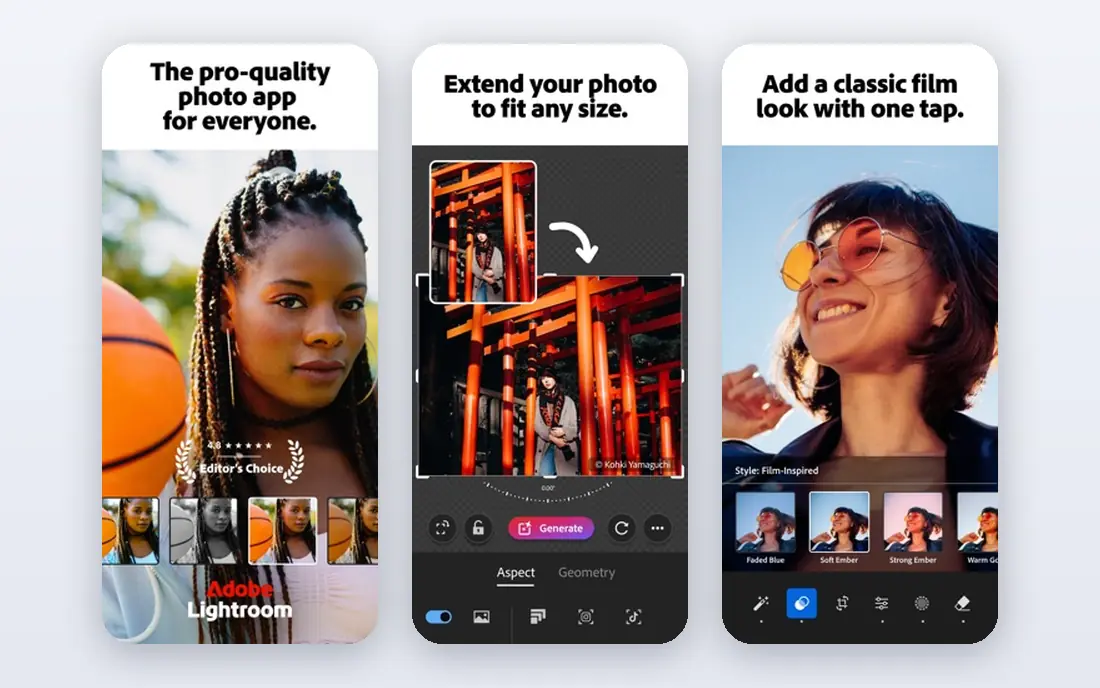
Lightroom feels calm next to a full design program. You import photos, adjust light and color with a short set of sliders, and apply a preset when you want a fast starting point. That structure helps beginners learn what exposure, contrast, and white balance actually do, because each control sits in a clear place and every edit stays non-destructive.
The mobile app is a real strength for new editors. You can start free on a phone, try presets, and move to the desktop app later without relearning the whole system. Batch editing also saves time when a whole set of photos needs the same fix. The catch is cost and storage: the paid plan is a monthly commitment, and heavy shooters will need to watch their cloud plan.
- Clean photo-first layout
- Strong presets and masking tools
- Edits sync across phone, web, and desktop
- Full desktop features need a paid plan
- Cloud storage limits can push costs up over time
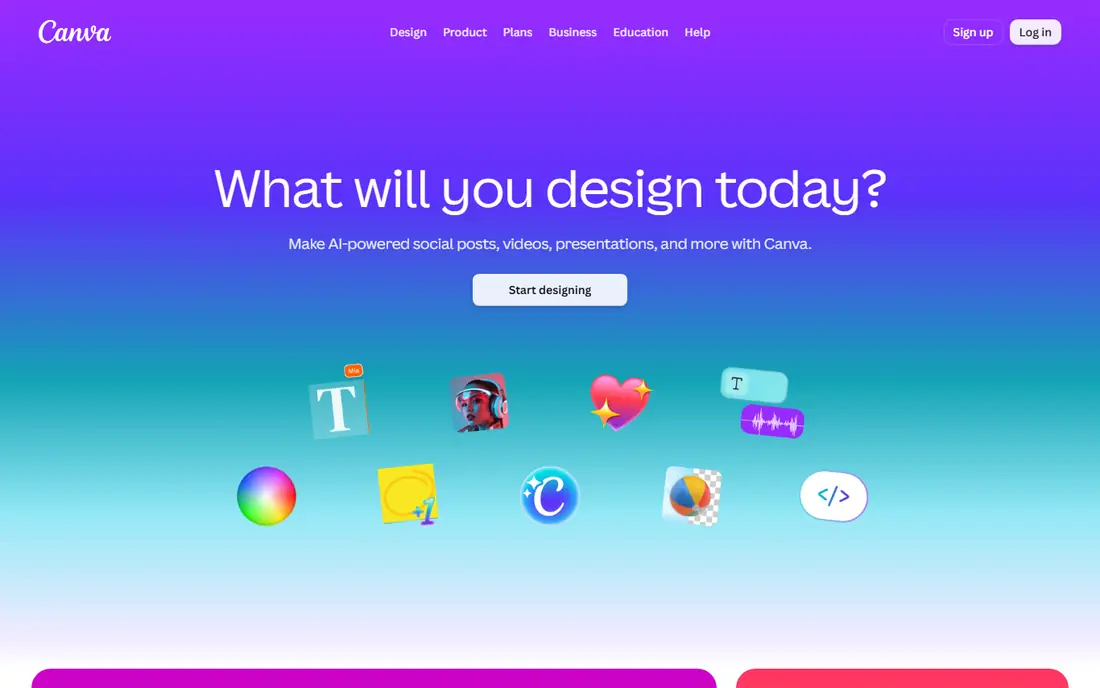
Canva is the best photo editing app for beginners who care more about the finished post than about pixel-level control. You drop a photo into a template, adjust brightness and crop, add text, and export a size made for Instagram or a flyer. Most people finish a usable image in minutes, not after a tutorial.
That ease comes with a ceiling. Canva handles filters, background removal, and simple retouching well, but it is not the place for careful RAW editing or detailed masking. For family photos, small business posts, and school projects, that trade is often worth it. The free plan covers a lot, so try it before you pay for Pro.
- Very easy drag-and-drop editor
- Huge template library
- Works in a browser and on phones
- Photo editing depth is limited next to Lightroom
- Some useful tools sit behind Pro
Adobe Photoshop Express
Best for: Free phone editing with quick fixes
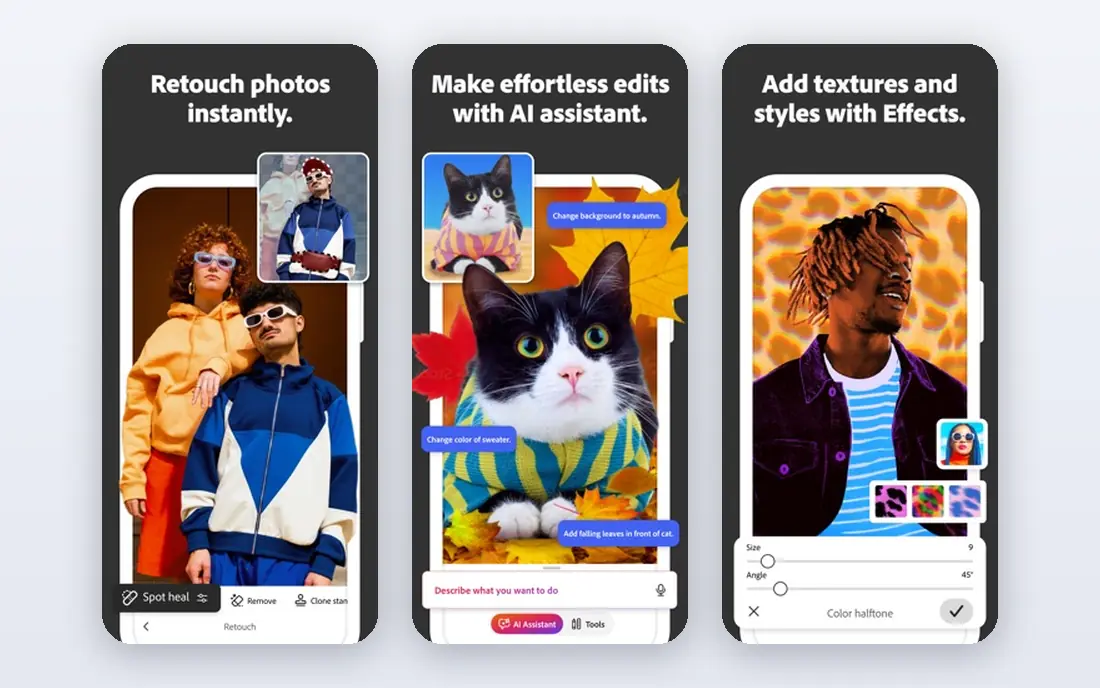
Photoshop Express is the strongest free phone editor from Adobe for beginners who want more than filters. It covers cropping, light and color correction, and quick retouching in a simple layout, and it includes looks and filters for fast results. The app is designed for phone photos, so you can fix and share an image in a few minutes.
New users will find the layout easier than a desktop editor, because the tool set stays short and each control is labeled in plain terms. The catch is depth: Express will not replace Lightroom for RAW workflow or careful masking. If your editing happens almost entirely on a phone, Express is hard to beat at its price, which is nothing for basic use. It also pairs well with a desktop editor for larger jobs.
- Completely free basic tier
- Simple correction and retouch tools
- Easy sharing to social apps
- No full desktop editor
- Some premium features need a paid plan
Luminar Neo is built for people who want a striking result without studying layers and masks first. Its AI tools can replace a dull sky, clean up a portrait, or lift a flat photo with a few clicks, and each tool includes short guidance on what it does. That hand-holding makes it a friendly first desktop editor.
The trade is control and catalog depth. Luminar is weaker than Lightroom for organizing thousands of photos, and its pricing page deserves a careful read before you buy, since bundles and subscription terms vary. If your goal is better-looking photos this weekend, rather than a long-term photo library system, Luminar is a strong choice.
- Built-in guidance for each tool
- Sky replacement and portrait tools
- One-time purchase options have been offered
- Pricing and bundles change often, so check the current offer
- Large libraries can load slowly
Pixlr is a good answer to the question of the best photo editing apps for PC when you do not want to install anything. It runs in a browser on Windows, Mac, and Chromebook, and it offers both a simple express editor and a more advanced editor with layers. Beginners can start with the simple view and move up only when they need more.
The free tier handles cropping, color fixes, filters, and background removal for many everyday photos. Ads and some locked tools are the price of that free access. For students, office computers, and shared machines, the browser approach is a practical win, since nothing stays installed after you finish.
- No install needed
- AI background removal and one-click tools
- Free tier is usable for daily edits
- Free version shows ads
- Advanced tools need a paid plan
Fotor suits beginners who want a photo to look better in under a minute. Its one-tap enhancer adjusts light and color in a single step, and its batch tools let you apply the same fix to a set of photos. For old photos, its AI enhancer can sharpen a faded scan and clean up noise, though results vary with the quality of the original scan.
Think of Fotor as a friendly middle step between a phone filter app and a full editor. You get more control than a filter, with less to learn than Lightroom or GIMP. The free plan is enough to test the workflow, and Pro is worth considering only if you edit often or need high-resolution exports without limits.
- One-tap enhance is genuinely quick
- Collage and batch tools included
- Easy browser and mobile apps
- Free exports can carry limits
- Best AI features need Pro
GIMP is the best inexpensive photo editing software in the strictest sense, because it costs nothing and does a great deal. It supports layers, masks, healing, and careful retouching, which makes it a real alternative to paid desktop editors for still photos. If you plan to learn editing properly and you do not want a subscription, GIMP gives you years of headroom.
Beginners should expect a slower start. The windows, menus, and tool names assume some editing knowledge, and the first hour feels crowded. Free tutorials help a lot, and the payoff is an editor that never locks your work behind a paywall. Use it for scanned old photos too, since its clone and healing tools can repair dust spots and small tears by hand.
- Completely free and open source
- Layers, masks, and retouching tools
- Large plugin and tutorial community
- Interface feels dated and busy
- Learning curve is steeper than Canva or Fotor
Photopea surprises many beginners, because it looks and acts like a desktop editor but runs entirely in a browser. You can open layered files, adjust parts of an image separately, and export common formats without installing software. That makes it useful on a borrowed computer, a Chromebook, or a work machine.
The interface is denser than Canva or Fotor, so it fits beginners who already know a little about layers or who want to learn them. Ads fund the free version, and a paid plan removes them and adds more history steps. For the best beginner photo editing software on a tight budget, Photopea is one of the smartest free options to keep bookmarked.
- Opens PSD and common image files in a browser
- Layer and mask support
- No account needed for basic use
- Free version shows ads
- Performance depends on your browser and computer
Affinity Photo has become a serious pick for beginners who want a desktop editor they can keep. It handles RAW files, layers, live filters, and detailed retouching in a clean workspace, and it runs well on computers that struggle with heavier programs. The move to free availability makes it even easier to recommend as a first desktop editor.
Its weakness is the surrounding system. Affinity does not match Lightroom for cataloging and syncing a large library, and its preset community is smaller. That matters less if you organize photos in folders and edit one image at a time. For careful edits, prints, and old photo restoration work done by hand, Affinity gives beginners professional tools without a monthly bill.
- Full layer, RAW, and retouching tools
- Fast performance on modest computers
- No subscription required
- Smaller template and preset community than Adobe
- Photo organizing tools are limited
How we picked these
We compared official feature pages, pricing pages, and app store listings for each editor, and we checked that each product still works on current Windows, Mac, iOS, or Android systems. We favored editors with a clear free tier or trial, plain tool names, non-destructive editing, and honest limits, and we left out tools that only edit video or that require a design subscription to open a single photo.
We did not claim hands-on lab testing. Our judgments rest on documented features, published pricing, and public reviews, which is enough to separate a genuinely beginner-friendly editor from a powerful program that happens to have a simple mode.
How to choose the right beginner editor
Start with where you edit. Phone-first editors should try Photoshop Express or Canva first. Computer-first editors should try Photopea or Affinity Photo, since both give you layers without a subscription. If you shoot in RAW or plan to print, lean toward Lightroom, Affinity Photo, or GIMP, which handle RAW files and finer color work.
Next, decide how much guidance you want. One-tap tools from Fotor and Luminar Neo help when you want a fast result, while Lightroom and GIMP reward a slower learning path with more control later. For old photos, scan at the highest resolution your scanner allows, save an untouched copy, and only then try enhancement, color repair, and dust removal. A faded scan will not become a perfect new photo, but careful enhancement often makes it far more shareable.
Finally, check the real cost over a year. A free editor with ads may cost you time, while a subscription may cost more than a one-time or free editor over two years. Start free, edit twenty of your own photos, and pay only when you hit a limit you actually feel.
Sources
- https://www.adobe.com/products/photoshop-lightroom.html
- https://www.canva.com/pricing/
- https://www.adobe.com/products/photoshop-express.html
- https://skylum.com/luminar
- https://pixlr.com
- https://www.fotor.com
- https://www.gimp.org
- https://www.photopea.com
- https://affinity.serif.com/en-us/photo/
- https://pixotter.com/blog/best-photo-editing-software-for-beginners/
- https://rankite.com/blog/top-5-photo-editing-software