Best Photo Restoration App in 2026: 9 Apps Compared
By ToolNimba Editorial Team November 9, 2026 12 min read

- Top pick
 Remini
Mobile face restoration
Starting priceSee websiteCheck out ReminiRead our review - Runner-up
 VanceAI Photo Restorer
Browser-based whole-photo repair
Starting price$9 per monthCheck out VanceAI Photo RestorerRead our review - Also great
 MyHeritage Photo Enhancer
Family history photos
Starting priceSee websiteCheck out MyHeritage Photo EnhancerRead our review
How we researched this
We compared official pricing and feature pages, app store listings, privacy policies and public user reviews. Prices change, so check the provider's site before you pay.
Key takeaways
- VanceAI Photo Restorer is the best browser-based pick for whole-photo repair, including scratches, fading, and surface damage.
- Remini is the fastest mobile pick for face enhancement, but weekly pricing adds up for a large archive.
- Topaz Photo AI and Adobe Photoshop suit photographers and badly damaged photos that need manual control.
- Keep the original scan untouched, work on a copy, and prefer desktop tools for sensitive family photos you do not want uploaded.
Quick comparison
| Name | Best for | Starting price | Free plan | |
|---|---|---|---|---|
| Remini | Mobile face restoration | See website | Yes | Visit |
| VanceAI Photo Restorer | Browser-based whole-photo repair | $9 per month | Yes | Visit |
| MyHeritage Photo Enhancer | Family history photos | See website | Yes | Visit |
 Topaz Photo AI | Photographer-grade enhancement | $199 one-time | Free trial | Visit |
 Adobe Photoshop | Manual professional repair | $22.99 per month | Free trial (7 days) | Visit |
 Fotor | Budget one-click fixes | $8.99 per month | Yes | Visit |
 AKVIS Retoucher | Manual scratch repair | $87 one-time | Free trial (10 days) | Visit |
 Photomyne | Scanning and restoring albums | $59.99 per year | Free trial (3 days) | Visit |
 Hotpot.ai | Cheap web fixes | See website | Yes | Visit |
The best photo restoration apps
Old photos suffer from different problems: fading, scratches, tears, blur, low resolution, and damaged faces. No single tool handles all of them equally well, so we grouped this list by approach: one-click AI enhancers, browser restorers, mobile face tools, and manual desktop editors. We compared official pricing pages, product documentation, and 2026 tool comparisons, and we flagged where pricing varies by platform or plan.
A practical tip applies to every tool here: scan at high resolution, keep the original scan untouched, and save restored versions as separate files. AI can improve a photo, but it cannot recover detail that was never in the scan, and it can invent facial features that were not there.
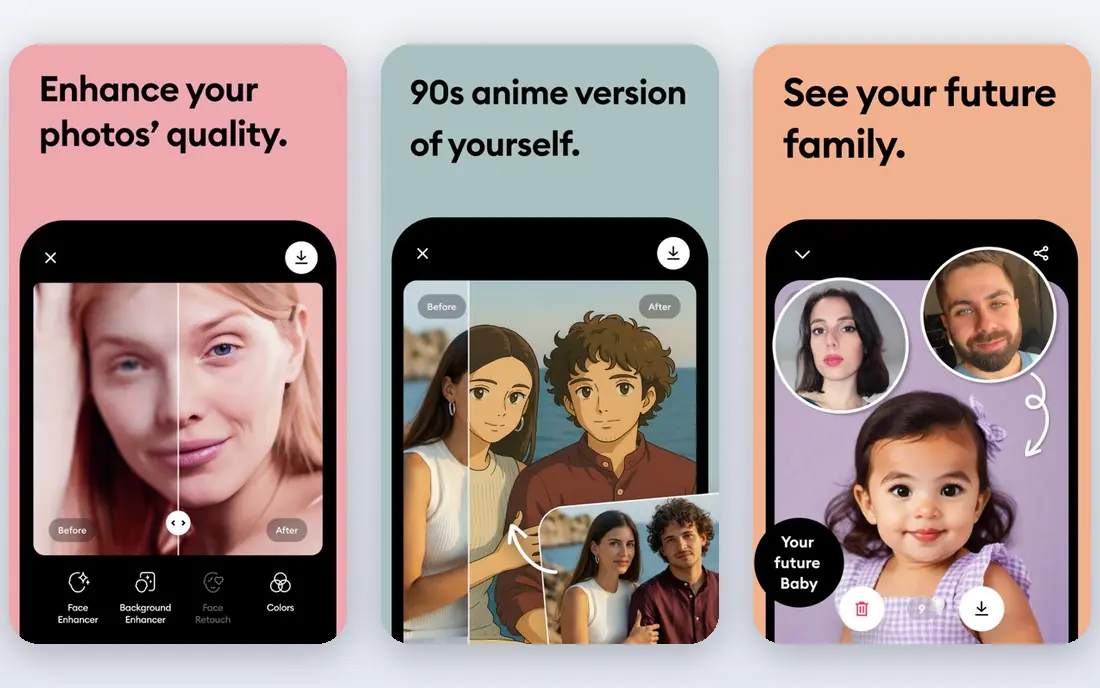
Remini is best known for turning a blurry, low-resolution face into a sharper, clearer portrait with one tap on a phone. The free tier offers limited daily use with ads, which is enough to test the results on a few photos.
The drawback is cost and control. Paid pricing is reported around $6.99 per week in 2026 comparisons, but it varies by user, plan, and app store, so check the price inside the app before subscribing. Remini also focuses on faces, not on repairing torn paper, large scratches, or missing areas, which need a manual tool.
Remini fits phone users who want quick face fixes for a small set of photos. For a whole album, a browser or desktop tool with monthly pricing will usually cost less.
- Very fast face enhancement on a phone
- Simple one-tap workflow
- Good for social sharing
- Pricing varies by platform and plan, often weekly
- Less control for large tears or complex damage

VanceAI Photo Restorer is designed for old, damaged, and faded photos as a whole, not just for faces. It handles scratches, fading, sepia drift, blur, and torn edges in a browser workflow, which makes it a strong pick for family archives scanned at home. The Starter plan is listed at $9 per month on the annual-plan view in 2026 reports, with 200 credits per month, and a free tier lets you test a few photos first.
Credit limits also mean a large archive needs a higher plan or a longer timeline. For most family projects, however, the browser workflow is faster than learning a manual editor.
VanceAI is our pick for most people restoring old photos in a browser. It balances whole-photo repair, ease of use, and a clear credit model, and it pairs well with a desktop tool for the hardest photos.
- Restoration workflow for scratches, fading, and blur
- Browser-based with no install
- Credit-based plans
- Web processing means photos are uploaded to servers
- Credit limits apply on lower plans
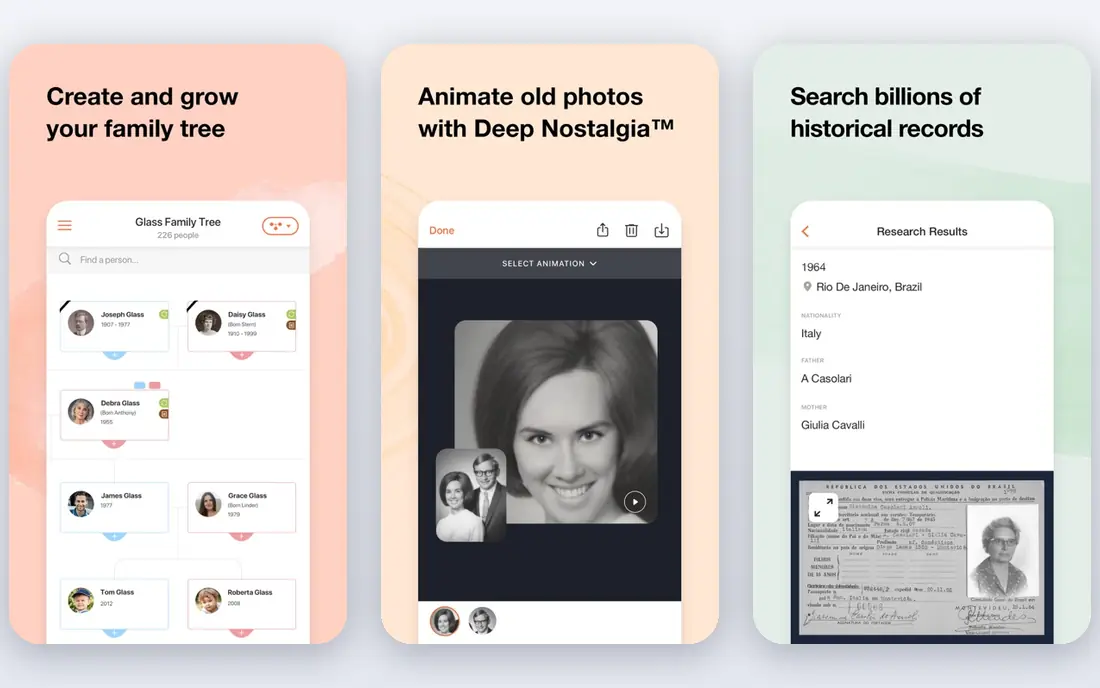
MyHeritage Photo Enhancer sharpens blurry faces and colorizes black-and-white photos, which makes it a natural fit for family historians already building a tree on MyHeritage. The workflow is simple: upload a photo, enhance it, and optionally colorize it, then attach the result to a person in your tree. That context matters, since a restored photo is more useful when you know who is in it.
Free enhancements are limited, with reports of a small number of free photos, and the full genealogy subscription costs more than a standalone restoration tool. Check the current MyHeritage pricing page before committing, since plans bundle genealogy and photo features together.
Pick MyHeritage when family history is the main project and face enhancement is the main need. For whole-photo damage, start with VanceAI and use MyHeritage for faces and colorization.
- Face enhancement and colorization for family photos
- Ties into family tree research
- Easy for non-technical users
- Focused on faces, not full paper repair
- Free enhancements are limited
- Full value needs a genealogy subscription
Topaz Photo AI is aimed at photographers who want the highest quality sharpening, denoising, and upscaling, with manual controls to dial back the AI when it overdoes skin or texture. Pricing has changed over time, with reports in 2026 ranging from a $199 one-time license to yearly and monthly options, so confirm the current offer on the Topaz site before buying.
Topaz Photo AI can be slow on older machines, and the default settings can give portraits a plastic look if you do not adjust the sliders. It also does not repair large tears in the way a manual retouching tool does, though it excels at technical flaws such as noise, blur, and low resolution.
Topaz Photo AI fits photographers and serious archivists who want control and quality, and who will use it for many photos. For a handful of family snapshots, a cheaper browser tool is enough.
- Strong sharpen, denoise, and upscale models
- Full manual control
- Works as a standalone app or plugin
- High upfront price
- Slow on older computers
- Default settings can over-smooth skin
Photoshop remains the tool for photos that AI cannot fix alone, especially large tears, creases, missing areas, and complex damage. Healing brushes, clone stamps, content-aware fill, and layer-based editing let a skilled user rebuild a photo section by section, with control that no one-click tool offers. Recent versions also include AI features for object removal and super resolution, which speed up parts of the work.
Learning manual retouching takes time, and the subscription, listed at $22.99 per month on an annual plan in 2026 comparisons, is expensive for a one-off family project. A 7-day trial lets you test it, but a large restoration project may need a month or more.
Choose Photoshop when a photo is historically important, badly damaged, or needed for print, and when you have the skills or can hire a retoucher. For light fading and scratches, start with VanceAI or Fotor first.
- Full manual retouching for tears and missing areas
- Content-aware fill and healing tools
- Industry standard
- Steep learning curve
- Subscription price is high for occasional use
- Overkill for one-click fixes
Fotor is a general photo editor with AI enhancement features that handle common problems such as low light, blur, and dull color in one click. Pro is listed at $8.99 per month in 2026 comparisons, with a limited free tier for testing, which makes it one of the cheaper options for a small archive. The browser version means no install, and the mobile app covers quick fixes on the go.
Fotor is not a dedicated restoration tool, so it struggles with large tears, heavy scratches, and badly faded paper compared with VanceAI, AKVIS, or Photoshop. Use the free tier on your hardest photos before paying, to see whether Fotor handles your specific damage.
Fotor fits budget-conscious users who want quick fixes plus general editing in one tool. For severe damage, pair it with a dedicated restorer or a manual editor.
- Low-cost one-click enhancement
- Browser and mobile versions
- Includes general photo editing
- Less specialized for severe damage
- Free tier is limited
- Results vary by photo
AKVIS Retoucher is a desktop tool for manual repair of scratches, dust, stains, and small tears, with tools that let you select damaged areas and rebuild them from surrounding texture. The Home license is listed at $87 one-time in 2026 comparisons, with a 10-day free trial, which makes it cheaper over time than a subscription for a long project. It works standalone or as a plugin for Photoshop and other editors.
The interface also feels dated compared with modern web tools, and it does not offer the same face enhancement as Remini or MyHeritage. Its strength is control: you decide what gets repaired and how, rather than trusting an AI guess.
Pick AKVIS when you have scanned photos with scratches, dust, or stains that need careful manual repair, and when you prefer a one-time license to a subscription. It pairs well with Topaz Photo AI for sharpening after repair.
- Manual control for scratches, dust, and stains
- One-time Home license
- Works as standalone or plugin
- Learning curve for manual retouching
- Less AI automation than newer tools
- Interface feels dated
Photomyne solves the first step of restoration: getting a whole album into your phone quickly. You photograph pages or individual prints, and the app auto-detects, crops, and organizes them into albums, with enhancement features to improve the scans. That workflow suits families with boxes of albums who want a digital archive before they restore individual photos.
The price, listed at $59.99 per year in 2026 comparisons, is high if you only need scanning, and the 3-day free trial is short for testing a large album. Restoration features are useful for scanned photos, but they do not match the manual control of Photoshop or AKVIS for severe damage. Think of Photomyne as a scanning and organizing tool with enhancement, not as a full restoration studio.
Photomyne fits families digitizing whole albums with a phone, especially when speed and organization matter. After scanning, use VanceAI or a desktop tool for the photos that need deeper repair.
- Phone scanning for whole albums
- Auto-cropping and organizing
- Restoration features for scanned photos
- Yearly price is high for scanning alone
- Free trial is only 3 days
- Restoration is less deep than desktop tools
Hotpot.ai offers a set of web-based AI tools, including photo restoration and enhancement, with a low-cost credit model reported at $5 for 100 credits in 2026 comparisons. Some basic uses do not require an account, which makes it easy to test a photo quickly without signing up. The web workflow is fast for a handful of photos that need light repair, colorization, or sharpening.
Hotpot.ai is not as specialized as VanceAI for whole-photo restoration, nor as powerful as Photoshop for manual repair. Results also vary by photo, so test your hardest images first.
Hotpot.ai suits users who want a cheap, quick web fix for a small number of photos, without a subscription. For a large family archive, a monthly plan from VanceAI or Fotor may be simpler to manage.
- Low-cost credit packs
- No account needed for some basic uses
- Quick web workflow
- Limited restoration depth
- Credit pricing varies by tool
- Results vary by photo
How we picked these
We compared official pricing pages, product documentation, and 2026 restoration comparisons, and we favored tools that are clearly available now and that serve a distinct restoration need: mobile faces, browser repair, family history, photographer-grade enhancement, manual repair, scanning, or low-cost web fixes. We left out tools whose pricing could not be checked, and we left out general editors without a real restoration or enhancement feature.
We also weighed privacy. Desktop tools keep photos on your computer, while web and mobile tools upload them to servers, which matters for sensitive family photos. That trade-off is noted for each tool, not hidden.
How to restore old photos well
Start with a good scan, then choose the tool that matches the damage. A one-click enhancer will not fix a torn photo, and a manual editor is overkill for a slightly faded snapshot.
Scan once, at high resolution
Scan prints at 600 dots per inch or higher when possible, save the original as a TIFF or high-quality JPEG, and never edit that file. Work on copies, and keep a backup of the originals in a second location, such as an external drive or cloud storage. A low-resolution scan limits what any tool can recover.
Match the tool to the damage
Use Remini or MyHeritage for blurry faces, VanceAI or Hotpot.ai for fading and light scratches in a browser, and AKVIS or Photoshop for tears, creases, and missing areas. If a photo is historically important or severely damaged, consider a professional retoucher instead of an AI guess.
Check faces and details before sharing
AI can invent facial features, change expressions, or add details that were not in the original. Compare the restored photo with the original side by side, and be cautious about sharing a restored portrait as a true likeness, especially for deceased relatives or historical figures. Keep the original scan alongside the restored version, so viewers know what changed.
Sources
Frequently asked questions
What is the best photo restoration app?
VanceAI Photo Restorer is the best browser pick for whole-photo repair, Remini is the best mobile pick for faces, and Topaz Photo AI or Photoshop suit photographers and badly damaged photos. The best choice depends on whether the damage is fading, scratches, blur, or tears.
What is the best photo restoration software for old photos?
For old, faded, and scratched photos in a browser, VanceAI Photo Restorer is a strong pick. For manual repair of tears and stains on a desktop, AKVIS Retoucher or Photoshop offer more control. For family history photos, MyHeritage adds face enhancement and colorization in a genealogy context.
Can I restore old photos for free?
Yes, within limits. MyHeritage offers a limited number of free enhancements, VanceAI has a free tier, Fotor and Hotpot.ai offer limited free uses, and Topaz Photo AI, Photoshop, AKVIS, and Photomyne offer free trials. For a small family project, free tiers and trials may cover the whole job.
Can software fix torn or creased photos?
AI tools handle light creases and small tears, but large tears and missing areas need manual repair in Photoshop or AKVIS Retoucher, where you control the reconstruction. No one-click tool reliably rebuilds a photo torn in half, and severely damaged originals may need a professional retoucher.
Is it safe to upload family photos to restoration websites?
Web tools process photos on their servers, which is how the AI works, so read the privacy policy before uploading sensitive images. Desktop tools such as Photoshop, Topaz Photo AI, and AKVIS keep photos on your computer. Prefer local processing for photos you would not post publicly, and keep originals backed up separately.