Best Photo Scanner App in 2026: 9 Apps Compared
By ToolNimba Editorial Team November 9, 2026 9 min read

- Top pick
 Google PhotoScan
Free glare-free scans
Starting priceFreeCheck out Google PhotoScanRead our review - Runner-up
 Photomyne
Large photo archives
Starting priceFreeCheck out PhotomyneRead our review - Also great
 Pic Scanner Gold
One-time purchase on iPhone
Starting price$1.99 one-timeCheck out Pic Scanner GoldRead our review
How we researched this
We compared official pricing and feature pages, app store listings, privacy policies and public user reviews. Prices change, so check the provider's site before you pay.
Key takeaways
- Google PhotoScan is our pick for free scanning, with multi-capture glare removal for glossy prints.
- Photomyne is best for large archives, since it can detect and crop several photos in one shot.
- Pic Scanner Gold suits iPhone users who prefer a one-time purchase over a subscription.
- Scan in good, even light, and keep originals safe, since a scan is a copy, not a replacement.
- Back up scans in two places, such as a cloud service and an external drive, before sharing originals.
Quick comparison
| Name | Best for | Starting price | Free plan | |
|---|---|---|---|---|
| Google PhotoScan | Free glare-free scans | Free | Yes | Visit |
| Photomyne | Large photo archives | Free | Yes | Visit |
| Pic Scanner Gold | One-time purchase on iPhone | $1.99 one-time | No | Visit |
 MyHeritage Reimagine | Family history photos | Free | Yes | Visit |
 FilmBox by Photomyne | Slides and negatives | Free | Yes | Visit |
 Adobe Scan | Document and photo scans | Free | Yes | Visit |
 Microsoft Lens | Free document scanning | Free | Yes | Visit |
 TurboScan | Fast document scans | See website | Free trial | Visit |
 PhotoScanRestore | iPhone scanning and restoration | Free | Yes | Visit |
The best photo scanner apps
We compared app store listings, official feature pages and photo scanning guides to find apps that handle printed photos well, not just documents.
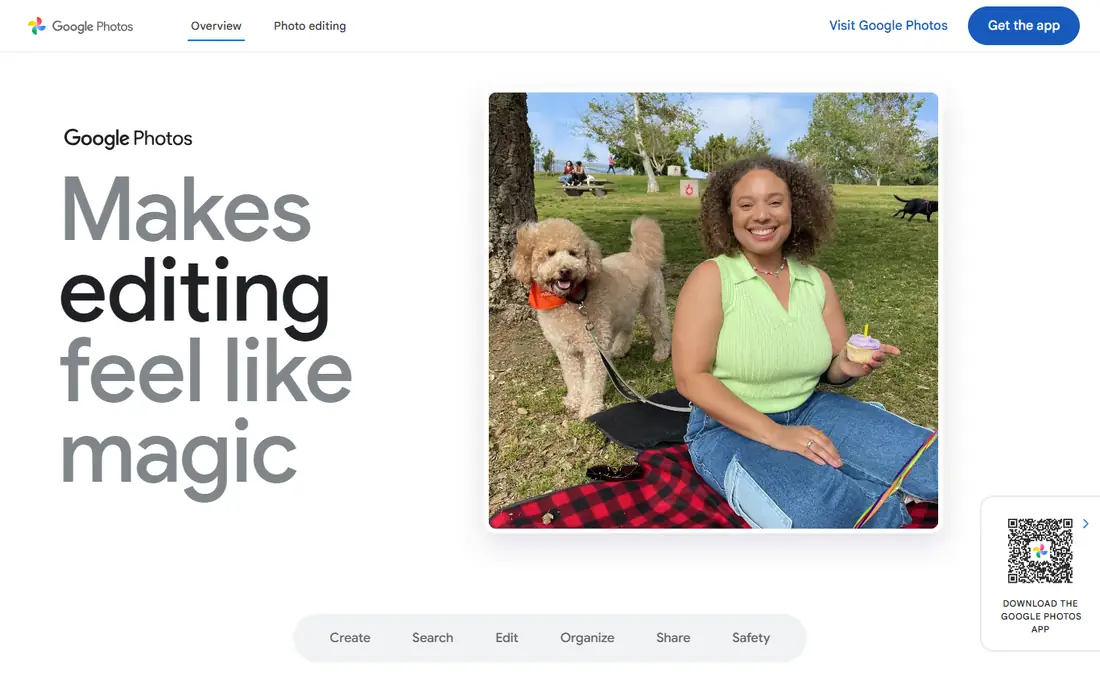
Google PhotoScan is built for printed photos, and that focus shows. It guides you through capturing a print from several positions, then combines those captures to remove glare, which is a common problem with glossy or framed prints. Automatic edge detection and cropping save editing time, and scans can save directly to Google Photos.
Speed is the trade-off. With glare removal on, each print takes several captures, so PhotoScan is slower than batch apps for hundreds of photos. For a small or medium collection, or for prized prints that need a clean result, its free price and glare handling make it our top pick.
- Free
- Multi-capture glare removal
- Automatic cropping and saving to Google Photos
- Slow for very large archives
- No built-in restoration or album organisation
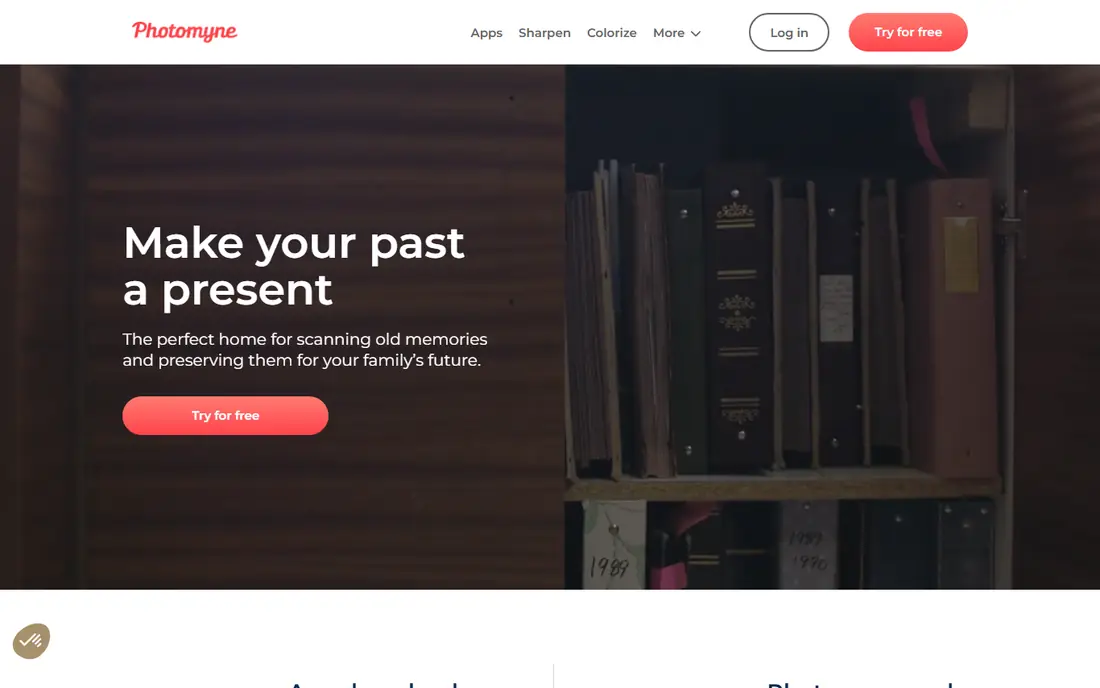
Photomyne is designed for speed. It can detect and crop several prints in a single photo, and it can scan whole album pages, which makes it far faster than one-by-one apps for boxes of old photos. It also adds organisation tools, cloud backup and AI restoration features such as colorising black and white photos.
The free version is limited, and unlimited scanning, high-resolution exports and restoration tools require a membership. For a large family archive, that cost can be justified by the time saved. For a handful of prints, start with a free app first.
- Scans several photos in one shot
- Album page scanning
- Restoration and colorisation tools
- Full features need a paid membership
- Pricing varies by plan
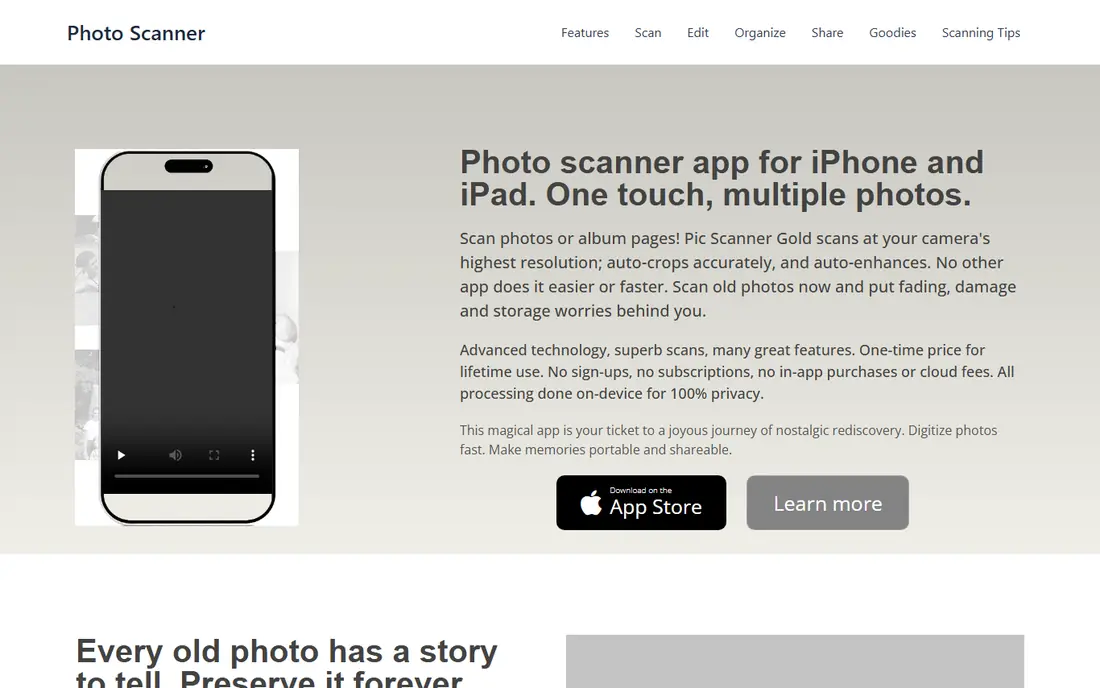
Pic Scanner Gold appeals to users who dislike subscriptions. For a small one-time price, you get batch scanning, automatic cropping and album organisation on iPhone and iPad. It suits family historians who want to digitise a collection without a monthly bill.
It is Apple only, so Android users need another option, and its restoration tools are simpler than those in Photomyne. If you use an iPhone, want to avoid subscriptions and have a moderate archive, Pic Scanner Gold is a practical choice.
- One-time purchase
- Batch scanning
- Album and sharing features
- IPhone and iPad only
- Restoration tools are more limited than Photomyne
MyHeritage Reimagine combines scanning with family history tools. You can scan old photos, enhance and colorise them, and attach them to people in a family tree. Face tagging helps identify relatives across many photos, which is useful for genealogy projects.
The free tier is a starting point, and fuller enhancement and storage features need a paid plan. Reimagine fits best if you already use MyHeritage or plan to build a family tree, rather than if you only want standalone scans.
- Photo scanning plus enhancement
- Face tagging for family trees
- Colorisation
- Best features need a subscription
- Works best inside the MyHeritage ecosystem
FilmBox, also by Photomyne, focuses on a different job: digitising slides and negatives with your phone. You place film on a light source, such as a tablet screen or light box, and the app captures and inverts the image. That makes it useful for families with boxes of slides from the film era.
Free scans are limited, and a subscription opens more. Results also depend on your light setup, so allow time to get even lighting. For slide collections, FilmBox is a convenient alternative to buying a dedicated film scanner.
- Designed for slides and film negatives
- Simple backlight setup
- Sharing tools
- Free scans are limited
- Best results need a light box or bright screen
Adobe Scan is primarily a document scanner, but it handles photos reasonably well, with automatic edge detection, perspective correction and enhancement. Its free tier is generous, and scans integrate with Adobe Acrobat and cloud storage if you already use Adobe tools.
It lacks the photo-specific features of PhotoScan or Photomyne, such as glare removal or multi-photo detection. Adobe Scan suits users who already scan documents and want one app for occasional photos, rather than a dedicated photo archive project.
- Free
- Strong auto-crop and enhancement
- Integrates with Adobe tools
- Built mainly for documents
- Photo-specific features are limited
Microsoft Lens is a free, simple scanner that produces clean, cropped scans and saves them to OneDrive, OneNote or your device. It is easy to use and works well for photos when you only need a straightforward digital copy without extra editing.
Like Adobe Scan, it is built for documents first, so it does not offer glare removal, multi-photo capture or restoration. Microsoft Lens is a good free backup option, especially for users already in the Microsoft ecosystem.
- Free
- Clean scans
- Saves to OneDrive and OneNote
- Document focused
- No photo restoration tools
TurboScan is known for speed and image quality in document scanning, with automatic edge detection and enhancement. It offers a Pro purchase option on some platforms, which appeals to users who prefer a one-time payment over a subscription. For photos, it produces usable scans, though without specialist photo tools.
Choose TurboScan if you mainly scan documents and want a fast, reliable app that also handles occasional photos. For a large photo archive, a dedicated photo app will save more time.
- Fast scanning
- One-time Pro option on some platforms
- Good image processing
- Document focused
- Photo archive features are limited
PhotoScanRestore focuses on scanning one print at a time on iPhone, with optional paid restoration for faded, scratched or damaged photos. It keeps your original scan untouched while you work on a restored copy, which is good practice for valuable prints. A browser demo also lets you try restoration on an existing photo.
It is not a batch scanner, so it suits prized photos rather than whole boxes. For a small set of damaged family photos that deserve careful restoration, PhotoScanRestore is a useful specialist option.
- Free iPhone scanning
- Restoration options
- Keeps originals untouched
- IPhone focused
- Restoration is a paid extra for many photos
How we picked these
We compared app store listings, official feature pages and photo scanning guides, and we required each app to be available in 2026 and to produce usable scans of printed photos. We favoured apps with clear free tiers or one-time pricing, and we included specialists for albums, slides and restoration alongside general scanners. We did not claim hands-on testing, and prices should be checked in the app store for your device, since they vary by platform.
How to get a good scan
Use even, indirect light and a plain background, and avoid shadows from your phone or body. Place the print flat, fill the frame, and keep your phone steady. For glossy prints, use a glare removal mode if your app offers one, or angle the light so reflections fall away from the print. Scan at the highest resolution your app allows for photos you plan to print again.
Label scans as you go, with names, dates and places, since a digital file without context loses much of its value. Add the back of a photo too if it has notes, and store the original prints safely after scanning. A scan preserves the image, but the original remains the best source for future, higher-quality scans.
Backing up your scans
Save scans in at least two places. A cloud photo service gives easy sharing with family, while an external drive or a second cloud account protects against account problems. Use clear folder names by year or family branch, and share a copy with a relative so the archive survives a lost phone or failed drive.
Sources
Frequently asked questions
What is the best free photo scanner app?
Google PhotoScan is our pick for free photo scanning, with glare removal and no cost. Microsoft Lens and Adobe Scan are also free and useful for straightforward scans. For large archives, Photomyne offers a free start, but its full features need a paid membership.
Can I scan multiple photos at once?
Yes, Photomyne can detect and crop several prints in one shot, and it can scan album pages. Pic Scanner Gold also supports batch scanning on iPhone. Google PhotoScan scans one print at a time, which gives cleaner glare removal but takes longer for large collections.
How do I scan slides and negatives with my phone?
Use an app designed for film, such as FilmBox by Photomyne, and place the slide or negative on an even light source. A tablet screen or light box works well. Keep the film flat, avoid fingerprints, and check that the app inverts negatives correctly before scanning a whole box.
What resolution should I scan old photos at?
Use the highest resolution your app offers for photos you may want to print again or restore later. Higher resolution files are larger, but storage is cheap compared with rescanning a fragile original. For sharing on social media, a smaller export is fine, so keep a high-resolution master copy.
Should I throw away originals after scanning?
No, keep originals if you can. Scans can be lost, corrupted or made at too low a resolution, while originals allow future rescans with better technology. Store prints in a cool, dry place away from sunlight, in acid-free albums or boxes where possible.
Can apps restore damaged old photos?
Yes, several apps offer restoration, including Photomyne, MyHeritage Reimagine and PhotoScanRestore. They can improve faded colors, reduce scratches and sharpen faces, though results vary with damage. Keep the original scan untouched, and treat heavily damaged or valuable photos with extra care, or consult a professional restorer.