Best Platform for PDF Insertion in 2026: 10 Platforms Compared
By ToolNimba Editorial Team November 12, 2026 11 min read

- Top pick
 Adobe Acrobat
Frequent and business PDF work
Starting priceSee websiteCheck out Adobe AcrobatRead our review - Runner-up
 Smallpdf
Quick online insertion
Starting priceSee websiteCheck out SmallpdfRead our review - Also great
 iLovePDF
Simple online page tools
Starting priceSee websiteCheck out iLovePDFRead our review
How we researched this
We compared official pricing and feature pages, app store listings, privacy policies and public user reviews. Prices change, so check the provider's site before you pay.
Key takeaways
- Adobe Acrobat is our first pick for frequent, large, or business PDF work, because it handles page insertion, ordering, and security in one desktop app.
- Smallpdf, iLovePDF, and PDF24 are the best quick online options for a single insertion, with no install needed.
- Foxit and Sejda suit users who want a browser tool with more control over page placement and file handling.
- For sensitive documents, use a desktop tool such as Acrobat or PDFgear rather than uploading to a web service, and check how long an online tool keeps files.
- Always preview the final PDF before sharing, since inserted pages can shift page size, orientation, or margins.
Quick comparison
| Name | Best for | Starting price | Free plan | |
|---|---|---|---|---|
| Adobe Acrobat | Frequent and business PDF work | See website | Free trial | Visit |
| Smallpdf | Quick online insertion | See website | Yes | Visit |
| iLovePDF | Simple online page tools | See website | Yes | Visit |
 PDF24 Tools | Free online insertion | Free | Yes | Visit |
 Sejda PDF | Browser editing with control | See website | Yes | Visit |
 Foxit | Online add pages tool | See website | Yes | Visit |
 PDF2Go | Online insertion and conversion | See website | Yes | Visit |
 PDFescape | Browser PDF editing | See website | Yes | Visit |
 PDFgear | Free desktop PDF editing | Free | Yes | Visit |
 Nitro PDF | Business desktop editing | See website | Free trial | Visit |
The best platform for PDF insertion
Inserting pages into a PDF sounds simple, but it covers several jobs: adding a cover page, inserting a scanned page in the middle, combining pages from another PDF, or adding a blank page for notes. The tools below handle those jobs differently, from a quick browser upload to a full desktop editor. Pick by how often you do it, how sensitive the file is, and how large it is.
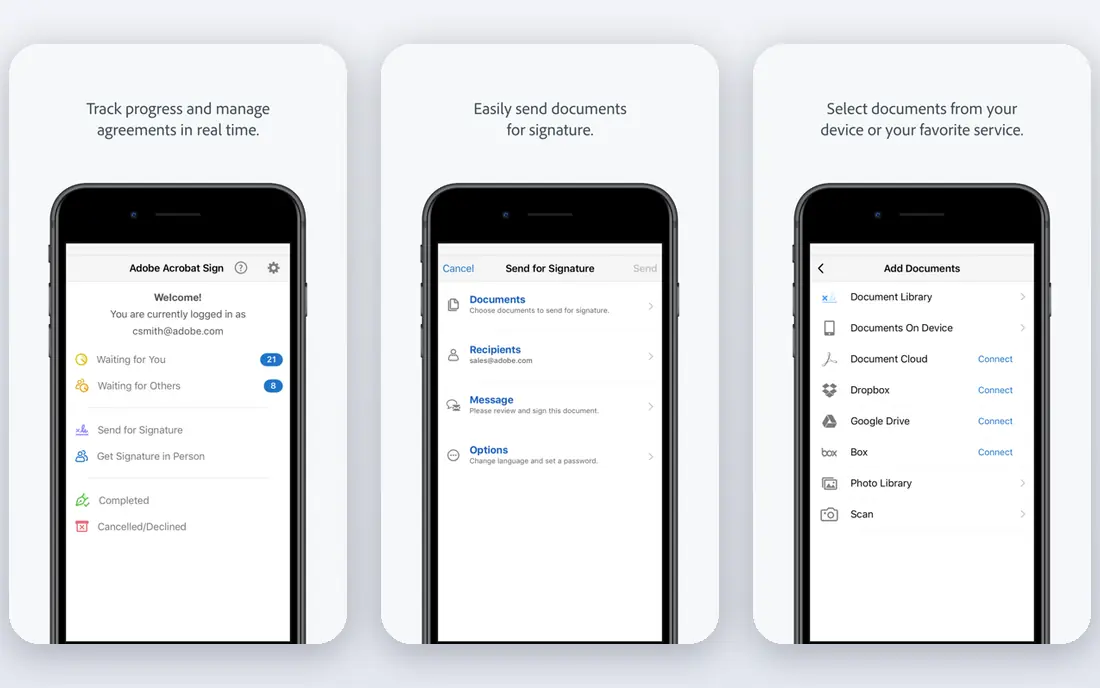
Adobe Acrobat is the standard for serious PDF work. Its Organize Pages view lets you insert pages from a file, a scanner, or a blank page at any position, then drag pages to reorder, rotate, or delete them. For a sales manager inserting thirty invoice PDFs into one client report, that control and batch handling matter far more than a simple upload button.
The cost is the catch. Acrobat is a subscription product, and it is overkill if you only insert a page once a year. Check the current Acrobat pricing and free trial on the Adobe site. For frequent, large, or business files, though, no browser tool on this list matches its reliability.
- Precise page insertion, ordering, rotation, and deletion
- Handles large files and batches
- Security, redaction, and signing tools
- Subscription cost
- Heavier than a browser tool for a one off job
- Interface can feel complex for beginners

Smallpdf is the easiest pick for a quick job. Upload a PDF, use its merge or edit tools to add pages from another file, arrange the order, and download the result, often in a minute or two for a single file. Its clean interface is why many guides recommend it for beginners who hate menus.
Free use is limited, and a paid plan is needed for frequent or larger work, so check the current limits on the Smallpdf site before you rely on it for a deadline. For sensitive files, consider a desktop tool instead, since Smallpdf processes uploads on its servers.
- Very simple upload and merge workflow
- Fast for one file jobs
- Tools for compress, convert, and sign in the same account
- Free use is limited per day in many versions
- Larger files and batch work need a paid plan
- Uploads go to Smallpdf servers
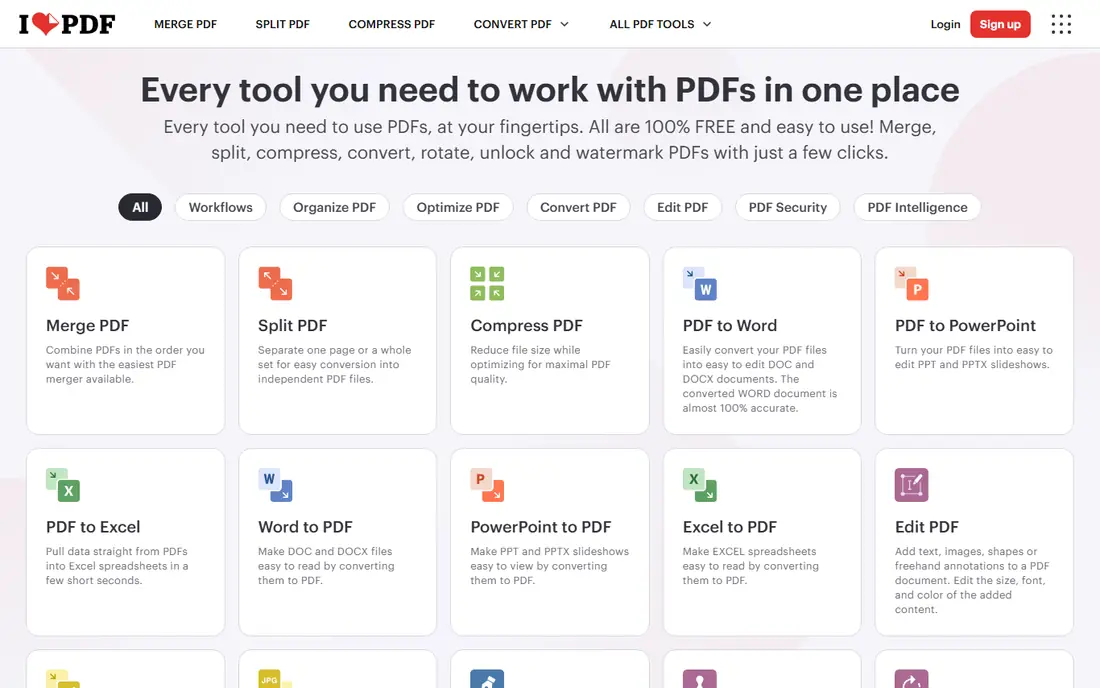
iLovePDF offers a straightforward browser workflow for inserting pages. Use its Merge PDF tool to combine files, or its Organize PDF tool to insert, reorder, rotate, and delete pages, then download the updated file. The interface is clean, and the steps are easy to follow without a tutorial.
Like Smallpdf, iLovePDF limits free use, so a paid plan may be needed for regular work or larger files. For a student or office worker who needs to add a cover page or a missing appendix quickly, the free tier is usually enough to test the workflow.
- Clear merge and organize tools
- Page insertion and reordering in the browser
- Free tier for basic tasks
- Free tier has file and task limits
- Advanced editing needs a paid plan
- Uploads are processed online
PDF24 Tools is a strong free option for inserting pages. Its online tools let you upload a PDF, choose where to insert a new page, upload the page to insert, apply changes, and download the result, without installing software. It also offers a desktop PDF Creator for Windows users who prefer offline work.
The interface is less polished than Smallpdf or iLovePDF, but the core job is free and reliable for many users. For a one off insertion or a small batch, PDF24 is often the best value, especially if you do not want to create an account for a basic task.
- Free online tools with no install
- Insert pages and merge files in the browser
- Also offers a desktop creator for offline work
- Interface is functional rather than polished
- Some advanced editing needs the desktop app
- File limits apply online
Sejda PDF is a powerful browser editor that goes beyond simple merging. Its Organize and Edit tools let you insert pages at a chosen position, add blank pages, reorder, rotate, and delete pages, with a preview before you save. That control helps when an inserted page must sit exactly between two sections.
Free use is limited, with a few tasks per day in many versions, and a paid plan lifts those limits. Sejda is a good middle ground between a simple merge tool and a desktop editor, especially for users who need precise placement but do not want to install software.
- Online editor with page insertion, merge, and reorder
- Lets you insert blank pages or pages from another file
- Clear preview before saving
- Free use is limited to a few tasks per day in many versions
- Larger files need a paid plan
- Uploads are processed online
Foxit offers a dedicated online Add Pages to PDF tool that is easy to understand. Drag a PDF into the tool, open thumbnail view, use the insert icon near a page to add pages or files, then save or save as. Its tool page notes a 100 MB upload limit and states that original and updated files are auto deleted after processing, which is a useful privacy detail.
The online tool is free for basic use, while the full Foxit PDF Editor is a paid desktop product with a trial. For a quick, clearly defined insertion, Foxit's online tool is a strong choice. For repeated business work, compare its paid editor with Acrobat.
- Dedicated online Add Pages to PDF tool
- Insert at beginning, end, or within a document
- Files auto deleted after processing in its online tool description
- Full desktop features need a paid product
- Online file size limit is 100 MB in its tool description
- Some features need an account
PDF2Go covers insertion as part of a wider online PDF toolkit. You can merge PDFs, edit pages, split files, and convert formats, all in a browser, without installing software. That breadth helps if insertion is one step in a larger document job, such as converting a scanned page and then inserting it.
Free use has limits, and the interface is busier than the simplest tools here. For a single insertion, Smallpdf or iLovePDF may be faster. For a job that also needs conversion or splitting, PDF2Go keeps everything in one place.
- Browser tools for merge, split, and page editing
- Conversion tools in the same site
- No install for basic tasks
- Free tier has limits
- Uploads are processed online
- Interface is busier than Smallpdf
PDFescape is a long running browser PDF editor that lets you work on pages, add content, and manage documents without installing software. Its free tier covers basic editing, while a paid plan lifts file and page limits and adds desktop features. That makes it a useful option for occasional browser work.
The interface feels older than Smallpdf or Sejda, and free limits can block larger files. Check the current free limits on the PDFescape site before starting a large insertion. For small files and simple page work, it remains a reliable free starting point.
- Browser editor with page tools
- Free tier for basic editing
- Desktop version for larger work
- Free tier has file size and page limits
- Interface feels older
- Advanced features need a paid plan
PDFgear is a free desktop PDF editor that lets you insert, merge, reorder, and delete pages offline, without uploading files to a web service. That offline angle is important for sensitive documents, such as contracts or medical forms, where you do not want a file to leave your computer.
It does not match Acrobat for business features such as advanced redaction, batch automation, or enterprise signing, but for core page insertion it is capable and free. If you insert pages regularly and care about privacy, PDFgear is a better default than a browser tool.
- Free desktop editor for Windows and Mac
- Page insertion, merge, and reorder offline
- No subscription for core tools
- Fewer business features than Acrobat
- Interface is simpler
- Support is community and help based for free users
Nitro PDF, now Nitro PDF Pro, is a desktop alternative to Acrobat for business users. It handles page insertion, merging, reordering, and editing, with tools for signing and collaboration that suit office teams. Many businesses choose it as a lower cost Acrobat alternative, though pricing should be confirmed on the Nitro site.
The trade off is ecosystem. Acrobat has broader third party integrations and is the default in many legal and publishing workflows, so check whether your clients or partners require Acrobat files. For internal office work, Nitro is a capable and often cheaper desktop option.
- Desktop editor with page insertion, merge, and reorder
- Business features for teams
- Alternative to Acrobat for many offices
- Paid product
- Pricing should be checked on the site
- Fewer third party integrations than Acrobat in some workflows
How we picked these
We compared official tool pages, pricing pages, and recent guides to PDF insertion tools, focusing on platforms that are still maintained and that state whether they work online or offline. We favored tools that let you insert at a specific position, not only merge whole files, and we noted file limits and privacy handling where vendors state them. We excluded tools with no working homepage or no clear insertion feature, and we flagged online upload risks for sensitive files.
Inserting pages without breaking the document
Before you insert, save a copy of the original PDF. That copy is your safety net if an inserted page shifts layout, changes orientation, or introduces a font problem. Check the page size of the inserted page against the main document, since a letter page inserted into an A4 document, or vice versa, will look off and may print badly.
After insertion, preview every page around the insertion point. Look for blank pages, duplicated pages, rotated pages, and margins that cut off text. If you inserted a scanned page, check that it is legible at 100 percent zoom, not just in a thumbnail. For a document you will share, run a final check on a phone as well as a desktop, since many readers open PDFs on mobile.
For sensitive files, prefer a desktop tool and delete any online copies after download. For large files, use Acrobat, PDFgear, or Nitro rather than a browser tool with a file size cap. For a quick, non sensitive job, an online tool saves time and needs no install, which is often the right trade off.
Sources
- https://www.foxit.com/add-pages-to-pdf/
- https://bloggerwalk.com/best-pdf-insertion-tools-adobe-acrobat-vs-smallpdf-for-adding-pdfs-to-documents/
- https://www.adobe.com
- https://www.smallpdf.com
- https://www.ilovepdf.com
- https://www.pdf24.org
- https://www.sejda.com
- https://www.pdf2go.com
- https://www.pdfescape.com
- https://www.pdfgear.com
- https://www.gonitro.com
Frequently asked questions
How do I insert a page into a PDF for free?
Use PDF24 Tools, PDFgear, or the free tier of Smallpdf, iLovePDF, or Sejda. Upload the main PDF, choose the insertion point, upload or create the new page, preview the result, and download the updated file.
Can I insert a page in the middle of a PDF, not just at the end?
Yes. Most tools here let you insert at the beginning, end, or any position in the document. Use the Organize Pages view in Acrobat, Sejda, or PDFgear, or the thumbnail view in Foxit, to place the page exactly where you want it.
Is it safe to upload a PDF to an online insertion tool?
For non sensitive files, reputable tools are generally safe, and some, such as Foxit, state that files are auto deleted after processing. For contracts, medical, or financial documents, use a desktop tool such as Acrobat or PDFgear so the file never leaves your computer.
What is the best PDF insertion tool for business use?
Adobe Acrobat is the best choice for frequent, large, or business work, because of its page control, batch handling, and security tools. Nitro PDF is a capable desktop alternative, while PDFgear is a free desktop option for core page work.
Can I insert pages from another PDF, not just a blank page?
Yes. Most merge and organize tools let you insert pages from another PDF file at a chosen position. Upload both files, select the pages you want, arrange the order, and download the combined document.
Why does an inserted page look different in size or orientation?
Page size, orientation, and margins can differ between source and main documents. Check the source page size before insertion, rotate or resize if the tool allows it, and preview the final PDF before sharing or printing.