Best Remote PC Software in 2026: 8 Tools Compared
By ToolNimba Editorial Team November 9, 2026 9 min read

- Top pick
 TeamViewer
Large support teams
Starting price$24.90 per monthCheck out TeamViewerRead our review - Runner-up
 AnyDesk
Fast, lightweight sessions
Starting price$22.90 per monthCheck out AnyDeskRead our review - Also great
 Splashtop
Good value remote work
Starting price$6 per monthCheck out SplashtopRead our review
How we researched this
We compared official pricing and feature pages, app store listings, privacy policies and public user reviews. Prices change, so check the provider's site before you pay.
Key takeaways
- Chrome Remote Desktop is the simplest free choice for reaching your own computers, while paid tools add unattended access, file transfer and admin controls.
- Splashtop offers strong value for remote work at a low monthly price, and TeamViewer remains the best-known option for larger support teams.
- Free personal plans usually do not cover commercial use, so check the licence terms before you use a free plan for business support.
- Security features such as two-factor authentication, encryption and session controls matter more than raw speed for most buyers.
Quick comparison
| Name | Best for | Starting price | Free plan | |
|---|---|---|---|---|
| TeamViewer | Large support teams | $24.90 per month | Yes | Visit |
| AnyDesk | Fast, lightweight sessions | $22.90 per month | Yes | Visit |
| Splashtop | Good value remote work | $6 per month | Free trial | Visit |
 Chrome Remote Desktop | Simple free personal access | Free | Yes | Visit |
 RemotePC | Low-cost access to your own PCs | See website | Free trial | Visit |
 Zoho Assist | Budget support for small teams | $10 per month | Yes | Visit |
 ConnectWise ScreenConnect | IT providers and help desks | $33 per month | Free trial | Visit |
 RealVNC Connect | Secure, lightweight access | $8.25 per month | Yes | Visit |
The best remote PC software
Remote PC software lets you open another computer from your own screen, move files, and fix problems without being in the same room. The right pick depends on whether you need occasional personal access or daily support for clients and staff.
TeamViewer is the safe, familiar choice when you support many people and need a tool that IT departments already recognise. It covers Windows, Mac, Linux, iOS and Android, and it includes file transfer, remote printing on some plans, and central device management. For a support team, that breadth saves time because staff do not need a different tool for each device type.
The catch is price and plan structure. Entry commercial pricing is higher than Splashtop or RemotePC, and costs rise as you add users and sessions. If you only need to reach one home computer now and then, TeamViewer is more tool than you need, and the free personal plan is the better fit for that narrow job.
- Wide platform support
- Strong admin and session controls
- Well-known in corporate IT
- Higher price than many rivals
- Personal plan can be flagged if used for commercial work
AnyDesk appeals to people who value speed and a small download. Its client starts quickly, sessions feel responsive on modest connections, and it handles unattended access, file transfer and remote printing on paid plans. Freelancers and small support teams often pick it when TeamViewer feels too heavy or too costly for their workload.
It is less of a full IT management suite than some rivals, so larger teams may need another tool for ticketing or device inventory. For direct remote control, though, AnyDesk covers the core job well, and its free personal plan is useful for helping family or reaching a home PC.
- Small, fast client
- Low-latency sessions
- Works across major platforms
- Some advanced admin features sit on higher plans
- Commercial use needs a paid plan
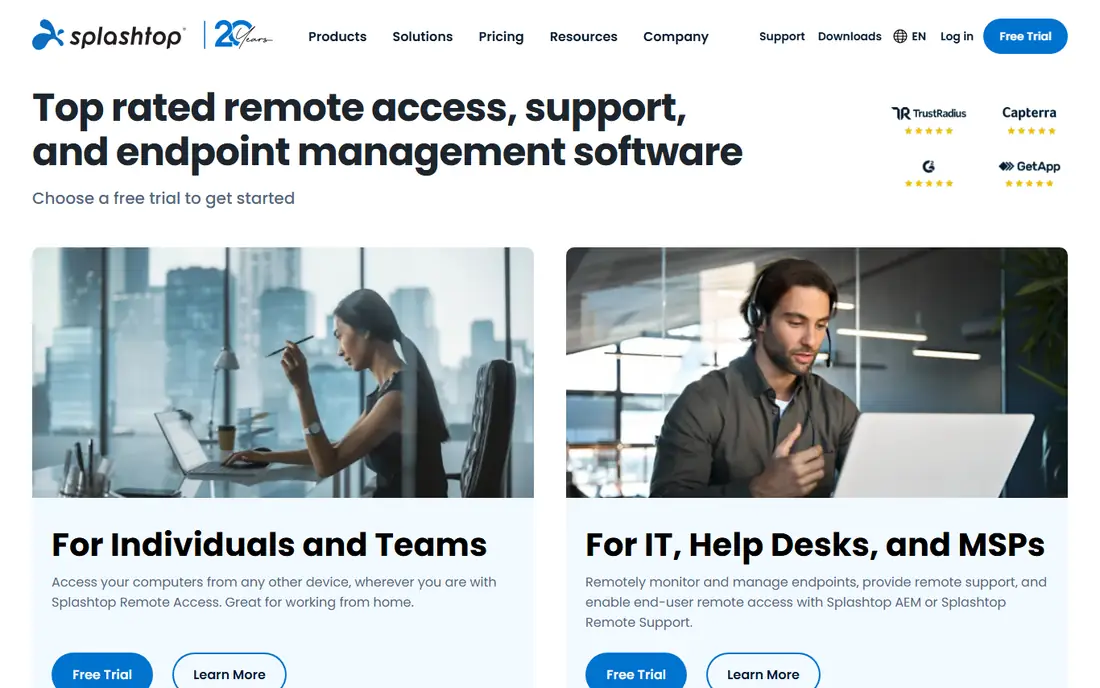
Splashtop is our pick for most people who need reliable remote work access without a large bill. Its Solo and business plans are priced well below TeamViewer, yet it still delivers smooth video, multi-monitor handling and file transfer. Remote workers who connect to an office PC each day will notice the difference in cost over a year.
The trade-off is that the cheapest plans do not include every enterprise feature. Session recording, advanced compliance controls and some support tools sit on higher editions. If you need those, compare the full Splashtop range before you commit, but for plain remote access it is hard to beat on value.
- Low entry price
- Strong video performance
- Multi-monitor support
- Some compliance and recording features need higher tiers
- Less recognised than TeamViewer in large firms
Chrome Remote Desktop is the tool we suggest first for a simple personal job. You install it from the browser, link a computer to your Google account, and connect from another computer or phone. There is no subscription to manage, and setup takes minutes rather than an afternoon of configuration.
It is not built for a support business. You will not get technician queues, detailed session reporting or central user management. For reaching your own desktop, helping a relative, or grabbing a file from home, those limits rarely matter, and the price is impossible to argue with.
- Free
- Very easy setup with a Google account
- Browser-based access
- No built-in support ticketing or team admin tools
- Fewer advanced features
RemotePC suits people who mainly need to reach their own machines rather than support a stream of clients. Its plans are often priced per computer rather than per technician, which can keep costs low for a home office or a small team with a fixed set of PCs. It includes unattended access, file transfer and multi-monitor support.
It feels more like a remote access tool than a full support platform. Teams that need deep ticketing, chat queues and client management may prefer Zoho Assist or ScreenConnect. If your main job is getting to your own computers from anywhere, RemotePC is a practical, budget-friendly choice.
- Per-computer pricing can be cheap
- Unattended access
- Session recording on some plans
- Support-focused features are thinner than dedicated help desk tools
- Pricing varies by plan
Zoho Assist is a strong budget option for small support teams, especially those already using Zoho products. Its free plan covers limited technicians and unattended computers, which is enough to test the workflow or support a very small group. Paid plans add more sessions, custom branding and integrations with help desk tools.
The interface is functional rather than polished, and it does not have the same brand recognition as TeamViewer in large firms. That matters little for a small team that wants dependable remote support at a fair price, and the free tier makes it easy to try before paying.
- Usable free plan for small use
- Unattended access
- Integrates with other Zoho apps
- Interface feels utilitarian
- Advanced features need higher plans
ConnectWise ScreenConnect, formerly known as ScreenConnect, is aimed squarely at IT support providers. It gives technicians unattended access, session grouping, custom branding and integrations with ticketing and automation tools. For a managed service provider handling many clients, that structure is worth more than a slightly lower monthly price elsewhere.
For a single user, it is too much. Setup takes longer, and the feature set assumes you manage endpoints as a job. If you run a help desk or support clients for a living, however, ScreenConnect is one of the most capable choices on this list.
- Built for technicians and managed service providers
- Strong session management
- Many integrations
- Higher learning curve
- Overkill for simple personal access
RealVNC Connect takes a quieter, security-focused approach to remote access. It is lightweight, it supports encrypted connections, and it works well for reaching a small number of computers without a heavy management console. Home users and small teams who want a dependable, no-fuss tool often like it.
It does not try to be a full help desk platform, so you will not get the same ticketing or large-team workflows as ScreenConnect. If your priority is secure access to your own machines or a handful of client PCs, RealVNC Connect delivers that job at a modest price.
- Lightweight client
- Strong encryption options
- Simple device access
- Fewer collaboration features than larger suites
- Team features need higher plans
How we picked these
We compared official pricing pages, feature pages, platform support and free plan terms for the leading remote access tools, and we checked public reviews for recurring strengths and complaints. We favoured tools that are still actively sold and supported, that work on the main desktop and mobile platforms, and that state their pricing clearly. We did not claim hands-on testing, and prices can change, so check the vendor site before you buy.
What to check before you pay
Start with the job, not the brand. Personal access to one or two computers points to a free or low-cost plan, while client support points to a technician-based plan with unattended access and session history. Count how many computers, technicians and simultaneous sessions you really need, because those limits drive the bill more than the headline price.
Security settings worth turning on
Use a strong, unique password for the remote tool, turn on two-factor authentication where it is offered, and limit unattended access to computers you control. Review who can connect, set session timeouts if they are available, and remove old devices from your account. A tool is only as safe as its settings, so spend ten minutes on this step before you rely on it daily.
Performance on a weak connection
If you work over hotel wifi or a rural connection, test video quality, screen refresh and file transfer before you commit to a year-long plan. Lower the colour depth or resolution if the tool allows it, close video-heavy apps on the host computer, and prefer a wired connection for the host where possible. A cheaper plan that stays usable on a weak link beats a premium plan that stutters.
Sources
Frequently asked questions
What is the best remote PC software for personal use?
Chrome Remote Desktop is the simplest free choice for reaching your own computers, and AnyDesk and TeamViewer both offer free personal plans. For one or two machines, start free and only pay if you need unattended access, file transfer or support features. Check that your use counts as personal under the licence terms.
Is remote PC software safe?
It can be safe when you use strong passwords, two-factor authentication and trusted software from the vendor site. Never share access codes with strangers who contact you out of the blue, since remote access scams rely on that trick. Remove unattended access when you no longer need it.
Can I access my PC from my phone?
Yes, most tools on this list offer iOS and Android apps for viewing and controlling a computer. Phone screens are small for long work sessions, but they are fine for checking a file, restarting an app or approving a task. A tablet or laptop gives a far better experience for full workdays.
What is unattended access?
Unattended access means you can connect to a computer without someone sitting at it to accept the session. You install an agent in advance and sign in with your account credentials. It is useful for office PCs and servers, but it should be protected with strong authentication.
Do I need a paid plan for business use?
In most cases, yes. Free personal plans from TeamViewer, AnyDesk and others are for non-commercial use, and commercial use can trigger restrictions. Business plans add technician seats, admin controls and support, and they keep you within the licence terms.