Best Tool for Editing PDF Documents in 2026: 9 Tools Compared
By ToolNimba Editorial Team November 10, 2026 9 min read

- Top pick
 Adobe Acrobat Pro
Professionals who need full PDF control
Starting price$19.99 per monthCheck out Adobe Acrobat ProRead our review - Runner-up
 Smallpdf
Occasional users who want simple web tools
Starting priceSee websiteCheck out SmallpdfRead our review - Also great
 Sejda
Web users who need real text editing
Starting price$6.99 per monthCheck out SejdaRead our review
How we researched this
We compared official pricing and feature pages, app store listings, privacy policies and public user reviews. Prices change, so check the provider's site before you pay.
Key takeaways
- Adobe Acrobat Pro is the fullest editor, but it costs the most and suits daily professional use.
- Sejda is the strongest web option for real text editing, while Smallpdf and iLovePDF suit simple tasks.
- Foxit, Nitro, and PDFelement offer desktop power at lower prices than Acrobat for many teams.
- Check free limits carefully, since page, size, and daily caps can stop a job halfway through.
Quick comparison
| Name | Best for | Starting price | Free plan | |
|---|---|---|---|---|
| Adobe Acrobat Pro | Professionals who need full PDF control | $19.99 per month | Free trial | Visit |
| Smallpdf | Occasional users who want simple web tools | See website | Yes | Visit |
| Sejda | Web users who need real text editing | $6.99 per month | Yes | Visit |
 Foxit PDF Editor | Business teams that want an Acrobat alternative | $159.99 per year | Free trial | Visit |
 Nitro PDF Pro | Windows teams that need editing and conversion | See website | Free trial | Visit |
 PDFelement | Users who want editing plus OCR at a lower price | See website | Free trial | Visit |
 PDF-XChange Editor | Windows users who want a fast, low-cost editor | See website | Yes | Visit |
 iLovePDF | Web users who need merge, split, and compress | See website | Yes | Visit |
 PDFescape | Free users who need basic editing in a browser | See website | Yes | Visit |
The best tools for editing PDF documents
Editing a PDF can mean fixing a typo, filling a form, merging files, or redacting private text. Those jobs need different tools, and a web converter is not the same as a full editor. We compared nine tools on editing depth, price, and whether they work in a browser or on a desktop.
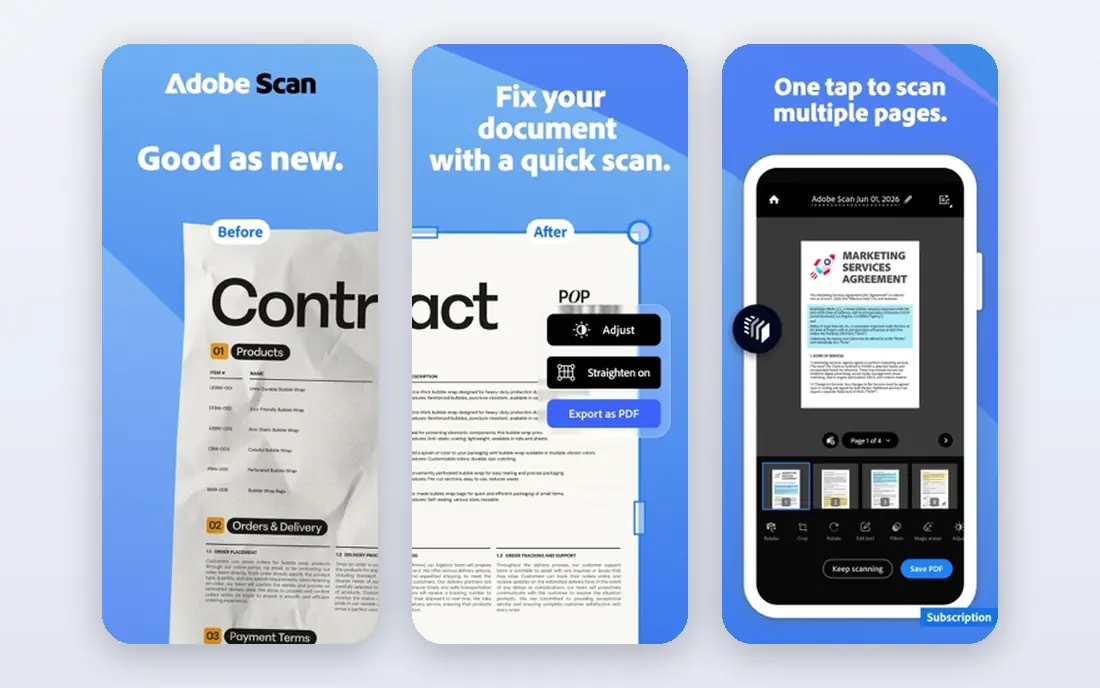
Start with the proven option in this group: Adobe Acrobat Pro is the reference PDF editor for text editing, forms, redaction, comparison, and signing. It suits professionals and teams that edit PDFs daily and that need reliable compatibility.
The trade-off is worth naming before you commit. The price is hard to justify for occasional edits, so casual users should start with a cheaper option. Try it with a real example from your own work before you commit to a paid plan.
- Full text and image editing
- Forms, redaction, and signing
- Strong export options
- Highest price here
- AI assistant costs extra
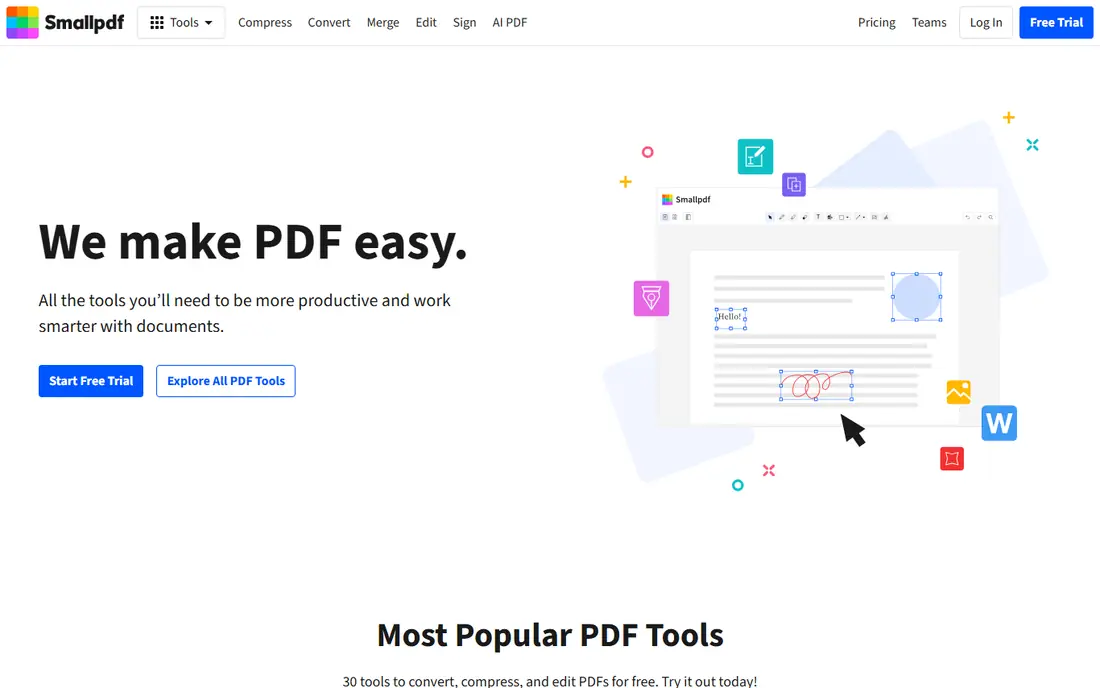
If you want a short setup and a clear daily workflow, consider Smallpdf keeps PDF work simple in the browser, with tools for merging, splitting, compressing, and signing. It suits occasional users who want a quick fix without installing software.
Before you pay, weigh this limit against the benefit. If you need to rewrite text inside a PDF often, a desktop editor will serve you better. Use the free tier or trial to test one realistic task, then decide based on that result.
- Simple web workflow
- Merge, split, compress, and sign tools
- Easy sharing
- Deep text editing is limited compared with desktop editors
- Redaction is absent
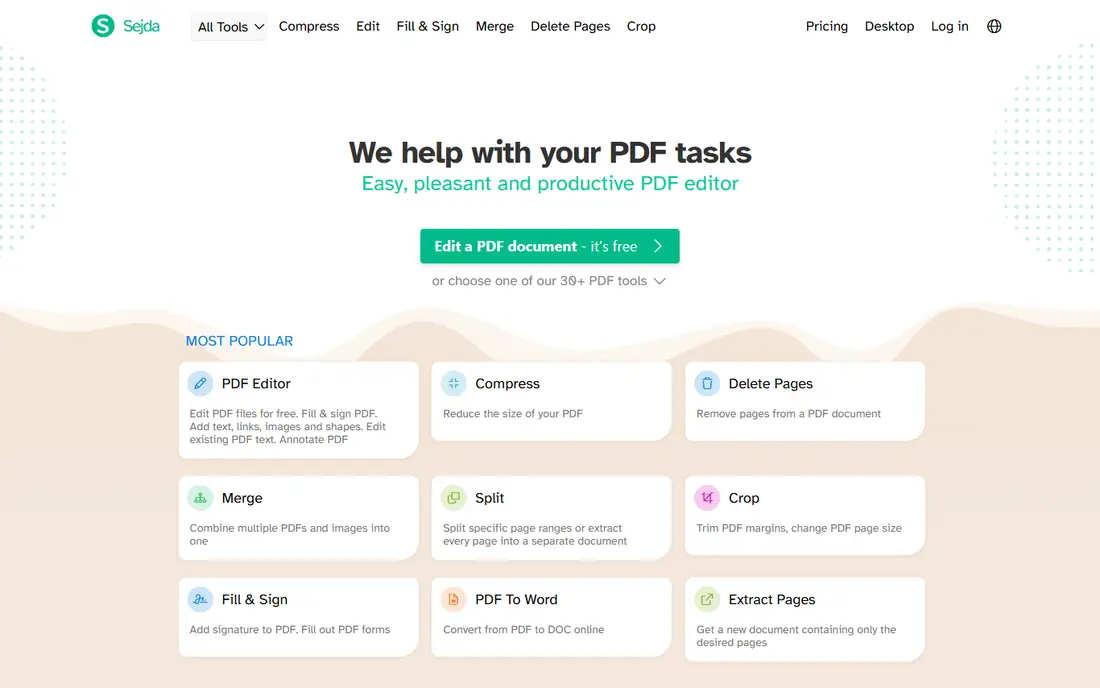
For buyers who value depth and a long track record, Sejda offers real text editing in the browser, which sets it apart from many web tools that only annotate. It suits users who edit PDFs a few times a month and who prefer a browser workflow.
That strength comes with a clear limit. Free limits can interrupt a busy day, so check the current limits before a large job. Compare the plan limits with your actual volume, not with the headline feature list.
- Web-based text editing
- Forms and signing
- Affordable monthly plan
- Free tier has hourly and daily limits
- Desktop app is separate
Foxit PDF Editor
Best for: Business teams that want an Acrobat alternative
A practical middle ground in this list is Foxit PDF Editor is a full desktop editor with editing, forms, security, and signing for business use. It suits teams that want Acrobat-style power at a lower annual price.
The honest catch is easy to miss on a pricing page. The range of menus takes time to learn, so new users should start with common tasks first. Shortlist it, test it for a week, and keep notes on what slowed you down.
- Full editing, forms, and security tools
- AI features on higher plans
- Team pricing
- Interface has many options
- Price rises with AI add-ons
When price is the first filter, Nitro PDF Pro covers editing, conversion, signing, and batch work for office teams. It suits Windows-heavy teams that process many documents and that want a one-time purchase option where offered.
No option here is free of compromise, and this one is no exception. Check the Mac and Windows feature gap before buying for a mixed team. If it passes a small real-world test, it is worth a longer look.
- Editing, conversion, and signing
- Batch tools
- Perpetual licence options in some regions
- Mac version differs from Windows
- Pricing varies by channel
For people who already work with related tools, PDFelement bundles editing, OCR, forms, and conversion at a price below the leading desktop editors. It suits small businesses and students who need OCR and forms without an Acrobat subscription.
Set expectations before you sign up. Heavy users should test OCR accuracy on their own scanned documents before committing. Run a pilot with one project first, and only expand if the workflow holds up.
- Text editing
- OCR
- Forms
- Batch conversion
- Lower cost than Acrobat
- Interface can feel busy
- Some features need higher tiers
PDF-XChange Editor
Best for: Windows users who want a fast, low-cost editor
If you need a specialist rather than a broad all-rounder, PDF-XChange Editor is a fast Windows editor with a useful free version for viewing, annotation, and form filling. It suits Windows users who want speed and a low-cost Pro upgrade.
The weak point shows up most in daily use. Mac and mobile users will need a different tool, since this one is Windows only. Test the exact task you will repeat most often, since that is where value shows up.
- Fast performance
- Free version for viewing and annotation
- Affordable Pro licence
- Windows only
- Pro features need a paid licence
A quieter choice that still covers the core job is iLovePDF is a straightforward web suite for merging, splitting, compressing, and converting PDFs. It suits users who handle everyday PDF tasks in a browser and who want a simple interface.
A careful buyer should check this point first. For rewriting text inside a document, use a desktop editor or Sejda instead. Check support, export options, and renewal terms before you rely on it daily.
- Simple web tools
- Merge, split, compress, and convert
- Mobile apps
- True text editing is limited
- Some tools need a paid plan for unlimited use
To round out the shortlist, PDFescape lets users edit, annotate, and fill forms in a browser without installing software. It suits students and casual users who need basic edits for free.
The final check is about fit, not features alone. Large files and heavy daily use will hit free limits, so check them before a big project. Put it beside one other option on this list and compare them on the same task.
- Free browser editing and annotation
- Form filling
- No install for basic use
- Free limits on file size and pages
- Advanced features are paid
How we picked these
We compared official feature pages, pricing pages, and app store listings for each product, and we kept only products that exist now and clearly fit the topic. We checked whether the free tier or trial covers a realistic task, and we noted where a headline price leaves out add-ons, seats, or usage limits.
We did not claim hands-on testing we did not do, and we did not invent ratings, user counts, or awards. Where a price could not be verified from the vendor, we wrote See website, and we suggest checking the vendor page again before you buy, since plans change.
How to choose a PDF editor
Match the tool to the job you repeat most
Decide what editing really means for you. If you only merge, split, or sign, a free web tool may be enough. If you rewrite text, build forms, or redact, you need a full editor. Paying for a full editor for simple tasks wastes money, and the reverse wastes time.
Check the total cost, not just the first price
Check file limits and privacy. Free web tools often limit file size, pages, or daily jobs, and uploading sensitive documents to a web service needs care. For contracts or medical forms, a desktop editor keeps files local and avoids that upload step.
Test before you commit
Test with your own document. Open a real PDF, fix a paragraph, add a signature, and export it, then check the result on another device. Font shifts, broken forms, and lost formatting show up fast in a real test and rarely show up in a feature list.
Sources
- https://www.adobe.com/acrobat.html
- https://smallpdf.com
- https://www.sejda.com
- https://www.foxit.com/pdf-editor/
- https://www.gonitro.com
- https://pdf.wondershare.com
- https://www.tracker-software.com/product/pdf-xchange-editor
- https://www.ilovepdf.com
- https://www.pdfescape.com
- https://smallpdf.com/compare/adobe-vs-foxit-vs-smallpdf
Frequently asked questions
What is the best tool for editing PDF documents?
For full professional editing, Adobe Acrobat Pro is the strongest choice. For web-based text editing at a lower price, Sejda is a strong pick. For simple merge, split, and sign tasks, Smallpdf or iLovePDF may be enough.
Can I edit PDF text for free?
Yes, with limits. Sejda and PDFescape offer free browser editing, and PDF-XChange Editor has a free version for annotation and form filling. Free tiers often limit pages, file size, or daily use, so check limits before a large job.
Is a web PDF editor safe for private documents?
Web editors require uploading files, so avoid them for highly sensitive documents unless you trust the provider and its privacy policy. Desktop editors such as Acrobat, Foxit, and PDF-XChange keep files on your device by default.
Do I need OCR in a PDF editor?
You need OCR if you work with scanned PDFs and want to search or edit the text. PDFelement, Acrobat Pro, Foxit, and Nitro include OCR on paid plans, while most free web tools do not. Test OCR on your own scans, since accuracy varies.
What is the difference between Acrobat Standard and Pro?
Standard covers viewing, filling, signing, and basic editing, while Pro adds redaction, comparison, web forms, and more features. For most professional users, Pro is the relevant comparison, and its price is higher than Standard.