Best Transparent Background Tool in 2026: 8 Tools Compared
By ToolNimba Editorial Team November 9, 2026 8 min read

- Top pick
 Adobe Express
Free one-click removal
Starting price$9.99 per monthCheck out Adobe ExpressRead our review - Runner-up
 Canva
Removal inside design work
Starting price$15 per monthCheck out CanvaRead our review - Also great
 PhotoRoom
Ecommerce product photos
Starting price$12.99 per monthCheck out PhotoRoomRead our review
How we researched this
We compared official pricing and feature pages, app store listings, privacy policies and public user reviews. Prices change, so check the provider's site before you pay.
Key takeaways
- Adobe Express is the best free starting point for one-off transparent PNGs, with background removal included on its free plan.
- PhotoRoom is the strongest pick for online sellers who need batch processing and listing-ready product shots.
- Canva makes sense if you already pay for Pro, since removal sits inside a design tool you may use for everything else.
- For full manual control over hair, fur and tricky edges, a desktop editor such as GIMP still beats a one-click tool.
Quick comparison
| Name | Best for | Starting price | Free plan | |
|---|---|---|---|---|
| Adobe Express | Free one-click removal | $9.99 per month | Yes | Visit |
| Canva | Removal inside design work | $15 per month | Yes | Visit |
| PhotoRoom | Ecommerce product photos | $12.99 per month | Yes | Visit |
 Pixlr | Browser photo editing | See website | Yes | Visit |
 Fotor | Budget all-in-one editing | $8.99 per month | Yes | Visit |
 Slazzer | Bulk and API removal | See website | Free trial | Visit |
 Removal.AI | Cheap credits for occasional use | See website | Yes | Visit |
 GIMP | Free manual control | Free | Yes | Visit |
The best transparent background tools
A transparent background tool turns a photo into a cutout you can place on any colour, design or listing. The best choice depends on volume, edge quality and whether you also need design templates, batch tools or an API.

Adobe Express is our first suggestion for most casual users because its free plan includes background removal without a watermark on many exports. You upload a photo, remove the background in one click, and download a transparent PNG for use in a presentation, social post or listing. It is simple enough that you do not need design experience to get a usable result.
The trade-off is scope. Express opens your image inside a full design editor, which is more interface than you need for a quick cutout. Premium adds more assets, templates and generative tools, but if you only remove backgrounds now and then, the free plan may be all you need.
- Background removal on the free plan
- Clean exports
- Large template library on paid plans
- Full design editor can feel heavy for a single cutout
- Premium features need a subscription

Canva is the practical pick if your cutout is only the first step in a larger design. Once the background is gone, you can drop the subject straight into a social post, flyer, presentation or ad template without switching apps. That flow saves time for marketers and small business owners who design every day.
The catch is that background removal itself is a Pro feature, so free Canva users cannot use it directly. If you already pay for Pro for other reasons, it is a good value add. If you only need cutouts, a dedicated free tool will cost less.
- Huge template library
- Easy placement of cutouts in designs
- Team features on Pro
- Background remover needs a Pro subscription
- Free plan alone does not include it
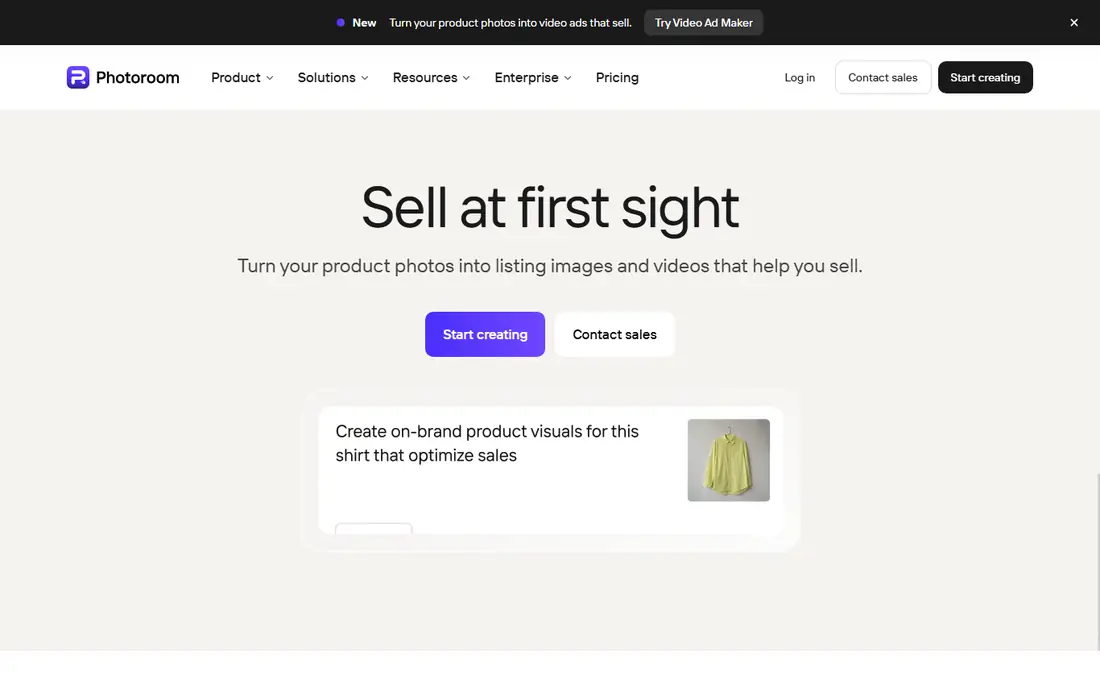
PhotoRoom is built for sellers, and that focus shows in its workflow. You can process product photos in batches, place items on clean white or branded backgrounds, and export sizes suited to marketplaces. For a shop with dozens of listings, that batch flow matters far more than a slightly better single cutout.
It is less useful as a general photo editor, and its free plan has limits on export quality and commercial use. If you sell online and need consistent, listing-ready images at volume, PhotoRoom earns its subscription. Casual users will find cheaper one-off options elsewhere.
- Batch processing
- Product staging and templates
- Marketplace-ready exports
- Free exports carry limits
- Best features need a paid plan
Pixlr combines a browser photo editor with an AI background remover, so you can refine a cutout without installing software. You can adjust edges, add a new background, tweak colour and export a PNG from the same tab. That makes it handy on a shared or borrowed computer.
The free plan is ad-supported and limits some AI credits, so heavy users will hit a ceiling. Paid plans remove ads and raise limits, but check the current pricing page before you buy, since Pixlr has changed its tiers over time. For occasional edits, the free tier is a solid starting point.
- Full editor in the browser
- No install needed
- AI cutout plus manual tools
- Ads and credit limits on the free plan
- Pricing tiers change often
Fotor suits marketers and small teams who want background removal plus basic design in one affordable subscription. Its batch tools help with product sets and social images, and its templates cover posts, banners and collages. The interface is approachable for people who do not edit photos every day.
Free users should expect limits on resolution and exports, and some features sit behind Pro. At its Pro price, though, Fotor is cheaper than Canva Pro and Adobe Express Premium, which makes it a sensible budget alternative if you need both editing and design.
- Batch edits
- Design templates
- Straightforward interface
- Free exports can be watermarked or limited
- Advanced tools need Pro
Slazzer is aimed at people who need to process many images or plug removal into another system. It offers a web tool, a desktop app and an API, and you can preview results before spending credits on a full-resolution download. Developers and agencies use it to automate cutouts for catalogues and apps.
It is not a design suite, so you will still need another tool to place cutouts into layouts. Credit costs also deserve attention: a small job is cheap, but thousands of images need a plan with enough credits. For bulk and automated work, Slazzer is still one of the most practical options.
- API and desktop app for bulk work
- Fast processing
- Preview before paying
- Credit pricing can add up at volume
- Less of a design tool
Removal.AI is a good fit for occasional users who do not want a monthly subscription. You buy credits, preview results at low resolution for free, and spend a credit only when you download a high-resolution cutout. That pay-as-you-go model suits freelancers and small shops with uneven volume.
It does not offer the templates or batch design tools of PhotoRoom or Canva, and its free high-resolution allowance is small. If you remove backgrounds every day, a subscription may work out cheaper. For sporadic jobs, Removal.AI keeps costs tied to actual use.
- Low-cost credit packs
- Unlimited low-resolution previews
- Simple web workflow
- Fewer design features
- High-resolution downloads cost credits
GIMP is the free desktop editor for people who want total control and do not mind learning selection tools. You can refine hair, fur and complex edges by hand, combine masks and layers, and export a transparent PNG without paying anything. For tricky photos that automatic tools mishandle, manual work still wins.
The downside is time and skill. GIMP does not offer the same one-click AI removal as the web tools above, although plug-ins and newer features can help. If you need speed above precision, start with Adobe Express or Pixlr. If you need precision and a zero budget, GIMP is unmatched.
- Completely free
- Precise selection and masking tools
- No subscription
- Steeper learning curve
- No one-click AI removal built in by default
How we picked these
We compared official pricing pages, feature pages and app listings for background removal tools, and we checked public reviews for edge quality, batch limits and export terms. We favoured tools that produce a true transparent PNG, that are still available in 2026, and that state their free limits clearly. We did not claim hands-on testing, and we avoided tools with unclear pricing or shutdown notices.
How to get a clean cutout
Good source photos matter as much as the tool. Use a sharp, well-lit image with clear contrast between the subject and the background, and avoid busy patterns behind hair or fur. After removal, zoom in on edges at full size and fix stray pixels before you publish, since a flaw that is invisible in a thumbnail will show in a large listing image.
Choosing between free and paid
Free plans suit one-off jobs, tests and low-resolution social posts. Paid plans suit batch work, high-resolution exports, commercial use and API access. Before you pay, test the same photo in two or three tools and compare edges, not just speed. The best tool for your photos is the one that handles your hardest edges cleanly.
Export settings that matter
Always export as PNG when you need transparency, since JPEG does not support it. Keep the original resolution where possible, and check the file size for web listings. For print or large banners, use the highest resolution the plan allows, and keep a master PNG so you can reuse the cutout later without reprocessing.
Sources
Frequently asked questions
What is the best free transparent background tool?
Adobe Express is a strong free starting point, since background removal is included on its free plan for many users. Pixlr and Fotor also offer free tiers, but with ads, watermarks or resolution limits. Test your own photo in each, since edge quality varies by image.
Can I remove a background without installing software?
Yes, Adobe Express, Canva, PhotoRoom, Pixlr, Fotor, Slazzer and Removal.AI all work in a browser. GIMP is the exception here, since it is a desktop download. Browser tools are best for quick jobs and shared computers.
Does a transparent background mean the file is a PNG?
In practice, yes for most uses. PNG supports transparency, while JPEG does not, so a JPEG export will fill the background with white or another colour. Some tools also offer WebP with transparency, but PNG remains the safest choice for listings and design tools.
How do I handle hair and fur edges?
Automatic tools struggle most with fine hair, fur and semi-transparent fabric. Try a second tool on the same photo, zoom in and clean edges manually in Pixlr or GIMP, and start with a high-resolution, well-lit source image. For critical product or portrait work, manual refinement is worth the extra time.
Can I remove backgrounds in bulk?
Yes, PhotoRoom, Slazzer and Fotor offer batch processing, and Slazzer and Removal.AI support credit-based bulk work. Check batch limits, credit costs and export resolution before you buy, since those limits decide whether a plan fits a catalogue job.