What Is the Best App for Creating PDFs in 2026: 10 Apps Compared
By ToolNimba Editorial Team November 10, 2026 11 min read

- Top pick
 Adobe Acrobat
Most complete PDF toolkit
Starting price$19.99 per monthCheck out Adobe AcrobatRead our review - Runner-up
 PDF Expert
Mac and iOS PDF creation
Starting priceSee websiteCheck out PDF ExpertRead our review - Also great
 Foxit PDF Editor
Acrobat-level desktop editing
Starting price$10.99 per user per monthCheck out Foxit PDF EditorRead our review
How we researched this
We compared official pricing and feature pages, app store listings, privacy policies and public user reviews. Prices change, so check the provider's site before you pay.
Key takeaways
- Adobe Acrobat is the most complete PDF app, with creation, editing, OCR, and signing in one place, but it costs $19.99 per month for Pro and can feel heavy for simple jobs.
- PDFgear and PDF24 Tools are the best free options for creating and editing PDFs, with PDFgear offering a full desktop and web editor at no cost.
- Smallpdf, iLovePDF, and Sejda are the easiest browser options when you need to create a PDF quickly without installing software.
- Foxit, Nitro, and PDFelement are strong Acrobat alternatives for desktop users who want editing and conversion for less, or with a one-time purchase option.
- For sensitive documents, prefer a desktop app over a browser tool, since browser tools upload your file to a server to process it.
Quick comparison
| Name | Best for | Starting price | Free plan | |
|---|---|---|---|---|
| Adobe Acrobat | Most complete PDF toolkit | $19.99 per month | Free trial | Visit |
| PDF Expert | Mac and iOS PDF creation | See website | Yes | Visit |
| Foxit PDF Editor | Acrobat-level desktop editing | $10.99 per user per month | Free trial | Visit |
 Nitro PDF Pro | Office-style desktop editing | $15 per user per month | Free trial | Visit |
 PDFelement | Editing plus one-time purchase | $79.99 per year | Free trial | Visit |
 Smallpdf | Quick browser PDF tools | $10 per month | Yes | Visit |
 iLovePDF | Beginner-friendly browser tools | $4 per month | Yes | Visit |
 Sejda | Browser edits with no account | $7.50 per month | Yes | Visit |
 PDFgear | Fully free desktop editor | Free | Yes | Visit |
 PDF24 Tools | Unlimited free browser tools | Free | Yes | Visit |
The best app for creating PDFs
Creating a PDF can mean different jobs: turning a Word file or a photo into a PDF, scanning paper into a searchable file, merging pages, filling a form, or building a document from scratch. The apps below cover those jobs across desktop, web, and mobile, so you can pick the one that matches how often you create PDFs and how sensitive your files are.
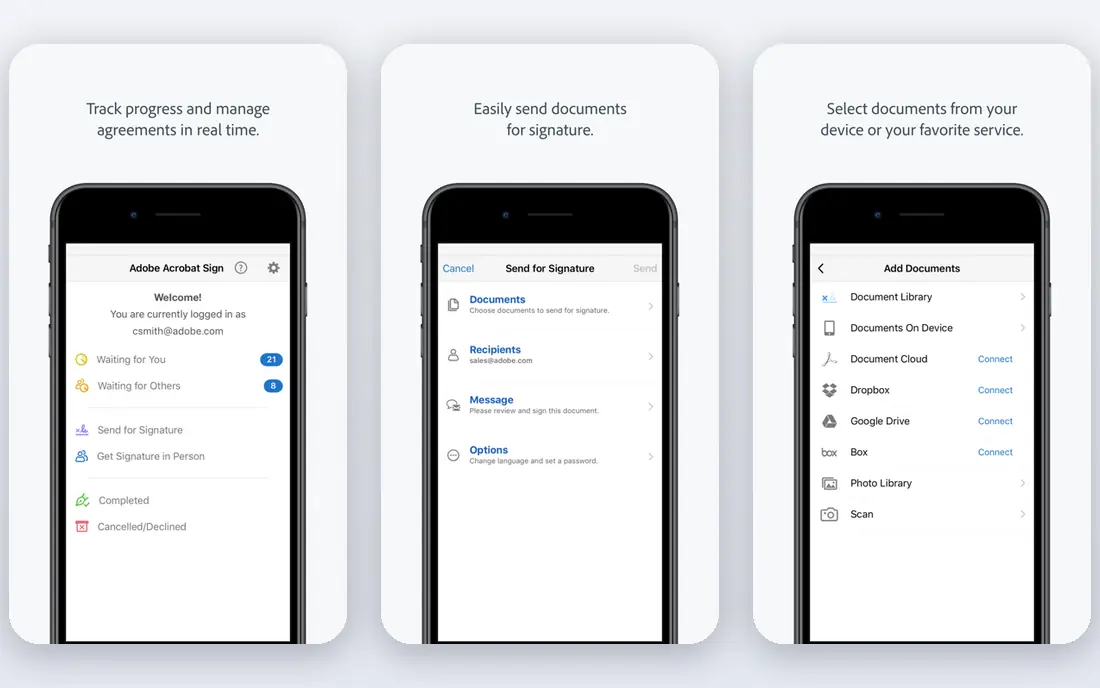
Adobe Acrobat is our pick for most people who create PDFs every week, because it covers almost every job in one app. You can create PDFs from Word, Excel, images, and scans, edit text and images inside a PDF, convert PDFs back to Office formats, and collect signatures without a separate tool. OCR turns scanned pages into searchable, editable text, which matters for contracts and reports.
The cost is the main drawback. Acrobat Pro is listed at $19.99 per month on an annual plan billed monthly, and the interface can feel crowded with upsells for extra features. A 7-day free trial lets you test it, but there is no permanent free plan for full editing. If you create PDFs daily for work, Acrobat is worth it. If you create one a month, a free tool below will do the same basic job.
- Create from many file types
- Strong OCR
- Signing and form tools built in
- Subscription cost is high for occasional use
- Interface can feel crowded
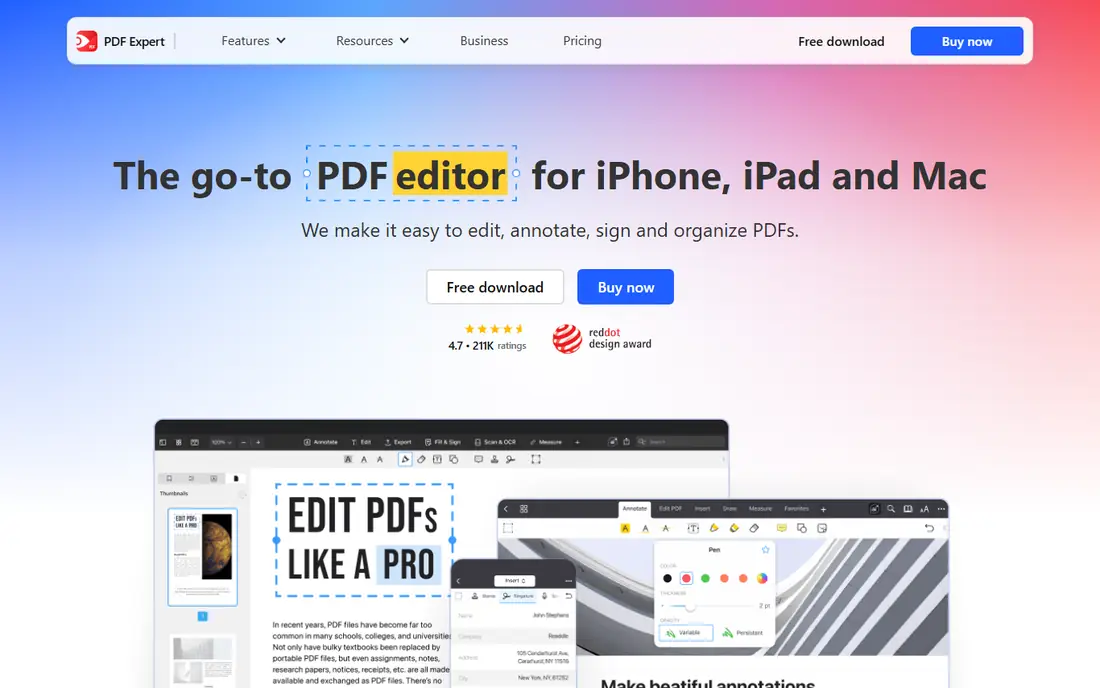
PDF Expert is the best PDF app for people who live in Apple's ecosystem. It is fast on Mac, iPad, and iPhone, it supports Apple Pencil markup on iPad, and it lets you create PDFs from Word files, images, and other documents, then merge, split, or compress them. Reading, annotating, filling, and signing all happen in one clean app.
The limit is platform. PDF Expert does not offer a Windows or Android version, so it is not a fit for mixed-device households or offices. Advanced editing and OCR features also sit behind Premium, with pricing shown on its site and a lifetime option listed in some offers. For Mac and iOS users who create PDFs often, PDF Expert feels lighter and faster than Acrobat.
- Fast on Apple devices
- Good Apple Pencil support
- Create from Word and images
- Apple only
- Advanced OCR and editing features need Premium
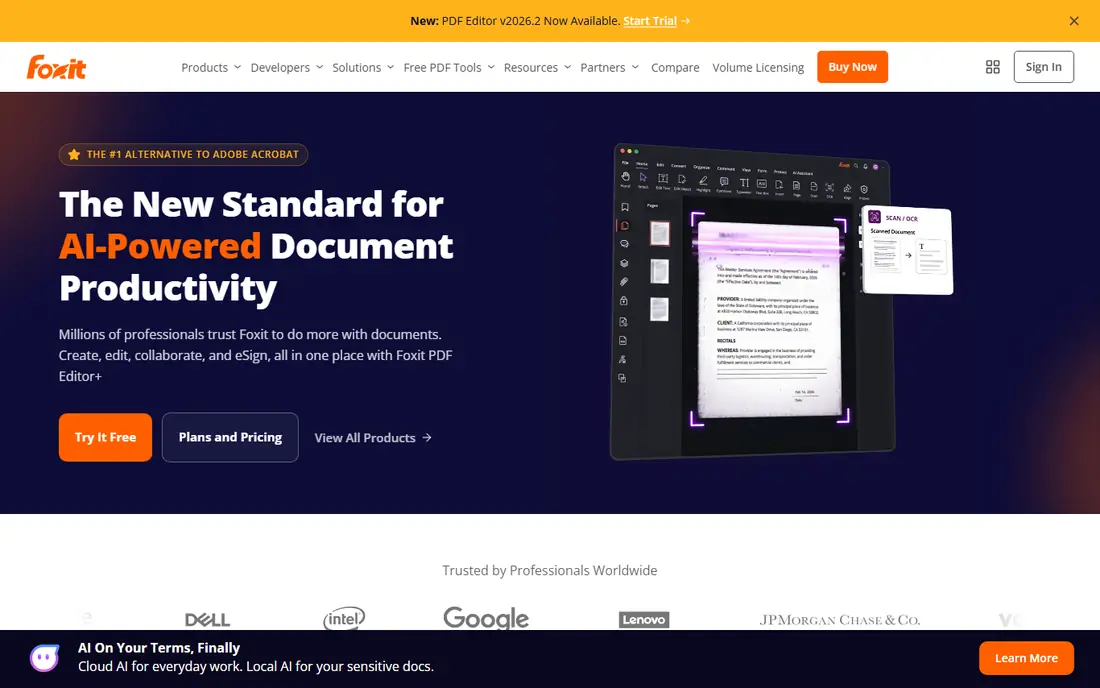
Foxit PDF Editor is the closest desktop alternative to Acrobat for many office users. It creates PDFs from Office files, images, and scans, edits text and images, converts PDFs to other formats, and supports signing and form filling. Pricing starts at $10.99 per user per month on an annual plan, with a perpetual license also listed, which appeals to buyers who dislike subscriptions.
Foxit is not quite as polished as Acrobat in every corner, and its interface can feel busy when you open advanced tools. A 14-day free trial gives you time to test it on your real documents. If you need a full desktop PDF editor for daily work but want to pay less than Acrobat, Foxit is the first alternative to try.
- Full editing and conversion
- Lower cost than Acrobat
- Perpetual license option
- Interface can feel busy
- Some advanced features need higher tiers
Nitro PDF Pro suits office teams that want a familiar, Office-like PDF editor. It creates PDFs from many file types, edits text and pages, converts PDFs to Word and Excel, and handles signing and forms. Pricing is listed at $15 per user per month on an annual plan, with a one-time Pro license also advertised, which gives teams a choice between subscription and purchase.
Nitro is desktop-first, so it is less handy for quick phone or browser jobs than Smallpdf or iLovePDF. There is no meaningful free online tier, and a free trial is the way to test it. If your team works on Windows desktops and creates PDFs from Office documents all day, Nitro's familiar layout makes training easier than a more complex tool.
- Familiar Office-style interface
- Strong conversion
- Good for teams
- No meaningful free online tier
- Desktop focus means weaker mobile tools
PDFelement from Wondershare is a full desktop PDF editor with creation, editing, OCR, conversion, and form tools, plus AI features for summarizing and working with documents. Annual pricing starts at $79.99 per year, with a perpetual license listed at $129.99 one-time in some comparisons, which makes it attractive for buyers who want to pay once and keep the software.
The free trial is watermarked, so it is useful for testing but not for finished work. The interface packs in many tools, which can feel crowded at first. For users who want Acrobat-style features with a one-time purchase path, PDFelement is a strong middle option between free tools and a full Acrobat subscription.
- Full editing, OCR, and conversion
- AI tools included
- Perpetual license option
- Trial exports carry a watermark
- Interface can feel crowded
Smallpdf is the easiest browser option for occasional PDF creation. You open the site, choose a tool, drop in a file, and download a PDF, with no software to install. It covers creation from Word and images, merging, splitting, compressing, and converting, and the interface is clear enough for first-time users. Pro is listed at $10 per month when billed annually.
The free tier limits how many tasks you can do per day, so it suits occasional use rather than bulk work. Large files can also be slow, since they must upload to Smallpdf's servers. For a quick PDF from a laptop or a shared computer, Smallpdf is the bookmark to keep. For daily bulk work, a desktop app will be faster and more private.
- Simple browser workflow
- Create, compress, merge, and convert
- No install needed
- Free tier limits tasks per day
- Large files can be slow to upload
iLovePDF is a friendly browser toolkit for creating and working with PDFs, with a clear layout that groups tools by job: merge, split, compress, convert, and more. Its free tier is more generous than Smallpdf for one-off conversions, with file size limits around 100 MB in published comparisons, and Premium starts from $4 per month when billed annually.
iLovePDF also offers desktop and mobile apps, which helps when you want the same tools offline or on a phone. The free tier still has limits, and browser tools upload files to a server, so avoid it for highly sensitive documents. For students, freelancers, and small offices that create PDFs a few times a week, iLovePDF is one of the best free starting points.
- Generous free tier for one-off jobs
- Desktop and mobile apps too
- Clear tool layout
- Free tier still has size and task limits
- Sensitive files are uploaded to servers
Sejda stands out because it lets you edit existing PDF text directly in a browser, which many browser tools cannot do well. You can also create PDFs, merge, split, and convert, without creating an account for free tasks. Paid plans start at $7.50 per month, with a week pass also available for short projects.
The free tier is limited to a few tasks per hour, with files capped at 50 MB or 200 pages in published comparisons. That makes Sejda best for occasional edits and creation, not for bulk processing. If you need to fix text in a PDF quickly without installing software, Sejda is the browser tool to try first.
- Edit existing PDF text in browser
- No account needed for free tasks
- Week pass available
- Free tasks are limited per hour and by file size
- 50 MB and 200 page caps on free use
PDFgear is the best free desktop PDF editor in this list, because it offers full editing, conversion, and OCR at no cost, with no watermark and no signup for core desktop use. It works on Windows, Mac, iOS, and web, and it includes an AI copilot for summarizing documents. For users who want to create and edit PDFs without a subscription, PDFgear is hard to beat.
The trade-offs are sync and certainty. PDFgear has no cloud sync across devices, so it works best as a single-machine tool, and its maker has noted that some AI or cloud features may become paid in the future, even if core desktop editing stays free today. For occasional and regular personal use, PDFgear gives you more free capability than any other tool here.
- Completely free with no watermark
- Editing, conversion, and OCR
- Desktop and web versions
- No cloud sync across devices
- Long-term pricing model may change
PDF24 Tools offers a wide set of free PDF tools online, plus a Windows app for offline use, with no task counter in published comparisons. You can create PDFs, merge, split, compress, convert, and more without an account, which makes it a practical fallback when another free tool hits its daily limit.
PDF24 is not a full Acrobat replacement for advanced editing, OCR, or form building, and online use uploads files to its servers. For everyday creation and conversion, though, it is one of the most generous free options available. Keep it as a second bookmark alongside PDFgear for desktop work and iLovePDF for browser work.
- Free with no task counter
- Online or as a Windows app
- Wide tool set
- Uploads files to servers for online use
- Fewer advanced editing features than Acrobat
How we picked these
We compared official pricing pages, free tiers, and feature pages for PDF apps that can create a PDF, not just read one. We favored apps that are still available, that cover desktop, web, or mobile, and that serve different needs: full professional editing, free desktop editing, and quick browser creation. We did not claim hands-on speed testing, and we wrote See website where pricing varies by plan or offer.
Which PDF app should you pick for your job
If you create PDFs every day for work, choose Acrobat, Foxit, or Nitro, and test the trial on your real documents before you pay. If you use Apple devices only, PDF Expert will feel faster and simpler. If you create PDFs a few times a month, start free with PDFgear on desktop or iLovePDF and PDF24 in a browser, and only pay when you hit a limit that slows you down.
For sensitive files, prefer a desktop app and keep the file on your own machine. Browser tools are convenient, but they upload your file to process it, so check how long the service keeps files and delete them after download when you can. Finally, check the export quality before you send a PDF to a client: open the created file, check fonts, images, and page size, and confirm that scanned pages are searchable if that matters for the recipient.
Sources
Frequently asked questions
What is the best app for creating PDFs for free?
PDFgear is the best free desktop option, with full editing and conversion at no cost and no watermark. For browser use, PDF24 Tools and iLovePDF are the strongest free choices, with PDF24 offering no task counter and iLovePDF offering a generous free tier.
Can I create a PDF from a photo or a Word file?
Yes. Most apps in this list create PDFs from Word, Excel, images, and scans. Acrobat, PDF Expert, Foxit, and PDFelement handle this on desktop, while Smallpdf, iLovePDF, and Sejda handle it in a browser without an install.
Is Adobe Acrobat worth paying for?
Acrobat is worth it if you create, edit, and sign PDFs daily and need strong OCR, form tools, and signing in one place. If you only create a PDF now and then, free tools such as PDFgear or PDF24 will cover the same basic jobs without a subscription.
How do I create a searchable PDF from a scan?
Use an app with OCR, such as Acrobat, Foxit, PDFelement, or PDFgear. OCR reads the text in a scanned image and adds a searchable text layer, so you can search, copy, and highlight the words. Check the result, since OCR can misread handwriting and low-quality scans.
Are online PDF creators safe for private documents?
Browser PDF tools upload your file to a server to process it, so they are less private than desktop apps for sensitive material. For contracts, medical records, or financial files, use a desktop app such as Acrobat, Foxit, or PDFgear, and keep a local copy. For non-sensitive files, reputable browser tools with clear deletion policies are fine.