What Software Is Best for Thumbnails in 2026: 9 Tools Compared
By ToolNimba Editorial Team November 10, 2026 8 min read

- Top pick
 Canva
All-around template design
Starting price$14.99 per monthCheck out CanvaRead our review - Runner-up
 Adobe Express
Free-first templates and AI
Starting price$9.99 per monthCheck out Adobe ExpressRead our review - Also great
 Adobe Photoshop
Pixel-level control
Starting priceSee websiteCheck out Adobe PhotoshopRead our review
How we researched this
We compared official pricing and feature pages, app store listings, privacy policies and public user reviews. Prices change, so check the provider's site before you pay.
Key takeaways
- Canva is the best all-around thumbnail maker for most creators, with a free tier and Pro at $14.99 per month.
- Adobe Express is the best free-first alternative, with thousands of templates and AI features on its free plan.
- Adobe Photoshop remains the best choice for pixel-level control, though it costs more and takes longer to learn.
- Photopea and GIMP give you pro-style editing for free, which suits creators on a zero budget.
- AI generators like Pikzels suit face-forward channels that want many variations fast, while template tools suit speed.
Quick comparison
| Name | Best for | Starting price | Free plan | |
|---|---|---|---|---|
| Canva | All-around template design | $14.99 per month | Yes | Visit |
| Adobe Express | Free-first templates and AI | $9.99 per month | Yes | Visit |
| Adobe Photoshop | Pixel-level control | See website | Free trial | Visit |
 Snappa | Fast template thumbnails | See website | Yes | Visit |
 VistaCreate | Template variety on a budget | $10 per month | Yes | Visit |
 Fotor | Cheap template maker | $8.99 per month | Yes | Visit |
 Photopea | Free Photoshop-style editing | Free | Yes | Visit |
 GIMP | Free desktop image editing | Free | Yes | Visit |
 Pikzels | AI thumbnails with your face | See website | Free trial | Visit |
The best software for thumbnails
Thumbnails decide whether anyone clicks your video, and the best software depends on your skill and schedule. Template tools make a good thumbnail in ten minutes. Pro editors give total control but take longer. AI generators make many variations fast. The tools below cover all three approaches, sized for YouTube's standard 1280 by 720 thumbnail.
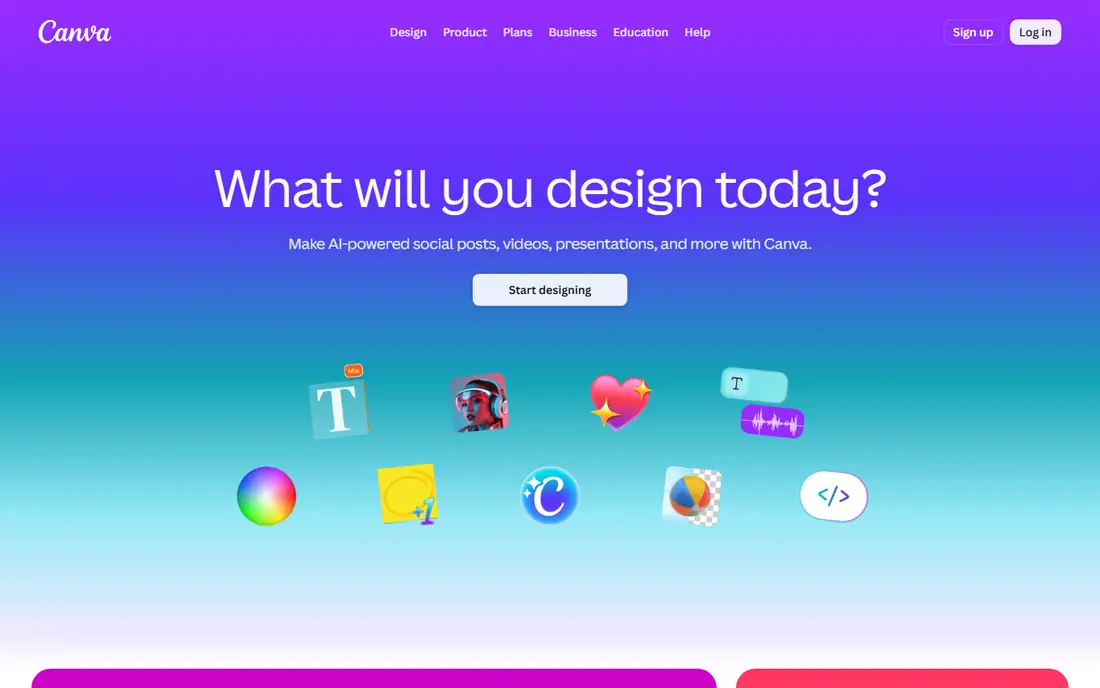
Canva is the default thumbnail maker for most creators. Its template library runs into the millions, the editor is drag-and-drop simple, and Pro at $14.99 per month adds premium templates, a one-click background remover, Brand Kits, and more AI credits. Web and mobile apps mean you can finish a thumbnail anywhere.
The trade-off is originality. Templates are popular, so thumbnails can look familiar, and true compositing work still needs Photoshop or Photopea. For creators publishing weekly who need a polished thumbnail fast, Canva is our top pick.
- Huge template library
- Drag-and-drop editing
- Background remover and Brand Kits on Pro
- Free plan limits premium assets and AI credits
- Templates can look generic
- Advanced compositing is limited
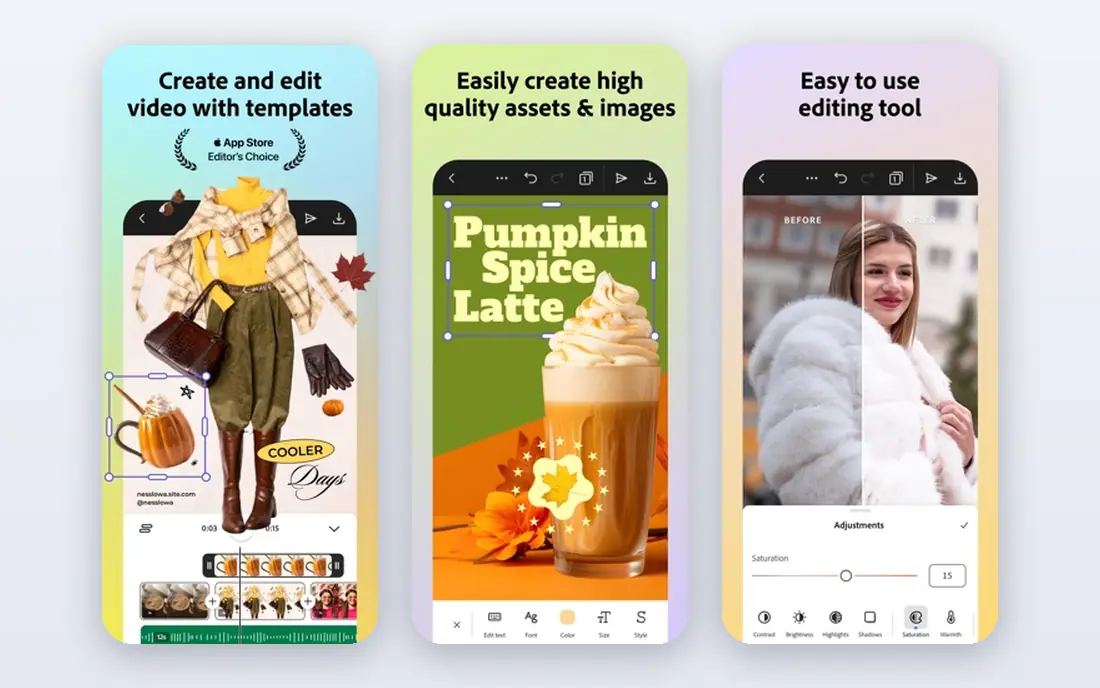
Adobe Express is the strongest free-first alternative to Canva. Its free plan covers thousands of templates, and Premium at around $9.99 per month adds Firefly-powered generative AI, more templates, and high-resolution export. For creators who want a free tool that still feels professional, Express is the best balance of speed, cost, and quality.
Template variety is smaller than Canva's, and the stock library is thinner. But if you want to start free and only pay when you need AI features, Adobe Express is the smartest free starting point.
- Genuinely useful free plan
- Thousands of purpose-built templates
- Firefly AI features
- Template depth trails Canva
- Premium costs $9.99 per month
- Fewer stock assets than Canva Pro
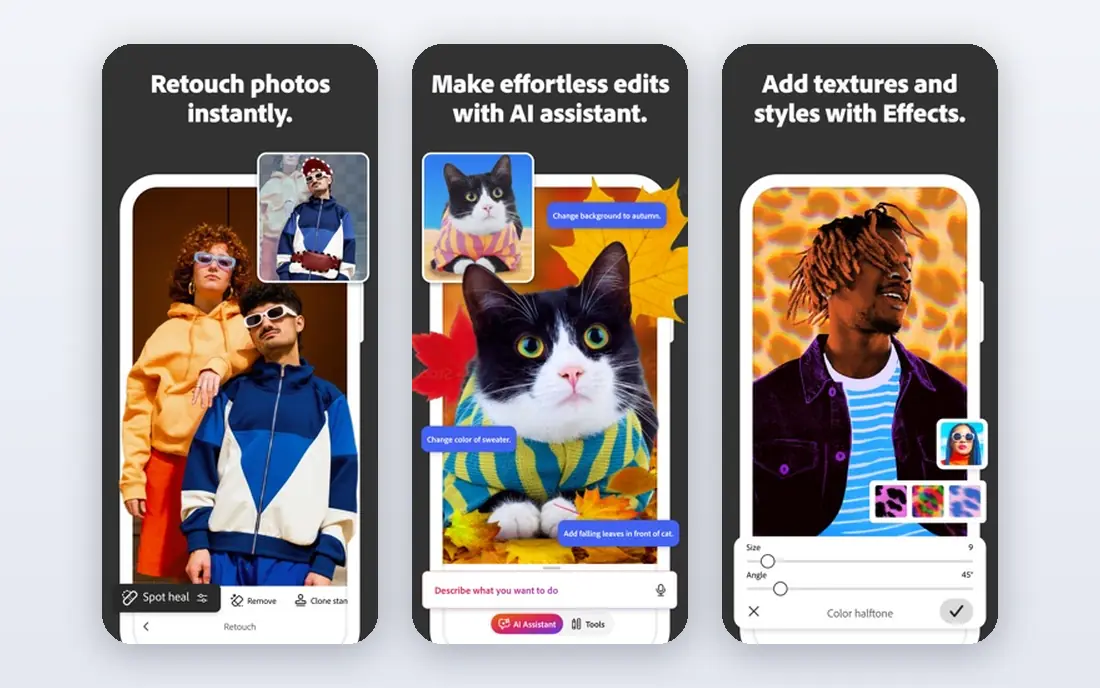
Photoshop is the professional fallback when templates are not enough. Layers, masks, precise cutouts, advanced text effects, and color grading give you control no template tool matches, and its plugin ecosystem covers everything from retouching to 3D text. Individual plans vary, with Photography plans reported around $19.99 to $22.99 per month, and a trial is available.
It is the slowest option for a daily upload schedule, and beginners face a real learning curve. Creators who outgrow templates entirely, or who need a signature style nobody else can copy, should still learn Photoshop. Everyone else should start with Canva or Express.
- Total layer, mask, and color control
- Industry-standard compositing
- Huge plugin and brush ecosystem
- Steep learning curve
- Subscription pricing varies by plan
- Slowest option for daily thumbnails
Snappa is built for speed. Pick a YouTube-sized template, swap in your photo and text, and export in minutes. The editor stays simple on purpose, which suits creators who want a good thumbnail without learning design software. A free tier covers occasional use, with paid plans adding unlimited downloads.
Template variety is smaller than Canva's, and deep editing is limited. For creators who value ten-minute thumbnails over endless options, Snappa is a focused, fast choice.
- Very fast template workflow
- Sized templates for every platform
- Simple editor
- Smaller template library than Canva
- Advanced features are limited
- Free tier caps downloads
VistaCreate, formerly Crello, offers a large template library and a Pro plan at $10 per month billed annually, undercutting Canva Pro. It includes animation options for social posts and a straightforward editor that most creators learn in one session. A free tier covers basic use.
The editor feels less polished than Canva's, and AI features are thinner than Adobe's. For budget-conscious creators who want template variety without Canva's price, VistaCreate is a strong value pick.
- Large template and asset library
- Pro at $10 per month billed annually
- Animation options
- Editor is less refined than Canva
- AI features trail Adobe
- Brand tools are basic
Fotor pairs a photo editor with a template maker, and its paid plans start around $8.99 per month, the lowest here. Templates cover YouTube and social sizes, batch processing helps creators handling many images, and the photo tools are genuinely useful for cleaning up screenshots and portraits.
The interface packs in a lot, and YouTube-specific guidance is thinner than Canva's. For creators on the tightest budget who still want templates plus photo editing, Fotor is a good deal.
- Lowest paid price here
- Solid templates and photo tools
- Batch processing
- Interface feels busy
- Premium assets need Pro
- Less YouTube-specific guidance
Photopea is the free tool that surprises people most. It runs in the browser and offers Photoshop-style layers, masks, and adjustments, opening PSD files directly, all for free. That makes it the best zero-budget path to pro-style thumbnails.
It is ad-supported, performance depends on your browser and machine, and there is no real mobile app or cloud library. For creators who want Photoshop power without the subscription, Photopea is the best free editor available.
- Photoshop-style layers and masks for free
- Runs in the browser
- Opens PSD files
- Ad-supported
- Performance depends on your browser
- No cloud sync or mobile app depth
GIMP is the long-running free desktop image editor, with deep tools for compositing, retouching, and text effects, plus a huge plugin community. It suits creators who want a real desktop app for free and are willing to learn it.
The interface feels dated next to Canva or Photoshop, and there are no built-in thumbnail templates, so you start from a blank 1280 by 720 canvas. For patient creators on a zero budget who want a desktop workflow, GIMP remains a capable, honest tool.
- Fully free desktop editor
- Deep tools for compositing
- Huge plugin community
- Interface feels dated
- Learning curve is real
- No built-in templates
Pikzels is the AI-first pick for face-forward channels. Its FaceSwap persona feature lets you upload photos once and reuse your face across thumbnails, keeping a consistent look while the AI generates many variations from a prompt. That suits commentary, vlog, and reaction channels that publish often.
AI output still needs a human eye, since faces and text can come out wrong, and pricing is subscription-based with plans that vary. For creators who want volume and consistency from AI, Pikzels is the most focused tool here.
- FaceSwap persona keeps your face consistent
- AI generates many variations fast
- Good for commentary channels
- Subscription pricing varies
- AI output needs checking
- Less manual control than Canva
How we picked these
We compared official pricing pages and independent 2026 comparisons of thumbnail makers, favoring tools with current availability in October 2026, a real free tier or trial, and a clear job: templates, AI generation, or pro editing. We mixed free and paid tools across skill levels. Prices change often, so confirm on each vendor page before you pay. We did not test every tool hands-on; our comparison rests on published features, pricing, and public reviews.
Designing a thumbnail that gets clicks
Three rules matter more than any tool. First, design at thumbnail size: check your work on a phone at small size, since that is how most viewers see it. Second, use one clear subject, bold text of three to five words, and high contrast. Third, make two or three variations per video and test them, since small changes in face, color, or text can shift click rates noticeably.
Keep text readable at small sizes, avoid clutter, and match the thumbnail to the video honestly. A misleading thumbnail earns a click and loses a viewer, which hurts your channel over time.
Sources
- https://fashionisers.com/2026/08/03/the-6-best-youtube-thumbnail-makers-for-content-creators-in-2026/
- https://www.thumbler.ai/blog/canva-vs-photoshop-best-tool-for-youtube-thumbnails
- https://www.thumix.com/compare/best-ai-thumbnail-makers
- https://miraflow.ai/blog/canva-vs-miraflow-best-ai-youtube-thumbnail-maker
- https://www.canva.com
- https://www.adobe.com
- https://snappa.com
- https://create.vista.com
- https://www.fotor.com
- https://www.photopea.com
- https://www.gimp.org
- https://pikzels.com
Frequently asked questions
What is the best software for YouTube thumbnails?
For most creators, Canva is the best all-around choice, with templates, a free tier, and Pro at $14.99 per month. Adobe Express is the best free-first alternative. Photoshop is best for full creative control, while Photopea and GIMP cover pro-style editing for free.
Can I make YouTube thumbnails for free?
Yes. Canva, Adobe Express, Snappa, VistaCreate, and Fotor all offer free tiers, and Photopea and GIMP are completely free. Free tiers limit premium assets and AI credits, but they cover everything a beginner needs for a clean, clickable thumbnail.
What size should a YouTube thumbnail be?
YouTube recommends 1280 by 720 pixels, a 16 by 9 ratio, in JPG or PNG format under 2MB. Design at that size, then check the result at small size on a phone, since most viewers first see thumbnails much smaller than full resolution.
Is Photoshop worth it for thumbnails?
Photoshop is worth it if you need pixel-level control, custom compositing, or a signature style templates cannot copy. For most creators publishing weekly, Canva or Adobe Express is faster and cheaper. Photopea gives you Photoshop-style editing for free if cost is the barrier.
Do AI thumbnail makers work well?
AI makers like Pikzels generate many variations fast and keep a consistent face for commentary channels, which saves time. Output still needs checking, since AI text and faces can come out wrong. Use AI for variations and first drafts, then finish the winner in Canva, Express, or Photopea.