Best AI Photo Editing Tools in 2026: 9 Products Compared
By ToolNimba Editorial Team October 28, 2026 10 min read

- Top pick
 Adobe Photoshop
Detailed professional edits
Starting price$22.99 per monthCheck out Adobe PhotoshopRead our review - Runner-up
 Canva
Quick social and marketing designs
Starting priceFreeCheck out CanvaRead our review - Also great
 Luminar Neo
Scenery and portrait enhancement
Starting priceSee websiteCheck out Luminar NeoRead our review
How we researched this
We compared official pricing and feature pages, app store listings, privacy policies and public user reviews. Prices change, so check the provider's site before you pay.
Key takeaways
- Adobe Photoshop remains our pick for detailed, layered work, while Canva is the easiest starting point for social and marketing images.
- Free plans from Canva, Pixlr, Fotor, and Photopea cover basic edits, background removal, and quick fixes without a subscription.
- Luminar Neo and Topaz Photo AI suit photographers who want focused help with skies, portraits, noise, and old or low-resolution files.
- Photoroom is the most product-focused choice here, with backgrounds, shadows, and batch tools built for online sellers.
- Generative features usually sit behind paid plans or credit limits, so check the allowance before you plan a large batch of edits.
Quick comparison
| Name | Best for | Starting price | Free plan | |
|---|---|---|---|---|
| Adobe Photoshop | Detailed professional edits | $22.99 per month | Free trial | Visit |
| Canva | Quick social and marketing designs | Free | Yes | Visit |
| Luminar Neo | Scenery and portrait enhancement | See website | Free trial | Visit |
 Photoroom | Product photos for selling online | See website | Yes | Visit |
 Pixlr | Fast browser edits | Free | Yes | Visit |
 Fotor | Simple all-in-one editing | Free | Yes | Visit |
 Topaz Photo AI | Fixing noise, blur, and low resolution | See website | No | Visit |
 Photopea | Free layered editing in a browser | Free | Yes | Visit |
 Adobe Lightroom | Organizing and editing large photo sets | See website | Free trial | Visit |
The best AI photo editing tools
We looked at official feature pages, pricing pages, app store listings, and public reviews to compare what each editor does well, what it limits, and what it costs. The best choice depends less on having the most tools and more on whether you edit portraits, products, outdoor shots, or social posts.
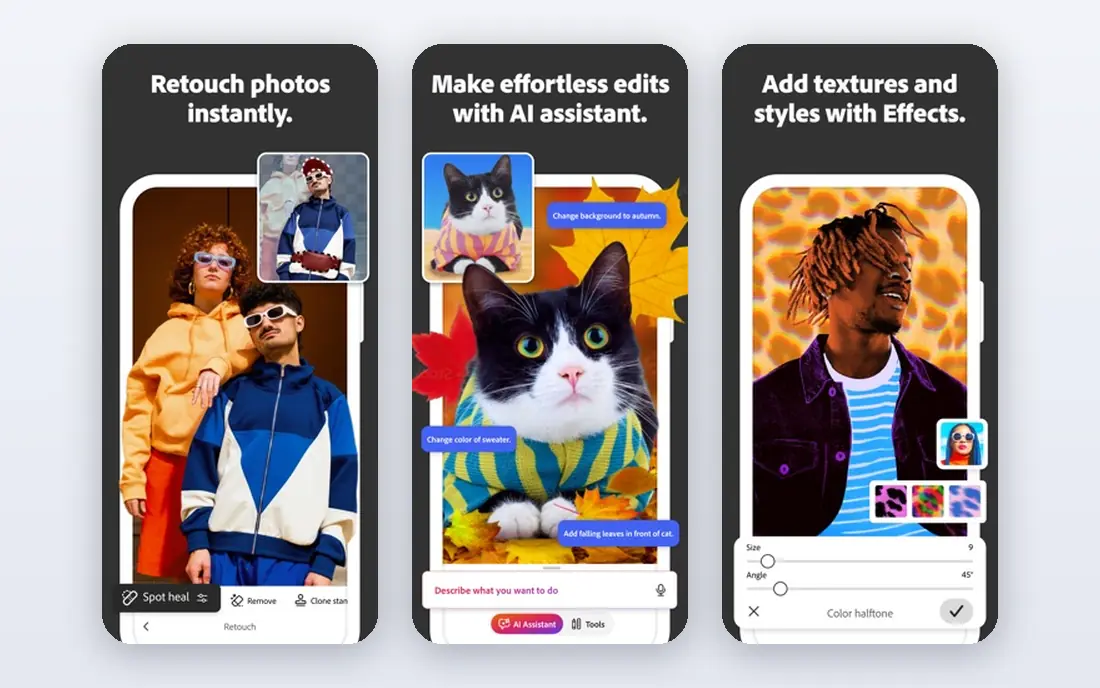
Photoshop is the reference point for serious editing because it combines layers, masks, selections, and AI generation in one desktop app. Generative Fill can extend a background, remove an object, or add an element from a short prompt, and you can then refine the result with the same precise tools used for retouching and compositing. That power comes with a cost in both money and time. Beginners may feel lost in the menus, and casual editors will not need most of what is included. For photographers, designers, and retouchers who edit often and need control over every pixel, it is still the most complete option on this list.
- Full layered editing
- Generative Fill and Expand
- Strong RAW and compositing tools
- Steep learning curve
- Subscription only, with generative credits limited by plan
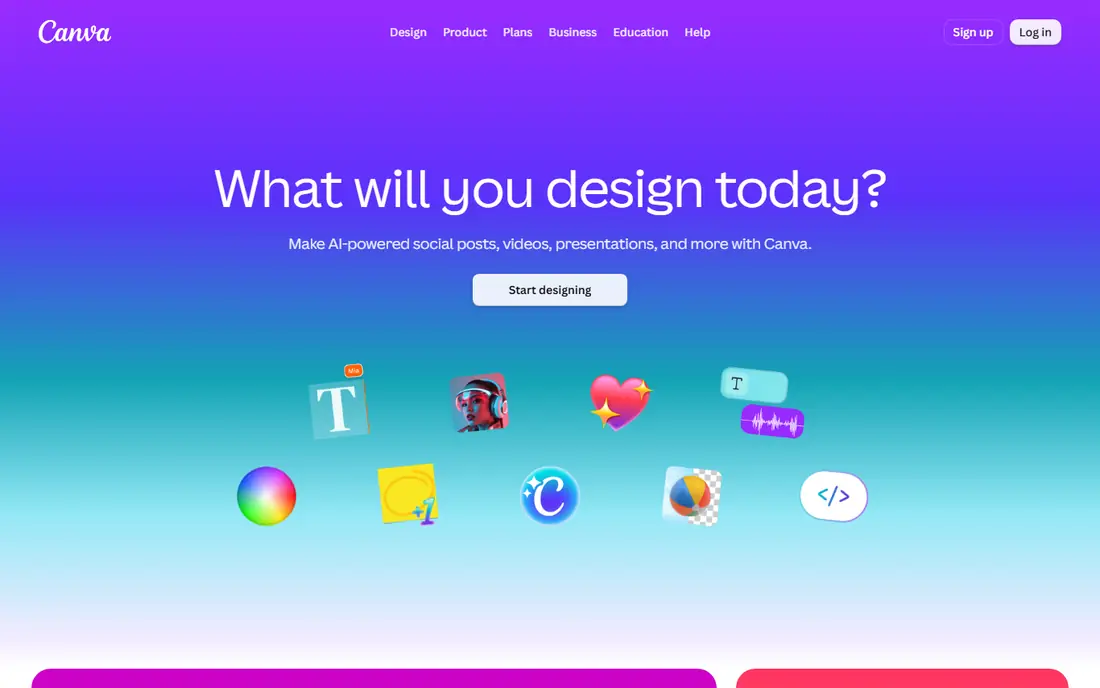
Canva wins on speed. You can open a photo, remove the background, resize it for a social platform, and add text without learning layers or masks. For small business owners who need a clean product post or flyer the same day, that simplicity matters more than advanced retouching. The free plan is genuinely useful for occasional edits, while Pro adds background removal, bulk tools, and a larger AI allowance. Check the current AI limits before you buy, because heavy AI use can run through an allowance faster than ordinary editing.
- Very easy to learn
- Free plan covers many basic edits
- Templates, background removal, and Magic Edit on paid plans
- Less precise than a desktop editor
- AI use is capped by a monthly allowance
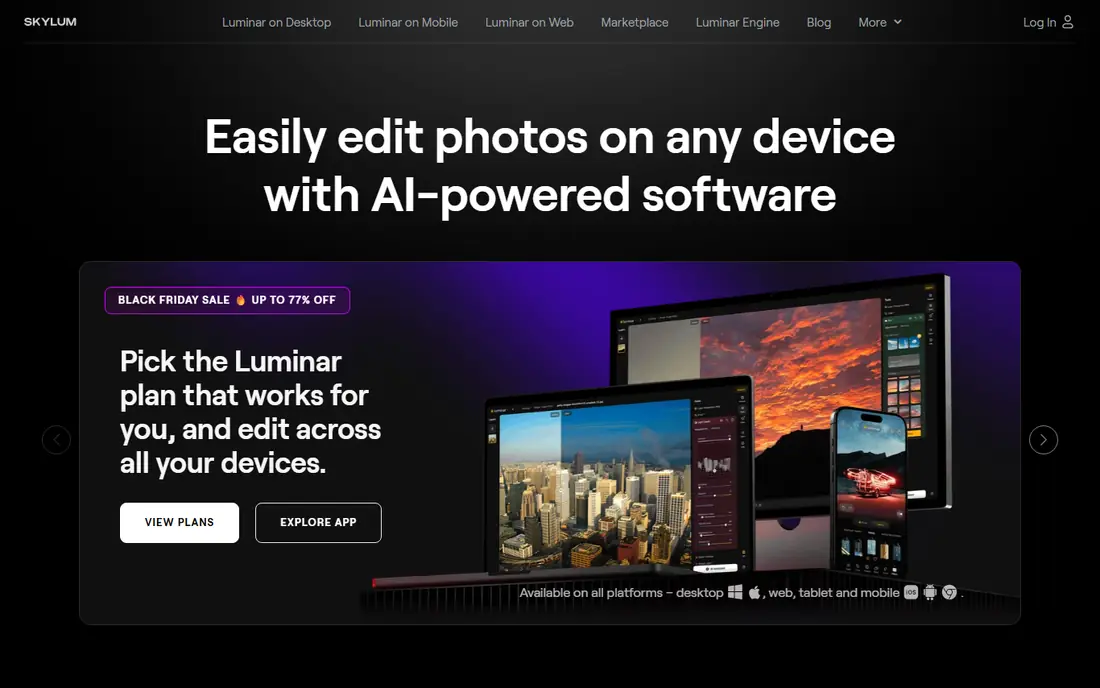
Luminar Neo is built around one-click and slider-based improvements that still leave room for manual control. Sky replacement, relighting, and portrait tools can lift a flat outdoor scene or a dull portrait in minutes, which is why many hobbyists prefer it to a general editor. It is not the right pick if you need text-heavy design, complex compositing, or a large template library. For photographers who shoot often and want faster edits with a natural look, it strikes a useful balance between automation and control.
- Sky replacement and relighting tools
- Portrait retouching without heavy manual work
- Simpler than Photoshop for many photographers
- Pricing and plan options can be confusing
- Not a full graphic design tool
Selling online makes photo consistency a business task, not a hobby. Photoroom removes backgrounds, adds clean studio-style backdrops, and helps a whole catalog look like it came from the same shoot. Batch tools matter here, because editing dozens of product shots one by one eats into listing time. The free version is enough to test the workflow, but sellers who need high-resolution exports, batch processing, and brand backgrounds will likely need to pay. If you mainly edit people, outdoor shots, or creative composites, a general editor will serve you better.
- Fast background removal
- Realistic shadows and product staging
- Batch editing for catalogs
- Less suited to artistic or layered photo work
- Best features sit behind a paid plan
Pixlr is a practical middle ground between a phone filter app and a desktop editor. It opens in a browser, supports layers, and includes AI tools for removing backgrounds, filling gaps, and expanding an image. That makes it handy on a shared computer or a Chromebook where installing software is not an option. It will not match Photoshop for print work or complex retouching, and the free tier is best for quick jobs rather than large projects. For students, casual creators, and anyone who edits on different machines, it is a strong free starting point.
- Runs in a browser with no install
- Layered editing plus AI fill and expand
- Low-cost premium option in past pricing
- Interface can feel busy
- Free version includes limits and ads or watermarks on some exports
Fotor suits people who want one place for cropping, color fixes, collages, and light AI help. The layout is clear, the basic tools are easy to find, and you can move from a phone photo to a finished social image without a tutorial. Batch editing is also useful for event photos or small product sets. Serious photographers will outgrow it, especially for RAW work and detailed skin retouching. For family photos, blog images, and small business posts, however, its free plan covers a surprising amount before you need to consider paying.
- Beginner-friendly layout
- Background removal and batch tools
- Web, desktop, and mobile apps
- Advanced retouching is limited
- Best AI tools require a paid plan
Topaz Photo AI does one job and does it well: it rescues files that other editors can only polish. Noisy night shots, soft portraits, and small images destined for print benefit most, because the tool analyzes the image and applies denoise, sharpening, and upscaling in one pass. You will still need another editor for cropping, color grading, and design. Think of Topaz as a repair step at the start of your workflow. If your photos are already sharp and well exposed, you may not need it at all.
- Focused on denoise, sharpening, and upscaling
- Useful for old photos and high-ISO shots
- Works as a standalone app and plug-in
- Single-purpose tool, not a full editor
- One-time pricing can still be a large upfront cost
Photopea is the closest free alternative to a traditional desktop editor. It runs in a browser, handles layered files, and gives you masks, adjustments, and selection tools without a subscription. For anyone learning editing concepts, or opening a PSD on a computer without Photoshop, that is a real advantage. Its AI features are more limited than the paid tools on this list, and heavy files can slow down on older machines. Still, for budget-conscious editors who value control over automation, Photopea deserves a place alongside the paid options.
- Opens PSD and other common files
- Layers, masks, and selections at no cost
- No install required
- No native AI generation comparable to paid editors
- Performance depends on your browser and computer
Lightroom fits photographers who return from a shoot with hundreds of files. You can rate, sort, and apply consistent color and exposure edits across a whole set, then use AI masking to adjust a subject or sky without touching the rest of the image. Mobile sync also makes it easy to start an edit on a phone and finish it on a computer. It is not a replacement for Photoshop when you need to combine several images or build a complex composite. Pair the two if you do both jobs, or choose Lightroom alone if your main work is culling, organizing, and polishing large batches.
- Strong library organization
- AI masking, denoise, and object removal
- Consistent edits across desktop and mobile
- Less suited to heavy compositing
- Subscription only
How we picked these
We compared official feature pages, pricing pages, app store listings, privacy policies, and public reviews, and we favored tools with a clear use case rather than a long list of vague AI claims. We included professional editors, free browser tools, and focused options for products and photo repair, so readers with different budgets and skill levels can find a fit. Prices change, so confirm the current plan, trial length, and AI allowance on the vendor site before you buy.
What to check before you pay
Start with the job, not the feature list. A product seller needs clean backgrounds and batch exports, a portrait photographer needs reliable skin and masking tools, and a social media manager needs templates and fast resizing. Write down the three edits you do most often, then test those exact edits during a free plan or trial. Next, check the limits that matter in practice. Look at export resolution, whether the free plan adds a watermark, how many generative credits you get, and whether AI edits are stored or used to train models. Privacy policies differ, so avoid uploading sensitive client photos to a tool whose terms you have not read.
Free or paid, and how much AI do you need
Free tools are enough for cropping, color fixes, and simple background removal. Paid plans make sense when you edit daily, need high-resolution exports, or use generative fill often. If you only need AI a few times a month, a free plan with a small allowance may be cheaper than a monthly subscription.
Desktop, browser, or phone
Desktop editors give the most control and handle large RAW files best. Browser editors are ideal for shared computers and quick jobs, while phone apps suit fast social edits. Choose the platform you will actually open, because the best editor is the one that fits into your existing workflow.