Best AI Video Editing Software in 2026: 9 Tools Compared
By ToolNimba Editorial Team October 28, 2026 12 min read

- Top pick
 Descript
Podcast and talking-head editing
Starting price$16 per monthCheck out DescriptRead our review - Runner-up
 OpusClip
Long video to shorts
Starting price$15 per monthCheck out OpusClipRead our review - Also great
 CapCut
Mobile short-form editing
Starting priceFreeCheck out CapCutRead our review
How we researched this
We compared official pricing and feature pages, app store listings, privacy policies and public user reviews. Prices change, so check the provider's site before you pay.
Key takeaways
- Descript is our pick for spoken-word video, because editing the transcript is faster than scrubbing a timeline for podcasts and talking-head clips.
- OpusClip is the strongest specialist for turning long videos into shorts, while CapCut remains the best free starting point for mobile short-form work.
- Adobe Premiere Pro and DaVinci Resolve are still the right choices for full professional projects, with AI features added to a real timeline.
- Free plans are useful for testing, but they usually cap exports, resolution, credits, or minutes, so check those limits before a deadline.
- Avatar and script-to-video tools solve a different job from editing footage you filmed, so do not buy one when you need the other.
Quick comparison
| Name | Best for | Starting price | Free plan | |
|---|---|---|---|---|
| Descript | Podcast and talking-head editing | $16 per month | Yes | Visit |
| OpusClip | Long video to shorts | $15 per month | Yes | Visit |
| CapCut | Mobile short-form editing | Free | Yes | Visit |
 VEED | Browser editing and captions | $9 per month | Yes | Visit |
 Adobe Premiere Pro | Professional timeline editing | $22.99 per month | Free trial | Visit |
 DaVinci Resolve | Professional editing on a budget | Free | Yes | Visit |
 Runway | AI generation and effects | $12 per month | Yes | Visit |
 Kapwing | Team browser editing | $16 per month | Yes | Visit |
 Pictory | Script and blog to video | $25 per month | Free trial | Visit |
The best ai video editing software apps
AI video editing now covers three different jobs: editing footage you already shot, generating new footage from text, and repurposing long videos into clips. The tools below are grouped by the job they do best, not by marketing claims. We compared official feature pages, pricing pages, and public reviews, and we kept only tools that are available in October 2026 and that edit or generate video in a usable way.
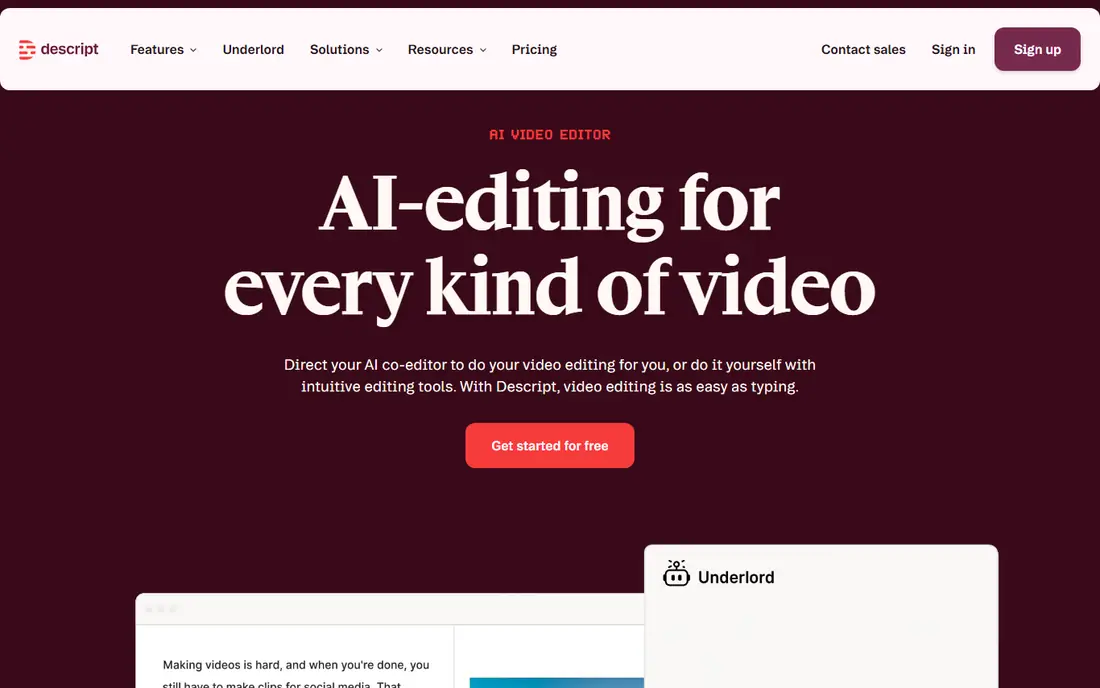
Descript changes the editing job itself. You get a transcript of your recording, and when you delete a sentence from that transcript, the matching video and audio disappear too. For interviews, podcasts, course videos, and talking-head YouTube content, that method is much faster than cutting on a timeline, especially when you need to remove filler words and long pauses.
The AI layer adds Studio Sound for noisy audio, filler removal in one pass, and Overdub, which lets you fix a misspoken word by typing the correction. Paid plans start at $16 per month on annual billing in the sources we checked, with a free plan covering a limited amount of media per month. The catch is the credit system: heavy AI use can run through credits faster than expected, so test it with a real episode before you rely on it for a weekly show.
- Edit video by editing the transcript
- Filler removal and Studio Sound
- Overdub voice fixes
- Credit limits can be hard to predict
- Weaker for music-driven montages and heavy effects
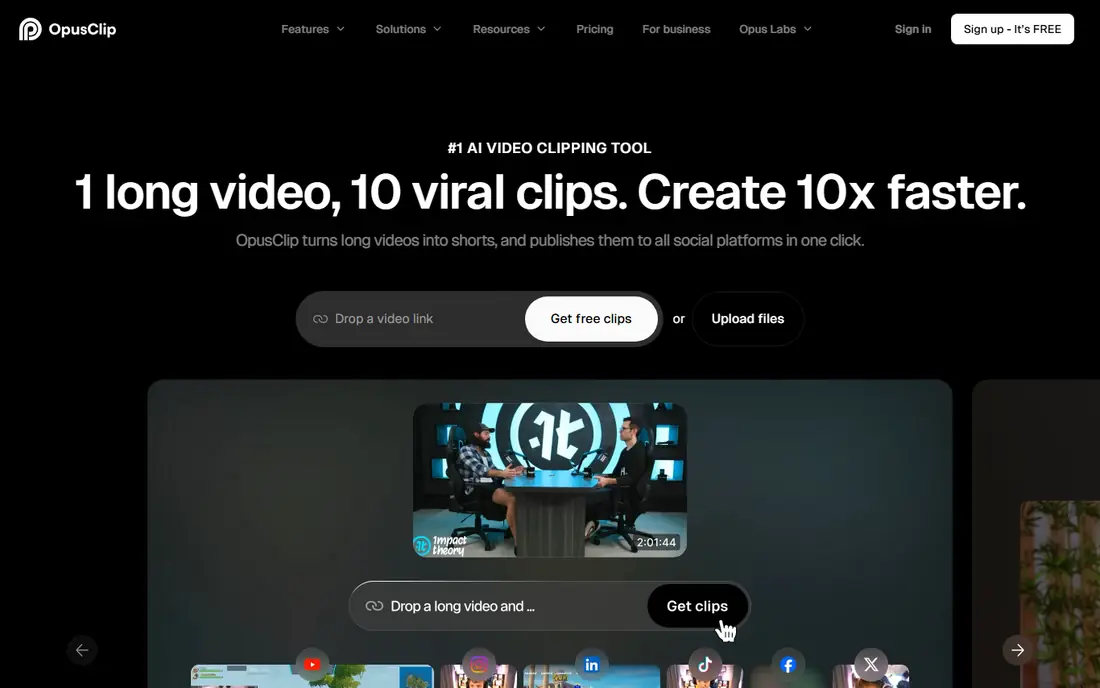
OpusClip solves one painful job: deciding which parts of a long recording deserve to become shorts. Paste a video link or upload a recording, and it scores moments, cuts them into vertical clips, adds captions, and reframes the subject for phones. For podcasters, streamers, and course creators who need a steady stream of TikTok, Reels, and Shorts content, that pipeline saves hours of manual scrubbing.
Paid plans start at $15 per month in the sources we checked, with a limited free tier for testing. The limit is scope: OpusClip repurposes well, but it does not replace a full editor for a long-form project, and you may still want a second tool for fine caption styling or complex edits. Use it as a clipping machine next to your main editor, not as your only editor.
- Finds clip-worthy moments automatically
- Auto-reframing and captions
- Virality scores for clips
- Not a full video editor
- Caption styling is less flexible than specialist caption tools
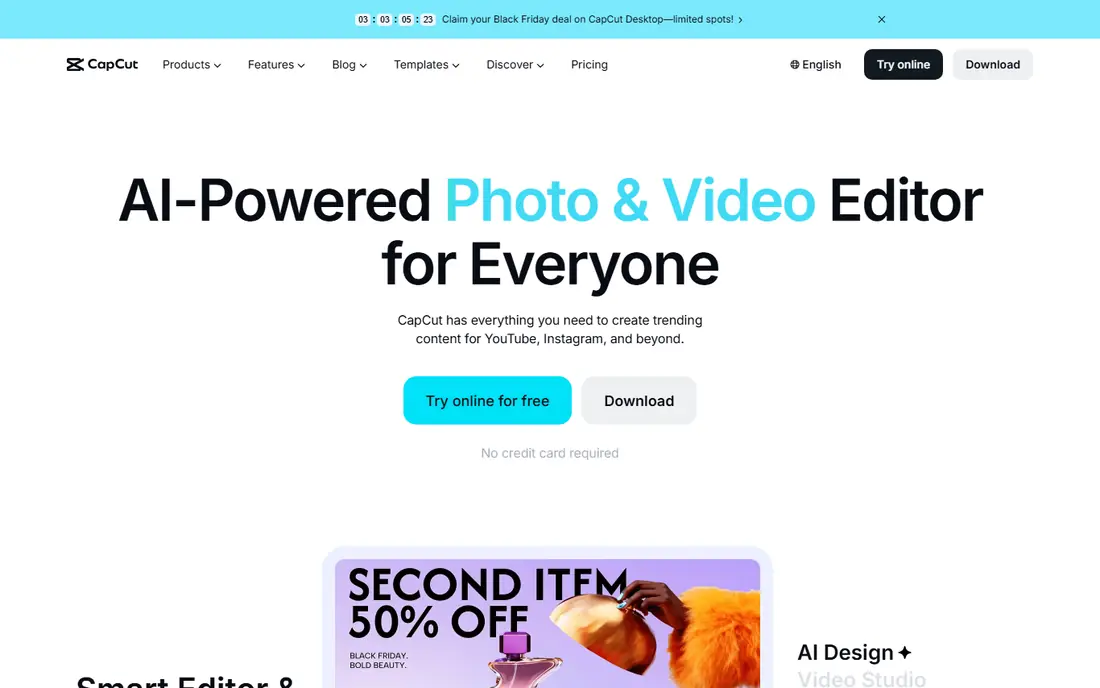
CapCut is the easiest place to start, especially on a phone. Auto-captions, background removal, templates, and effects are built for short-form video, and the free tier covers a lot of basic editing without a watermark on many exports, depending on the feature and plan. If you make Shorts, Reels, or TikTok videos and want to publish fast, CapCut gets you from clip to post with little friction.
Pro, often listed around $9.99 per month, adds more AI features, effects, and cloud storage, but pricing varies by region and platform, so check the price inside the app before you pay. CapCut is less suited to long professional projects, multi-camera edits, or precise colour work, where a desktop timeline still wins. Start free, learn what you actually use, and only upgrade when a Pro feature becomes part of your weekly routine.
- Strong free tier
- Auto-captions and background removal
- Large template and effects library
- Some AI features require Pro
- Pricing varies by region and platform
VEED runs in your browser, which makes it a good choice for teams on different computers and for creators who do not want to install heavy software. Its best-known strength is subtitles: automatic captions in many languages, translation options, and clean caption styling for social video. Brand kits, templates, and shared workspaces help small teams keep a consistent look without passing project files around.
Paid plans start around $9 per month on annual billing in recent comparisons, with a free tier that is useful for testing but limited on exports. VEED is not the tool for a feature-length edit or advanced colour grading, and large 4K projects may feel slower in a browser than on a desktop editor.
- No install needed
- Fast auto-subtitles in many languages
- Brand kits and team sharing
- Free exports are limited
- Less depth than desktop editors for complex projects
Premiere Pro is the professional standard for a reason: it handles long projects, multi-camera edits, complex audio, and precise colour work in a way browser tools cannot match. Its AI features now include Generative Extend, which can extend a short clip or audio segment, Media Intelligence for finding footage, text-based editing, and enhanced speech cleanup. Those tools speed up a professional workflow without replacing the editor.
The price, listed at $22.99 per month in recent comparisons, is a subscription, not a one-time purchase, and the software needs a capable computer for smooth 4K work. Beginners may also find the interface dense compared with CapCut or VEED. Choose Premiere Pro when you edit video professionally, when clients expect that workflow, or when your projects outgrow simpler tools. For a few social clips a week, it is more tool than you need.
- Full professional timeline
- Generative Extend and Media Intelligence
- Huge plugin and format support
- Subscription cost adds up
- Needs a capable computer
- Learning curve for beginners
DaVinci Resolve offers the best value in professional editing, because its free version is a real editor, not a demo. You get a full timeline, strong colour grading tools, Fusion effects, and Fairlight audio, plus AI features such as face tracking, smart reframing, object masking, and audio classification. Many creators never need to pay at all, which is rare at this level of power.
Studio, a one-time purchase listed at $295, adds more AI tools, stereoscopic 3D, and higher-resolution features. The catch is learning time and hardware: Resolve rewards study, and 4K projects with effects need a capable machine. If you want professional quality without a monthly subscription, and you are willing to learn a serious editor, Resolve is our pick over a subscription-only professional tool.
- Powerful free version
- Excellent colour tools
- AI masking, tracking, and audio classification
- Steep learning curve
- Studio features cost $295 one-time
- Needs strong hardware for 4K
Runway is best understood as a creative AI studio, not a replacement for a timeline editor. You can generate clips from text or images, remove objects, extend backgrounds, restyle footage, and experiment with camera moves that would be hard or costly to film. For filmmakers, advertisers, and creators who need a shot that does not exist yet, Runway opens options that traditional editing cannot.
Pricing is credit-based, with paid plans starting around $12 per month on annual billing in recent comparisons and a limited free tier for testing. Credits run out fast on long generations, so budget for a project, not just a month. Runway pairs well with a real editor: generate or fix shots in Runway, then assemble the finished video in Premiere Pro, Resolve, or Descript.
- Text-to-video and image-to-video generation
- Object removal and inpainting
- Strong creative effects
- Credit-based pricing
- Not a full editor for long filmed projects
Kapwing is a browser editor built for teams that publish a lot of social and marketing video. Shared workspaces, comments, and templates make it easy for one person to cut a draft and another to approve captions, branding, and format. AI subtitles, smart cut for silences, and one-click resizing for each platform cover the repetitive parts of social publishing.
The free tier is useful for testing, but exports carry a watermark, and Pro, listed around $16 per month on annual billing, removes that limit and adds more features. Kapwing will not match Premiere Pro or Resolve for a complex film project, and its effects library is narrower than CapCut for trend-driven shorts.
- Browser editor with shared workspaces
- AI subtitles and smart cut
- Easy resizing for platforms
- Free exports carry a watermark
- Advanced editing is lighter than desktop tools
Pictory is for creators who write more than they film. Paste a script or a blog post, and it selects scenes, adds stock footage, captions, and voiceover to produce a finished draft in minutes. That workflow suits marketers, educators, and bloggers who need regular video content but do not shoot original footage for every post. It also repurposes longer videos into short clips.
Plans start at $25 per month on annual billing in recent comparisons, with a free trial rather than a permanent free tier. The honest limit is originality: stock footage can feel generic, so add your own clips, branding, and voice where the video needs to stand out. Use Pictory to publish consistently from written content, and use a filmed-footage editor when the story depends on your own camera work.
- Turns scripts and blog posts into captioned video
- Stock footage and voiceover built in
- Long-to-short repurposing
- No permanent free tier
- Stock-based video can feel generic without custom footage
How we picked these
We compared official feature pages, pricing pages, and app store listings, and we checked public reviews for the limits creators actually hit, such as credit caps, watermark rules, and export resolution. We kept tools that are available in October 2026, that edit or generate video in a practical way, and that fit a clear creator job, from podcast editing to professional timelines to script-to-video. We left out tools that only generate a single image or that have shut down, and we did not rank a tool higher just because it lists more AI features. Our method is comparison, not hands-on testing of every plan, and prices are snapshots that can change by region and billing cycle.
We also separated editing from generation. A tool that makes a beautiful AI clip is not automatically a good editor for a 40-minute interview, and a great timeline editor may be slow for daily shorts. That distinction drives the picks above: Descript for spoken word, OpusClip for repurposing, CapCut for mobile shorts, and Premiere Pro or Resolve for full projects.
How to choose the right editor for your videos
Start from the footage you actually have, not from the feature list that looks most exciting. The right tool changes a lot depending on whether you film, write, or repurpose.
If you film yourself talking, start with transcript editing
Descript will save you the most time, because you cut words, not waveforms. Record a test episode, edit it by transcript, and time the result against your old workflow. If you mostly edit montages, music videos, or visual stories with little dialogue, a timeline editor such as Resolve or Premiere Pro will fit better, because transcript editing adds little value there.
If you publish shorts every day, build a two-tool workflow
Use OpusClip or a similar clip tool to find moments, then finish captions and branding in CapCut, VEED, or Kapwing. A single tool rarely does both jobs well: clipping tools are fast at selection and weak at fine control, while editors are strong at control and slow at selection. Budget for credits in the clipping tool, because that is where daily volume turns into real cost.
Check export limits before you commit to a free plan
Free plans often limit resolution, add watermarks, cap monthly minutes, or meter AI credits. Export a real video at the size you publish, check it on a phone and a laptop, and confirm the caption timing and audio quality. A free plan that looks generous for a 30-second test can fail on a 20-minute episode, and discovering that on deadline day is avoidable.
Sources
- https://pitchwall.co/blog/best-ai-video-editor-for-creators-and-teams
- https://pictory.ai/blog/best-ai-video-editor-2026
- https://www.revid.ai/blog/ai-video-editor
- https://www.descript.com/blog/article/best-ai-video-editor
- https://dupple.com/learn/best-ai-video-editors
- https://zsky.ai/blog/best-ai-for-video-editing-2026