Best Apps to Edit Saree Color to Blue in 2026: 9 Apps Compared
By ToolNimba Editorial Team November 12, 2026 10 min read

- Top pick
 Fotor
Fast AI garment recolor
Starting priceFreeCheck out FotorRead our review - Runner-up
 Canva
Recolor inside a design
Starting priceSee websiteCheck out CanvaRead our review - Also great
 Photoroom
Product and catalog recolor
Starting price$7.50 per monthCheck out PhotoroomRead our review
How we researched this
We compared official pricing and feature pages, app store listings, privacy policies and public user reviews. Prices change, so check the provider's site before you pay.
Key takeaways
- Fotor and Photoroom give the fastest route to a blue saree, because both can detect the garment and recolor it without manual masking.
- Canva and Picsart suit people who want the recolor inside a wider design or social post, not just a single photo fix.
- Adobe Photoshop and Lightroom give the most control over shade, saturation, and fabric detail, but they take longer to learn.
- Always check the result at full size, since a blue that looks clean in a small preview can bleed into skin, jewelry, or the background.
- Free plans are fine for one or two photos, while a paid plan makes sense if you recolor whole catalogs or wedding albums.
Quick comparison
| Name | Best for | Starting price | Free plan | |
|---|---|---|---|---|
| Fotor | Fast AI garment recolor | Free | Yes | Visit |
| Canva | Recolor inside a design | See website | Yes | Visit |
| Photoroom | Product and catalog recolor | $7.50 per month | Yes | Visit |
 Pixelcut | Quick mobile recolor | $10 per month | Yes | Visit |
 Adobe Photoshop | Precise manual control | See website | Free trial | Visit |
 Picsart | All round mobile editing | $10.50 per month | Yes | Visit |
 Evoto | Batch recolor for sellers | $89 per year | Free trial | Visit |
 Claid.ai | Catalog recolor by prompt | See website | Free trial | Visit |
 Adobe Lightroom | Shade and tone fine tuning | See website | Free trial | Visit |
The best apps to edit saree color to blue
A saree is a hard test for a recolor tool. Silk, chiffon, and embroidered borders all catch light differently, so a flat paint fill looks wrong. The apps below handle that problem in different ways, from one tap AI recolor to careful hue controls.
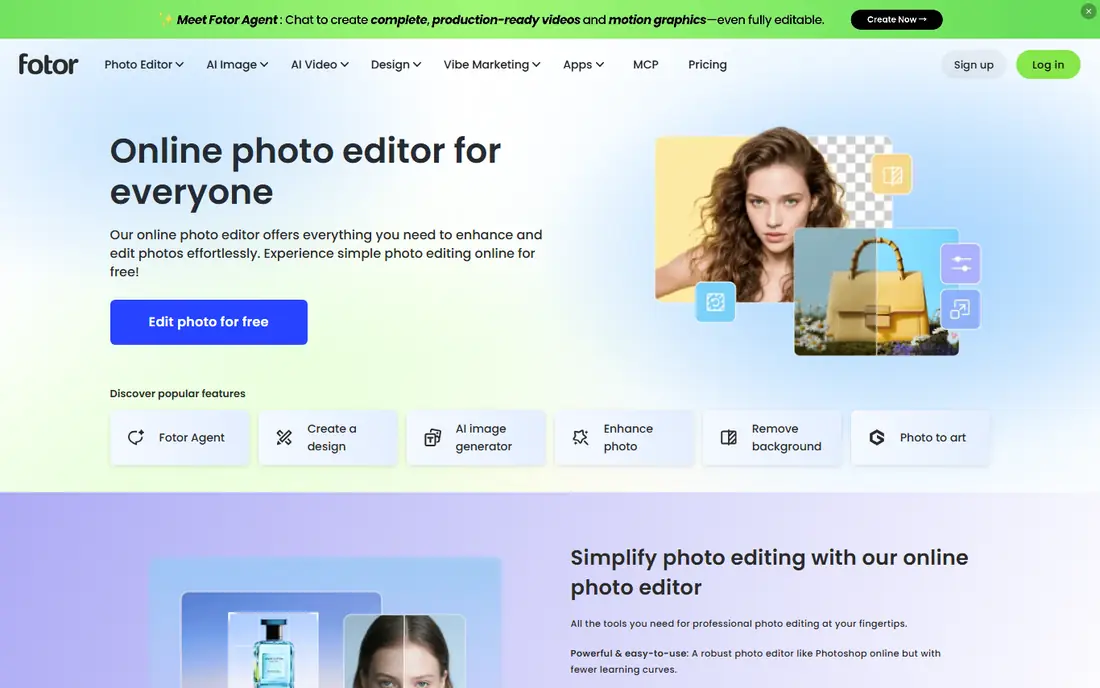
Fotor is our first pick for most people who just want one photo changed to blue. You upload the photo, describe or select the garment, pick a blue from the palette or enter a hex code, and the tool recolors the fabric while trying to keep its texture. That matters for sarees, where a border, a pallu, and a blouse may all need the same treatment.
The catch is that automatic detection is not perfect on busy backgrounds or patterned fabric. If the blue spills onto a wall or a piece of jewelry, zoom in and refine the area before you download. For a single festive photo, the free tier is usually enough to test the result.
- Automatic clothing detection
- Palette and hex color choice
- Keeps folds and shadows in many photos
- Free exports can be limited
- Fine embroidery may need a second pass

Canva suits someone who wants the blue saree inside an invitation, a collage, or a social post. Its Magic Edit tool lets you brush over the saree or click a region, then describe the change in a prompt. You can then place the result straight into a template without switching apps.
The trade off is control. Canva is a design platform first, so it does not give the same fine hue controls as a dedicated photo editor. If the first result changes the pattern as well as the color, try a smaller brush area and a simpler prompt, such as asking only for the fabric color to change.
- Brush and click editing for a chosen area
- Huge template library
- Easy sharing and printing
- Recolor quality varies by photo
- Advanced edits sit behind a paid plan

Photoroom is the better choice if you sell sarees or manage a shop catalog. Its Recolor tool is designed to keep fabric texture, stitching, and shadows while changing the color, and paid plans allow batch work across many images. That saves a lot of time when one style comes in several colorways and you only photographed one.
For a personal photo, the free plan is a good trial. Check the edges of the pallu and any gold work before you publish, because AI edits can soften small details. Photoroom lists a Pro plan from 7.50 dollars per month on yearly billing, so confirm the current rate on its pricing page before you pay.
- Recolor tool built for clothing catalogs
- Batch editing on paid plans
- Clean web and mobile apps
- Generative steps can alter fine garment detail
- Credit and export limits vary by plan
Pixelcut is built for speed on a phone. It creates an automatic mask for the item in the photo, then lets you pick a new color. For a plain or lightly patterned saree, that workflow takes under a minute, and the result often looks clean enough for social sharing.
The weakness shows up with heavy embroidery, mirror work, or a saree draped over a patterned sofa. In those cases the mask may include part of the background, and you will need to correct it by hand. The Pro plan is listed from 10 dollars per month, with a free limited version for trying it out.
- Automatic mask for the garment
- Simple color picker
- Good for phone first editing
- Free version is limited
- Complex prints can confuse the mask
Photoshop is the pick when the exact shade of blue matters, such as matching a real saree you plan to buy or matching a wedding theme. A Hue and Saturation adjustment layer, combined with a careful selection or a color range selection, lets you shift only the saree while leaving skin tones alone. You can also treat the border separately from the main drape.
That power comes with effort. A beginner may spend twenty minutes on a first edit, and the subscription is hard to justify for one photo. If you already use Photoshop, though, no app on this list gives you finer control over which blues stay deep and which turn bright.
- Hue and saturation layers for exact blues
- Selection tools for borders and blouse
- Best output quality
- Steep learning curve
- Subscription cost
- Overkill for a single quick edit
Picsart works well for people who edit mostly on their phone and want more than a recolor. You can change the saree color, then adjust brightness, add text for an event, and apply a filter, all in one app. Its color tools are flexible enough for a solid color saree, and the brush lets you fix small missed spots.
The downside is that Picsart is a general editor, not a garment specialist, so results on silk or sheer fabric need a closer look. Paid plans are listed from 10.50 dollars per month when billed yearly, and the free tier is enough to test whether the workflow suits you.
- Wide editing toolkit on mobile
- Color replace and brush tools
- Easy filters and text
- Some tools need a paid plan
- Ads and prompts can interrupt free use
Evoto is aimed at sellers and studios that need consistent color across many photos. It can auto detect a garment, let you pick a target color or use a reference product image, and process a batch. For a saree shop that photographs one sample and needs blue, green, and pink versions, that batch approach is a real time saver.
For a single personal photo, Evoto may feel too work focused. Its Starter plan is listed at 89 dollars per year, and a free trial lets you check whether its detection handles your fabric. As with every AI tool here, preview the border and any printed motifs before you export.
- Auto detection and batch processing
- Choice of target color or reference image
- Keeps prints and logos as an option
- Geared toward product photos
- Less useful for casual phone snapshots
Claid.ai lets you describe the change in a prompt, which helps when a saree has several parts and you only want one changed. Its vendor pages stress keeping folds, shadows, and lighting, which is exactly what a recolor needs to avoid looking painted on. Shops can also use its API to process catalogs.
The catch is that Claid.ai is a business tool first. Casual users may find the credit system harder to follow than a simple monthly plan, and portrait photos with people in them are not its main use case. Check the pricing page and try the free trial credits on a test photo first.
- Prompt based recolor
- Keeps folds, shadows, and lighting in product shots
- API option for shops
- Pricing is credit based and can be confusing
- Best for product images, not portraits
Lightroom is a good second step rather than a first step for most people. If an AI tool gets the saree mostly blue but the shade is off, Lightroom hue, saturation, and luminance controls let you push it toward navy, royal blue, or sky blue without starting over. Because edits are non destructive, you can compare versions easily.
Lightroom struggles on its own when the saree shares colors with the background or when you need a clean mask around embroidery. Use it after Fotor, Photoroom, or Photoshop has done the main color change, and use it to polish the final shade. A free trial is available from Adobe.
- HSL controls for precise blue tones
- Non destructive edits
- Strong for photos you already manage there
- Not a true garment mask tool
- Hard to isolate a complex drape
- Subscription cost
How we picked these
We compared official feature pages, pricing pages, and app store listings, and we checked that each tool can actually change a garment color rather than only applying a global filter. We favored tools that keep fabric texture and shadows, that let you pick a specific blue, and that work on a photo of a person wearing a saree, not only on a flat product shot. We left out tools whose homepages did not resolve or that only offered generic filters with no way to target the garment.
Getting a believable blue
Start with a clear, well lit photo. AI detection works far better when the saree is in focus and the background is not the same color as the fabric. Pick your blue before you edit, and note whether you want navy, royal blue, teal blue, or sky blue, since each one reads very differently on silk.
After the recolor, zoom to full size and check three places: the border, the blouse, and any gold or silver work. If the tool changed the jewelry too, mask it back or try a smaller selection. If the fabric looks flat, lower the saturation a little and add a touch of contrast, which often restores the sense of folds. Save a copy of the original, so you can compare and redo the edit if the first blue looks too bright on a phone screen.
For sellers, consistency matters more than a single perfect photo. Use the same tool, the same blue value, and the same export settings for every colorway, and check the results on both a phone and a desktop screen before listing. A blue that looks rich on one screen can look washed out on another.
Sources
- https://www.fotor.com/features/ai-clothes-color-changer/
- https://designerbox.ai/blog/ai-clothes-color-changer/
- https://www.fashiondiffusion.ai/blog/best-free-ai-recolor-tools
- https://www.photoroom.com
- https://www.pixelcut.ai
- https://www.canva.com
- https://www.picsart.com
- https://www.evoto.ai
- https://www.claid.ai
- https://www.adobe.com
Frequently asked questions
Can I change only the saree and not the blouse?
Yes, if the tool lets you brush or select a region. Pick the drape first, then treat the blouse as a separate selection if you want it to stay its original color. AI tools sometimes group them together, so check the preview and refine the mask.
Which blue looks most natural on silk?
Royal blue and navy tend to look most natural, because they keep depth in the folds. Very bright sky blue can look flat on shiny silk, so lower the saturation slightly if the result looks painted.
Do I need to pay for a good result?
Not for one or two photos. Fotor, Canva, Photoroom, and Pixelcut all offer free tiers that let you test a recolor. Paying makes sense for batch work, higher resolution exports, or removing watermarks.
Will the recolor work on a patterned saree?
It can, but patterns are harder. The tool must keep the print while changing the base color, and some tools change both. Try a tool that promises texture preservation, such as Fotor or Photoroom, and inspect the print at full size.
Can I use these apps on both iPhone and Android?
Most of the apps here offer both iOS and Android versions, plus a web editor. Check the app store listing for your phone before you pay, since free and paid features can differ between web and mobile.
Is it okay to recolor a saree photo for a shop listing?
Yes, as long as the listing makes clear that colors may vary on different screens and the photo still shows the true design. Do not use a recolor to hide damage, a different fabric, or a different pattern.