Best Authenticator App in 2026: 9 Apps Compared
By ToolNimba Editorial Team October 28, 2026 12 min read

- Top pick
 Google Authenticator
Simple, widely compatible setup
Starting priceFreeCheck out Google AuthenticatorRead our review - Runner-up
 Microsoft Authenticator
Microsoft account users
Starting priceFreeCheck out Microsoft AuthenticatorRead our review - Also great
 2FAS
Privacy-minded phone users
Starting priceFreeCheck out 2FASRead our review
How we researched this
We compared official pricing and feature pages, app store listings, privacy policies and public user reviews. Prices change, so check the provider's site before you pay.
Key takeaways
- Most dedicated authenticator apps are free, so backup and recovery matter more than price.
- Google Authenticator suits simple use, while Microsoft Authenticator suits people who already use Microsoft accounts.
- Ente Auth and 2FAS stand out for people who want open source code and clear export options.
- If you lose your phone without a backup, recovery can be slow or impossible, so set up backup before you need it.
- A password manager with built-in codes can be handy, but keeping codes separate from passwords adds a layer of separation.
Quick comparison
| Name | Best for | Starting price | Free plan | |
|---|---|---|---|---|
| Google Authenticator | Simple, widely compatible setup | Free | Yes | Visit |
| Microsoft Authenticator | Microsoft account users | Free | Yes | Visit |
| 2FAS | Privacy-minded phone users | Free | Yes | Visit |
 Ente Auth | Open source sync across devices | Free | Yes | Visit |
 Authy | Multi-device sync for existing users | Free | Yes | Visit |
 Duo Mobile | Push approvals for work accounts | Free | Yes | Visit |
 Aegis Authenticator | Android users who want local control | Free | Yes | Visit |
 Apple Passwords | Apple device owners | Free | Yes | Visit |
 1Password | Passwords and codes in one place | See website | Free trial | Visit |
The best authenticator apps
An authenticator app creates short-lived codes that prove you own an account, on top of your password. The codes themselves work in a similar way across apps, so the real differences sit in backup, device transfer, passkey support and how much of your data leaves your phone. We compared official feature pages, app store listings, privacy policies and public reviews to sort those differences.
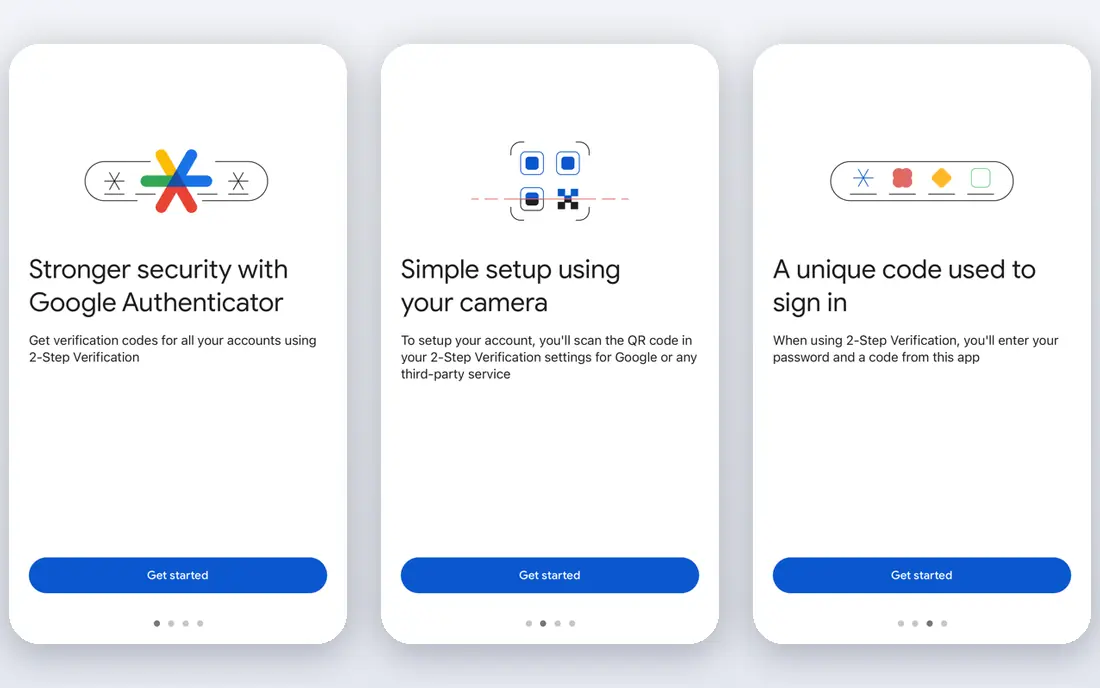
Google Authenticator is the easiest place to start if you have never used an authenticator before. Setup takes a minute per account in most cases, since you scan a QR code shown by the service and the app starts showing six-digit codes that refresh on a timer. It works with a very wide range of sites and services that support time-based codes, which is why many help pages name it first.
The catch is that simplicity cuts both ways. Google Authenticator does not try to be a password manager, a passkey vault or a work security tool, so people who want those extras will need a second app. Those printed or saved codes are your fallback if a phone is lost, damaged or reset.
- Free on iOS and Android
- Simple setup by QR code
- Google account sync for codes on newer versions
- Fewer extra features than some rivals
- Desktop use is limited
For anyone who signs in to Outlook, OneDrive, Teams or a work Microsoft 365 account, Microsoft Authenticator feels like the natural fit. It can approve sign-ins with a tap instead of asking you to type a code, and it supports passkeys for Microsoft accounts, which can replace passwords in some sign-in flows. It also generates standard codes for other sites, so you do not need a separate app for most personal accounts.
One change to note is that Microsoft removed password storage and autofill from Authenticator during 2025, so older guides that describe it as a password manager are out of date. Treat it as an authenticator and passkey tool, and keep passwords in a dedicated manager. Backup works through a Microsoft account on Android and through iCloud on iOS in many cases, but some work accounts may need to be set up again after a device change, so check your work IT guidance first.
- Free on iOS and Android
- Passkey support for Microsoft accounts
- Push approvals for Microsoft sign-ins
- Best experience depends on a Microsoft account
- Password storage was removed in 2025
2FAS has built a loyal following among people who want a clean authenticator without a large company account attached to every feature. The app is free, it works on iOS and Android, and it lets you organise accounts with icons, groups and search, which helps once you pass twenty or thirty codes. A companion browser extension can bring codes to a desktop browser, which is useful if you sign in on a computer all day.
The honest trade-off is that 2FAS puts more responsibility on you. Its cloud backup is optional and encrypted, and you can also export a backup file, but neither helps if you never turn it on. Spend five minutes after setup choosing a backup method and storing the backup password somewhere safe, separate from your phone. If you do that, 2FAS is one of the strongest free choices in this list.
- Free with no ads in the core app
- Optional encrypted cloud backup
- Browser extension for desktop use
- No desktop app as a standalone product
- Backup needs to be set up deliberately
Ente Auth appeals to people who like to see how their security tools work. Its code is open source, its sync is end-to-end encrypted, and it runs on iOS, Android, desktop and the web, which is wider coverage than most single-purpose authenticators.
You will need an Ente account for cloud sync, and the wider Ente service also offers photo storage, so read the plan page carefully and do not confuse the two products. The app also supports export, which matters if you ever want to move to another tool.
- Open source code
- End-to-end encrypted sync
- Works on mobile, desktop and web
- Cloud sync needs an Ente account
- Free tier limits may apply to other Ente products
Authy was once the default recommendation for people who switched phones often, because it synced encrypted tokens across devices behind a backup password that Authy itself did not store. That design still appeals to existing users who have their accounts set up and their backup password saved. If you already use Authy and it works for you, there is no urgent reason to move, as long as your backup is current.
New users should pause before choosing Authy as a first app in 2026. Twilio, the company behind Authy, has scaled back desktop support and closed some developer options, and public guides now describe it more as a legacy choice than a fresh recommendation. The mobile app remains free, but the safer starting point for most new users is an app with active desktop or web support and a clear export path, such as Ente Auth or 2FAS.
- Free mobile app
- Encrypted cloud backup with a backup password
- Multi-device sync
- Desktop support was scaled back
- New users should check current device support before relying on it
Duo Mobile is best understood as the app your employer or school may ask you to install. When a service uses Duo, you can approve a sign-in with a tap on your phone, which is faster and less error prone than typing a code, and Duo can also show standard codes for other accounts. The app itself is free to download on iOS and Android, though the organisation behind the protected service pays for Duo.
That work focus is also its limit for personal use. If no employer or school requires Duo, a general authenticator will give you more flexibility for personal accounts, backup and export. If Duo is required for work, keep it for work and use a separate app for personal accounts, so a job change does not leave your personal codes tied to a work setup.
- Free mobile app
- Push approvals reduce code typing
- Widely used by employers and schools
- Full Duo protection is a paid service for organisations
- Personal use is narrower than a general authenticator
Aegis is the pick for Android users who want to keep their codes local and under their own control. It is free and open source, it stores codes in an encrypted vault on the device, and it lets you export that vault when you need a backup or want to move to another app.
Android only is the clear limit, and there is no automatic cloud sync to rescue you if you lose the phone. Aegis suits people who are happy to copy an encrypted backup to a computer or a secure storage location on a regular schedule. If you want automatic sync across iPhone and Android, or you use an iPhone at all, pick a cross-platform option from higher in this list instead.
- Free and open source
- Encrypted vault with local control
- Export to encrypted or plain files
- Android only
- No built-in cloud sync, so backup is manual
Apple Passwords is not a separate download for most Apple users, since it is built into recent versions of iOS, iPadOS and macOS. It can store passwords, passkeys and verification codes in one place, and it syncs through iCloud Keychain with end-to-end encryption. For a household that lives entirely on Apple devices, that built-in approach removes a whole app from the setup process, and codes can autofill during sign-in without opening a separate app.
The limit is the ecosystem wall. If you also use Android, Windows or a shared family computer outside Apple, codes stored only in Apple Passwords will be harder to reach. In that case, a cross-platform authenticator is a better main home for codes, and Apple Passwords can still handle passkeys for Apple services. Check that iCloud Keychain is turned on and that you have a recovery method for your Apple account before you rely on it alone.
- Built into iPhone, iPad and Mac at no extra cost
- Syncs through iCloud Keychain
- Supports passkeys
- Apple devices only
- Less flexible for Android or Windows users
1Password is a full password manager that can also generate authenticator codes, which makes it a good choice for people who want one vault for logins. You can store a password, its code and related notes together, search across devices, share selected items with family or colleagues, and use passkeys where sites support them. It runs on iOS, Android, Windows, Mac and browsers, so platform coverage is strong.
The trade-off is a security judgment call. Keeping a password and its second factor in the same vault is more convenient, but it means one vault opening gives access to both, which weakens the separation that a standalone authenticator provides. Some security guides still recommend a separate authenticator for the most sensitive accounts, such as email and banking, even if you use 1Password for the rest.
- Stores passwords, codes and passkeys together
- Strong vault organisation
- Works across major platforms
- Paid subscription after trial
- Codes in the same vault as passwords reduce separation
How we picked these
We started with the apps that appear most often in current guides, app store listings and official support pages, then filtered for products that still work in October 2026 on iOS or Android. We compared official feature pages for backup, sync, passkey support and platform coverage, checked pricing pages and app store listings for free tiers, and read privacy policies and public reviews for how backups are encrypted and what happens on a device change. We did not claim hands-on testing of every account type, and we left out tools that are mainly enterprise identity platforms rather than personal authenticator apps.
What to check before you switch authenticator apps
Moving authenticators is simple if you plan it, and stressful if you do it after losing a phone. Start by listing your most important accounts, usually email, banking, cloud storage and social accounts, and make sure each one has a backup method outside the authenticator, such as backup codes saved in a safe place. Then set up the new app alongside the old one where possible, test a code on each account, and only remove the old app once the new one works.
Backup first, then convenience
Turn on encrypted backup or export in the new app on day one, and store the backup password separately from your phone. A backup you cannot decrypt is not a backup, so test recovery on a second device if you have one. Keep a small set of printed backup codes for email and banking in a locked drawer, since those accounts often gate access to everything else.
Passkeys change the picture
Passkeys can replace passwords on many major sites, and some apps here support them for specific accounts, especially Microsoft and Apple accounts. Where a site offers a passkey, it is often simpler than a code, but passkey support still varies by site and device. Keep your authenticator for sites that only offer codes, and do not delete codes until the passkey sign-in has worked at least twice.
One app for personal, one for work
If work requires Duo or Microsoft Authenticator, use that app for work accounts and a separate app for personal accounts. That separation makes a job change cleaner, and it means a work policy change does not lock you out of personal email or banking.