Best Calendar App in 2026: 9 Apps Compared
By ToolNimba Editorial Team October 28, 2026 10 min read

- Top pick
 Google Calendar
Most people
Starting priceFreeCheck out Google CalendarRead our review - Runner-up
 Outlook Calendar
Microsoft 365 users
Starting priceFreeCheck out Outlook CalendarRead our review - Also great
 Apple Calendar
Apple-only users
Starting priceFreeCheck out Apple CalendarRead our review
How we researched this
We compared official pricing and feature pages, app store listings, privacy policies and public user reviews. Prices change, so check the provider's site before you pay.
Key takeaways
- Google Calendar and Outlook Calendar cover most people for free, and the best choice usually follows the email and office system you already use.
- Apple Calendar is the simplest pick for people who only use Apple devices, while Notion Calendar suits people who already plan in Notion.
- Fantastical is the strongest paid upgrade for Apple users, with natural-language event creation and strong calendar sets.
- Motion and Reclaim suit busy professionals who want tasks and meetings scheduled automatically, but they cost more and need setup time.
Quick comparison
| Name | Best for | Starting price | Free plan | |
|---|---|---|---|---|
| Google Calendar | Most people | Free | Yes | Visit |
| Outlook Calendar | Microsoft 365 users | Free | Yes | Visit |
| Apple Calendar | Apple-only users | Free | Yes | Visit |
 Notion Calendar | Notion users | Free | Yes | Visit |
 Fantastical | Apple power users | $4.75 per month | Free trial (14 days) | Visit |
 Morgen | Cross-platform planning | $15 per month | Free trial (14 days) | Visit |
 Motion | AI scheduling | $19 per month | Free trial (7 days) | Visit |
 Reclaim | Focus time and habits | Free | Yes | Visit |
 TimeTree | Families and groups | Free | Yes | Visit |
The best calendar apps
A good calendar app does more than store meetings. It should show your week clearly, make sharing easy, handle time zones, and fit the devices you already carry. The apps below range from free defaults to paid planners that schedule your work for you.
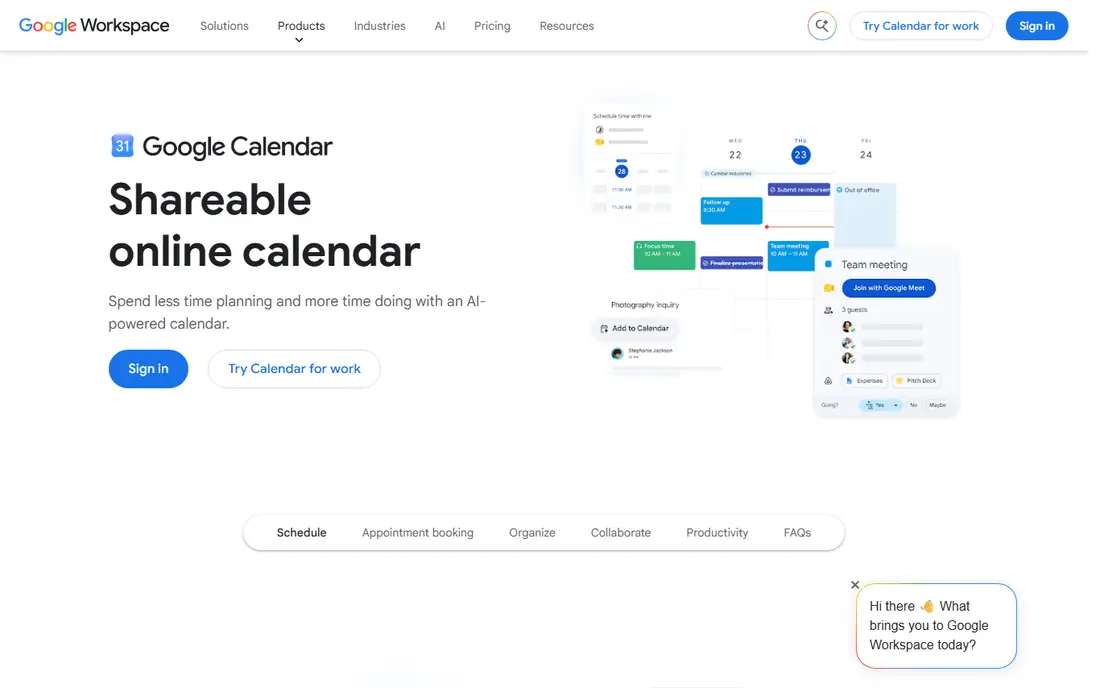
Google Calendar is our default pick because it asks nothing of most users. It is free, it syncs across phones and computers, and it handles shared calendars, recurring events, invitations, and multiple color-coded calendars without fuss. If your work, school, or family already uses Gmail and Google Meet, it slots in with almost no setup.
The limits show up when you want deeper planning. Google Tasks is serviceable but plain, and automatic scheduling of focus time is limited compared with tools such as Motion or Reclaim. For most personal and small-team use, though, those gaps do not matter, and the price is hard to argue with.
- Free with a Google account
- Works on web, iOS, and Android
- Strong sharing and recurring event tools
- Task features are basic compared with dedicated planners
- Advanced business controls require Google Workspace
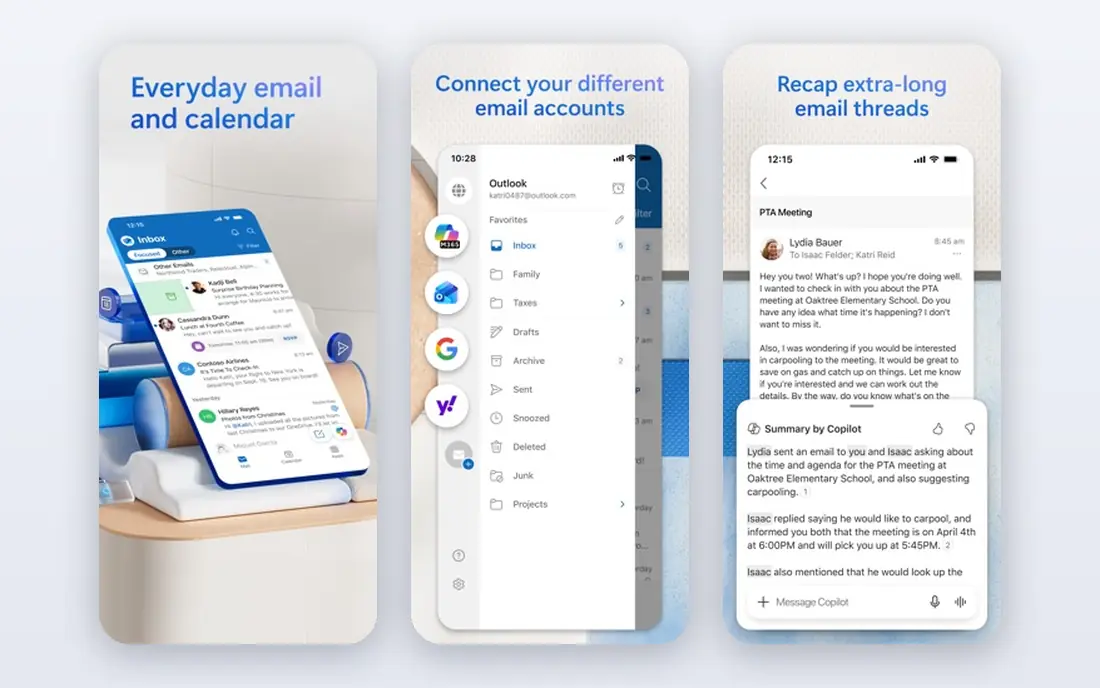
Outlook Calendar is the natural pick if your work runs on Microsoft 365. Email, calendar, contacts, and Teams meetings live in one place, which cuts down on switching between apps during a busy day. For office teams, shared calendars, room booking, and scheduling polls are practical advantages.
For personal use alone, Outlook can feel heavier than Google Calendar or Apple Calendar. The free version also carries ads in some views, and paid Microsoft 365 plans start higher if you want the full ad-free office suite. If your job already gives you Microsoft 365, use what you have before paying for another calendar.
- Email and calendar in one app
- Strong Teams integration
- Good shared mailbox and scheduling tools for work
- Free version shows ads in some places
- The interface can feel busy for simple personal use
Apple Calendar suits people whose devices are all Apple. It is built in, it syncs through iCloud, and it works well with Siri, Mail, and Reminders. Creating an event from an email or a message takes seconds, and the design stays calm even when a week is full.
The obvious catch is platform lock-in. There is no native Apple Calendar app for Android or Windows, so mixed-device households will hit friction. Power users who want natural-language input, calendar sets, and detailed scheduling tools should look at Fantastical instead, while everyone else can stay with the free built-in app.
- Free on Mac, iPhone, iPad, and Apple Watch
- Clean design
- Good Siri and system integration
- No native Android or Windows app
- Fewer power features than Fantastical
Notion Calendar, formerly Cron, is the pick for people who already live in Notion. It connects meetings to notes, projects, and databases, so a meeting can link straight to its agenda and follow-up tasks. Time zone handling and keyboard shortcuts are also strong, which helps remote workers who juggle calls across regions.
If you do not use Notion, there is less reason to choose it over Google Calendar. It does not auto-schedule your tasks, and its strength is really the link between time and notes. For Notion users, though, that link is enough to make it the daily calendar.
- Free
- Connects calendar events to Notion pages and databases
- Clean weekly and monthly views
- Works best if you already use Notion
- No automatic task scheduling
Fantastical takes the Apple Calendar idea and adds the features power users miss. Type a phrase such as lunch with Sam Friday at 1pm and it builds the event correctly, including the location and alert if you include them. Calendar sets let you switch between work, family, and personal views in one tap, and tasks sit beside events instead of in a separate app.
Premium costs $4.75 per month billed annually for an individual, with a free basic tier and a 14-day trial of Premium. The honest catch is platform focus. Fantastical has expanded beyond Apple, but its polish and depth are still strongest on Mac, iPhone, and iPad. Windows and Android users should test it before paying.
- Natural-language event creation
- Calendar sets and templates
- Strong tasks and scheduling links
- Best experience is on Apple devices
- Premium is a subscription, not a one-time purchase
Morgen is built for people with calendars in several places. It pulls Google Calendar, Outlook, iCloud, and other sources into one unified view, adds tasks from tools such as Todoist, and offers booking links for meetings. That makes it a strong work calendar app for consultants, freelancers, and managers who live across accounts.
The price is the main barrier. Morgen Pro costs $15 per month billed annually, and there is no free plan, only a trial. If you have one calendar and one email system, a free default app does the job. If you juggle four calendars and need one reliable view, Morgen can justify its cost.
- Combines Google, Outlook, iCloud, and other calendars in one view
- Tasks and scheduling links included
- Works on Mac, Windows, Linux, iOS, and Android
- No free plan
- Price is high for simple calendar use
Motion is less a calendar and more a daily planner that builds your schedule for you. Give it tasks, deadlines, and priorities, and it places work blocks on your calendar, then moves them when a meeting lands on top of them. For overloaded professionals, that automatic replanning is the main selling point.
Motion Pro AI costs $19 per seat per month billed annually, with a 7-day trial and no free tier. That price, plus the time needed to enter tasks properly, means it is not for casual users. If your calendar is mostly a few appointments a week, Google Calendar is enough. If your week is a constant negotiation between tasks and meetings, Motion earns a trial.
- Automatically schedules tasks and meetings around priorities
- Replans the day when meetings move
- Combines calendar, tasks, and projects
- No free plan
- Setup and learning time
- Price is high for casual users
Reclaim works on top of Google Calendar or Outlook rather than replacing them. It finds open time for focus work, habits, lunch, and one-on-one meetings, and it moves those blocks automatically when higher-priority meetings appear. That layer is useful for knowledge workers who keep losing deep work to calendar creep.
The free plan covers basic habit and focus scheduling, while Starter costs $10 per user per month billed annually. The catch is that Reclaim is web-based, with no native mobile or desktop app, so you still manage events in your main calendar. Think of it as an add-on for focus time, not a standalone calendar replacement.
- Free plan available
- Auto-schedules focus time, habits, and breaks
- Works with Google Calendar and Outlook
- No native mobile or desktop app
- Best features sit on paid plans
TimeTree is the pick for shared life: families, couples, clubs, and small teams who need one calendar everyone can see and edit. Each member can keep a personal calendar beside shared ones, leave comments on events, and add memos for details such as who is bringing what. That shared view prevents the classic problem of one person knowing the plan and no one else.
For work, TimeTree is thinner than Outlook or Morgen, with fewer integrations and scheduling tools. Premium costs $4.49 per month billed monthly in many listings, and it removes ads and adds extra features. If your main need is keeping a household in sync, TimeTree is simple, free to start, and easy for non-technical family members to use.
- Free shared calendars for families and groups
- Easy event comments and memos
- Works on iOS, Android, and web
- Less suited to complex work scheduling
- Some features require the paid plan
How we picked these
We compared official feature pages, pricing pages, app store listings, privacy pages, and public reviews for calendar apps that are actively available in October 2026. We looked at platform coverage, sharing, recurring events, time zone handling, task integration, and the real cost of the free plan versus the paid plan. We favored apps with a clear audience, such as Apple users, Microsoft 365 teams, Notion users, families, or people who need automatic scheduling, rather than listing every calendar app available.
How to choose a calendar app
Start with your existing system. If you use Gmail, Google Calendar is the path of least resistance. If you use Microsoft 365 at work, Outlook Calendar keeps email and meetings together. If you only use Apple devices, Apple Calendar is free and already installed. Switching systems for a calendar alone rarely pays off unless the new app solves a specific problem.
Check the details that matter daily
Test sharing, recurring events, time zones, and notifications on your actual phone before you commit. Check whether the app works offline, how it handles all-day events, and whether invites from other systems arrive cleanly. For families, test a shared calendar with every member. For work, test a booking link and a meeting with an outside guest.
Paid or free
Pay only for a feature you will use weekly. Natural-language input, calendar sets, unified multi-account views, and automatic focus scheduling are worth paying for if they save you time every day. A pretty interface alone is not worth a subscription when a free default app already shows your week clearly. Use the trial on a real work week, not a quiet weekend, before you pay.