Best Free Alternatives to Photoshop in 2026: 9 Software Compared
By ToolNimba Editorial Team October 28, 2026 11 min read

- Top pick
 Affinity
Full Photoshop replacement
Starting priceFreeCheck out AffinityRead our review - Runner-up
 Photopea
PSD editing in a browser
Starting priceFreeCheck out PhotopeaRead our review - Also great
 GIMP
Customizable desktop editing
Starting priceFreeCheck out GIMPRead our review
How we researched this
We compared official pricing and feature pages, app store listings, privacy policies and public user reviews. Prices change, so check the provider's site before you pay.
Key takeaways
- Affinity, now free from Canva, is the closest full desktop replacement for Photoshop in 2026, with layers, masks, RAW support and PSD import.
- Photopea is the best browser choice for PSD files, since it opens layered PSDs with nothing to install.
- GIMP remains the most customizable free desktop editor, with plugins and scripting, but it has a steeper learning curve.
- Krita is the best free pick for digital painting, while darktable and RawTherapee suit RAW photo processing rather than layered editing.
- No free tool matches Photoshop exactly on smart objects, complex effects and generative AI, so test your own PSD files before switching.
Quick comparison
| Name | Best for | Starting price | Free plan | |
|---|---|---|---|---|
| Affinity | Full Photoshop replacement | Free | Yes | Visit |
| Photopea | PSD editing in a browser | Free | Yes | Visit |
| GIMP | Customizable desktop editing | Free | Yes | Visit |
 Krita | Digital painting | Free | Yes | Visit |
 Paint.NET | Fast Windows edits | Free | Yes | Visit |
 darktable | RAW processing and photo library | Free | Yes | Visit |
 Pixlr | Quick browser edits with AI tools | Free | Yes | Visit |
 Canva Photo Editor | Social graphics and templates | Free | Yes | Visit |
 RawTherapee | Advanced RAW conversion | Free | Yes | Visit |
The best free Photoshop alternatives
We compared official download pages, feature pages, format support and public reviews for editors that are free in 2026. Every tool below offers a genuinely free core editor, not just a short trial, though some offer paid upgrades for extras or ad removal.

Affinity changed this category when Canva made the full Affinity suite free in October 2025. The photo editor, formerly Affinity Photo, now offers professional layered editing, RAW development, masks, blend modes and non-destructive filters at no cost, with only newer AI tools gated behind Canva Pro. For most photo editing, retouching and compositing work, it is the closest free match to Photoshop.
The limits are worth noting. Complex PSD effects may not transfer perfectly, and the plugin range is narrower than Adobe's. You also need a Canva account for the free download. If you want a desktop editor you can install once and use offline, Affinity should be your first download in 2026.
- Professional layers, masks and non-destructive editing free
- RAW support and PSD import
- Desktop apps for Windows and Mac
- Newer generative AI tools require a Canva Pro subscription
- PSD files with complex effects need checking
- Plugin ecosystem is smaller than Photoshop
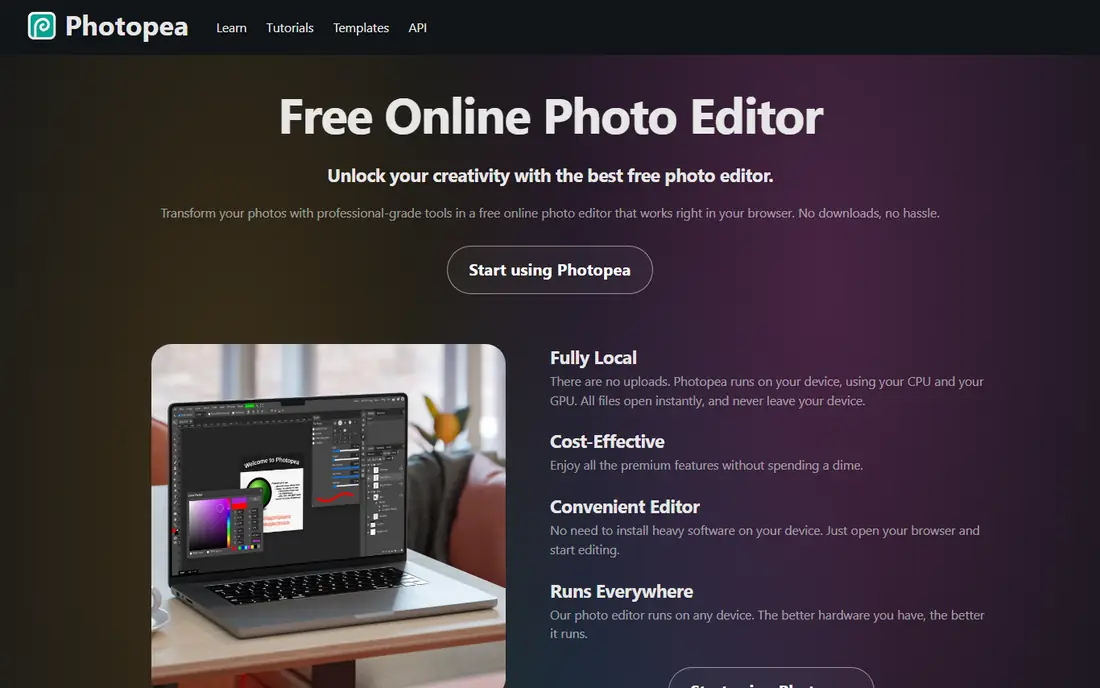
Photopea is the tool to open when someone sends you a PSD and you have no editor installed. It runs in a browser tab, keeps layers, masks and text editable in most files, and mirrors Photoshop's layout closely enough that existing shortcuts transfer. That combination makes it ideal for occasional edits, quick fixes and working on a computer that is not yours.
The free plan is ad-supported, and Premium, listed at $5 per month in recent comparisons, removes ads and adds cloud storage. Browser limits still apply: very large files can lag, and you should save often. For daily professional work, pair Photopea with a desktop editor, but for PSD compatibility without a download, nothing free beats it.
- Opens PSD, XCF, Sketch and XD files in a browser
- Photoshop-like panels and shortcuts
- No install, so it works on shared computers and Chromebooks
- Free version shows ads
- Large layered files can slow down in a browser
- Needs an internet connection
GIMP has been the classic free Photoshop alternative for decades, and version 3 improved its interface and non-destructive editing. It handles layers, masks, selections and retouching with real depth, and plugins extend it into tasks from batch processing to specialized filters. Because it is open source, there is no subscription, no account and no feature paywall.
The cost is time. GIMP organizes tools differently from Photoshop, so new users should expect a few evenings of learning, and PSD round-trips need testing with your own files. If you value control, scripting and a tool that will never charge you, GIMP remains a strong long-term choice. If you want familiarity on day one, try Affinity or Photopea first.
- Fully free and open source, with no account needed
- Huge plugin library and scripting with Python and Script-Fu
- Runs on Windows, Mac and Linux
- Interface feels different from Photoshop
- Complex PSD features such as smart objects may not carry over
- Learning curve is steeper for beginners
Krita is not a Photoshop clone, and that is its strength. For digital painting, illustration and comic work, its brush engines, stabilizers and canvas tools beat general photo editors, including Photoshop in some painting workflows. It is free, open source, and runs on Windows, Mac and Linux, with good drawing tablet support.
For photo retouching, Krita is a weaker fit. It opens PSD files, but adjustment layers and complex effects may drop, and its photo tools are fewer than Affinity or GIMP. Choose Krita when drawing is the main job and photo edits are secondary. Choose Affinity or GIMP when retouching and compositing come first.
- Excellent brush engines for painting and illustration
- Fully free and open source
- Strong tablet support and layer management
- Photo retouching tools are thinner than Affinity or GIMP
- PSD import has limits on effects
- Interface is tuned for artists, not photographers
Paint.NET fills a simple gap: quick edits on Windows without a heavy install or a learning curve. Cropping, resizing, color correction, layers and basic retouching all work in a clean interface, and plugins add formats and effects. It starts fast and stays fast on modest hardware, which makes it a good second editor for everyday jobs.
Windows-only support is the main limit, and professional compositing will push you toward Affinity or GIMP. RAW handling also needs a plugin rather than working out of the box. If you run Windows and want a free editor for fast, everyday photo work, Paint.NET is the least fussy option here.
- Lightweight and fast on Windows
- Layers, plugins and a gentle learning curve
- Free direct download for personal use
- Windows only
- RAW support needs a plugin
- Less depth than GIMP or Affinity for professional work
darktable is the free answer to Lightroom, not to Photoshop, and judging it on that job makes its value clear. It develops RAW files with detailed color, lens and noise controls, and it manages large photo libraries with ratings, tags and collections. Photographers who shoot RAW and process in batches will find depth here that layered editors do not offer.
Do not pick darktable as a PSD replacement. It does not edit layered Photoshop files in the same way, and compositing tools are limited. Pair it with Affinity or GIMP: develop RAW files in darktable, then finish layered edits in a second editor. That two-tool workflow covers most photography needs for free.
- Powerful RAW development rivaling Lightroom workflows
- Photo library management with ratings and tags
- Fully free and open source
- Not a layered PSD editor
- Learning curve is steep for beginners
- Interface is built for photographers, not designers
Pixlr suits quick edits when you do not need full Photoshop depth. Open a photo in the browser, remove a background, adjust color, add text, and export for social media in minutes. AI-assisted tools speed up common jobs such as cutouts and one-click fixes, which is useful for small business owners and social creators.
The free tier is freemium rather than fully free, with limits and paid plans for heavier use. Recent comparisons list paid plans from around $2.49 per month, but check the current pricing page. For layered PSD work or print compositing, Affinity, Photopea or GIMP are stronger. For speed, Pixlr is hard to beat.
- Fast browser editing with no install
- AI tools for background removal and quick fixes
- Mobile and desktop apps alongside the web editor
- Free tier has limits on saves and advanced tools
- Not a full layered PSD workflow
- Advanced features require a paid plan
Canva Photo Editor earns its place for a different job: fast social graphics, not pixel-perfect retouching. You can crop, filter, remove a background on Pro, and drop a photo into a template for Instagram, a flyer or a presentation without learning layers. For teams that publish often, that speed matters more than brush control.
The limits are clear. Canva does not replace Photoshop for layered PSD work, and Pro, listed at $15 per month in recent comparisons, includes the stronger AI and background tools. Use Canva when the output is a finished graphic with text and layout. Use Affinity or Photopea when the output is an edited photo file itself.
- Huge template library for social posts and marketing
- Very easy for non-designers
- Photo editing sits inside a full design workflow
- Not a layered PSD editor
- Pixel-level control is limited
- Best features, including AI tools, sit behind Pro
RawTherapee is a specialist tool for photographers who want maximum control over RAW conversion. Its color, tone mapping, noise and sharpening controls go deep, and it handles a wide range of camera RAW formats. If you shoot RAW and care about squeezing detail from a file, it rewards patience.
Casual users will find the interface dense, and it is not a general photo editor or a library manager. Like darktable, it pairs best with a layered editor for finishing work. Choose RawTherapee when RAW quality is the priority and you already have Affinity, GIMP or Photopea for edits that need layers.
- Deep RAW controls for color, tone and detail
- Fully free and open source
- Runs on Windows, Mac and Linux
- No layered editing or photo library like darktable
- Interface is technical and dense
- Slower workflow for casual users
How we picked these
We compared official download and feature pages, format support, platform availability and public reviews for free editors live in 2026. We kept tools with a genuinely free core editor, covering layered editing, painting, RAW processing or fast browser edits, and we favored tools that open common formats such as PSD, RAW or XCF. We left out trial-only software, template-only design tools with no real photo editing, and tools that had shut down.
We did not run a lab benchmark of every PSD feature, and PSD compatibility varies by file, so test your own layered files before you rely on any tool for client work. Prices for paid upgrades change often, so check the vendor page for the current figure.
How to switch from Photoshop without losing work
Start by sorting your files into three groups: layered PSDs you still edit, finished exports you only view, and RAW photos you still develop. That sort decides your tool mix. Layered PSDs point to Photopea or Affinity, RAW photos point to darktable or RawTherapee, and painting points to Krita. Most switchers need two tools, not one perfect clone.
Test PSD files before you commit
Open your most complex PSD in each candidate editor and check layer names, text editability, masks, adjustment layers and smart objects. Save a copy under a new name and reopen it to check for loss. A tool that handles simple files well can still drop effects in a complex client file, and that test takes ten minutes and saves a painful surprise later.
Keep Photoshop for the jobs only it does well
Generative fill, deep Adobe plugin workflows and shared Creative Cloud libraries remain Photoshop strengths. If those tools save you billable hours every week, staying on Photoshop may still be the cheaper choice. Many freelancers keep Photoshop for client PSD delivery and use free tools for personal work, which cuts cost without risking a deadline.
Learn one new shortcut set at a time
Switching editors fails most often on muscle memory, not features. Pick one tool as your main editor, learn its selection, mask and export shortcuts first, and keep a second tool only for its specialty. After two weeks, the new workflow feels normal, and the subscription saving becomes a bonus rather than the reason you switched.
Sources
- https://affinity.studio
- https://www.photopea.com
- https://www.gimp.org
- https://krita.org
- https://www.getpaint.net
- https://www.darktable.org
- https://pixlr.com
- https://www.canva.com
- https://rawtherapee.com
- https://colorlib.com/wp/free-photoshop-alternatives/
- https://www.aiarty.com/knowledge-base/free-photoshop-alternative.htm