Best Free Drawing Software in 2026: 9 Apps Compared
By ToolNimba Editorial Team October 28, 2026 10 min read

- Top pick
 Krita
Serious digital painting
Starting priceFreeCheck out KritaRead our review - Runner-up
 MediBang Paint
Comics and illustration
Starting priceFreeCheck out MediBang PaintRead our review - Also great
 ibis Paint
Mobile drawing
Starting priceFreeCheck out ibis PaintRead our review
How we researched this
We compared official pricing and feature pages, app store listings, privacy policies and public user reviews. Prices change, so check the provider's site before you pay.
Key takeaways
- Krita is our pick for most serious digital painters, because it pairs a deep brush engine with animation tools at no cost.
- MediBang Paint and ibis Paint are the strongest free choices for comics and phone or tablet drawing, with large brush and material libraries.
- Tux Paint is the clear choice for younger children, with a simple layout, stamps, and no ads.
- Every app on this list has a genuinely free version, but several show ads or sell extra brushes, so check what is included before you settle in.
Quick comparison
| Name | Best for | Starting price | Free plan | |
|---|---|---|---|---|
| Krita | Serious digital painting | Free | Yes | Visit |
| MediBang Paint | Comics and illustration | Free | Yes | Visit |
| ibis Paint | Mobile drawing | Free | Yes | Visit |
 Sketchbook | Quick sketching | Free | Yes | Visit |
 GIMP | Drawing plus photo editing | Free | Yes | Visit |
 FireAlpaca | Lightweight painting | Free | Yes | Visit |
 Paint.NET | Simple Windows drawing | Free | Yes | Visit |
 Inkscape | Vector drawing | Free | Yes | Visit |
 Tux Paint | Drawing for kids | Free | Yes | Visit |
The best free drawing software
Free drawing tools have come a long way, and the right one depends on what you want to make. Some are built for finished paintings, others for comics, and a few are made for a first sketch on a phone. We compared official feature pages, pricing, app store listings, and public reviews to put this list together.
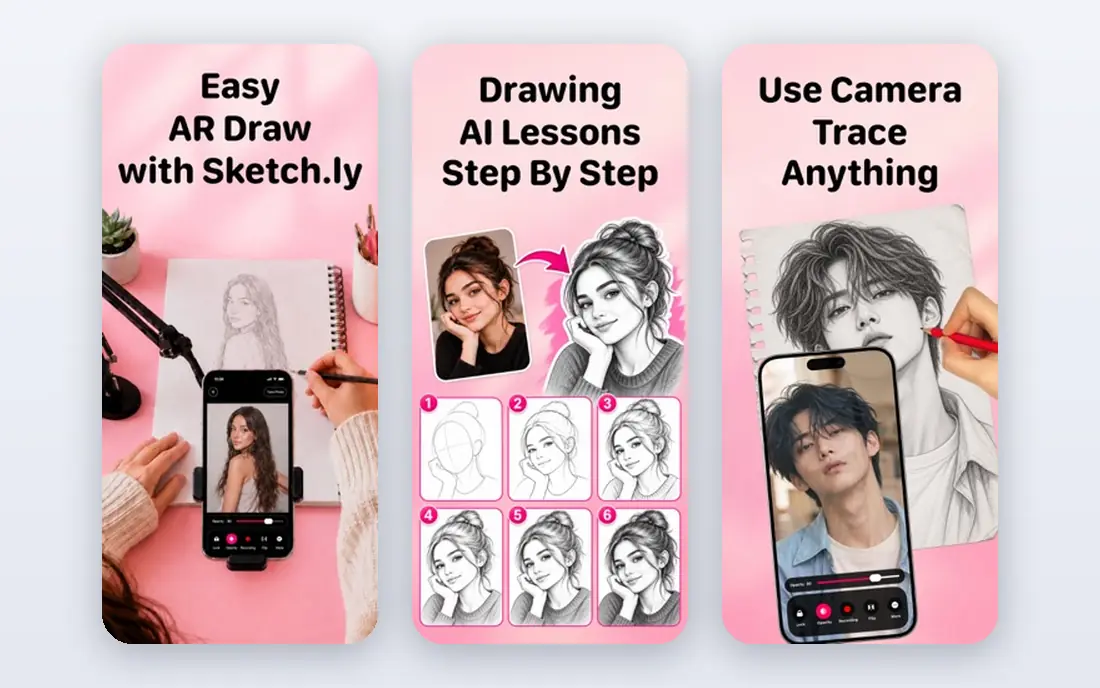
Krita is the first app we suggest to anyone who wants to paint seriously without paying for software. Its brush engine covers pencils, inks, watercolor styles, and textured marks, and you can adjust brushes or build your own. Layers, stabilizers, and drawing assistants help keep line work tidy, and the animation timeline with onion skinning means short frame-by-frame clips are possible in the same program.
The trade-off is the learning curve. The interface packs in a lot of panels and options, so a first session can feel crowded. Give it a few sessions and a couple of tutorials, and most painters find a layout that works. Krita is free and open source, so there is no paid tier waiting to lock away core tools.
- Deep brush engine
- Animation tools included
- Works on Windows, macOS, Linux, and Android
- Busy interface for beginners
- Can feel heavy on older computers
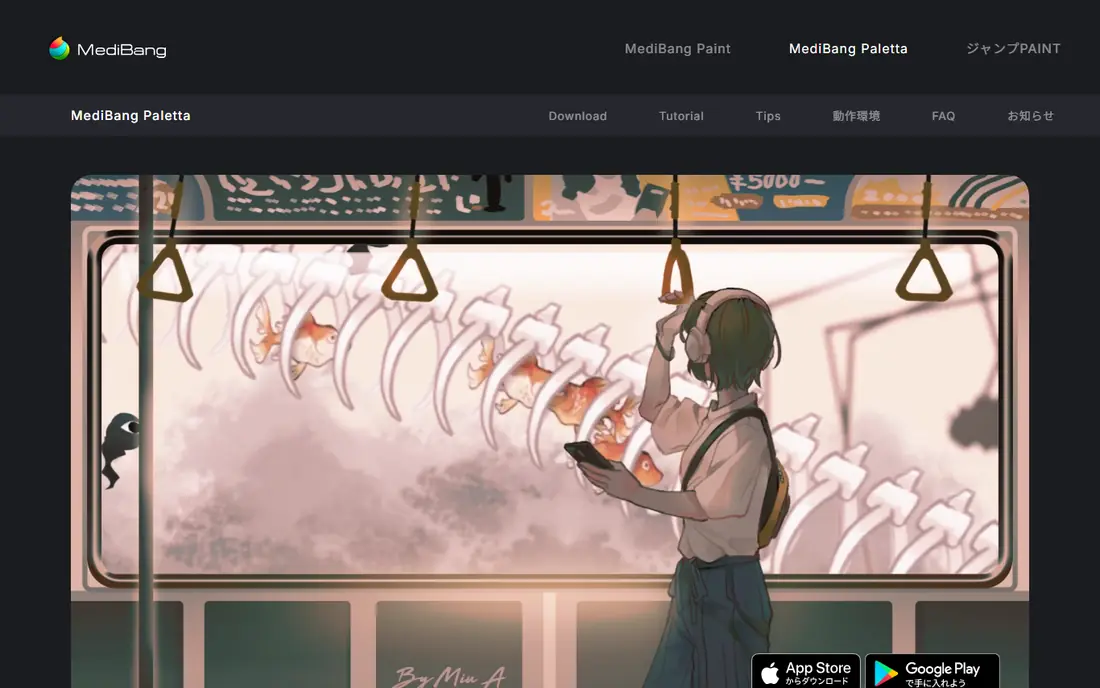
MediBang Paint is built around illustration and manga, and that focus shows in its toolset. Comic panel tools, speech bubbles, screentones, and a large library of brushes and materials make it easy to go from a rough page to a finished comic. Cloud storage lets you start a drawing on a computer and continue on a phone or tablet.
Beginners tend to settle in quickly here, because the layout is lighter than a full painting studio. The free version does include ads, and a paid MediBang Premium option removes them and adds extras, so check the current premium page if ads bother you. For comic makers on a budget, this is a strong and practical pick.
- Comic panels and tones built in
- Cloud sync across devices
- Works on desktop and mobile
- Free version shows ads
- Brush customization is more limited than Krita
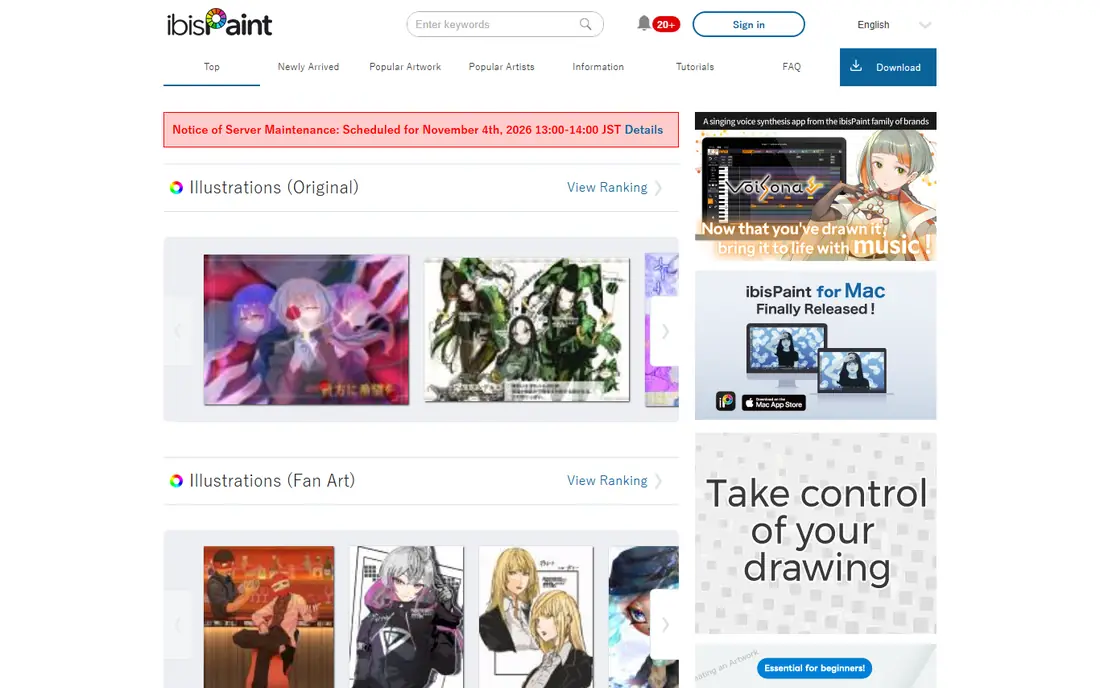
If you draw mainly on a phone or tablet, ibis Paint is hard to beat for free. It offers a very large set of brushes, fonts, filters, and materials, plus layers, blending modes, rulers, and frame-by-frame animation tools. A built-in recording feature saves your process as a video, which is useful for sharing work or reviewing how a piece came together.
The free version is supported by ads, and a Prime option adds extra materials and removes ads. On a small phone screen, the many buttons take some getting used to, so a tablet or stylus helps for detailed work. For mobile artists who want room to grow, ibis Paint gives you far more than a simple sketch pad.
- Huge brush and material library
- Records your drawing process
- Works well on phones
- Ads in the free version
- Interface can feel crowded on small screens
Sketchbook keeps the focus on drawing, and that restraint is its main appeal. The interface stays out of the way, brushes feel natural, and layers with blend modes cover most sketching and painting needs. It works for quick studies, thumbnails, and finished drawings, and it runs on desktop and mobile devices.
It is less of a comic or animation studio than some apps here, and it does not try to be. If you want a calm place to sketch every day without learning a large toolset, Sketchbook fits well. The core app is free, with optional in-app purchases listed in app stores, so confirm the current offer before you buy extras.
- Clean, calm interface
- Good brush feel
- Layers and blend modes included
- Fewer illustration extras than Krita or MediBang
- Optional in-app purchases for some items
GIMP is best known as a free image editor, but it also works as a drawing tool, especially if you already edit photos. You get layers, masks, selections, color tools, and a large set of community plug-ins. That mix makes it useful for artwork that needs heavy editing, text, or compositing after the drawing stage.
As a pure painting app, it is less fluid than Krita. Brush handling and the workspace layout reflect its editing roots, and new users may need time to set up a comfortable painting layout. Still, if you want one free program that can draw, retouch, and prepare images for print or the web, GIMP earns its place here.
- Powerful editing and layer tools
- Huge plug-in community
- Fully free and open source
- Interface feels more like an editor than a painting app
- Brush feel lags behind Krita
FireAlpaca is a good choice when you want a painting app that starts fast and stays simple. It runs on Windows and Mac, offers layers, masks, perspective tools, and comic panel templates, and the team adds new original brushes on a regular basis. The download is small, so it suits older computers or school machines better than heavier studios.
There is no official mobile app, so phone and tablet artists should look elsewhere on this list. The free version shows sponsor ads at startup, and a paid FireAlpaca SE version supports development and removes that trade-off. For desktop sketching and comics on a modest computer, FireAlpaca is a pleasant, low-friction option.
- Small and fast to run
- Fresh brushes added regularly
- Comic templates included
- No mobile version
- Ads appear at startup in the free version
Paint.NET is the simplest desktop option on this list, and that is a feature, not a flaw. Windows users get layers, a clear toolbar, and a useful set of effects and adjustments without a steep learning curve. It is a solid step up from a basic paint program for doodles, simple illustrations, and quick edits.
Serious painters will notice the limits quickly. Brush options are basic compared with Krita or MediBang, and there is no Mac, Linux, or mobile version. If you use Windows and want a free tool for everyday drawing and image touch-ups, Paint.NET is easy to recommend. If painting is your main hobby, pair it with Krita for heavier work.
- Very easy to learn
- Fast on Windows
- Layers and effects included
- Windows only
- Weaker brush engine than painting-focused apps
Inkscape takes a different approach from the rest of this list, because it draws with vectors instead of pixels. That means logos, icons, posters, and illustrations stay sharp at any size, and shapes and text remain editable after you draw them. It is a strong free choice for graphic design work, diagrams, and print projects.
It is not the right tool for soft, painterly strokes or photo-style painting. Vector drawing asks you to think in paths, nodes, and fills, which takes practice if you come from raster painting. For anyone who needs clean, scalable artwork without paying for design software, Inkscape is the free standard to learn.
- Scalable vector artwork
- Strong shape and text tools
- Fully free and open source
- Not suited to painterly brushwork
- Learning curve for vector concepts
Tux Paint is designed for children ages 3 to 12, and every part of it reflects that goal. The interface is large and simple, a cartoon penguin mascot offers guidance, and stamps, shapes, and fun magic effects keep young artists busy without a complicated menu. It runs on Windows, macOS, Linux, and Android, and it is used in schools around the world.
Older children will outgrow it, and adults looking for a serious tool should pick another app here. That is fine, because Tux Paint is not trying to serve everyone. For a first drawing program that is free, ad-free, and easy for a child to open on their own, it remains our pick for kids.
- Made for ages 3 to 12
- Stamps and magic effects
- No ads and no data collection claims in store listing
- Too simple for older kids and adults
- Limited tools for finished artwork
How we picked these
We compared official feature pages, pricing pages, and app store listings for each app, along with public reviews that describe real use. We favored apps that are genuinely free to use, still maintained, and suited to a clear kind of drawing, from painting and comics to vector work and kids art. We left out paid-only apps, discontinued tools, and apps whose free version is too limited to draw with properly.
What to check before you choose
Start with your device and your goal, not with the longest feature list. A phone artist needs a mobile app with good stylus support, while a desktop painter benefits from a larger brush engine and a comfortable workspace. Check whether the app runs on your operating system, whether it supports your stylus, and whether your files can export in formats you need, such as PNG or PSD.
Free does not always mean the same thing
Some apps on this list are fully free and open source, with no paid tier at all. Others are free with ads or optional purchases for extra brushes and materials. Neither model is wrong, but it helps to know which one you are getting. If ads distract you, or if you plan to use the app with children, an ad-free option such as Krita, GIMP, or Tux Paint may be worth more than a larger brush library.
Think about where your art will go
If you plan to print work, share it online, or continue it in another program, file support matters. Vector apps suit logos and posters, raster apps suit painting and comics, and simple apps suit quick sketches. Try exporting a test drawing early, before you invest hours in a piece, so you are not surprised later.