Best Free Editing Software in 2026: 9 Apps Compared
By ToolNimba Editorial Team October 28, 2026 11 min read

- Top pick
 DaVinci Resolve
Professional editing and color grading
Starting priceFreeCheck out DaVinci ResolveRead our review - Runner-up
 CapCut
Fast social and mobile video
Starting priceFreeCheck out CapCutRead our review - Also great
 Shotcut
Open source editing on any platform
Starting priceFreeCheck out ShotcutRead our review
How we researched this
We compared official pricing and feature pages, app store listings, privacy policies and public user reviews. Prices change, so check the provider's site before you pay.
Key takeaways
- DaVinci Resolve gives you the deepest free toolset, with professional color grading and no watermark, but it needs a capable computer.
- CapCut is the fastest choice for short social video, with auto captions and templates built for vertical formats.
- Shotcut, OpenShot, and Kdenlive are fully free and open source, so there is no paid tier waiting behind the download.
- Lightworks and Clipchamp are free with clear limits, including a 720p export cap on Lightworks free and a 1080p ceiling on Clipchamp free.
Quick comparison
| Name | Best for | Starting price | Free plan | |
|---|---|---|---|---|
| DaVinci Resolve | Professional editing and color grading | Free | Yes | Visit |
| CapCut | Fast social and mobile video | Free | Yes | Visit |
| Shotcut | Open source editing on any platform | Free | Yes | Visit |
 OpenShot | Beginners learning a timeline | Free | Yes | Visit |
 Kdenlive | Advanced open source projects | Free | Yes | Visit |
 Clipchamp | Quick edits on Windows and in a browser | Free | Yes | Visit |
 iMovie | Simple editing on Apple devices | Free | Yes | Visit |
 VSDC Free Video Editor | Feature packed editing on older Windows PCs | Free | Yes | Visit |
 Lightworks | Learning a professional workflow | Free | Yes | Visit |
The best free editing software apps
Free editors range from simple phone apps to tools used in professional studios. We focused on editors you can use without paying, and we checked where each free plan stops.
Resolve is the free editor we would point a serious creator to first. You get a cut page for fast assembly, an edit page for detailed timelines, Fusion for visual effects, a color page with deep grading controls, and Fairlight for audio work, all in one download. The free version exports up to 4K UHD without a watermark, which covers most YouTube and client work.
The honest catch is the computer and the time it asks for. Resolve runs best with a modern processor, plenty of memory, and a decent graphics card, and its layout can feel dense on a first project. The paid Studio version costs $295 as a one-time purchase and adds some AI tools, higher resolutions, and team collaboration. Most solo creators will not need it, and that is why the free version stands out.
- Full editing, color, effects, and audio pages
- No watermark on free exports
- Free exports up to 4K UHD
- Demanding on hardware
- Steep learning curve for beginners

CapCut wins on speed when the destination is TikTok, Reels, or Shorts. You can trim clips, add auto captions, apply trending templates, and adjust speed or aspect ratio without learning a traditional editing layout. The mobile app is especially quick for phone footage, and the desktop app has grown into a capable editor for longer clips.
Free use has limits worth knowing before you build a habit around it. AI features are capped each month, and Pro templates and assets can watermark an export. Pro pricing is listed on the CapCut site and varies by region and device, so check the price shown in your app store or account before subscribing. If you stay inside the free tools, CapCut is hard to beat for short-form work.
- Auto captions and social templates
- Strong mobile and desktop apps
- Manual exports without a watermark on the free plan
- Best AI tools and 4K export sit behind Pro
- Pro templates can add a watermark
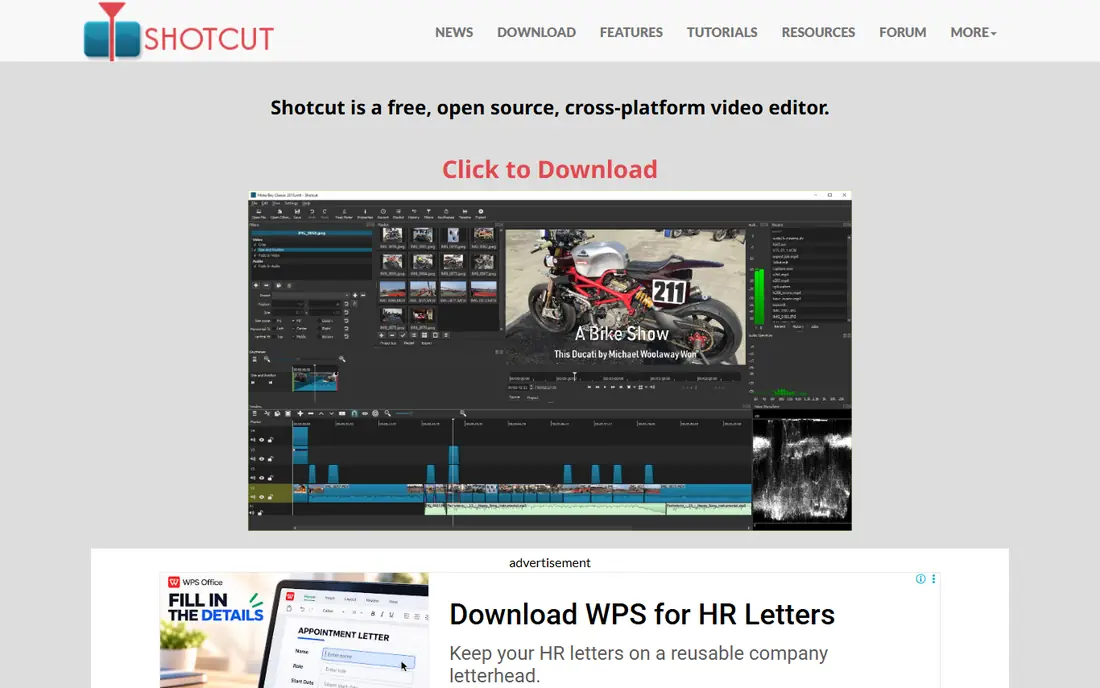
Shotcut is a dependable workhorse for people who want a real timeline editor without accounts, subscriptions, or upsells. It handles a wide range of video and audio formats, supports multi-track timelines, filters, and keyframes, and exports without a watermark. Because it is open source, the version you download is the full version.
The trade is polish. Shotcut looks utilitarian, and you will need to learn its panels and filters rather than following a guided wizard. It also lacks the cloud templates and AI caption tools that make CapCut fast for social clips. For straightforward cuts, titles, and exports on modest hardware, it is a strong, honest choice.
- Fully free with no watermark
- Wide format support
- Runs on Windows, Mac, and Linux
- Interface feels plain next to paid editors
- Fewer guided templates
OpenShot is the easiest desktop editor on this list to learn. The timeline is clear, clips drag into place without fuss, and basic titles, transitions, and audio adjustments are close at hand. A new editor can finish a first video in an evening without reading a long manual, which matters more than a long feature list at the start.
It is not the pick for complex work. Large projects with many tracks can feel slower, and its effects library is smaller than the deeper open source editors here. Treat OpenShot as a starting point: learn cutting, pacing, and audio levels here, then move to Shotcut, Kdenlive, or Resolve when your projects outgrow it.
- Simple drag and drop timeline
- Fully free and open source
- No watermark
- Fewer advanced effects than Shotcut or Kdenlive
- Can feel slow on large projects
Kdenlive sits between OpenShot and Resolve in depth. You get multi-track timelines, a wide effects library, keyframe animation, proxy editing for smoother playback, and audio tools that suit longer projects. It is a good fit for editors who have learned the basics and want more control without paying for a subscription.
New users should expect a learning period. The panels and menus carry a lot of options, and finding the right effect takes practice. The payoff is a free editor that handles documentaries, tutorials, and multi-camera style projects without a watermark or an expiring trial. If you work on Linux, Kdenlive is one of the strongest free choices available.
- Multi-track editing with effects and keyframes
- Fully free and open source
- Active community and tutorials
- Interface can overwhelm beginners
- Best experience is on Linux and Windows
Clipchamp is the lowest friction option for Windows users. It is already installed on many Windows 11 machines, it runs in a browser, and it covers trimming, text, stock style templates, and screen recording in a clean layout. For a quick work video, a school project, or a simple social clip, you can start and finish without installing a heavy desktop suite.
The free plan tops out at 1080p, and premium stock, brand kit features, and 4K export require a Microsoft 365 plan. You also need a Microsoft account and an internet connection, so it is not the pick for offline editing or for machines without reliable connectivity. Within those limits, Clipchamp is a practical everyday editor.
- Built into Windows and available in a browser
- Simple templates and screen recording
- Free 1080p exports
- Needs a Microsoft account and internet connection
- 4K export and premium stock need a paid plan
iMovie remains the simplest first editor for Mac, iPhone, and iPad owners. Trailers, titles, transitions, and basic color adjustments are built in, and projects move between phone and Mac without extra software. A beginner can cut a family video or a short vlog quickly, and the results look clean without much tuning.
Its limits show up as skills grow. You cannot build the layered effects, detailed color grades, or complex audio mixes that Resolve or Kdenlive offer, and there is no Windows or Android version. That is fine for its purpose. iMovie is a starting editor, not a finishing studio, and it does that job well at no extra cost.
- Free with Apple devices
- Very easy to learn
- Supports 4K export
- Apple devices only
- Limited advanced controls and effects
VSDC Free Video Editor
Best for: Feature packed editing on older Windows PCs
VSDC is a good match for Windows users on older or lower spec machines. The free version includes a non-linear timeline, color correction, masking, motion tracking basics, and a range of transitions and effects that go beyond most simple editors. It runs well where heavier editors stutter, which makes it useful for a second machine or a budget laptop.
The interface is the main drawback. Menus and panels look dated, and some tools take a few clicks to find. A Pro version adds hardware acceleration, advanced masking, and other professional tools for a yearly fee listed on the vendor site. If your PC is the constraint, VSDC gives you more editing depth than its simple rivals.
- Many effects and tools in the free version
- Lighter on older Windows hardware
- No watermark on basic exports
- Windows only
- Interface looks dated
- Some advanced tools need the Pro version
Lightworks offers a genuine professional editing workflow in a free tier, which is rare. Its trimming tools, timeline controls, and project structure reflect its history in film and broadcast editing, and learning it teaches habits that transfer to paid suites. For a student or an aspiring editor, that experience has real value.
The free limit is sharp: exports top out at 720p, which is fine for drafts and learning but not for polished YouTube delivery. Paid Create and Pro plans raise resolution and add format and sharing options, with prices listed on the Lightworks site. Pick Lightworks to learn a pro workflow, not as your only delivery tool unless you upgrade.
- Professional trimming and timeline tools
- Long history in film editing
- Free tier to learn the workflow
- Free exports capped at 720p
- Paid plans needed for higher resolution and some formats
How we picked these
We compared official feature pages, pricing pages, and app store listings for each editor, and we checked public reviews for common complaints about exports, watermarks, and performance. We kept only editors with a genuinely usable free version in October 2026, and we removed tools that had been discontinued or reduced to a short trial. Where a vendor price varied by region, we wrote the figure shown on the vendor site and noted that it can vary, rather than presenting one region as universal.
What to check before you commit
A free plan is only useful if it fits the video you actually make, so start with format, length, and device before you compare effects.
Match the editor to your footage
Phone clips and vertical social video suit CapCut or iMovie, while long YouTube videos and multi-track projects suit Resolve, Kdenlive, or Shotcut. If you edit on a Chromebook or a shared computer, a browser editor like Clipchamp may matter more than raw power. Check that your chosen editor exports in the resolution and format your platform needs, and test one full export before you build a series around it.
Watch the free plan limits
Watermarks, resolution caps, and AI usage limits are the three limits that cause the most frustration. Open source editors avoid all three, while commercial free plans trade convenience for caps. Read the pricing page for export resolution, watermark rules, and AI credits, and note which features you used in your test project so you know what a paid plan would actually add.
Plan for your hardware
Resolve and Kdenlive reward a stronger machine, while OpenShot, VSDC, and Clipchamp are kinder to older hardware. If playback stutters, try proxy editing, lower preview resolution, or shorter timelines before you blame the editor. A free editor that runs smoothly on your current computer beats a powerful one that stalls on every cut.