Best Free Image to Video AI Tools in 2026: 9 Tools Compared
By ToolNimba Editorial Team October 28, 2026 12 min read

- Top pick
 Runway
Editing and camera control
Starting price$15 per monthCheck out RunwayRead our review - Runner-up
 Kling AI
Realistic motion and daily use
Starting priceSee websiteCheck out Kling AIRead our review - Also great
 Pika
Fast social clips
Starting price$10 per monthCheck out PikaRead our review
How we researched this
We compared official pricing and feature pages, app store listings, privacy policies and public user reviews. Prices change, so check the provider's site before you pay.
Key takeaways
- Kling AI offers the most useful free rhythm for regular posting, with daily credits in many published guides, while Runway offers a one-time credit trial.
- Runway suits creators who want editing control and camera direction, while Pika suits fast, playful social clips.
- Free exports from most tools carry a watermark, and clip length is usually short, around five to ten seconds.
- Adobe Firefly and Canva suit creators who need clean commercial use or a simple design workflow, rather than the longest free trial.
- Credit amounts, watermarks and resolutions change often, so check each pricing page before you plan a series around a free tier.
Quick comparison
| Name | Best for | Starting price | Free plan | |
|---|---|---|---|---|
| Runway | Editing and camera control | $15 per month | Yes | Visit |
| Kling AI | Realistic motion and daily use | See website | Yes | Visit |
| Pika | Fast social clips | $10 per month | Yes | Visit |
 Luma Dream Machine | Cinematic realism | See website | Yes | Visit |
 Hailuo AI | Character and talking-head clips | See website | Yes | Visit |
 Adobe Firefly | Commercially safe generation | See website | Yes | Visit |
 PixVerse AI | Speed and social content | See website | Yes | Visit |
 Vidu AI | Character consistency | See website | Yes | Visit |
 Canva | Simple design and social posts | Free | Yes | Visit |
The best free image to video AI tools
Image-to-video tools turn a still photo, product shot or artwork into a short moving clip from a text prompt. You upload an image, describe the motion you want, and the tool generates a clip, usually five to ten seconds long on a free plan. Free tiers differ sharply on credits, watermarks, resolution and whether credits renew, so a tool that is generous for a one-off test may be poor for weekly posting. We compared official pricing pages, feature pages and public reviews from 2026 to sort those differences.
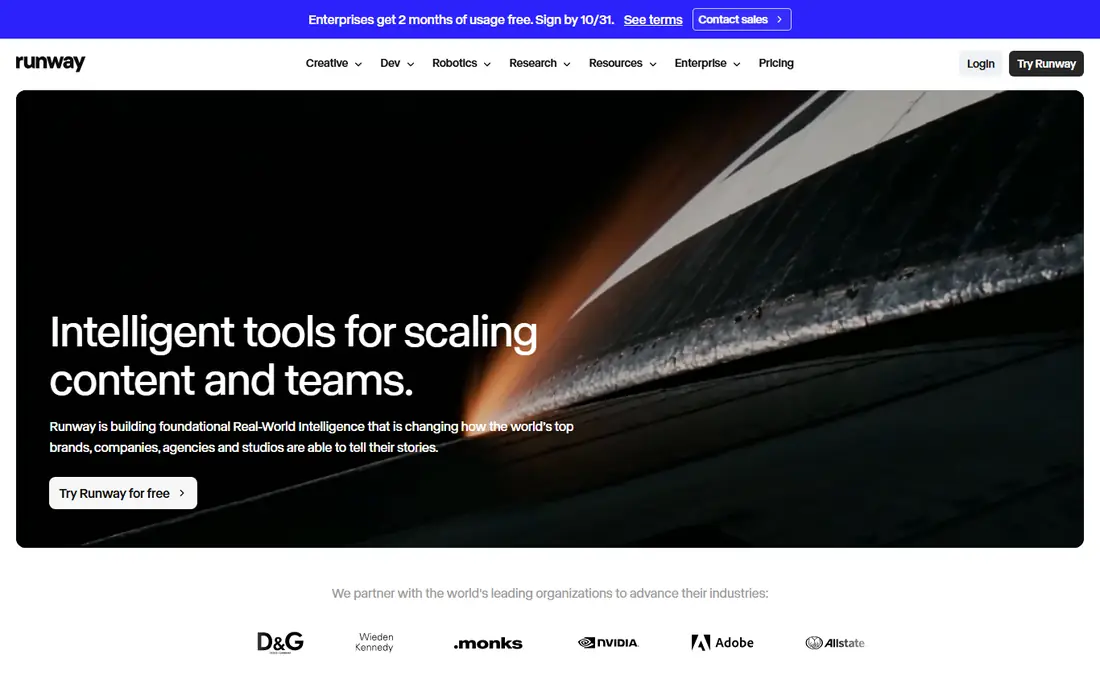
Runway is the strongest all-round pick if you want a video tool that feels like a creative workspace, not just a demo. Its Gen-4 models handle camera moves, subject references and scene editing with more control than most free tools, and the built-in editing suite lets you trim, adjust and combine clips without exporting to another app.
The free plan is a trial, not a regular supply. Published guides in 2026 describe 125 one-time credits, which cover only a handful of short clips, and free exports carry a watermark. Paid Standard plans start at $15 per month in monthly billing, with lower annual pricing in some guides, and remove the watermark. Use the free credits to test Runway on your own images, and pay only if its control saves you time on real projects.
- One-time free credits to test the tool
- Editing suite alongside generation
- Camera and reference controls
- Free credits do not renew monthly
- Free exports carry a watermark
- Advanced models need a paid plan

Kling AI is our pick for regular free use, because its free tier is built around daily credits rather than a single trial batch. Published guides describe around 66 credits per day in 2026, which can cover several short clips, though exact amounts and resolution limits change, so check your account after sign-up. Kling 3.0 is noted for cinematic motion, camera moves and lip sync, which helps for character clips and product scenes that need natural movement.
Free clips are watermarked and limited in resolution in many guides, and paid pricing has varied between first-month offers and standard monthly rates. Treat the free tier as a daily practice and posting tool, not as a source of clean client-ready exports. If you post often and want realistic motion without paying at first, Kling is the best place to start.
- Daily credits in published guides
- Strong realistic human motion
- Clips up to longer lengths on paid plans
- Free exports carry a watermark
- Pricing and first-month offers can confuse the true monthly cost
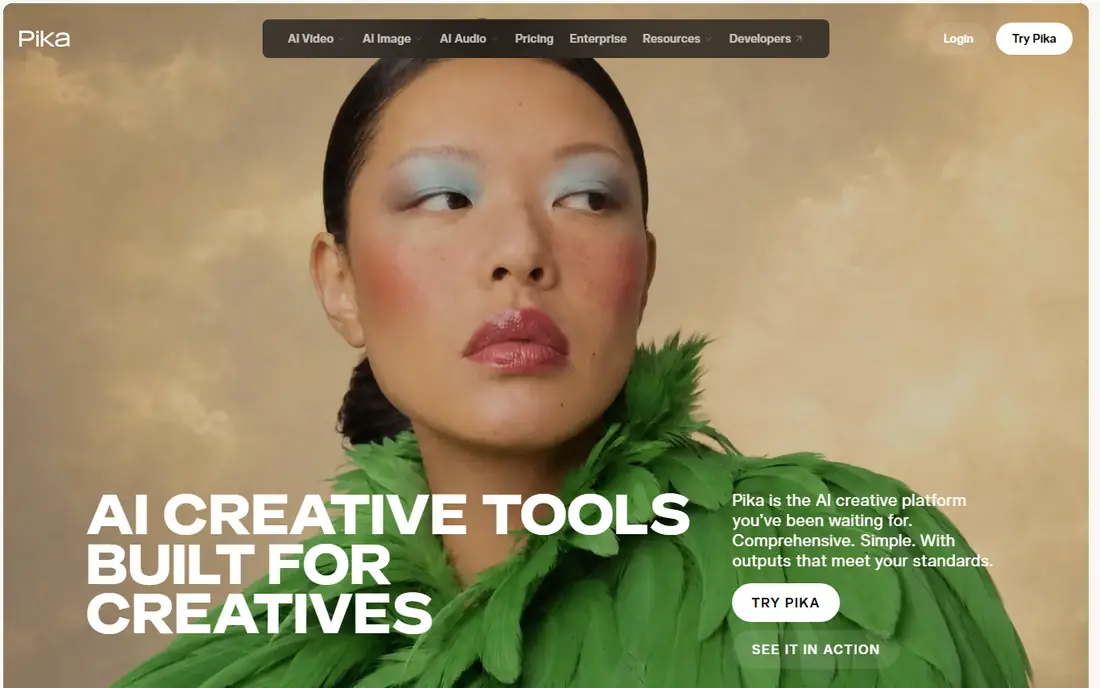
Pika suits creators who want quick, fun clips for social feeds. Generation is fast, prompts are simple, and effects such as Pikaffects can transform a scene in a playful way, which works well for memes, short product teasers and stylised posts. The free plan in published guides offers monthly credits, with clips around five seconds and capped resolution, which is enough to test ideas and post casual content.
The limits are clear. Free exports carry a watermark, complex scenes can look jerky, and paid plans start at $10 per month in monthly billing in some guides, with higher tiers for commercial use. Pika is not the best pick for long, realistic client work, but for speed and social experimentation, it is one of the easiest tools to enjoy on a free plan.
- Fast generation for short clips
- Playful effects and transformations
- Simple prompt workflow
- Free clips are watermarked and capped in resolution
- Clip length is short on the free plan
Luma Dream Machine earns its place for realistic movement and spatial depth. It reads volume and distance in a still image well, which helps for product shots, interior scenes and outdoor clips where camera motion needs to feel physical rather than flat. The workflow is simple: upload an image, write a motion prompt, and generate a short clip, which suits creators who do not want a complex editing timeline.
Free use is limited compared with Kling, with published guides describing around 30 generations per month in some periods and fewer in others, and free exports are watermarked. Luma also shifted focus toward its wider agent platform during 2026, so pricing and access have changed. Use Luma free for short, high-quality tests, and check the current plan before relying on it for a series.
- Strong sense of depth and physical motion
- Good for product and interior scenes
- Simple image-to-video workflow
- Free generation count is limited
- Free exports carry a watermark
- Pricing has shifted during 2026
Hailuo AI, from MiniMax, is noted in several 2026 tests for photorealistic motion, especially for people, faces and character-led clips. Its reference-based creation lets you guide a clip from a photo and a prompt, which helps when you need a character to stay recognisable across shots. Mobile apps on iOS and Android make it easy to test ideas on a phone, and clips can run up to around ten seconds in published guides.
The free tier is the weak point for regular use. Many guides describe one-time trial credits rather than a monthly renewal, with daily bonuses varying by account, and free downloads carry a watermark. Paid plans start around $10 per month in some guides, though you should check the current page. Hailuo is best for high-quality one-off tests and character work, rather than as a daily free posting tool.
- Strong photorealistic output in many tests
- Character animation and reference-based creation
- Mobile apps available
- Free plan is a trial with one-time credits in many guides
- Free exports carry a watermark
- Interface is less polished
Adobe Firefly is the pick when commercial safety matters more than a long free trial. Adobe positions its Firefly video model as trained on licensed and public-domain content, which gives brands and agencies more confidence for client work than tools with less clear training data. Image-to-video generation turns a still into a short animated clip for social posts, product visuals and B-roll, and the web and mobile workflow is clean.
Free use is limited to daily generations that reset each day in published guides, and clips are short, so Firefly will not replace a dedicated video tool for long sequences. Paid Adobe plans add more generations, higher quality and wider model access, including partner models in some plans. If you already use Adobe tools, or you need commercially safe clips for a brand, Firefly is a strong free starting point.
- Free daily generations in published guides
- No watermark on some free outputs
- Trained for commercial use
- Clips are short, around five seconds per generation
- Full features need a paid Adobe plan
PixVerse AI suits social creators who want volume and speed. Published guides describe signup credits plus daily credits, which can cover several short clips per day, and the template and effects library helps you turn a photo into a trending-style clip without writing a long prompt.
Quality is the trade-off. Free exports are watermarked and limited in resolution, and complex motion or detailed faces can warp more than on Runway or Kling. PixVerse is best for casual social content, memes and quick product teasers, where speed matters more than perfect realism. For client work, use it to prototype ideas, then generate the final clip on a higher-quality tool.
- Signup credits plus daily credits in published guides
- Fast generation
- Social templates and effects
- Free exports carry a watermark
- Free resolution is limited
- Quality varies on complex motion
Vidu AI is a useful free option for character-led and anime-style clips. It offers recurring monthly credits in published guides, enough for around ten to sixteen short clips depending on settings, and its reference controls help keep a character's look consistent across generations. That consistency is valuable for series, stories and social characters that need to look the same in each clip.
Free clips are watermarked and capped at lower resolution in many guides, and the interface packs in many models and options, which can feel busy on a first visit. Start with a simple image and a short prompt, and test character consistency on two or three clips before planning a series. Vidu is a strong second tool alongside Kling or Runway, especially for stylised character work.
- Recurring monthly credits in published guides
- Good for anime and character-led clips
- Reference controls
- Free exports carry a watermark
- Free resolution is capped
- Interface can feel busy for beginners
Canva is the easiest pick if you already design social posts in Canva. Its AI video tools can turn an image into a short clip, which you can then place directly into a post, story or presentation with text, branding and music from Canva's library. Published guides describe up to 200 standard AI uses per year on the free plan in some periods, though limits change, so check your account.
The video itself is basic compared with Runway or Kling. Free Magic Media clips are short, around four seconds, and silent in published guides, with limited camera control. Canva suits marketers and small businesses who need a quick animated post inside a design they already made, not creators who need cinematic motion.
- Free plan with AI video uses
- No watermark on some AI outputs in published guides
- Design, text and video in one place
- Clips are short and silent in the free Magic Media tool
- Less control than dedicated video tools
How we picked these
We compared official pricing pages, free credit rules, watermark policies, clip lengths and feature pages for image-to-video tools that were active in October 2026, and we cross-checked them against public reviews from 2026. We favoured tools with a genuine free plan that lets you upload your own image and export a clip, rather than tools that only offer a paid trial or text-to-video alone. We did not claim hands-on testing of every model, and we used See website for prices where published guides disagreed, since credit prices in this category change often.
How to get good results from a free image-to-video tool
Start with a strong, clear image. A sharp photo with one main subject and a simple background animates more cleanly than a busy scene with many faces or small text. Write a short motion prompt that describes one action, such as a slow camera push-in, clouds moving, or a person turning their head, rather than asking for five actions at once. That restraint helps the model keep the subject stable.
Plan around credits and watermarks
Check how many credits each generation costs, whether credits renew daily or monthly, and whether free exports carry a watermark. For a regular series, a daily-credit tool such as Kling will last longer than a one-time trial such as Runway free. For a single important clip, a higher-quality tool may be worth the watermark-free paid export, even if its free trial is short.
Keep clips short and test first
Free clips are usually five to ten seconds, so design for that length. Use the first generation as a test, check whether faces, hands, text or product details warp, and adjust the prompt or image before spending more credits. If a tool keeps warping a detail that matters, such as a product label, switch tools rather than burning credits on the same prompt.
Check commercial use before posting for a brand
Free plans often limit commercial use, even when personal posting is allowed. Read the terms for the tool you use, especially for client work, ads or product listings. Adobe Firefly and Canva are often safer starting points for brand work, while other free tiers are better for personal tests and social posts.
Sources
- https://www.datacamp.com/blog/best-free-image-to-video-ai?utm_source=chatgpt.com
- https://designbeep.com/2026/07/22/best-free-ai-video-generators-2026/
- https://pexo.ai/blog/best-free-image-to-video-generators-0733
- https://www.flowhunt.io/blog/best-ai-video-generators-2026/
- https://runwayml.com
- https://kling.ai
- https://pika.art
- https://lumalabs.ai
- https://hailuoai.video
- https://firefly.adobe.com
- https://pixverse.ai
- https://www.vidu.com
- https://www.canva.com