Best Online Tool to Protect a PDF in 2026: 8 Tools Compared
By ToolNimba Editorial Team November 13, 2026 9 min read

- Top pick
 Smallpdf
Easy online protection
Starting price$9 per monthCheck out SmallpdfRead our review - Runner-up
 iLovePDF
Simple batch protection
Starting price$9 per monthCheck out iLovePDFRead our review - Also great
 Adobe Acrobat Online
Full Acrobat controls
Starting price$19.99 per monthCheck out Adobe Acrobat OnlineRead our review
How we researched this
We compared official pricing and feature pages, app store listings, privacy policies and public user reviews. Prices change, so check the provider's site before you pay.
Key takeaways
- Smallpdf and iLovePDF are the easiest online options for occasional password protection, with free tiers for light use.
- Adobe Acrobat Online suits users who already pay for Acrobat and want full permission controls.
- Sejda and PDF24 suit users who want a quick online tool without a large subscription.
- For highly sensitive files, a browser based or desktop tool that never uploads the file is safer than a server based tool.
Quick comparison
| Name | Best for | Starting price | Free plan | |
|---|---|---|---|---|
| Smallpdf | Easy online protection | $9 per month | Yes | Visit |
| iLovePDF | Simple batch protection | $9 per month | Yes | Visit |
| Adobe Acrobat Online | Full Acrobat controls | $19.99 per month | Yes | Visit |
 Sejda | Quick online PDF tools | See website | Yes | Visit |
 PDF24 Tools | Free online PDF suite | Free | Yes | Visit |
 Soda PDF | Online editing plus protection | See website | Yes | Visit |
 Foxit PDF Editor Online | Business PDF tools | See website | Free trial | Visit |
 PDFescape | Simple online PDF work | See website | Yes | Visit |
The best online tools to protect a PDF
Protecting a PDF usually means adding a password to open it, setting permissions for printing and copying, or both. Online tools make that fast, but they differ in encryption strength, file handling and free limits, so check the privacy terms before uploading a sensitive file.
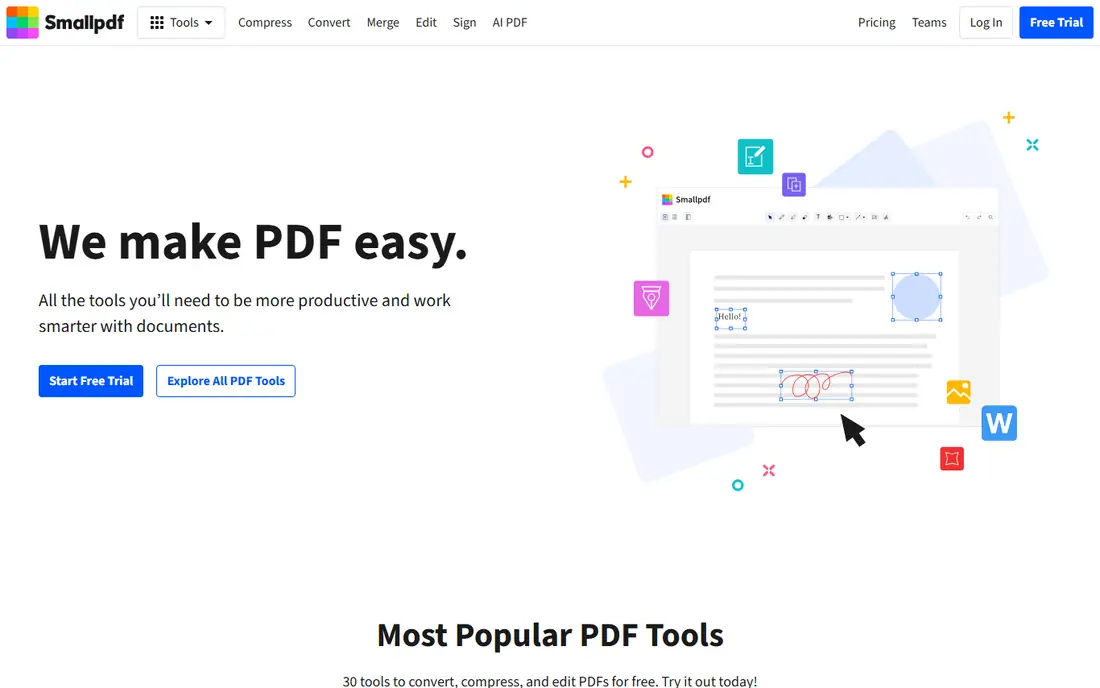
Smallpdf is the simplest online route to a password protected PDF. Upload a file, set a password, download the result, and you are done in under a minute. The wider tool set covers compressing, merging, converting and signing, so one account handles most everyday PDF jobs.
The free plan allows a limited number of tasks per day, often two, and paid plans start near $9 per month. Files are uploaded to Smallpdf servers and deleted after a set period, which is standard for online tools but worth noting for sensitive documents. For occasional use, Smallpdf is hard to beat for ease.
- Very easy to use
- Clean interface
- Large PDF tool range beyond protection
- Free plan limits tasks per day
- Protection options are basic on the free tier
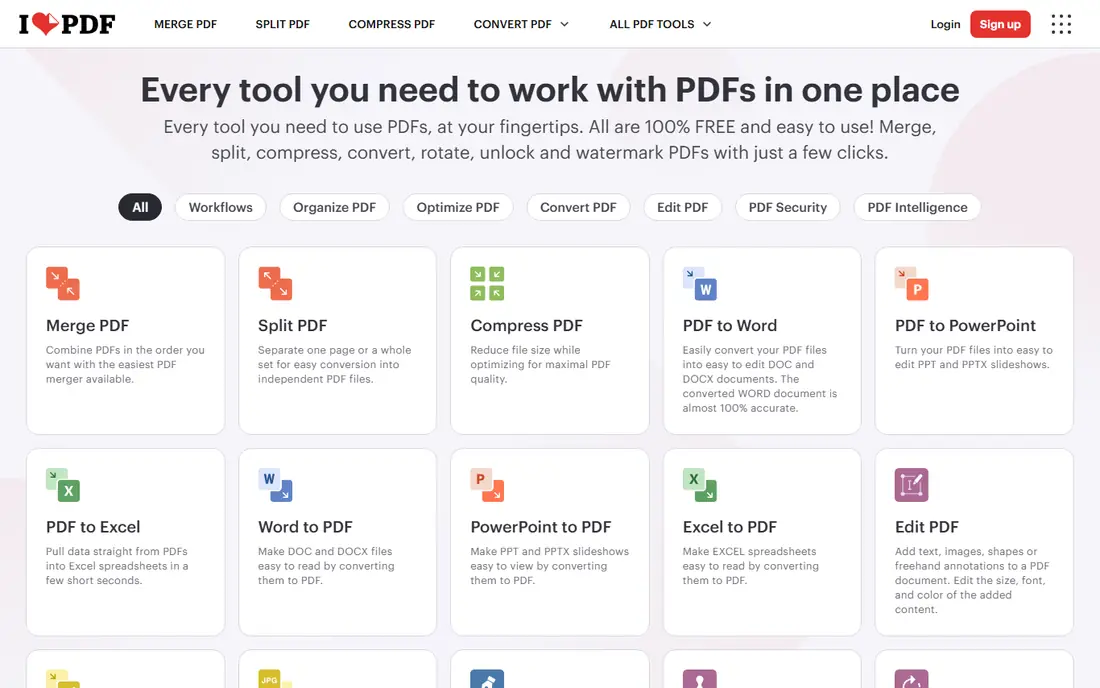
iLovePDF offers a similar online workflow, with a protect PDF tool that sets an open password and permission controls. It handles multiple files well, and the interface stays simple even for users who rarely work with PDFs. Premium starts near $9 per month, or lower on an annual plan.
Like Smallpdf, iLovePDF uploads files to its servers for processing and deletes them after a period, usually two hours. That is fine for routine documents, but for tax returns, medical records or legal files, consider a browser based tool that processes the file on your device. For everyday protection, iLovePDF is a solid, low cost pick.
- Easy batch handling
- Clear tool layout
- Affordable premium plan
- Free plan has daily limits
- Advanced features need a paid plan
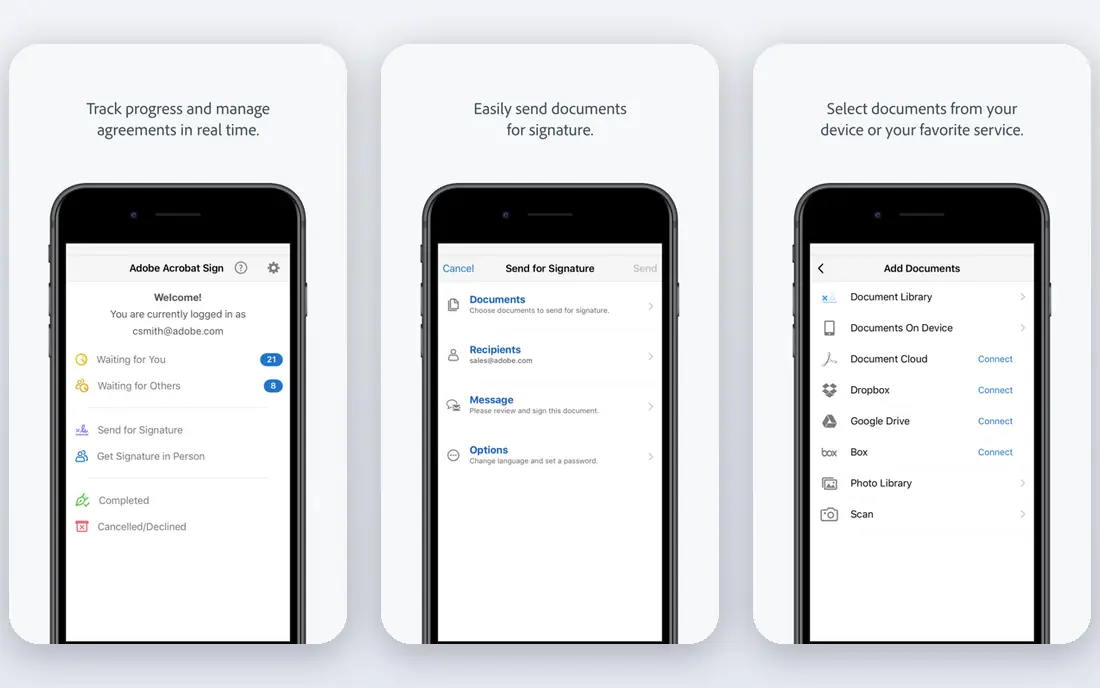
Adobe Acrobat sets the standard for PDF protection, and its online tools reflect that. You can set an open password, restrict printing, copying and editing, and use AES 256 encryption, the strongest level in the PDF standard. Files also open reliably in other readers, since Acrobat defines much of the format.
Acrobat Pro costs $19.99 per month, which is overkill if you only protect a PDF now and then. The free online tools cover basic jobs, but the full protection controls sit in the paid plan. Choose Acrobat Online if you already use Acrobat, or if you need the most complete permission controls for business documents.
- Strong encryption and permission controls
- Trusted standard
- Works with Acrobat desktop
- Highest price here
- Full features need a paid Acrobat plan
Sejda is a browser based PDF suite with a protect PDF tool that adds a password and permission settings. The interface is straightforward, and the same account covers editing, merging, splitting and signing. That makes Sejda useful for users who need more than protection alone.
The free plan allows a limited number of tasks per hour and caps file size, which suits occasional use. Paid plans remove those limits, with pricing that varies by monthly or yearly billing, so we list See website. Files are processed online, so the same privacy caution applies as with other server tools.
- Clean online tools
- Protect plus edit and sign in one place
- No install needed
- Free plan limits files per hour and size
- Pricing varies by plan
PDF24 Tools offers a free online suite that includes password protection, merging, splitting, compressing and converting. Basic tools work without an account, which lowers friction for a one off job. A desktop app is also available for users who prefer to process files locally.
The design is functional rather than polished, and permission controls are simpler than Acrobat. For a free online tool that handles protection plus everyday PDF tasks, PDF24 is one of the best no cost options. Sensitive files still deserve a local tool, but for routine documents PDF24 does the job.
- Free online tools with no account for basic jobs
- Wide tool range
- Desktop app also available
- Interface is plainer than Smallpdf
- Protection options are simpler than Acrobat
Soda PDF combines an online PDF editor with protection tools, so you can edit text, add signatures and set a password in one workflow. That suits office users who receive a PDF, make changes and then lock it before sending it on. The online app works in most browsers without an install.
Pricing varies by plan and billing term, so we list See website. A free online version covers basic tools, while paid plans add editing, OCR and batch work. Soda PDF is a good middle ground between a simple protector and a full desktop editor such as Acrobat.
- Full online editor plus protection
- ESign and forms included
- Works in the browser
- Pricing varies by plan
- Some advanced features need a paid tier
Foxit is a long standing Acrobat alternative, and its online tools include password protection alongside viewing and basic editing. Business users like Foxit for its lower cost than Acrobat in many plans and its familiar interface. Security features include password protection, permission controls and digital signatures in the fuller editor.
Pricing varies by product and plan, so we list See website. The online version suits quick protection and viewing, while heavy editing and advanced security work better in the desktop editor. If your office already uses Foxit, the online tools are a natural extension.
- Strong PDF editing and security features
- Business friendly
- Good Acrobat alternative
- Online tools are more limited than the desktop editor
- Pricing varies by plan
PDFescape is a free online PDF editor that lets you view, annotate, fill forms and protect files in the browser. It suits students and casual users who need a quick, no install tool for a simple job. The free account covers basic use, with paid plans raising file size and page limits.
The toolset is simpler than Smallpdf or Acrobat, and the interface shows its age. For a quick password on a routine file, PDFescape works. For business documents with strict permission needs, choose Acrobat, Foxit or a desktop tool with fuller controls.
- Free online editor
- No install
- Simple protection and form tools
- File size limits on free accounts
- Interface is basic
- Fewer security options than Acrobat
How we picked these
We compared official tool pages, free plan limits, encryption and permission options, and file handling policies. We favored online tools that a US user can open in a browser today and use without installing software. Where pricing varied by plan or was not published as a single figure, we wrote See website.
How to protect a PDF safely
First, choose the right password type. A user password controls who can open the file, while an owner password controls printing, copying and editing. For the strongest protection, set both, and use a long passphrase rather than a short word. Send the password separately from the file, for example by text or phone, never in the same email as the PDF.
Second, think about where the file goes. Online tools upload your PDF to a server, process it and delete it after a period. That is acceptable for routine documents, but for highly sensitive files, use a desktop app such as Acrobat, Foxit or LibreOffice, or a browser based tool that processes the file on your device. Check the privacy policy for retention time before uploading tax, medical or legal documents.
User password versus permission controls
An open password stops casual access, but it does not stop a determined user with the password from copying text or printing, unless you also set permissions. Permission controls can block printing, copying and editing, but they rely on the reader honoring them. For truly sensitive content, combine a strong open password with permission limits, and share only with people who need the file.
If you forget a PDF password
There is no safe reset for a lost PDF password. The file cannot be opened without it, and password recovery tools work only by guessing, which is slow for a strong passphrase. Save the password in a password manager before you send the file, and keep a backup of the unprotected original in a secure location you control.
Sources
Frequently asked questions
What is the best online tool to protect a PDF for free?
Smallpdf, iLovePDF and PDF24 all offer free online protection for occasional use, with daily or hourly limits. PDF24 is the most generous free option, while Smallpdf and iLovePDF offer smoother interfaces. For frequent use, a paid plan removes the limits.
How do I password protect a PDF online?
Upload the PDF to an online protector such as Smallpdf or iLovePDF, enter a password, choose permission settings if offered, and download the protected file. Save the password in a password manager, and send it to the recipient separately from the file.
Is it safe to protect a PDF online?
For routine documents, yes, provided you use a reputable tool and check its file deletion policy. For highly sensitive files such as tax returns or medical records, a desktop or on device tool is safer, since the file never leaves your computer. Avoid uploading sensitive files to unknown sites.
What encryption does PDF password protection use?
Most modern tools use AES 128 or AES 256 encryption, with AES 256 the stronger standard. Acrobat and many online tools now use AES 256 by default. Older RC4 encryption is weaker and should be avoided for sensitive files.
Can I protect a PDF without a password for printing and copying?
Yes, owner password and permission settings can restrict printing, copying and editing without requiring a password to open the file. Those limits rely on the PDF reader honoring them, so they deter casual copying rather than stopping a determined user.