Best Online Tool to Reduce PDFs in 2026: 9 Tools Compared
By ToolNimba Editorial Team November 13, 2026 10 min read

- Top pick
 iLovePDF
Most people
Starting priceFreeCheck out iLovePDFRead our review - Runner-up
 Smallpdf
All-in-one PDF suite users
Starting priceFreeCheck out SmallpdfRead our review - Also great
 Adobe Acrobat Online
Trusted brand and quality
Starting priceFreeCheck out Adobe Acrobat OnlineRead our review
How we researched this
We compared official pricing and feature pages, app store listings, privacy policies and public user reviews. Prices change, so check the provider's site before you pay.
Key takeaways
- iLovePDF is our pick for most people, because it offers three clear compression levels and a simple workflow.
- Smallpdf is a strong second choice if you already use its other PDF tools, but its free use is limited.
- PDF24 Tools and Sejda are good free-first options when you want to compress without signing up for a full suite.
- Extreme compression saves the most space but can soften images, so keep the original file before you compress.
- For sensitive documents, prefer a tool with a clear file-deletion policy, or compress locally instead of uploading.
Quick comparison
| Name | Best for | Starting price | Free plan | |
|---|---|---|---|---|
| iLovePDF | Most people | Free | Yes | Visit |
| Smallpdf | All-in-one PDF suite users | Free | Yes | Visit |
| Adobe Acrobat Online | Trusted brand and quality | Free | Yes | Visit |
 PDF24 Tools | Free-first compression | Free | Yes | Visit |
 Sejda | Simple browser compression | Free | Yes | Visit |
 PDF2Go | Quick online tasks | Free | Yes | Visit |
 Soda PDF | Online suite with compression | Free | Yes | Visit |
 PDF Candy | Many small PDF tasks in one place | Free | Yes | Visit |
 Foxit Online | Business-friendly online tools | Free | Yes | Visit |
The best online tool to reduce pdfs
A PDF grows large for predictable reasons: high-resolution images, scans, embedded fonts, and repeated resources. An online compressor reduces that weight by recompressing images and removing unneeded data, usually without changing the text. The best tool for you depends on how much quality you can lose, how many files you compress, and whether you mind uploading a document to a server.
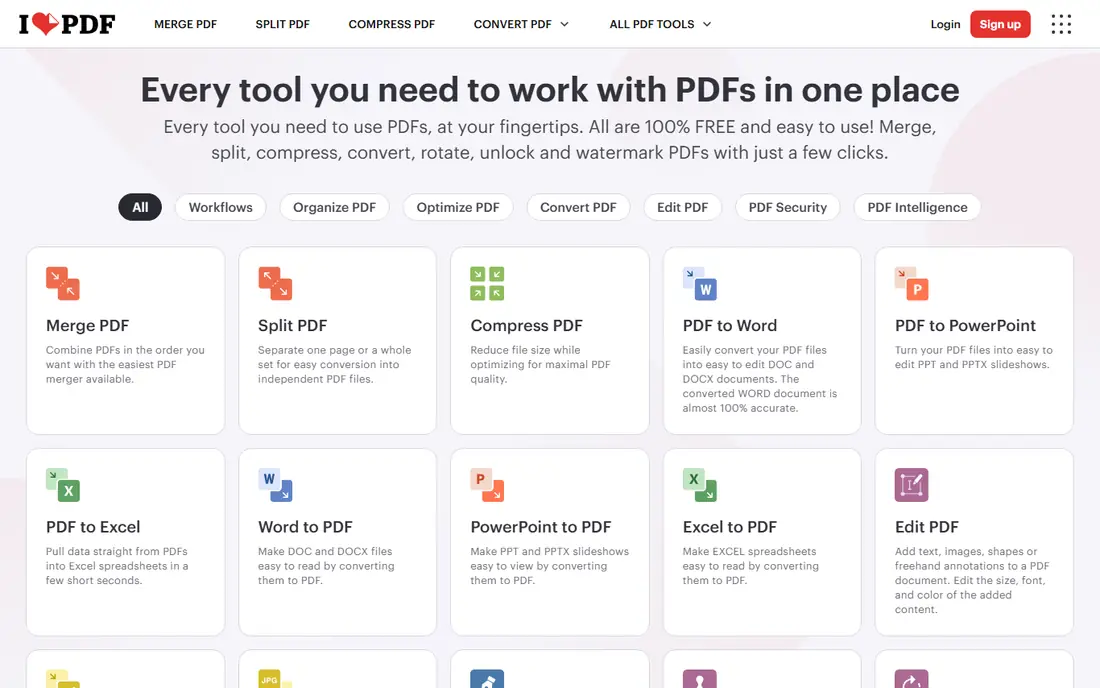
iLovePDF is the easiest compressor to recommend. Upload a file, pick Recommended for everyday sharing, Extreme for a strict upload limit, or Low when you want to keep image quality high, and download the result with a clear saving shown. That choice matters, because a job portal that caps files at 500 KB needs a different setting from an email to a colleague.
The free tier covers occasional use well, but frequent users will hit limits on file count and batch size. Paid plans raise those limits and add desktop and mobile extras. For most people, the free tier plus the Recommended setting is enough, and the clarity of the three levels is the reason it leads this list.
- Three compression levels, including Recommended and Extreme
- Simple upload and download flow
- Mobile apps available
- Free use has file and task limits
- Batch limits are higher on paid plans
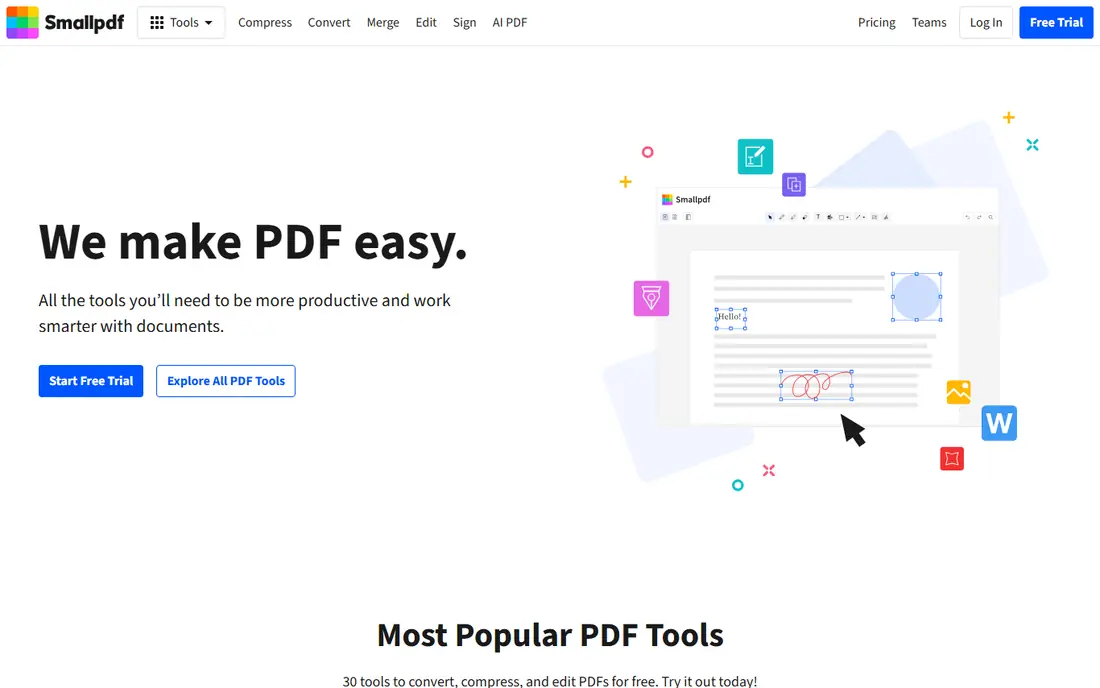
Smallpdf is a polished all-in-one PDF site, and its compressor fits that style. Basic compression is free and works for many files, while Strong compression squeezes more space at some quality cost. If you also merge, split, convert, or sign PDFs, keeping everything in one account is convenient, and the interface stays calm even for new users.
The limit is the free allowance. Occasional users will be fine, but anyone compressing daily will need a paid plan. If you only need compression, iLovePDF or PDF24 may give you more free use. If you already pay for Smallpdf, its compressor is a natural part of the suite.
- Clean interface
- Basic and Strong compression options
- Full PDF suite behind it
- Free use is limited to a small number of tasks per day
- Strong compression needs a paid plan in many cases
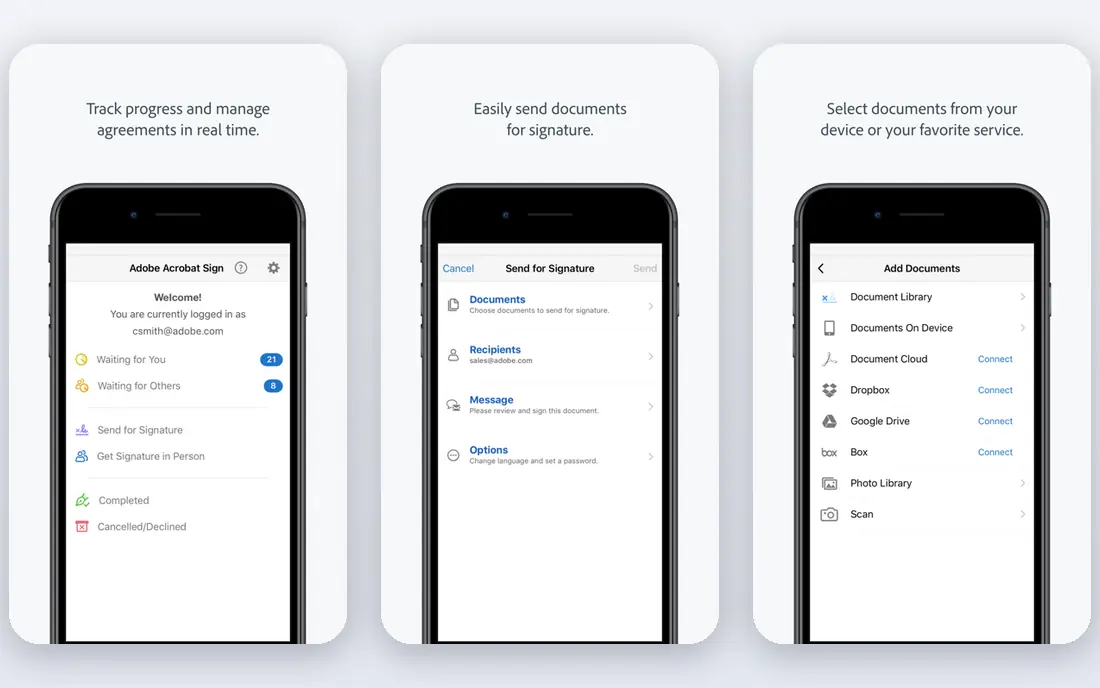
Adobe created the PDF format, and its online compressor benefits from that history. The tool is simple: upload, choose a compression level, and download. Quality at the medium setting is usually good for email and uploads, and the high setting preserves more detail for printing. For work documents where compatibility matters, the Adobe name carries weight.
Free use is limited, and Adobe will steer heavy users toward a paid Acrobat plan. That plan adds editing, signing, and conversion, which may be worth it for a business. If you only compress a few files a month, the free online tool is enough, and its output is reliably compatible.
- Adobe PDF expertise
- Simple online compressor
- High, medium, and low quality options
- Free use has limits
- Full Acrobat features need a paid subscription
PDF24 Tools is a strong free-first choice. Its online compressor lets you shrink PDFs without an account for many tasks, and the desktop PDF24 Creator adds offline tools for Windows users who prefer not to upload files. Quality options let you balance size and image clarity, and the site covers the usual companion tasks like merging and splitting.
The site feels busier than the simplest rivals, with many tools on one page, and that can slow a first visit. Once you find the compressor, though, the workflow is plain. For users who compress often and dislike paywalls, PDF24 is a practical, low-cost home.
- Free online tools with generous use
- Compression quality options
- Desktop app also available
- Interface is busier than iLovePDF
- Some advanced PDF features need the desktop app
Sejda is a calm, browser-based PDF site with a compressor that does one job well. Upload a file, adjust the compression approach, and download the result. The interface avoids clutter, which helps when you need to shrink a file quickly before a deadline. Sejda also offers a desktop app for users who want to work offline.
Free use is limited by hourly tasks and file size, so heavy users will need a plan. For occasional compression, especially for forms and reports, Sejda is a good, low-friction option, and its clear quality controls help you avoid over-compressing an important document.
- Clean browser workflow
- Compression with image quality control
- No install needed
- Free tier limits files per hour and task size
- Larger jobs need a paid plan
PDF2Go covers the basics with little fuss. Its compressor offers quality presets, accepts files from your device or cloud storage, and sits alongside tools for merging, splitting, and converting PDFs. For a one-off task, such as shrinking a scanned form for a portal, it gets the job done in a few clicks.
Free limits and upsells are the catch. Large files and frequent use push you toward a paid plan, and the free pages carry more promotion than iLovePDF. If you need a quick, no-account task and the file is modest, PDF2Go is fine. For regular use, a cleaner free tier elsewhere may suit you better.
- Simple compressor with quality presets
- Works from cloud storage
- Many companion PDF tools
- Free tier has file size and task limits
- Ads and upsells appear on free use
Soda PDF is an online and desktop PDF suite, and its compressor is one part of a larger set that includes editing, converting, and signing. The online tool is easy to use, and the balance between size and quality is sensible for everyday documents. Users who already use Soda PDF for editing will find compression a natural extra.
Free use is limited, and the suite pricing is aimed at regular PDF users rather than one-off compressors. If you only need to shrink PDFs, a free-first tool will cost less. If you need a suite anyway, Soda PDF keeps compression in the same workflow.
- Full online PDF suite
- Compressor with size and quality balance
- Desktop and online versions
- Free compression is limited
- Full features need a paid plan
PDF Candy gathers many small PDF tools on one site, and its compressor is a solid part of that set. Upload a file, compress it, and download the result, then use the same site to merge, split, or convert if needed. The desktop version suits users who want to work offline or avoid repeated uploads.
Hourly limits on the free tier can interrupt a busy day, and the site promotes its desktop app. For light, varied PDF work, PDF Candy is convenient. For a single large compression job, check the file size limit before you start, and keep the original file safe.
- Wide set of free online PDF tools
- Simple compressor
- Desktop version available
- Free tier has hourly limits
- Interface promotes the desktop app
Foxit is best known for its PDF reader and editor, and its online tools extend that work to the browser. The compressor is straightforward, and business users who already standardize on Foxit will appreciate staying in the same family. Output compatibility is good, and the site covers the usual companion tasks.
Free online use is limited, and heavy editing still needs the paid Foxit PDF Editor. For a business that already uses Foxit, the online compressor is a handy extra. For a home user who only compresses, a free-first tool may offer more free tasks.
- Foxit PDF expertise
- Online compressor alongside a strong reader
- Business plans available
- Online free use is limited
- Full editing needs Foxit PDF Editor, a paid product
How we picked these
We compared official feature pages, free limits, and compression options for online PDF compressors that are still maintained and have a clear official homepage. We did not claim hands-on testing, and we did not rely on a single vendor's saving claim, since results depend on the file. We favored tools with clear quality levels, a stated file-deletion approach, and a usable free tier, and we left out clone sites that copy a known brand name.
How to shrink a PDF without ruining it
Start by keeping the original. Compression is lossy for images, and you cannot restore detail once it is gone, so save the original in a separate folder before you upload anything. Then try the middle setting first, usually called Recommended or Basic, and check the result at full zoom, not just as a thumbnail. Text should stay sharp, and photos should look acceptable for the purpose, whether that is email, a portal, or printing.
If the file is still too large, try Extreme or Strong compression, but check faces, charts, and small text carefully. Scanned PDFs shrink the most, because the whole page is an image, while text-only PDFs are already small and gain little. If one pass is not enough, split the PDF or reduce image resolution before compressing, rather than running Extreme compression twice.
Privacy and sensitive documents
Online compressors upload your file to a server, even if only briefly. For contracts, medical forms, or financial documents, check the deletion policy and consider a desktop tool like PDF24 Creator instead. For public or low-risk files, an online tool is fine, but avoid uploading a document you would not email to a stranger.
Sources
Frequently asked questions
What is the best online tool to reduce PDFs for free?
iLovePDF is our first pick for most people, with PDF24 Tools close behind for heavier free use. Both offer clear quality levels and a simple workflow, but free limits differ, so check file size before a large job.
How much can I reduce a PDF file size?
It depends on the file. Photo-heavy and scanned PDFs often shrink a lot, while text-only PDFs shrink little. A middle setting often gives a good balance, and Extreme compression saves more at some image quality cost.
Will compressing a PDF change the text?
No, in normal use the text stays selectable and searchable, while images inside the PDF are recompressed. Very strong compression can soften images and small graphics, so check the result before sending it.
Is it safe to compress a PDF online?
For ordinary files, yes, if the tool states when files are deleted. For sensitive documents, prefer a desktop compressor that never uploads the file, or check the vendor's privacy policy first.
Why is my PDF still large after compression?
The file may be mostly text, which is already small, or it may contain many high-resolution images that need a stronger setting. Try Extreme compression, split the file, or reduce image size before compressing.
Can I compress several PDFs at once?
Yes, on many tools, but batch limits differ by plan. iLovePDF and Smallpdf allow batches, with higher limits on paid plans, while free tiers may limit the number of files per task.