Best Password Manager Apps in 2026: 9 Apps Compared
By ToolNimba Editorial Team October 28, 2026 11 min read

- Top pick
 Bitwarden
Best value and open source
Starting priceFreeCheck out BitwardenRead our review - Runner-up
 1Password
Most households that will pay
Starting price$2.99 per monthCheck out 1PasswordRead our review - Also great
 Proton Pass
Privacy and email aliases
Starting priceFreeCheck out Proton PassRead our review
How we researched this
We compared official pricing and feature pages, app store listings, privacy policies and public user reviews. Prices change, so check the provider's site before you pay.
Key takeaways
- Bitwarden is the best value pick, because its free plan covers unlimited passwords and devices with sync, which most rivals charge for.
- 1Password is our pick for most households that will pay, because its apps are polished, family sharing is clear, and Watchtower flags weak or reused passwords.
- Proton Pass suits privacy-focused users who also want email aliases, while NordPass and Dashlane bundle extra security tools for a higher price.
- A free plan is not automatically safe enough on its own, so check passkey support, two-factor login, and emergency access before you commit.
- The best manager is the one every device in your household can use, so check platform support before judging price.
Quick comparison
| Name | Best for | Starting price | Free plan | |
|---|---|---|---|---|
| Bitwarden | Best value and open source | Free | Yes | Visit |
| 1Password | Most households that will pay | $2.99 per month | No | Visit |
| Proton Pass | Privacy and email aliases | Free | Yes | Visit |
 Dashlane | Bundled VPN and monitoring | $4.99 per month | Yes | Visit |
 NordPass | Simple security in the Nord family | See website | Yes | Visit |
 Keeper | Family and business controls | See website | Yes | Visit |
 LastPass | A familiar name with limits | $3 per month | Yes | Visit |
 RoboForm | Strong form filling | $2.49 per month | Yes | Visit |
 Enpass | Offline-first vault control | Free | Yes | Visit |
The best password manager apps
A password manager should do three jobs quietly: create strong unique passwords, fill them in without fuss, and keep them safe if a device is lost. The apps below all do those jobs, but they differ on price, platform coverage, family sharing, and extra tools. We compared official feature pages, pricing, app store listings, security pages, and public reviews.
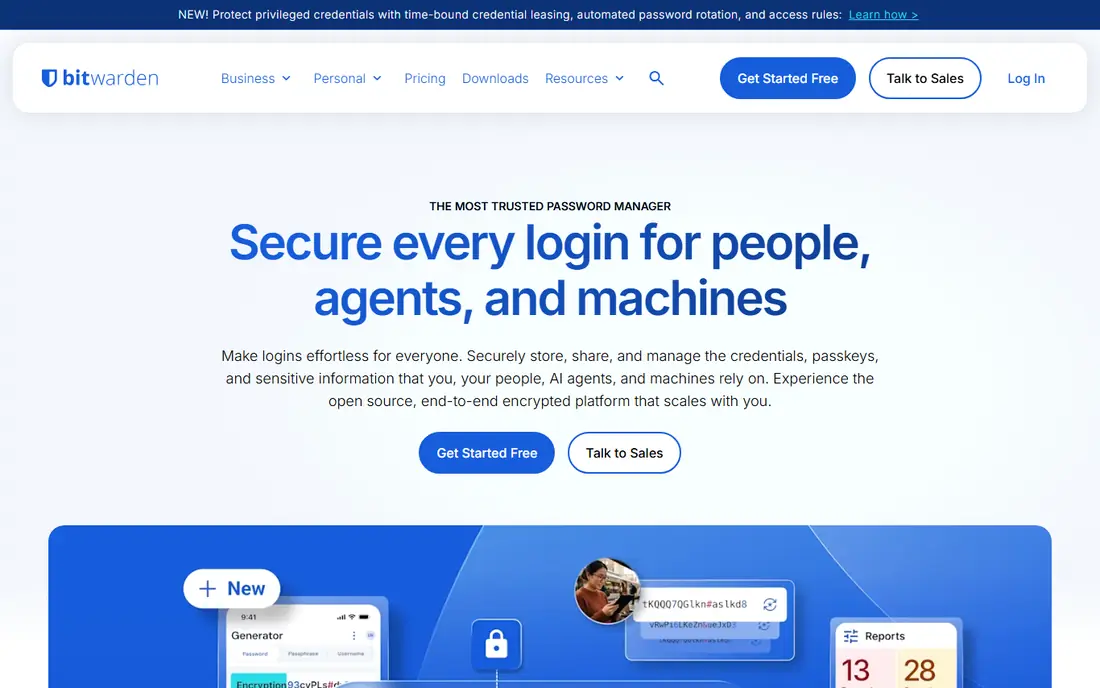
Bitwarden treats its free plan as a finished product, not a demo. You get unlimited passwords, unlimited devices, sync across Windows, macOS, Linux, iOS, Android, and major browsers, plus passkey support, without paying. That alone makes it the obvious first try for anyone who has been reusing passwords or storing them in a browser.
Paid Premium adds a built-in authenticator for two-factor codes, encrypted file storage, emergency access for a trusted contact, and deeper vault health reports. The honest catch is polish. The apps look utilitarian, and autofill occasionally needs a manual step where a pricier rival fills first time. If value and transparency matter more than a slick interface, start here and only pay if you want the extras.
- Unlimited passwords and devices on the free plan
- Open-source code with independent audits
- Self-hosting option
- Interface looks plain next to 1Password
- Autofill can miss some fields
- Paid pricing has changed recently, so check the current page
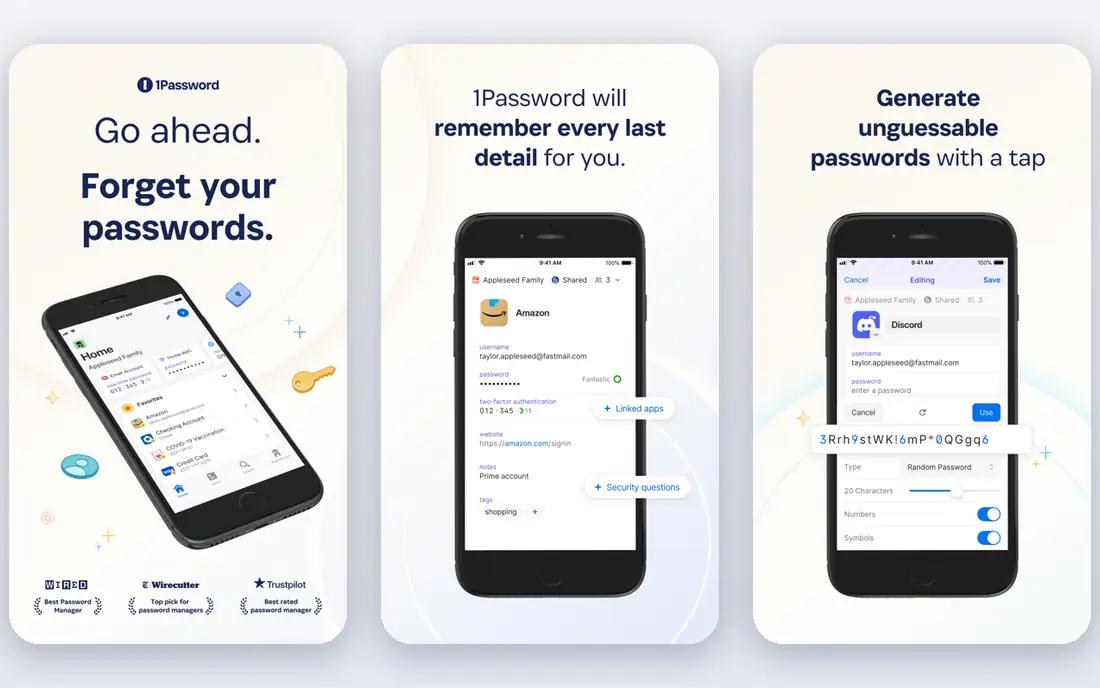
1Password is the manager we point most paying households toward first. Apps feel consistent on phone, desktop, and browser, shared vaults make family use straightforward, and separate personal and shared vaults stop a work login from mixing with a family streaming login. Watchtower flags weak, reused, and breached passwords, so you can fix the worst accounts first instead of guessing.
There is no free plan, only a trial, and the individual plan starts at $2.99 per month on annual billing in the sources we checked, with a family plan for up to five people. The catch is cost over time, especially for a single user who only needs basic storage. If you will use the family sharing, travel mode, and health alerts, the price is easier to justify. If you only need a personal vault, Bitwarden covers the basics for free.
- Polished apps on every major platform
- Clear family vaults
- Watchtower password health alerts
- No free plan, only a trial
- Price is higher than Bitwarden
- Some advanced features sit in higher tiers
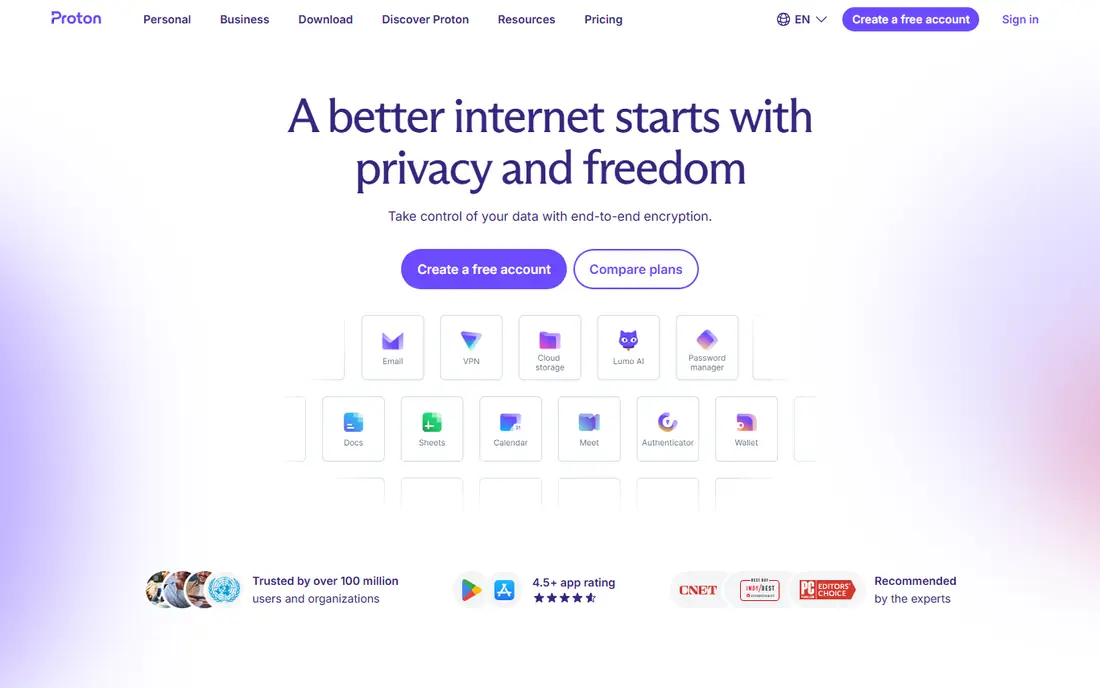
Proton Pass comes from the team behind Proton Mail, and that background shapes its pitch. Vault data is end-to-end encrypted, and the standout extra is email aliases, which let you create a different address for each service so a breach does not expose your real inbox. That is a practical privacy tool, not just a marketing line, because it limits how much one leak can follow you around.
The free plan covers core password storage, while paid plans add more aliases, more vaults, and access to other Proton services. The catch is maturity. Proton Pass is newer than the long-established rivals, and households already settled in another ecosystem may find fewer integrations. For a privacy-focused user, or someone already using Proton Mail or Proton VPN, it is a natural and coherent pick.
- End-to-end encryption
- Built-in email aliases
- Works with the wider Proton suite
- Newer than 1Password and Bitwarden
- Some features need a paid plan
- Smaller business ecosystem
Dashlane has been around long enough that its apps feel settled, and its paid plans bundle more than password storage. Dark web monitoring watches for your details in breaches, and a VPN is included on some plans, which suits users who want one security subscription instead of three separate ones. Autofill and password health checks are solid, and family plans cover up to ten people in the sources we checked.
The catch is value if you do not need the bundle. At $4.99 per month on annual billing for Premium, Dashlane costs more than 1Password for an individual, and its free plan is limited compared with Bitwarden. If you will use the VPN and monitoring, the bundle makes sense. If you only need a vault, a cheaper manager leaves money for other tools.
- Clear apps and autofill
- Dark web monitoring
- VPN included on some paid plans
- Higher price than Bitwarden or 1Password
- Free plan is limited
- Some extras duplicate tools you may already own
NordPass is the password manager from the team behind NordVPN, and it shares that focus on a simple, approachable interface. Setup is quick, passkeys are supported, and the encryption approach is clearly documented, which helps users who want to understand what protects their vault without reading a white paper. If your household already uses NordVPN, keeping security tools in one account is convenient.
The catch is the free plan, which is limited to one device in the sources we checked, so it does not suit someone who moves between phone and laptop all day. Paid pricing also varies by billing term, with longer terms showing lower monthly figures, so check the total at checkout rather than the headline monthly rate. For a Nord household that wants a simple vault, it fits well.
- Simple interface
- XChaCha20 encryption
- Passkey support
- Free plan is limited to one device
- Paid prices vary by term
- Fewer advanced family controls than 1Password
Keeper started with a business focus, and that shows in its sharing and admin controls. Families can organise vaults by person or purpose, businesses can manage access centrally, and BreachWatch monitoring adds breach alerts on top of basic storage. That structure suits households that want clear rules, such as separate vaults for parents, children, or shared bills, rather than one shared pot.
The catch is feel. Keeper can look more corporate than 1Password or Proton Pass, and pricing varies enough by plan and term that we list it as See website rather than risk quoting a stale figure. If you need strong controls, or you want one manager that scales from family to small business use, Keeper is worth a trial. If you want the simplest personal vault, Bitwarden or Proton Pass will feel lighter.
- Strong admin and sharing controls
- Dark web monitoring
- Long track record in business use
- Interface can feel business-first
- Pricing varies by plan and term
- Some features need higher tiers
LastPass is one of the oldest names in this category, and many users first met password managers through it. Setup is simple, browser extensions are mature, and a family plan covers up to six people. For someone who already has a LastPass vault and is happy with it, there is no urgent reason to move on the strength of features alone.
The honest catch is history and limits. LastPass had widely reported security incidents in 2022 and 2023, and its free plan is more limited than Bitwarden's, so new users get less for free. Paid Premium starts at $3 per month on annual billing in the sources we checked. If trust after a breach matters to you, 1Password or Bitwarden may feel safer, even though no manager can promise perfect security.
- Widely known and widely supported
- Simple setup
- Family plan available
- Free plan is limited
- Past security incidents concern some users
- Paid plans cost more than Bitwarden
RoboForm earns its place through form filling, which sounds dull until you have typed the same address, card details, and identity fields into dozens of sites. It handles web forms with unusual accuracy, including on older browsers where newer managers can struggle, and it covers passwords, identities, and secure notes in one vault. That makes it a good fit for users who do a lot of online shopping, booking, and account sign-ups.
The catch is presentation and free limits. The interface feels dated next to 1Password, and the free plan is limited to one device in the sources we checked. Paid Premium starts at $2.49 per month on annual billing. If form filling is your main frustration, RoboForm is a strong specialist pick. If you want a modern, multi-device free vault, Bitwarden fits better.
- Accurate form filling
- Works on older browsers
- Affordable paid plan
- Interface feels dated
- Free plan is limited to one device
- Fewer modern extras than rivals
Enpass takes a different approach to storage. Instead of forcing your vault into the vendor's cloud, it lets you store an encrypted vault in your own iCloud, Dropbox, WebDAV, or local storage, and sync from there. That control appeals to users who do not want another company holding their vault, even in encrypted form, and who are comfortable managing their own sync.
The catch is effort. Setting up sync yourself takes more steps than the one-click sync in Bitwarden or 1Password, and the interface is less polished. Desktop use is free in the sources we checked, with paid options for full mobile features. If control over where your vault lives matters most, Enpass is the pick. If you want the simplest setup, choose a cloud-synced manager instead.
- Vaults can live in your own cloud storage
- No forced cloud account for desktop use
- One-time and subscription options in some stores
- Sync setup takes more effort
- Interface is less polished
- Support for newer features can lag rivals
How we picked these
We compared official feature pages, current pricing pages, app store listings, security and privacy pages, and public reviews, and we kept only managers that are available now, support current platforms, and offer passkey or strong two-factor support. We checked free plan limits carefully, because a free plan that only works on one device is a very different offer from one that syncs everywhere. Where pricing varied by billing term or source, we listed See website rather than present a promotional monthly figure as a fixed price.
What to check before you switch
Start with platform coverage, then family sharing, then emergency access. Every device you use daily should have a working app or extension, or you will fall back to reusing passwords on that device. If you share with a partner or family, check how shared vaults work and whether personal vaults stay separate. Set up emergency access for a trusted person, turn on two-factor login for the manager itself, and save your recovery details somewhere safe and offline.
Do not judge a manager on day one alone. Import or create twenty real logins, test autofill on the sites you use most, and try it on your phone as well as your computer. A manager that fills well on desktop but fumbles on mobile will not stick. Keep your old passwords until you have confirmed the new vault works everywhere, then delete the old store so you do not have two sources of truth.
A note on security
No password manager can guarantee you will never be breached, and a manager is only as safe as its master password and your login protections. Use a long, unique master password, turn on two-factor login, and be wary of phishing pages that mimic login screens. This is general guidance, not security advice for a specific situation, and if you handle sensitive work accounts, check your employer's approved tools first.