Best Photo App in 2026: 9 Apps Compared
By ToolNimba Editorial Team November 13, 2026 9 min read

- Top pick
 Google Photos
Storage and everyday edits on Android
Starting priceFreeCheck out Google PhotosRead our review - Runner-up
 Apple Photos
Storage and edits on Apple devices
Starting priceFreeCheck out Apple PhotosRead our review - Also great
 Adobe Lightroom
RAW editing and synced libraries
Starting priceFreeCheck out Adobe LightroomRead our review
How we researched this
We compared official pricing and feature pages, app store listings, privacy policies and public user reviews. Prices change, so check the provider's site before you pay.
Key takeaways
- The best photo app depends on the job: storage, quick edits, serious RAW editing and manual shooting are different needs.
- Google Photos and Apple Photos cover storage and everyday edits for most people at no extra cost beyond storage limits.
- Snapseed remains the strongest fully free editor, while Lightroom is the better pick for RAW files and synced edits.
- VSCO and Polarr suit users who want a consistent look, while Halide and ProCamera suit manual camera control.
- Check storage limits, export quality and subscription terms before building a large library in any one app.
Quick comparison
| Name | Best for | Starting price | Free plan | |
|---|---|---|---|---|
| Google Photos | Storage and everyday edits on Android | Free | Yes | Visit |
| Apple Photos | Storage and edits on Apple devices | Free | Yes | Visit |
| Adobe Lightroom | RAW editing and synced libraries | Free | Yes | Visit |
 Snapseed | Free detailed editing | Free | Yes | Visit |
 VSCO | Film-style presets and community | Free | Yes | Visit |
 Halide | Manual iPhone camera control | See website | No | Visit |
 Darkroom | Photo editing with a clean workflow | Free | Yes | Visit |
 Polarr | Filters and precise color control | Free | Yes | Visit |
 Picsart | Creative edits and social content | Free | Yes | Visit |
The best photo apps
The best photo apps help you store, find, edit and share pictures without a steep learning curve. These nine cover built-in libraries, free editors, preset apps and manual cameras.
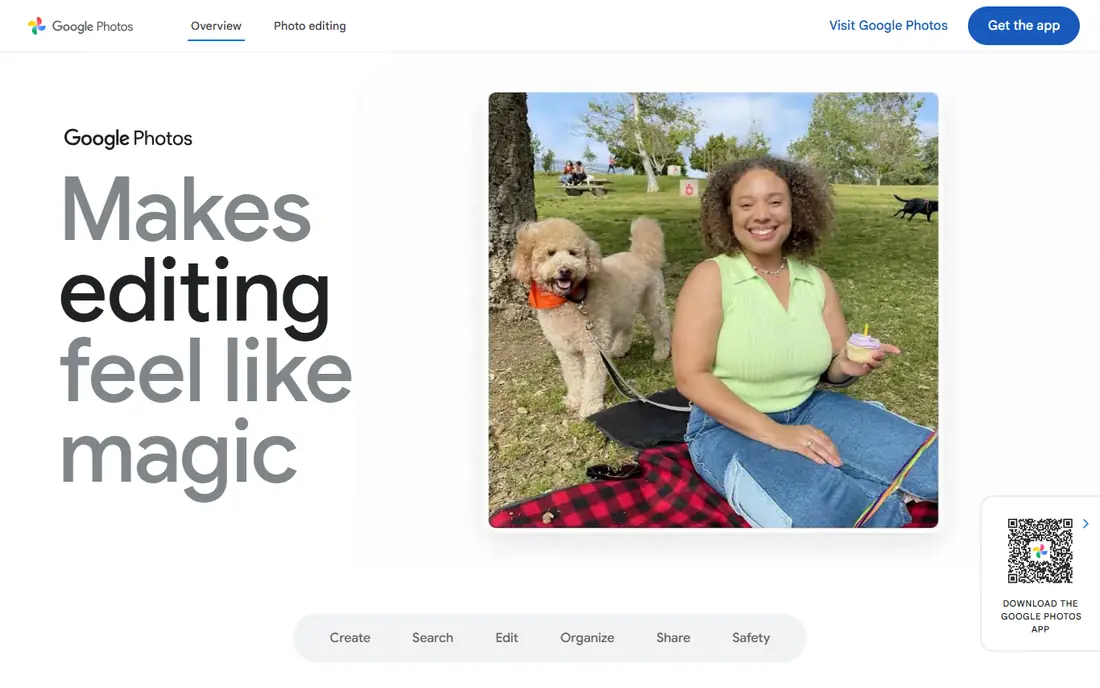
Google Photos is the default photo home for many Android users, and it works well on iPhone and the web too. It backs up pictures, groups them by people, places and dates, and makes search surprisingly useful for finding an old trip or receipt photo. Built-in edits cover cropping, light, color and filters for quick fixes.
The limit is storage. Photos count toward your Google account storage, so heavy shooters may need a paid Google One plan once the free allowance fills. Advanced editors will also want more control than Google Photos offers, but as a library and sharing app, it remains hard to beat for everyday use.
- Automatic backup and search
- Easy sharing
- Quick edits built in
- Free storage is limited by your Google account storage
- Advanced edits need another app
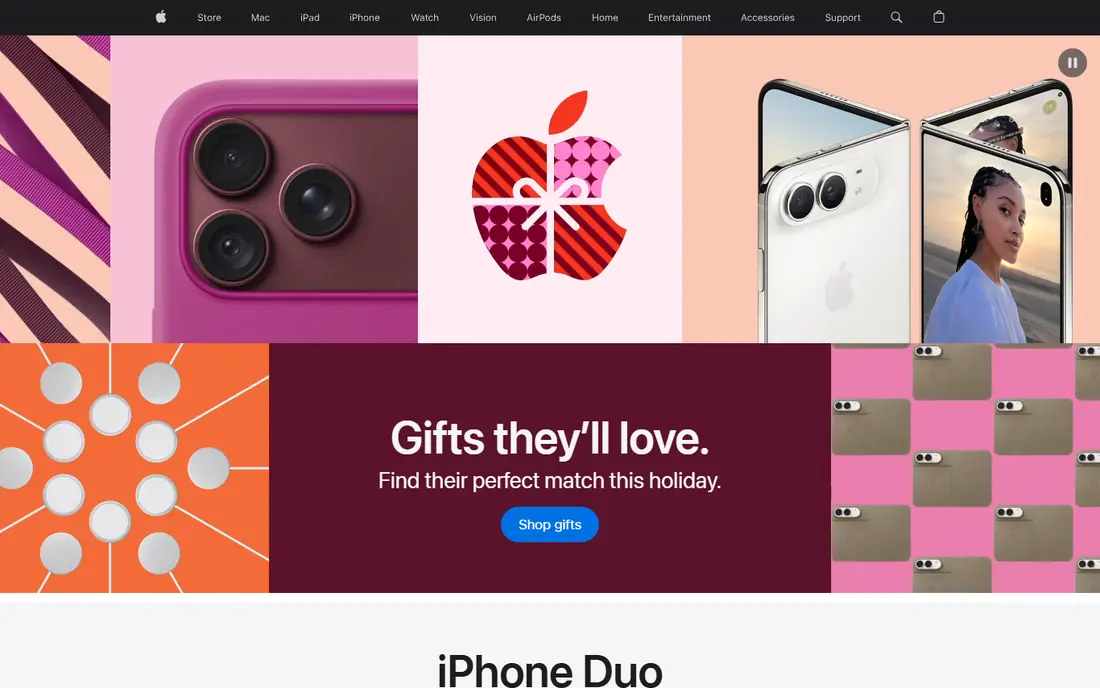
Apple Photos suits anyone already using an iPhone, iPad or Mac, because it needs no setup and syncs across devices through iCloud. Edits cover light, color, cropping and filters, and the app organizes pictures into albums, memories and people groups. Sharing with other Apple users is simple, and edits sync back to every device.
The main downside is the Apple-only focus. Moving a large library to Android or Windows takes extra work, and iCloud storage beyond the free allowance costs extra. For Apple households, though, the convenience of a built-in, synced library outweighs those limits for most everyday photography.
- Built into iPhone, iPad and Mac
- ICloud sync
- Simple, reliable edits
- Best experience stays inside Apple devices
- ICloud storage fills up
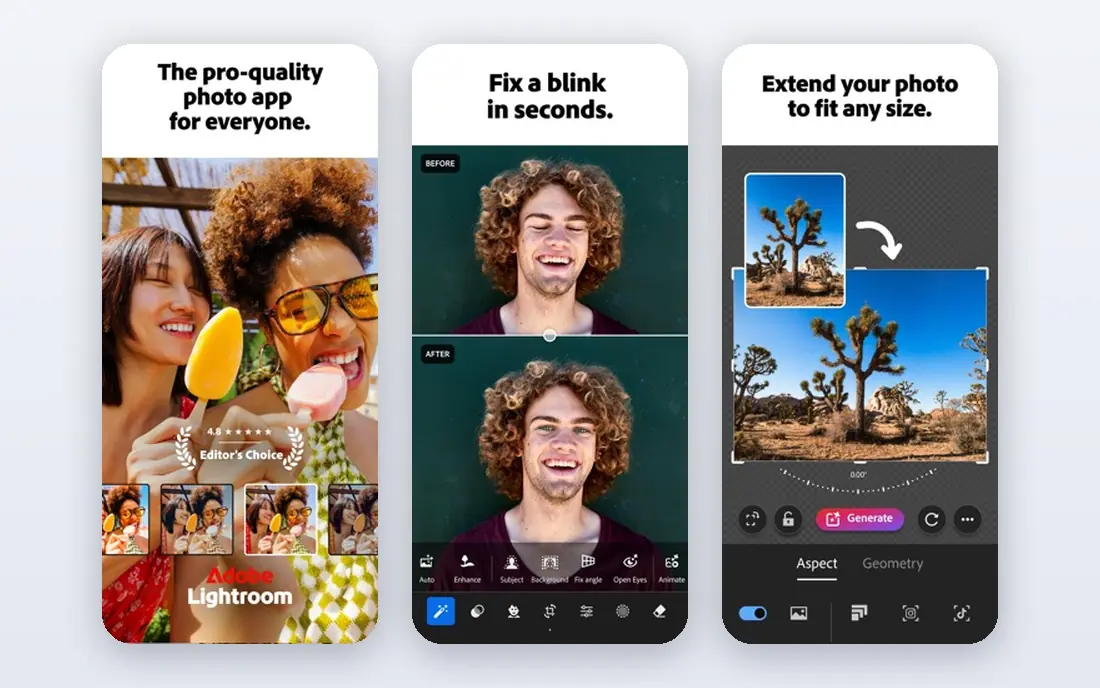
Adobe Lightroom is the pick for photographers who shoot RAW files or edit large sets of pictures with a consistent style. Its mobile app offers a free tier with core editing tools, while paid plans add selective edits, healing, cloud storage and desktop sync. Presets help apply a repeatable look across a whole shoot quickly.
New users may find the range of sliders and panels a lot at first, and the best features sit behind a subscription. If you only edit a few phone pictures a month, a simpler app may be enough. For serious hobbyists and professionals, Lightroom offers depth that free editors rarely match.
- Strong RAW editing
- Presets and selective tools
- Edits sync across devices
- Full features need a paid plan
- Learning curve for new photographers
Snapseed, made by Google, remains our pick for anyone who wants strong editing tools without paying. It offers selective adjustments, curves, healing, perspective tools and filters, all free with no ads or subscription. It handles many RAW files and exports without a watermark, which is rare at this price.
The catch is pace. Updates arrive less often than for paid rivals, and Snapseed has no cloud library, so organizing large collections is not its job. Pair it with Google Photos or Apple Photos for storage, and use Snapseed when a picture needs careful, detailed editing.
- Fully free with no subscription
- Selective edits and curves
- RAW support on supported files
- Updates are infrequent
- No cloud library or sync
VSCO started as a preset app and still excels at giving pictures a consistent film-inspired look. Its free tier includes starter presets and core editing tools, while a subscription opens the full preset library and advanced tools. The interface stays calm and focused, which suits photographers who prefer a look over endless sliders.
Users who want deep RAW editing or layer-based work will need another app. VSCO also works best when you like its preset style; if you prefer full manual control, Lightroom or Snapseed will feel more flexible. For social and portrait photography with a steady style, VSCO is a strong choice.
- Distinct film-inspired presets
- Clean editing interface
- Optional community sharing
- Full preset library needs a subscription
- RAW support is limited on some devices
Halide is a camera app first, not an editor. It gives iPhone photographers manual control over focus, shutter speed, ISO and white balance, plus RAW capture for later editing in Lightroom or another editor. Its interface is designed for fast shooting, with gestures for common controls.
Because Halide is iPhone only and paid, Android users need an alternative, and buyers should check the current purchase or subscription terms in the App Store. If you mainly want to edit existing pictures, Halide is not the right tool. If you want the phone camera to behave more like a dedicated camera, it is one of the best options on iOS.
- Manual focus, shutter and ISO controls
- RAW capture
- Clean pro camera interface
- IPhone only
- Paid app with subscription options
- Not an editor or library
Darkroom offers a focused editing workflow that suits photographers who edit many pictures on a phone or iPad. It includes curves, color grading, selective tools and batch options, with a layout that keeps the picture large and controls easy to reach. The free tier covers core edits, while paid features add more tools.
It does not match Lightroom for cloud libraries or desktop depth, and its preset community is smaller. For mobile-first editors who want a clean, fast tool without Adobe pricing, Darkroom is a practical middle ground between Snapseed simplicity and Lightroom depth.
- Fast editing workflow
- Curves and color tools
- Good for batch edits
- Some advanced tools need a subscription
- Smaller community than Lightroom
Polarr suits users who enjoy building a custom look and reusing it across pictures. It offers filters, color controls, masks and local adjustments, plus tools for creating and sharing custom styles. It runs on mobile and desktop, which helps photographers who edit on more than one device.
The free tier is useful, but the most powerful tools sit behind a subscription, and new users may need time to learn the mask and color panels. If you want one-tap filters only, VSCO or Google Photos may be simpler. If you like fine color control, Polarr rewards the learning time.
- Detailed color and mask tools
- Custom filters
- Works on mobile and desktop
- Best features need a subscription
- Interface can feel busy at first
Picsart is the creative option in this list, built for collages, stickers, text overlays and social-ready edits rather than careful RAW work. Its free tier covers many tools, while a subscription opens AI features, premium content and advanced edits. For creators who post often, the template and effect range saves time.
Photographers who want accurate color and detailed RAW editing should look elsewhere, since Picsart prioritizes style and speed over precision. It also shows subscription prompts for premium content, so check what is free before starting a project. As a fun, fast creative editor, it earns its place.
- Stickers, collages and creative effects
- AI-assisted tools
- Large template range
- Many advanced tools need a subscription
- Photo realism is not its focus
How we picked these
We compared official app pages, App Store and Google Play listings and recent photo app comparisons in October 2026. We favored apps that still work today, cover a clear job such as storage, editing or shooting, and offer a usable free tier or clear paid terms. We left out apps that only generate images or that duplicate a listed app without a distinct strength, and we used See website where App Store pricing varies by region or plan.
How to choose a photo app
Start with the job you do most. If storage and finding pictures matter most, use the built-in library on your phone and add an editor only when needed. If editing matters most, decide between a free editor such as Snapseed, a preset app such as VSCO, and a deeper tool such as Lightroom. If shooting matters most, a manual camera app such as Halide changes the capture itself.
Next, check storage and export. Confirm how much free cloud storage you get, what happens when it fills, and whether exports keep full resolution without a watermark. A free app that shrinks exports or locks originals behind a subscription can cost more later than a paid app with clear terms.
Finally, test with your own pictures. Edit a portrait, an outdoor scene and a low-light shot in each finalist, then view them on a larger screen. Presets that look good on one picture may fail on another, and an interface that feels fast for one edit may slow you down across a full set. Keep the app you actually open, not the one with the longest feature list.
Sources
Frequently asked questions
What is the best photo app for most people?
For most people, the built-in library app is best: Google Photos on Android and Apple Photos on Apple devices. Both handle backup, search, sharing and quick edits well. Add Snapseed for detailed free edits or Lightroom if you shoot RAW files and want deeper control.
What is the best free photo app?
Snapseed is the strongest fully free photo editor, with selective edits, curves and RAW support at no cost. Google Photos and Apple Photos are also free for storage and basic edits, subject to account storage limits. VSCO, Lightroom, Darkroom, Polarr and Picsart all offer free tiers, but their best features need a subscription.
Do I need a paid photo app to edit RAW files?
No, but paid tools help. Snapseed edits many RAW files for free, and Lightroom offers a free tier with core tools. Paid Lightroom plans add selective edits, healing and cloud sync that matter for large shoots. Test a RAW file from your camera or phone before paying, since support varies by file type.
Can I use the same photo app on iPhone and Android?
Google Photos, Lightroom, Snapseed, VSCO, Polarr and Picsart work on both platforms, though features can differ slightly. Apple Photos works best inside Apple devices, and Halide is iPhone only. If you switch phones often, pick a cross-platform app for your library and edits.
Will a photo app improve my pictures on its own?
An app can improve light, color, cropping and sharpness, and a manual camera app can give more control at capture. It cannot fix a badly out-of-focus shot or replace good light and composition. Use edits to strengthen a good picture, and check results at full size before sharing or printing.