Best Python Tools for Beginners in 2026: 9 Tools Compared
By ToolNimba Editorial Team November 13, 2026 10 min read

- Top pick
 Thonny
Absolute beginners
Starting priceFreeCheck out ThonnyRead our review - Runner-up
 Visual Studio Code
Growing from beginner to pro
Starting priceFreeCheck out Visual Studio CodeRead our review - Also great
 PyCharm
Full Python IDE
Starting priceFreeCheck out PyCharmRead our review
How we researched this
We compared official pricing and feature pages, app store listings, privacy policies and public user reviews. Prices change, so check the provider's site before you pay.
Key takeaways
- Thonny is our pick for absolute beginners, because it shows what each line does without hiding the basics.
- Visual Studio Code is the best tool to grow into, since it stays useful from first scripts to professional projects.
- Jupyter Notebook and Google Colab suit learners who like to test small pieces of code and see results at once.
- PyCharm is powerful, but its size and options can distract a beginner who only needs to run short scripts.
- Every tool here is free at the entry level, so try two and keep the one that makes errors easiest to understand.
Quick comparison
| Name | Best for | Starting price | Free plan | |
|---|---|---|---|---|
| Thonny | Absolute beginners | Free | Yes | Visit |
| Visual Studio Code | Growing from beginner to pro | Free | Yes | Visit |
| PyCharm | Full Python IDE | Free | Yes | Visit |
 IDLE | First steps with no install fuss | Free | Yes | Visit |
 Jupyter Notebook | Interactive learning and data | Free | Yes | Visit |
 Google Colab | Free cloud notebooks | Free | Yes | Visit |
 Spyder | Scientific Python learning | Free | Yes | Visit |
 Mu Editor | Young learners and simple projects | Free | Yes | Visit |
 Replit | Browser coding with no setup | Free | Yes | Visit |
The best python tools for beginners
Python is friendly, but the tool you write it in shapes how fast you learn. A good beginner tool shows errors clearly, runs code with one click, and does not bury you in settings. A poor one makes a simple mistake feel like a mystery. This list starts with the simplest tools and moves toward tools you can keep using as your projects grow.
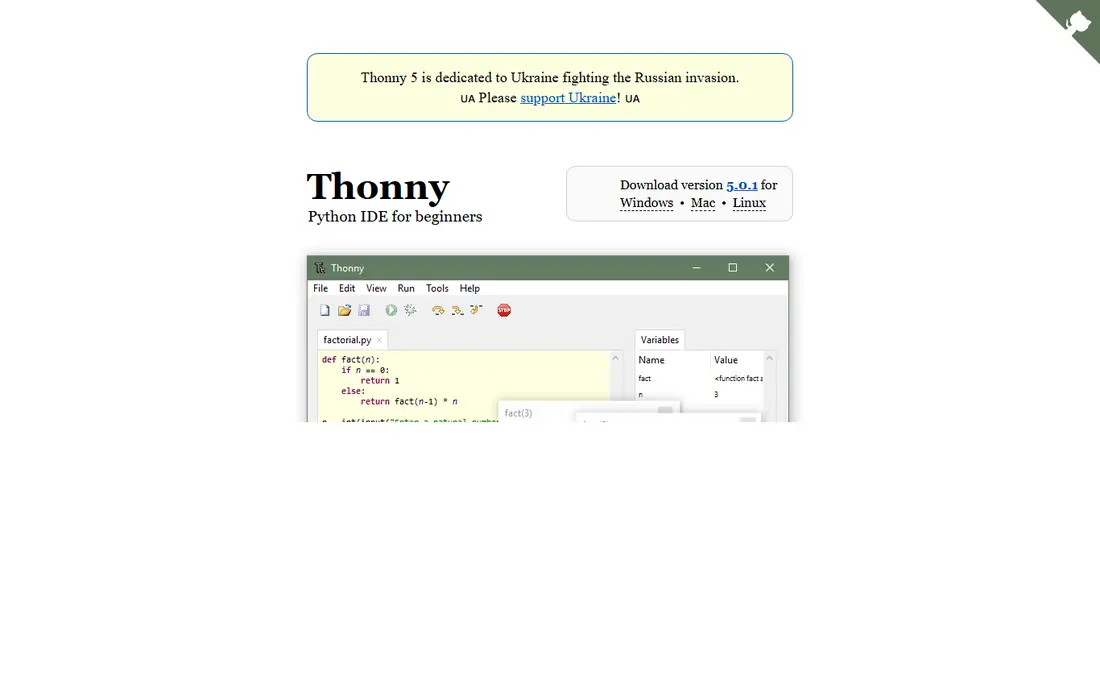
Thonny is designed for learning, and it shows. It includes Python, so you do not need to configure an interpreter before your first program runs, and its debugger steps through code line by line while showing variable values. That single feature helps beginners understand loops and functions far faster than reading about them, because you see the state change.
The limit is scale. Thonny is not built for large applications, web frameworks, or complex package setups. That is fine for a first course, and moving to VS Code later is easy once the basics click. If you have never coded before, start here and do not apologize for the simple interface.
- Bundled Python, so setup is simple
- Step-through debugger shows variables clearly
- Clean, uncluttered interface
- Fewer features for large projects
- Interface feels basic once you outgrow it
Visual Studio Code is our pick for most beginners who want one tool that lasts. The free Python extension adds syntax help, debugging, testing, and notebook support, and the editor stays fast on modest machines. Because so many tutorials use VS Code, finding help for a setup problem is usually a quick search away.
The first setup takes a little care: install the Python extension, pick an interpreter, and learn where the run button lives. After that, VS Code scales with you, from short scripts to web apps and data projects. If you plan to keep coding past your first course, this is the tool to learn.
- Free and widely used
- Excellent Python extension
- Huge extension library and community help
- Needs the Python extension installed
- Settings can confuse a brand-new user
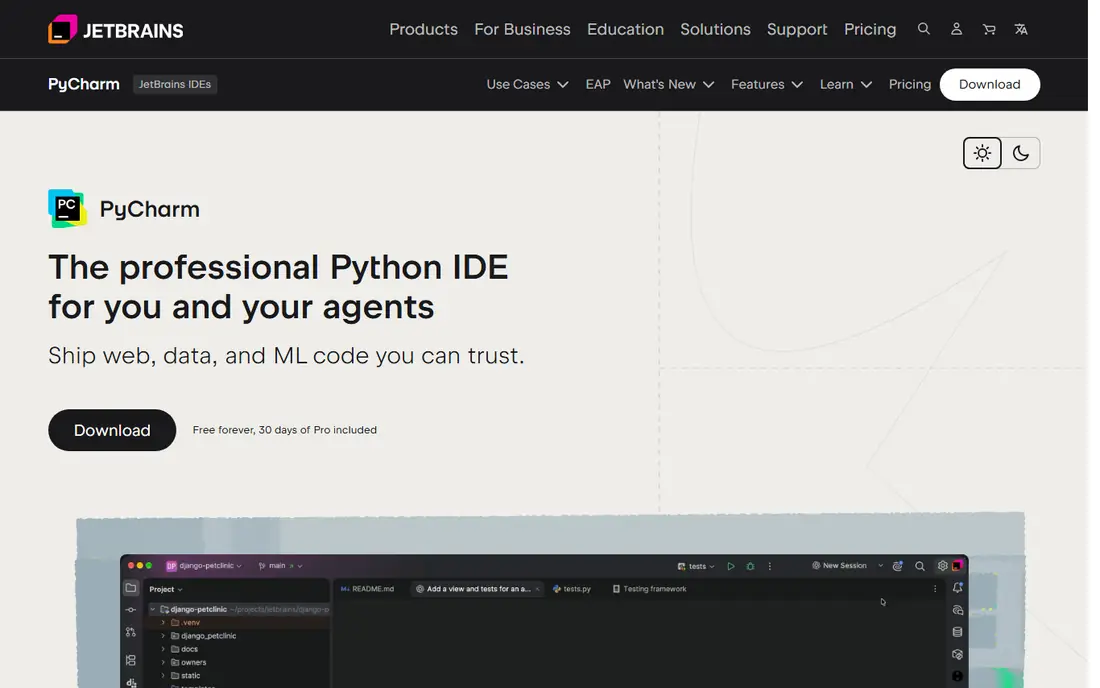
PyCharm is built only for Python, and that focus shows in its code completion, navigation, and refactoring. It understands your project as a whole, so renaming a function or finding where a variable is used feels reliable. The free core covers pure Python work well, while paid tiers add web, database, and scientific tools.
For a beginner, the weight is the issue. PyCharm uses more memory than VS Code or Thonny, and the number of panels and options can distract from learning the language itself. If Python is your main language and your machine handles it well, PyCharm is a strong long-term choice. If you are just starting, Thonny or VS Code is gentler.
- Deep Python understanding out of the box
- Strong debugger and refactoring
- Good Django and Flask support on paid tiers
- Heavier on older machines
- Many features a beginner will not use yet
IDLE ships with Python, so many beginners meet it first. Its shell lets you type a line, press enter, and see the result at once, which is ideal for testing a function or a loop without creating a file. For the first week of learning, that immediacy is a real advantage, and there is nothing to install or update separately.
The editor itself is plain, with limited completion, no built-in package tools, and weak project support. Most learners move on within a few weeks, and that is expected. Use IDLE to get started fast, then switch to Thonny or VS Code when you start writing files with more than one part.
- Bundled with Python
- Instant shell for testing lines
- Nothing extra to configure
- Very basic editor
- No modern project features
- Easy to outgrow quickly
Jupyter Notebook changes how learning feels. Instead of running a whole file, you run one cell at a time and see the output right below it, which suits experiments, charts, and data exploration. You can also mix explanations and code in the same document, which is why so many courses and tutorials use notebooks.
The risk is hidden state. If you run cells out of order, a variable may hold a value from an earlier run, and the notebook can look correct while the code is not. Restarting the notebook and running all cells top to bottom catches that. For data learners, that habit is worth building early, and Jupyter remains a core skill.
- Run code in small cells and see results at once
- Mix code, text, and charts
- Standard in data courses
- Not ideal for large applications
- Cell order can hide bugs if you run cells out of sequence
Google Colab gives you a Jupyter-style notebook in the browser, with no install and no local setup. That makes it ideal for a shared computer, a Chromebook, or a class where everyone needs the same environment. You can also access computing resources for data and machine learning work that a basic laptop would struggle with.
The trade-offs are connection and limits. Free sessions can disconnect after idle time, and heavy use hits resource caps. Colab is also less suited to building a traditional application with many files. For learning, experimenting, and sharing notebooks, it is one of the easiest starts available.
- No install, runs in the browser
- Free access to computing resources
- Easy sharing by link
- Needs an internet connection
- Free resources have limits and sessions can disconnect
Spyder is popular with scientists and engineers because its variable explorer lets you inspect arrays, tables, and numbers without printing everything. It ships with the Anaconda distribution in many courses, so students learning data analysis often meet it early. The layout, with editor, console, and explorer side by side, makes experimenting feel natural.
For general Python learning, Spyder is heavier than needed, and web developers will prefer VS Code or PyCharm. If your goal is data, statistics, or engineering, though, Spyder fits the work and teaches habits that transfer to larger scientific projects.
- Variable explorer shows data clearly
- Built for scientific libraries
- Familiar layout for MATLAB users
- Heavier than Thonny
- Less suited to web development than VS Code or PyCharm
Mu Editor is built for classrooms and young learners. Its interface has few buttons, its modes match common teaching setups, and it works well with microcontrollers like the BBC micro:bit, which makes physical computing projects easy to start. The simplicity is deliberate: fewer distractions, clearer errors, and faster first success.
Older learners and adults may outgrow Mu quickly, and its feature set is far smaller than VS Code. That is not a flaw for its audience. If you are teaching a child, running a school club, or want the gentlest possible start, Mu is a kind choice, and moving on later is straightforward.
- Very simple interface
- Modes for Python, web, and microcontrollers
- Designed for teaching
- Limited features for larger projects
- Small community compared with VS Code
Replit is the easiest tool to share. Open a link, edit code in the browser, and run it without installing Python or an editor. That makes it useful for classrooms, study groups, and anyone on a borrowed computer. Real-time collaboration also lets a tutor watch and help in the same project, which is hard to replicate with a desktop tool alone.
The cost is dependence on the web and on Replit's free limits. Large projects and private work at scale need a paid plan, and offline coding is not an option. For learning and small projects, Replit removes the biggest early barrier, which is setup, and that alone makes it worth trying.
- Runs in the browser on any device
- Easy sharing and collaboration
- Built-in running and hosting
- Needs internet access
- Free tier limits apply to heavier projects and private work
How we picked these
We compared official product pages, documentation, and beginner course usage for Python editors, IDEs, and notebooks, and we favored tools that are free to start, still maintained, and widely used in teaching. We did not claim hands-on testing, and we left out discontinued editors, including Atom and the old PyCharm Community Edition as a separate product, since the current PyCharm now ships as a unified product with a free core. Each tool here was judged on how clearly it shows errors and results to a new learner.
How to choose your first tool
If you have never coded, start with Thonny or Mu and focus on the language, not the tool. If you already know you will keep coding, start with Visual Studio Code and learn its Python extension properly. If data excites you, add Jupyter or Colab early, since notebooks are part of that workflow. You do not need to pick one forever, and switching tools after a few weeks is normal.
A practical test helps: write the same small program in two tools, make a deliberate mistake, and see which error message you understand faster. The tool that explains the mistake best is the right tool for now, even if a more powerful tool waits later. Keep your code in simple files, use virtual environments when a course introduces them, and ask for help in the community around the tool you chose.
A simple learning path
Week one, use Thonny or IDLE to learn variables, loops, and functions. Week two, move to VS Code for files and debugging. When you reach data topics, add Jupyter or Colab for experiments. That path keeps each step small, and each tool earns its place by solving a problem you actually have.
Sources
Frequently asked questions
What is the best Python tool for a complete beginner?
Thonny is the safest first pick, because it bundles Python and its debugger shows what each line does. Visual Studio Code is the best second step, since it stays useful as projects grow.
Is PyCharm free for beginners?
PyCharm now offers a free core in its unified product, with paid Pro features for web, database, and scientific work. Beginners can start free, but Thonny and VS Code are lighter first choices.
Do I need to install Python separately?
It depends on the tool. Thonny bundles Python, and Colab and Replit run in the browser with no install. VS Code, PyCharm, and Jupyter need a Python install, which the official python.org installer provides.
Is Jupyter better than a normal editor for learning Python?
Jupyter is better for experiments and data work, where small cells and instant output help. A normal editor is better for building applications with many files, where structure and testing matter more.
Can I learn Python on a Chromebook?
Yes. Google Colab and Replit run in the browser and work well on a Chromebook, while Thonny and VS Code need a machine that can install desktop apps.
When should I switch from a beginner tool to a full IDE?
Switch when your projects have several files, you use tests, or you work with a web framework or a database. At that point, VS Code or PyCharm will save more time than a simple editor costs you in learning.