Best Remote Access Software in 2026: 9 Tools Compared
By ToolNimba Editorial Team October 28, 2026 10 min read

- Top pick
 TeamViewer
All-round remote support and access
Starting priceSee websiteCheck out TeamViewerRead our review - Runner-up
 Splashtop
Best value remote work
Starting price$6 per monthCheck out SplashtopRead our review - Also great
 AnyDesk
Fast low-latency access
Starting price$22.90 per monthCheck out AnyDeskRead our review
How we researched this
We compared official pricing and feature pages, app store listings, privacy policies and public user reviews. Prices change, so check the provider's site before you pay.
Key takeaways
- TeamViewer is our pick for most teams because it covers personal access, support, and unattended devices in one widely recognized tool.
- Splashtop is the best value for remote work, with low per-user pricing and strong video performance.
- AnyDesk suits users who prize speed and low latency, especially on weaker connections.
- Chrome Remote Desktop is the best free option for reaching your own computers, with no paid plan needed.
- For support work, pick a tool built for attended sessions and session controls, not just a personal access app.
Quick comparison
| Name | Best for | Starting price | Free plan | |
|---|---|---|---|---|
| TeamViewer | All-round remote support and access | See website | Yes | Visit |
| Splashtop | Best value remote work | $6 per month | Free trial | Visit |
| AnyDesk | Fast low-latency access | $22.90 per month | Yes | Visit |
 Chrome Remote Desktop | Free personal access | Free | Yes | Visit |
 RemotePC | Budget access for many computers | See website | No | Visit |
 Zoho Assist | Budget support for small teams | See website | Free trial | Visit |
 ConnectWise ScreenConnect | IT support teams | See website | Free trial | Visit |
 RealVNC Connect | Secure lightweight access | $8.25 per month | Yes | Visit |
 RustDesk | Self-hosted open source access | See website | Yes | Visit |
The best remote access software
Remote access splits into three jobs. Personal access lets you reach your own computer from anywhere. Attended support lets a technician help someone else for one session. Unattended access manages machines with no one present. The tools below cover all three, but each leans toward a different job, so match the tool to your main use before you compare prices.
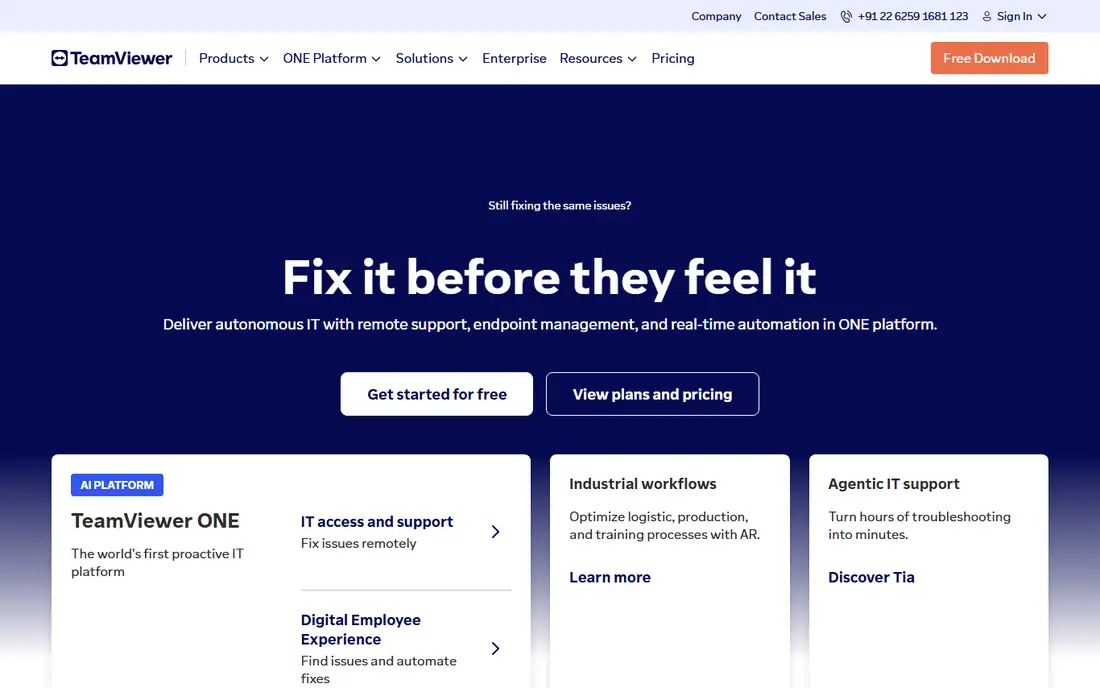
TeamViewer is the name most people know, and that recognition helps when you support clients who must approve a tool. It covers remote support, unattended access, file transfer, and mobile device support across Windows, Mac, Linux, and mobile, with compliance covering ISO 27001, HIPAA, and SOC 2. Its AI agent now summarizes sessions and builds automations from repeated fixes.
The cost is the main catch. Commercial pricing is premium and often quote-based, so small teams should get a firm quote before assuming the entry price fits. The free version is for personal use only, and commercial use on a free account can lead to blocks. For teams that want the safe, widely accepted choice, TeamViewer still leads.
- Broad device support
- Attended and unattended access
- Strong security compliance
- Commercial pricing is premium and quote-based
- Free tier is personal use only
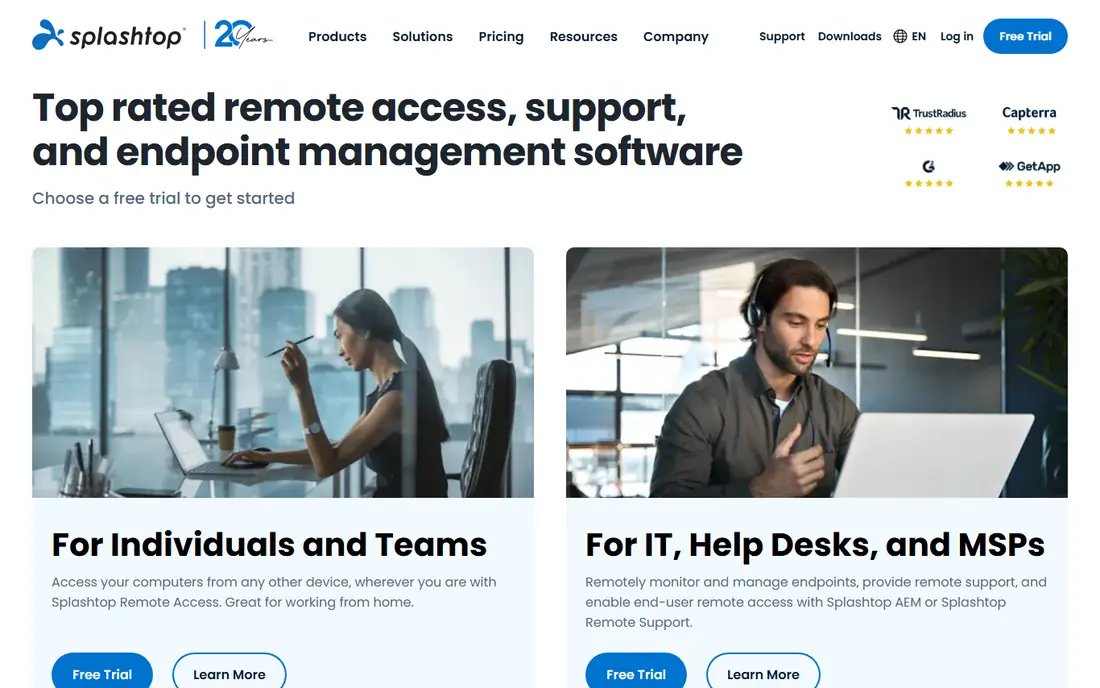
Splashtop undercuts most rivals on price for remote work access. Solo starts near $6 per month billed annually, and it still gives high-definition streaming, multi-monitor support, and access across desktop and mobile. For a remote worker who needs to reach an office computer daily, that value is hard to ignore.
Higher plans add session recording, compliance controls, and support-specific tools, so IT teams should compare the support plans rather than Solo alone. Splashtop also lacks TeamViewer name recognition in some corporate settings, which can matter for approval. On price and performance alone, it is our value pick.
- Low Solo pricing
- Strong 4K video performance
- Multi-monitor support
- Advanced compliance features need higher plans
- Less name recognition than TeamViewer
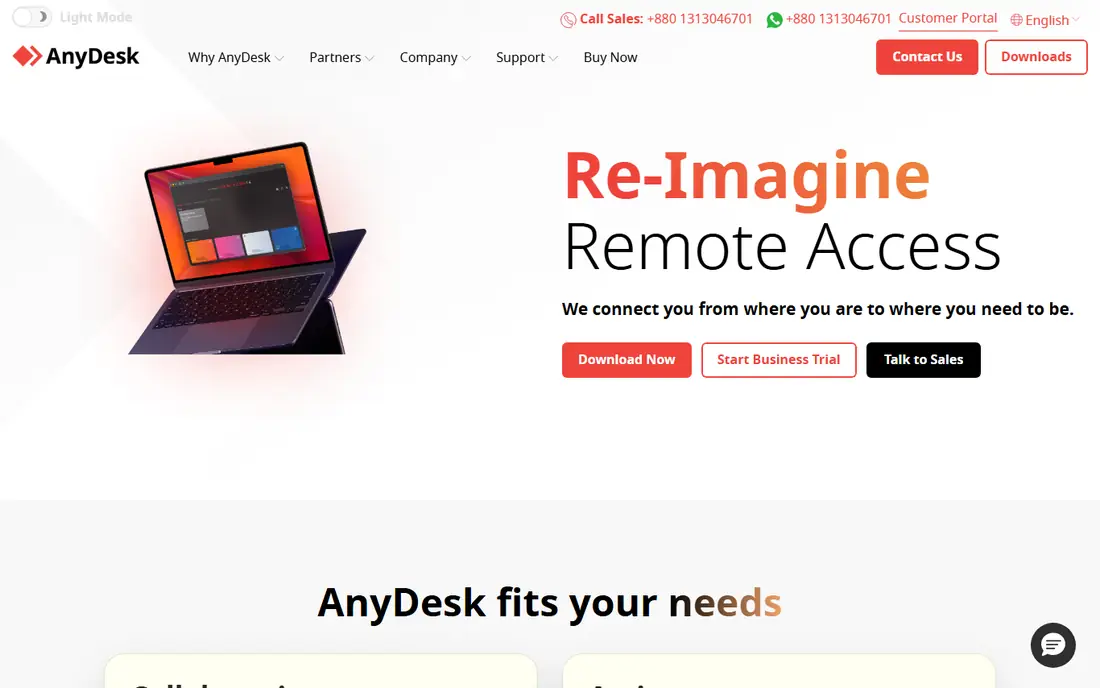
AnyDesk wins on feel. Its DeskRT codec keeps sessions smooth even on weaker connections, which matters for video, design work, and support sessions where lag breaks the flow. The app is lightweight, installs quickly, and works across desktop and mobile with a free tier for personal use.
Business pricing starts higher than Splashtop, so budget teams should compare total cost for their user count rather than the headline alone. Some admin and customization features also sit on higher plans. If speed is your top test, AnyDesk is the tool to try first.
- Fast DeskRT codec for smooth sessions
- Lightweight install
- Free personal tier
- Entry business price is higher than Splashtop
- Some features need higher plans
Chrome Remote Desktop is the simplest free way to reach your own computers. Install the extension, link a Google account, set a PIN, and you can reach that machine from a browser or mobile app. There is no subscription, no trial clock, and no feature gate for basic access.
It is not an IT support platform. You will not get the session management, audit controls, or unattended fleet tools that TeamViewer or ScreenConnect offer. For personal use, a second home computer, or helping a family member on occasion, it is often all you need, and it costs nothing.
- Completely free
- Simple browser setup
- Works with a Google account
- No advanced IT admin tools
- Limited support-session controls
RemotePC prices by computer rather than by user, which makes it cheap when one person manages many machines. Plans include file transfer, remote printing, and unattended access, and setup is straightforward for a small business or a household with several PCs. That per-computer model is the key difference from per-user rivals.
There is no lasting free tier, only trials and paid plans, so personal users may prefer Chrome Remote Desktop. Support teams that need ticketing and session routing will also find RemotePC lighter than ScreenConnect. For budget access to a fleet of your own machines, it is a strong pick.
- Low per-computer pricing
- Unlimited remote access on many plans
- Simple setup
- No permanent free plan
- Support features are lighter than ScreenConnect
Zoho Assist is a practical support tool for small teams, especially those already using Zoho products. It covers attended support, unattended access, file transfer, and session controls at a lower entry cost than many IT-focused rivals. Integration with Zoho Desk and other Zoho apps helps small support desks keep tickets and sessions together.
Pricing depends on the plan and technician count, so check the current page for your team size. Larger managed service providers may want deeper automation and fleet tools elsewhere. For a small team that needs solid support sessions without enterprise cost, Zoho Assist is a good fit.
- Low entry cost for support teams
- Fits Zoho users
- Unattended access included on paid plans
- Pricing varies by plan
- Fewer advanced MSP features than ScreenConnect
ScreenConnect, formerly ConnectWise Control, is built for technicians who support many endpoints. It offers attended and unattended access, session queues, remote toolbox actions, and audit trails that personal access tools do not provide. Managed service providers use it to manage client machines at scale.
That power comes with setup time and quote-based pricing for many teams, so it is not a quick personal pick. Small users will find it heavier than they need. If support is your job, though, ScreenConnect gives you controls and records that make support work safer and easier to track.
- Built for MSP and helpdesk work
- Strong session management
- Unattended fleet access
- Pricing is quote-based for many teams
- Setup takes more time than personal tools
RealVNC Connect is a long-running, lightweight option for secure remote access. It focuses on doing the core job well, with encryption, multi-platform support, and unattended access, without the heavier feature set of enterprise suites. The free tier covers personal use, and paid plans stay modest.
The interface is plain compared with Splashtop or TeamViewer, and support-specific extras are thinner. That is a fair trade if you want a steady, secure connection to your own machines rather than a full support platform. For Linux and mixed-device homes, RealVNC is a reliable, low-cost choice.
- Lightweight and reliable
- Strong encryption
- Free tier for personal use
- Interface feels plain
- Fewer support extras than TeamViewer
RustDesk is the open source alternative for teams that want control over their own server. You can use its relay service or host your own server, which keeps session routing under your control and avoids a vendor subscription for the core client. That privacy and cost story appeals to technical teams and privacy-minded users.
Self-hosting is not plug-and-play, and you take on updates, security, and uptime yourself. Commercial support and polished admin tools also lag TeamViewer and Splashtop. If your team can run a server and values open source control, RustDesk is a credible, low-cost path.
- Open source
- Self-hosting option for privacy
- Free core client
- Self-hosting needs technical setup
- Support and polish lag commercial rivals
How we picked these
We compared official pricing pages, product documentation, and public reviews for tools that are live in 2026 and truly fit remote access or remote support. We included free personal tools, value business tools, and IT-grade platforms, since readers search for all three under the same term. Prices are starting prices from recent vendor and comparison listings, and we used See website where pricing is quote-based or varies by plan. We did not claim hands-on testing we did not do, and we noted where a free tier covers personal use only.
What to check before you buy
First, separate personal access from support work. A personal tool is fine for your own machines, but support work needs consent prompts, session logging, and the ability to end a session cleanly. Check whether the tool supports unattended access, file transfer, multi-monitor viewing, and mobile access, since those four features decide daily comfort more than a feature list does.
Security deserves a close read. Look for end-to-end encryption, two-factor authentication, device approval, and session audit logs. Never share an access code in a public chat or by email, and only accept a support session from a person or company you contacted first. Scammers often pose as support agents to gain remote access, so treat any unsolicited remote session request as a warning sign.
Per-user versus per-computer pricing
Per-user pricing suits teams where each technician supports many machines, while per-computer pricing suits one person managing many devices. Count both sides before you compare headline prices, and check whether mobile access, extra technicians, or unattended machines add cost. A cheap plan that charges per device can cost more than a pricier per-user plan for a large team.
Trial tips
Use the trial to test your real setup, not a demo. Try a session over your normal home or office connection, test file transfer and multi-monitor handling, and check how the tool behaves when the remote machine restarts. If the trial ends before you test unattended access, ask sales for an extension rather than buying blind.
Sources
- https://www.teamviewer.com
- https://www.splashtop.com
- https://www.anydesk.com
- https://remotedesktop.google.com
- https://www.remotepc.com
- https://www.zoho.com
- https://www.screenconnect.com
- https://www.realvnc.com
- https://www.rustdesk.com
- https://rankite.com/blog/top-10-remote-access-software
- https://rankite.com/blog/best-computer-remote-access-software