Best Tool to Resize Video Without Losing Quality in 2026: 9 Tools Compared
By ToolNimba Editorial Team November 13, 2026 9 min read

- Top pick
 HandBrake
Free, careful desktop resizing
Starting priceFreeCheck out HandBrakeRead our review - Runner-up
 VEED
Quick social resizing online
Starting priceSee websiteCheck out VEEDRead our review - Also great
 Kapwing
Social resizing and editing
Starting priceSee websiteCheck out KapwingRead our review
How we researched this
We compared official pricing and feature pages, app store listings, privacy policies and public user reviews. Prices change, so check the provider's site before you pay.
Key takeaways
- Resizing means changing dimensions, and re-encoding almost always involves some quality trade, so start from the highest-quality source you have.
- HandBrake is our free desktop pick for careful, high-quality resizing, while VEED and Kapwing suit quick social resizing.
- Use H.265 or a high-bitrate H.264 export when you need small files that still look sharp.
- Never upscale a low-resolution clip and expect it to look like true 4K: upscaling cannot add detail that was never recorded.
Quick comparison
| Name | Best for | Starting price | Free plan | |
|---|---|---|---|---|
| HandBrake | Free, careful desktop resizing | Free | Yes | Visit |
| VEED | Quick social resizing online | See website | Yes | Visit |
| Kapwing | Social resizing and editing | See website | Yes | Visit |
 Clipchamp | Windows-friendly resizing | Free | Yes | Visit |
 DaVinci Resolve | Pro resizing and colour | Free | Yes | Visit |
 Adobe Premiere Pro | Pro editing and resizing | See website | Free trial | Visit |
 FreeConvert | Simple browser resizing | Free | Yes | Visit |
 Clideo | Fast browser resizing | See website | Yes | Visit |
 Shutter Encoder | Free pro-grade encoding | Free | Yes | Visit |
The best tool to resize video without losing quality
We compared official feature and pricing pages, supported codecs, export controls, and batch options, and we favoured tools that let you control resolution, bitrate, and codec rather than forcing a single preset. We did not claim hands-on testing. Note that "without losing quality" is a goal, not a guarantee: shrinking a video loses some data by nature, so the best tools minimise visible loss.
HandBrake is our first pick for resizing without obvious quality loss on a desktop. Its constant-quality mode lets you pick a quality level and let the encoder spend bits where the picture needs them, rather than forcing a fixed file size. Presets for common devices give beginners a safe start, while advanced settings let experienced users tune resolution, frame rate, and codec.
The learning curve is real. Terms such as constant quality, preset, and encoder can confuse a first-time user, and HandBrake does not edit clips like a full video editor. For a straight resize and re-encode, though, it is hard to beat for free, and it keeps your files on your own computer.
- Free and open source
- H.264 and H.265 encoding
- Constant-quality mode and detailed presets
- Interface can intimidate beginners
- No built-in timeline editing for complex projects
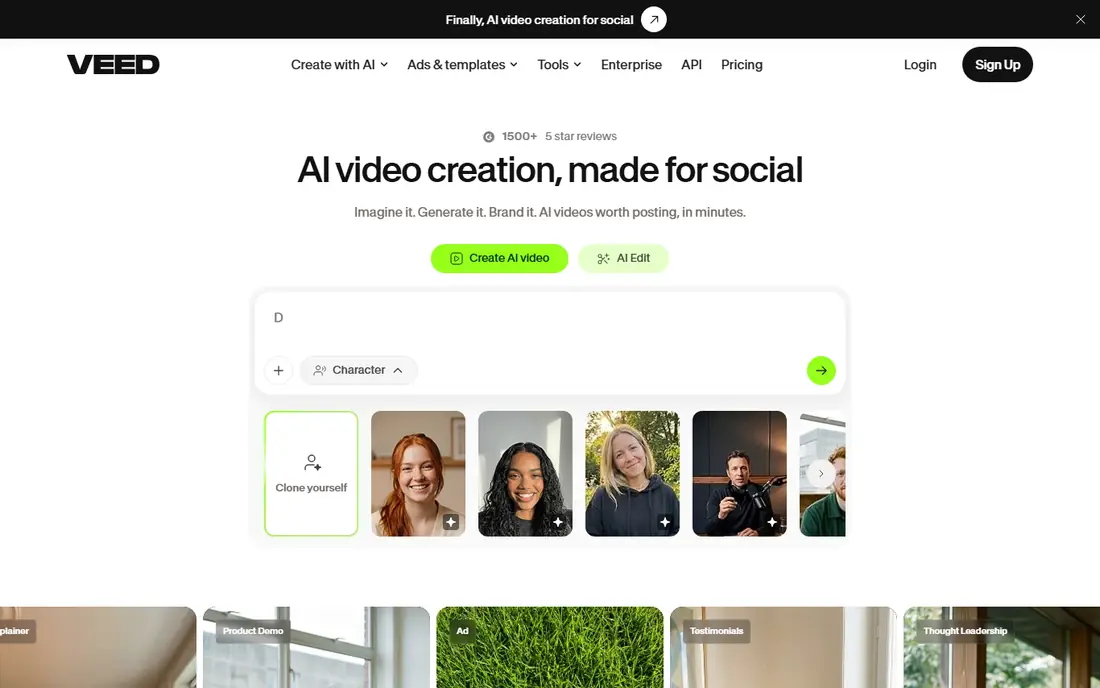
VEED suits creators who resize for social every day. Pick a preset for YouTube, Instagram, or TikTok, adjust the canvas, and export without installing software. That speed matters when one video must become a wide, square, and vertical version before a deadline.
The browser trade-off is upload time and free-plan limits. Large 4K files take time to upload, and free exports may carry a watermark or resolution cap, depending on the current plan. For short social clips, VEED is fast and simple; for long, high-value masters, a desktop encoder gives you more control.
- One-click social presets for major platforms
- Canvas resize and crop tools
- Exports up to full HD on many plans
- Free exports may carry limits or watermarks
- Large files depend on upload speed
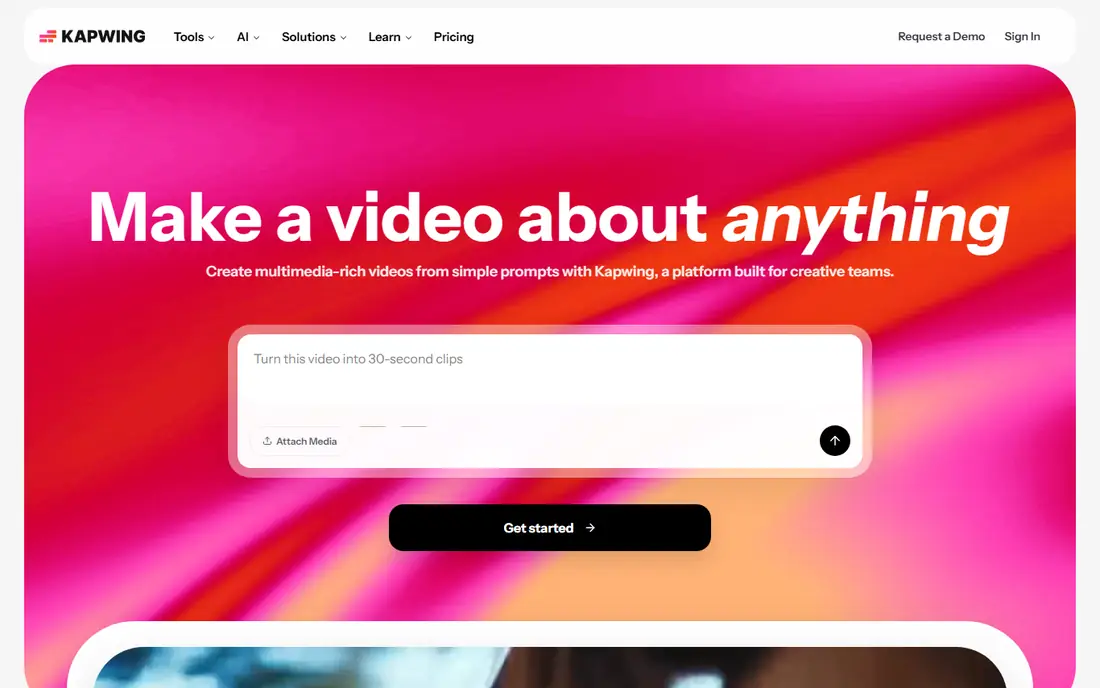
Kapwing is a strong browser alternative to VEED, especially when resizing is part of a wider edit. You can trim, caption, and resize in one project, then export versions for different platforms from the same timeline. Safe-zone guides help keep text and faces inside the frame when you switch aspect ratios.
Free-plan limits are the catch, as with most browser editors. Check the current export rules before you build a project around the free tier, and keep a local copy of the source video. For teams that edit together in a browser, Kapwing's sharing and comment tools add real value.
- Social size presets and safe-zone guides
- Browser editing with trimming and captions
- Team sharing
- Free plan limits exports and may watermark
- Needs a stable internet connection
Clipchamp is the easiest desktop-style option for Windows users who do not want to learn an encoder. It opens like a normal app, lets you set the project aspect ratio, and exports social sizes with a few clicks. For school, work, or small business videos, that simplicity is enough.
It does not offer the same encoding depth as HandBrake or DaVinci Resolve. If you need to fine-tune bitrate, codec, or constant quality, a dedicated encoder will serve you better. Use Clipchamp for quick, clean resizes, and switch tools when quality control becomes the main job.
- Built into Windows for many users
- Simple timeline editing
- Social export presets
- Advanced encoding controls are thinner than HandBrake
- Some features need a paid plan
DaVinci Resolve is overkill for a simple resize, and that is also why it is on this list. Its free version gives you a full timeline, colour tools, and export controls, so you can resize, reframe, and grade a video in one project. For creators who already edit in Resolve, resizing inside the same project keeps quality high and avoids extra re-encodes.
The cost is time and hardware. Resolve runs best on a capable computer, and a beginner may spend longer learning the interface than resizing the clip. If you only resize occasionally, HandBrake is faster; if you edit and resize often, Resolve is the stronger home for the work.
- Free version is powerful
- Timeline editing plus colour tools
- High-quality export controls
- Needs a capable computer
- Learning curve is steep for simple resizes
Premiere Pro suits professionals who resize as part of a full edit. Set the sequence to the target size, reframe shots, and export through Media Encoder with control over codec, bitrate, and resolution. That workflow avoids a second, lossy pass through another tool, which helps preserve quality.
For a one-off resize, the subscription and learning curve are hard to justify. Premiere Pro earns its place for editors who already pay for Creative Cloud and need resizing inside larger projects, not for occasional users who just need a smaller file.
- Industry-standard timeline editing
- Sequence settings for any size
- Strong export via Media Encoder
- Subscription cost
- Needs a capable computer and some editing experience
FreeConvert is a good pick for a quick, no-fuss resize in a browser. Upload a file, set the output size and format, and download the result without learning an editor. That simplicity suits one-off jobs, such as shrinking a clip to fit an email or a platform limit.
Free-tier file limits and upload times are the limits. Very large files may need a paid plan or a desktop tool instead, and sensitive videos should stay local rather than uploaded to any browser service. For short, non-sensitive clips, FreeConvert is fast and clear.
- Simple browser converter with size and codec options
- No install needed
- Supports common formats
- File size limits on the free tier
- Upload speed affects large videos
Clideo is built for speed: upload, pick a size or social preset, and download. It suits creators who need a resized clip in minutes and do not want to learn encoder settings. The interface stays simple, which helps when resizing is a small step in a busy publishing day.
The trade-off is control. Clideo offers fewer encoding options than HandBrake, and free exports may carry a watermark, so check the current plan before you rely on it for client work. Use it for quick social versions, and keep a desktop encoder for masters that must look their best.
- Quick resize and compress tools in a browser
- Presets for social platforms
- Simple interface
- Free exports may carry a watermark
- Control over codec and bitrate is limited
Shutter Encoder is a free tool for users who want pro-grade encoding without paying for a suite. It supports many codecs, handles batch jobs, and can rewrap some files without re-encoding, which preserves quality when only the container needs to change. That last point matters: if you only need a different container, a rewrap beats a re-encode.
The interface assumes you know terms such as codec, container, and bitrate, so beginners may prefer HandBrake's presets first. For users comfortable with encoding, Shutter Encoder is a powerful free addition to the toolkit, especially for batch resizing.
- Free encoding tool with many codecs
- Batch processing
- Rewrap options that avoid re-encoding where possible
- Interface is technical
- Documentation assumes some encoding knowledge
How we picked these
We compared official feature pages, codec support, export controls, pricing, and whether each tool runs locally or in a browser. We favoured tools that let you set resolution and codec, that explain export quality clearly, and that are still maintained in 2026. We did not claim hands-on testing, and we did not include tools that only change a file's metadata without actually resizing the picture.
How to resize without visible quality loss
Start with the best source you have. Resizing from an original camera file beats resizing from a clip that has already been compressed for social media, since each re-encode loses a little more detail. If you have a choice, resize once from the master, then make platform versions from that resized master rather than re-encoding the same clip again and again.
Choose the right codec and bitrate. H.265 gives smaller files at similar quality to H.264, but it needs more processing power and is less universal on older devices. For broad compatibility, a high-bitrate H.264 export is still a safe choice. When a tool offers constant quality, use it for masters, and use a fixed bitrate only when a platform demands a specific file size.
Finally, match the size to the destination. Do not export 4K for a platform that will compress it to 1080p anyway, and do not upscale a 720p clip to 4K in the hope of extra sharpness. Keep the frame rate the same unless you have a reason to change it, and preview the export on a phone and a larger screen before you publish.
Sources
- https://handbrake.fr
- https://www.veed.io
- https://www.kapwing.com
- https://www.clipchamp.com
- https://www.blackmagicdesign.com/products/davinciresolve
- https://www.adobe.com/products/premiere.html
- https://www.freeconvert.com
- https://www.clideo.com
- https://www.shutterencoder.com
- https://www.veed.io/tools/resize-video
Frequently asked questions
Can I resize a video with truly zero quality loss?
Almost never, if re-encoding is involved. Re-encoding loses some data, though a high-bitrate or constant-quality export can make the loss invisible in normal viewing. Rewrapping without re-encoding avoids loss, but it only works when you do not change the picture size or codec.
Should I use H.264 or H.265 when resizing?
Use H.265 for smaller files at similar quality when your audience uses modern devices, and H.264 for maximum compatibility. If a platform lists a preferred codec, follow that guide for the best result.
Is it better to resize on desktop or in a browser?
Desktop tools give you more control, faster processing for large files, and privacy, since files stay local. Browser tools are faster to start and handy for short social clips, but uploads take time and free plans may limit quality or add watermarks.
Why does my resized video look blurry?
Common causes are a low bitrate, resizing from an already compressed source, or upscaling a low-resolution clip. Try a higher bitrate, start from the original file, and avoid upscaling beyond the source resolution.
What size should I export for social media?
Export at the size each platform recommends, such as 1080p for most feeds and 1080 by 1920 for vertical stories. Check the platform's current guide, since recommended sizes change over time.
Can I resize a video on my phone?
Yes. Many mobile editors, including CapCut and the mobile versions of browser editors, can resize clips. For long or high-value videos, a desktop encoder still gives you more quality control.