Photoshop Alternatives in 2026: 9 Tools Compared
By ToolNimba Editorial Team October 28, 2026 11 min read

- Top pick
 Affinity
Full desktop replacement, free
Starting priceFreeCheck out AffinityRead our review - Runner-up
 Photopea
Browser PSD editing
Starting priceFreeCheck out PhotopeaRead our review - Also great
 GIMP
Free open-source desktop editing
Starting priceFreeCheck out GIMPRead our review
How we researched this
We compared official pricing and feature pages, app store listings, privacy policies and public user reviews. Prices change, so check the provider's site before you pay.
Key takeaways
- Affinity is now free through Canva, which makes it the strongest full Photoshop replacement for most users who want a desktop editor without a subscription.
- Photopea is the best browser option, because it opens PSD files with layers intact and needs no install, though very large files can strain a browser.
- GIMP remains the most capable free open-source desktop editor, but its interface and workflow take longer to learn than Affinity or Photopea.
- Krita and Darktable are specialists, not general replacements, with Krita best for painting and Darktable best for RAW photo workflow.
- If you rely on Photoshop generative AI features or Adobe ecosystem collaboration, no free alternative fully replaces that yet, so keep Photoshop for that work.
Quick comparison
| Name | Best for | Starting price | Free plan | |
|---|---|---|---|---|
| Affinity | Full desktop replacement, free | Free | Yes | Visit |
| Photopea | Browser PSD editing | Free | Yes | Visit |
| GIMP | Free open-source desktop editing | Free | Yes | Visit |
 Krita | Digital painting | Free | Yes | Visit |
 Darktable | Free RAW workflow | Free | Yes | Visit |
 Pixlr | Quick browser edits | Free | Yes | Visit |
 Canva | Design and social graphics | Free | Yes | Visit |
 Pixelmator Pro | Fast Mac editing, one-time price | $49.99 one-time | No | Visit |
 Luminar Neo | AI-assisted photo editing | See website | No | Visit |
The best photoshop alternatives
Photoshop is the reference editor for a reason, but many users pay a monthly subscription to crop, resize, retouch lightly, and export for the web, which free or one-time tools handle well. The tools below cover full replacements, browser editors, painting specialists, RAW workflows, and design platforms, so you can match the tool to the work you actually do. We compared official feature pages, pricing, platform support, PSD compatibility, and public reviews.
Affinity, now free through Canva after Canva acquired its maker Serif, is the headline change in this category. It offers a professional desktop editor for Windows, macOS, and iPad, with layers, masks, non-destructive editing, and RAW support, without a monthly fee. For a photographer or designer who wants a genuine Photoshop replacement on desktop, this is now the first tool to try.
The catch is ecosystem, not core editing. Photoshop has a larger plugin and action ecosystem, and some newer AI features in the Affinity family sit behind Canva Pro rather than in the free desktop app. If your work depends on specific Photoshop plugins or generative fill credits, test those workflows before switching fully. For most photo editing, retouching, and compositing, Affinity covers the job at no cost, which changes the value calculation completely.
- Professional layers, masks, and RAW support
- Opens PSD files
- No subscription
- Smaller plugin ecosystem than Photoshop
- Some AI features sit behind Canva Pro
- Learning curve for advanced workflows
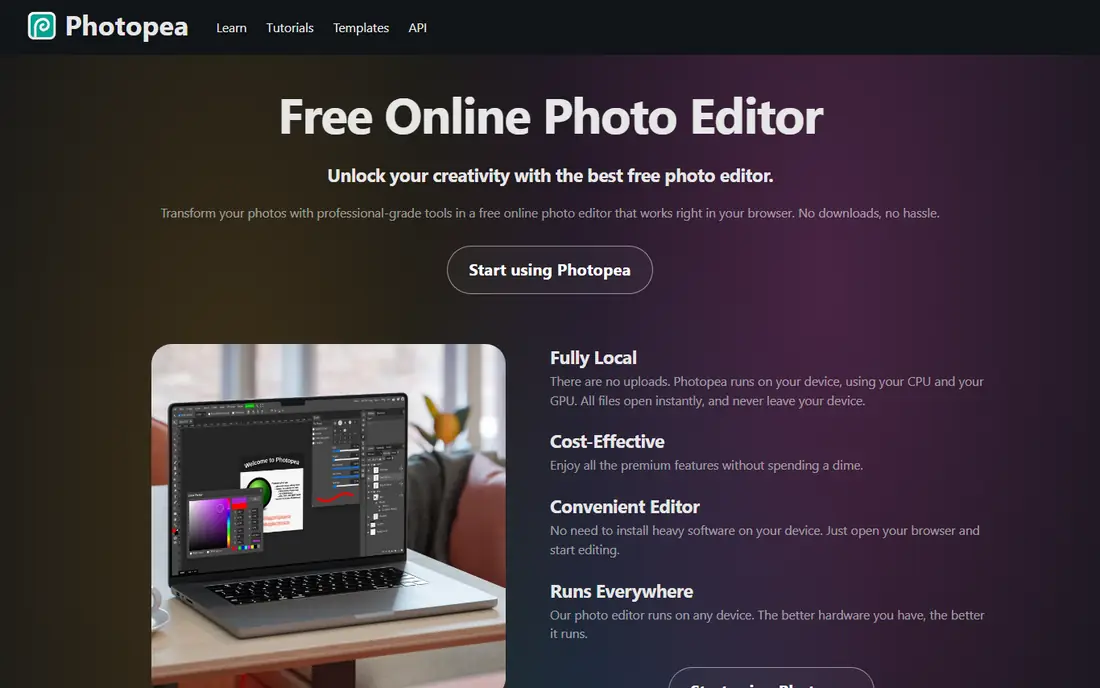
Photopea runs entirely in a browser and feels immediately familiar to Photoshop users, with a similar layout, layers, masks, and tools. It opens PSD files with layers intact, which makes it the best option when you need to edit a Photoshop file on a borrowed computer, a Chromebook, or a machine where you cannot install software. No account is needed to start editing, which lowers the barrier to a quick fix.
Premium costs $5 per month or $50 per year in the sources we checked, and it removes ads and adds extra steps history. The catch is the browser itself. Very large files, many layers, or heavy filters can slow down or hit browser limits, so Photopea is best for everyday edits and PSD compatibility, not for huge print files. For quick, faithful PSD work without a subscription, it is unmatched.
- Opens PSD files with layers intact
- Familiar Photoshop-style interface
- No install needed
- Free tier shows ads
- Very large files can strain a browser
- No full desktop app experience
GIMP has been the open-source answer to Photoshop for decades, and version 3 modernised its interface considerably. It offers layers, masks, filters, and scripting for compositing and retouching, and it runs on Windows, macOS, and Linux at no cost. For a user who wants a full desktop editor, offline use, and no account or subscription, GIMP remains a serious tool.
The catch is workflow. The interface and some tool behaviours still feel different from Photoshop, so a switcher should expect a learning period, and print users should note that CMYK support is limited compared with Photoshop. PSD files open, but complex Photoshop features may not carry over perfectly. If you are willing to learn its way of working, GIMP gives you professional power for free.
- Very capable layers, masks, and scripting
- Free and open source
- Runs on Windows, macOS, and Linux
- Interface still feels unfamiliar to Photoshop users
- CMYK support for print is limited
- PSD compatibility is partial
Krita is not a general Photoshop replacement, and that is why it belongs here. It is built for digital painting, illustration, concept art, and animation, with a brush engine that many artists prefer to Photoshop for drawing. If your main work is painting rather than photo retouching, Krita is a merit pick, not just a budget pick, and it is free and open source on Windows, macOS, and Linux.
The catch is scope. Krita is weaker at photo editing tasks such as detailed retouching, batch photo work, or print-ready CMYK output, so a photographer should choose Affinity, GIMP, or Photopea instead. For illustrators, comic artists, and concept artists, Krita pairs well with a photo editor, giving you a free two-tool setup that covers both jobs.
- Excellent brush engine
- Built for illustration and animation
- Free and open source
- Weaker at photo retouching than Affinity or GIMP
- No CMYK for print
- Interface is artist-focused
Darktable is a free, open-source RAW photo workflow tool, comparable in purpose to Adobe Lightroom rather than Photoshop itself. It lets photographers import RAW files, adjust exposure, colour, and noise, and export finished images without changing the original file. For a photographer who shoots RAW and wants a free, non-destructive workflow on Windows, macOS, or Linux, Darktable is the strongest free option.
The catch is that Darktable is not a layered editor. It will not replace Photoshop for compositing, detailed retouching with layers, or graphic design, so most photographers will pair it with Affinity, GIMP, or Photopea for pixel work. If your work is mainly RAW development, start with Darktable. If you need layers and masks, start with Affinity and add Darktable for RAW files.
- Strong RAW processing
- Non-destructive workflow
- Free and open source
- Not a layered pixel editor like Photoshop
- Learning curve for beginners
- No PSD editing focus
Pixlr suits quick browser edits when you do not want to open a desktop app. It offers layered editing in the browser, plus AI tools for background removal and enhancement, and it works on mobile as well as desktop. For social images, quick crops, colour fixes, and simple composites, Pixlr is fast and forgiving for beginners.
The catch is depth and credits. AI features are metered on some plans, paid plans start from a low monthly figure on annual billing in the sources we checked, and PSD support is partial rather than faithful. Pixlr is best as a quick editor, not as a full Photoshop replacement for layered print work. Use it for speed, and keep Affinity or Photopea for files that need full layer fidelity.
- Fast browser editing
- AI tools for removal and enhancement
- Mobile apps available
- AI features use credits on some plans
- PSD support is partial
- Advanced editing is thinner than Affinity
Canva is a design platform first, and it belongs on this list because many Photoshop subscriptions are really used for social graphics, presentations, and marketing assets, not for pixel editing. Templates, brand kits, and drag-and-drop layout make it easy for a small team to produce consistent graphics without design training, and collaboration is built in. For that job, Canva is often faster than Photoshop.
The catch is editing depth. Canva will not replace Photoshop for detailed retouching, compositing with masks, or RAW work, and its background remover and some AI tools sit behind Pro, priced at about $15 per month in some sources and about $120 per year in others, so check the current Pro page. Use Canva for design and templates, and pair it with Affinity or Photopea when a photo needs real editing.
- Huge template library
- Easy design for non-designers
- Brand tools and collaboration
- Not a pixel-level photo editor
- Background remover and some AI tools need Pro
- PSD support is not its focus
Pixelmator Pro is the Mac-native pick for users who want speed and a one-time price. It opens PSD files, supports RAW editing, and uses Apple hardware well, so everyday edits feel fast on a Mac or iPad. At $49.99 one-time in the sources we checked, it is a clear alternative to a monthly subscription for Mac users who do not need Windows or Linux support.
The catch is platform and versioning. Pixelmator Pro is Mac and iPad only, so a household with Windows machines needs a different tool, and some newer version access is tied to Apple Creator Studio subscription options, so check what the one-time purchase covers before buying. For a Mac-only user who wants a polished, fast editor without a monthly Photoshop bill, it remains a strong choice.
- Fast Mac-native performance
- Layers and RAW support
- One-time purchase, not a subscription
- Mac and iPad only
- Smaller plugin ecosystem than Photoshop
- Some users now face a subscription via Apple Creator Studio for newer versions
Luminar Neo suits photographers who want AI help with common edits. Sky replacement, portrait retouching, relighting, and enhancement templates can speed up a batch of photos, and RAW support covers the full photo workflow on Windows and macOS. For a photographer who edits many similar images, that speed is the selling point, and the interface is more approachable than GIMP for beginners.
The catch is scope and pricing. Luminar Neo is not a full layered design editor like Photoshop or Affinity, and its price varies between perpetual and subscription options, with figures in sources ranging widely, so we list it as See website. AI edits also need a careful eye, because an over-processed sky or portrait can look artificial. Use Luminar Neo for fast photo enhancement, and keep Affinity for compositing and design work.
- AI tools for sky, portrait, and relighting
- Good RAW support
- Templates for fast edits
- Not a full layered design editor
- Pricing varies by perpetual or subscription option
- AI results need checking for natural look
How we picked these
We compared official feature pages, current pricing pages, platform support, PSD compatibility, and public reviews, and we kept only tools that are available now and that genuinely replace at least one major Photoshop job, whether that is layered editing, RAW workflow, painting, or design. We checked the Affinity free change carefully, because older sources still list a one-time price, and we noted where pricing varied by source rather than presenting a stale figure as current. We also excluded tools that had shut down or that only offered templates without real photo editing.
How to choose the right replacement
Start with the work you do most. If you edit photos with layers, start with Affinity on desktop or Photopea in a browser. If you paint, start with Krita. If you shoot RAW, start with Darktable for development and add Affinity for pixel work. If you make social graphics, start with Canva for layout and add a photo editor for retouching. If you are on a Mac and want speed, test Pixelmator Pro.
Test with a real file, not a demo image. Open a PSD you actually use, try the masks and layers you rely on, export for web and for print if you need print, and check whether your fonts and colour settings carry over. A tool that opens a simple test file but fails on your real archive is not a replacement, even if it is free. Keep Photoshop until you have confirmed the new tool handles your core files, then cancel so you do not pay for two editors.
Who should keep Photoshop
Keep paying for Photoshop if your income depends on its generative AI features, if clients expect native Photoshop files and shared libraries, or if your employer or school already pays for it. Those workflow benefits are real, and no free tool on this list fully matches them yet. For everyone else who mainly crops, resizes, retouches, and exports for the web, the free tools above cover the job and save a monthly fee.