Best AI Design to Code Tools in 2026: 9 Tools Compared
By ToolNimba Editorial Team October 25, 2026 12 min read How we test

- Top pick
 Figma Make
Designers prototyping directly from Figma frames
Starting priceFree (paid from $16 per seat)Check out Figma MakeRead our review - Runner-up
 v0
React and Next.js developers who want a Figma link turned into an app
Starting priceFree (paid from $30 per user)Check out v0Read our review - Also great
 Builder.io
Converting Figma designs into code that fits an existing codebase
Starting priceFree (paid from $24 per user)Check out Builder.ioRead our review
How we researched this
We compared official pricing and feature pages, app store listings, privacy policies and public user reviews. Prices change, so check the provider's site before you pay.
Key takeaways
- Eight of the nine tools here have a free plan, but the limits are tight: Anima allows 5 code generations, Builder.io 60 credits a month, and v0 a daily message cap.
- The cheapest paid plans are Cursor Plus at $8 per month and GitHub Copilot Pro at $10, while Locofy's cheapest paid plan is $40 and its Pro plan is $80.
- Figma Make, v0, Bolt, Lovable and Anima take a Figma frame or link and produce a working app, while Cursor and Copilot read Figma through its MCP server and edit code you already have.
- Lovable's Figma plugin needs at least a Dev seat in your Figma organization, and v0's Figma import is on paid plans only.
- Locofy's Hobby plan says your content may be used to improve the platform, while its Pro plan says it is never used for training.
Quick comparison
| Name | Best for | Starting price | Free plan | |
|---|---|---|---|---|
| Figma Make | Designers prototyping directly from Figma frames | Free (paid from $16 per seat) | Yes | Visit |
| v0 | React and Next.js developers who want a Figma link turned into an app | Free (paid from $30 per user) | Yes | Visit |
| Builder.io | Converting Figma designs into code that fits an existing codebase | Free (paid from $24 per user) | Yes | Visit |
 Anima | Exporting Figma designs to HTML, React or Vue | Free (paid from $20 per seat) | Yes | Visit |
 Locofy | Developers who want clean, exportable code from structured frames | $40 per month | Free trial (7 days) | Visit |
 Bolt | Fast full-stack prototypes started from a Figma frame | Free (paid from $18 per month) | Yes | Visit |
 Lovable | Non-coders turning designs into working apps | Free (paid from $25 per month) | Yes | Visit |
 Cursor | Developers editing real codebases with Figma context | Free (Plus $8 per month) | Yes | Visit |
 GitHub Copilot | Low-cost AI help inside the editor you already use | Free (Pro $10 per month) | Yes | Visit |
The best AI design to code tools
Design to code tools turn a mockup, a Figma frame or a prompt into working front-end code. Some produce a whole app you can host, and others help you write code in a project you already have. We grouped nine tools by how they work, and we checked each against its own pricing and documentation pages.
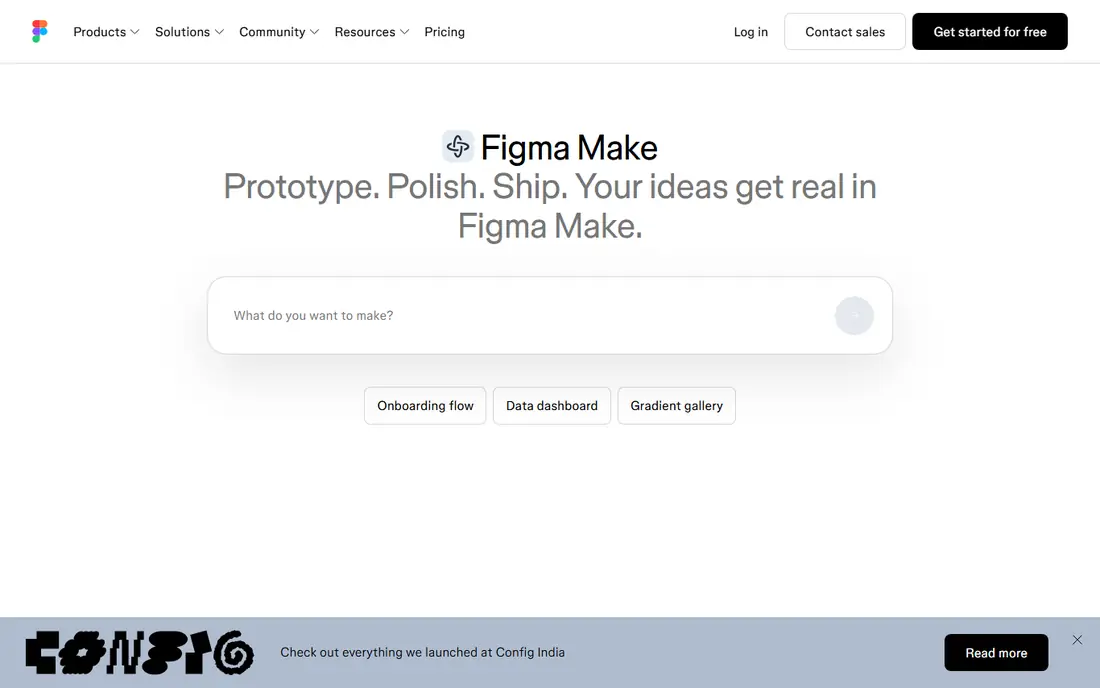
Figma Make is our pick for teams that already live in Figma. The product page describes it as prompt to code, with the ability to start from a codebase and design assets or from scratch, and to add design context through Make kits and npm packages. Output is code-backed and can be edited visually on the canvas.
Workflow tools matter here: plan mode lets you structure a request before generation, point-and-edit lets you select an element and prompt a change, and version history tracks AI and manual edits. A built-in CMS powered by Payload covers simple content backends.
On price, Figma's Starter plan is free with 150 AI credits a day, up to 500 a month, and a Professional Full seat is $16 per month with 3,000 AI credits. Heavy users will meet the credit limits first.
- Attach Figma frames, PDFs and other files to prompts
- Edit generated code on the canvas
- Plan mode and version history
- AI credits cap how much you can generate
- Make on a local codebase is still labeled beta
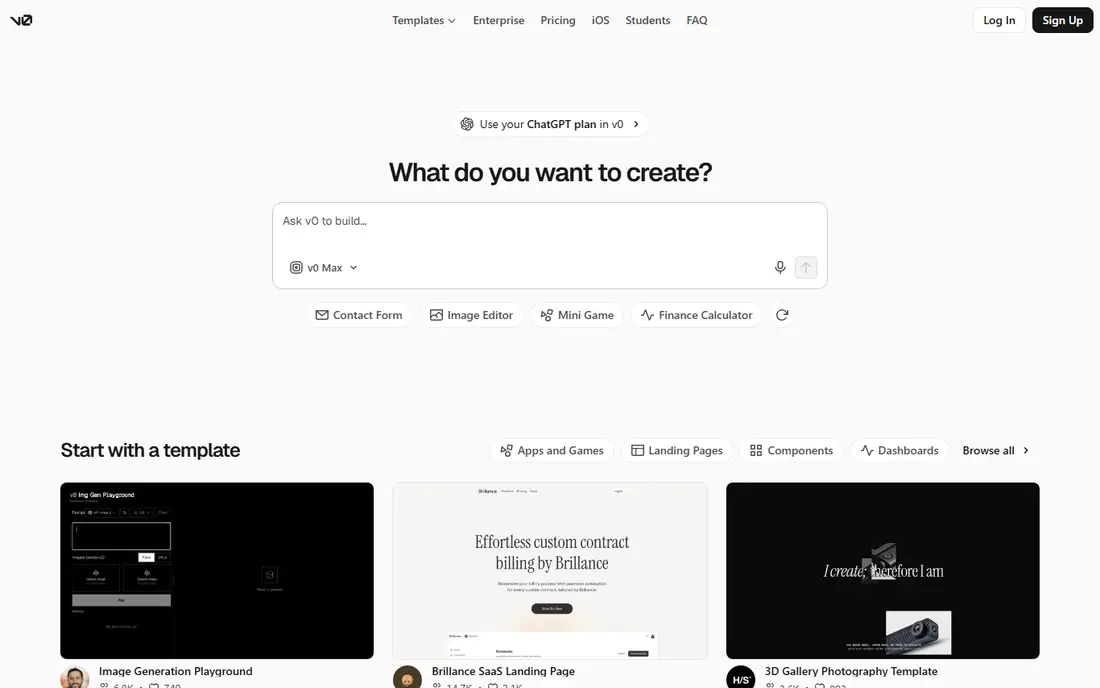
v0, from Vercel, takes the shortest path from a Figma link to a running app. Its docs say you click the plus button, choose Import from Figma, sign in, and paste a file link for a whole flow or a frame link for a single screen. v0 reads pages, frames, design tokens and variables, layout, text, exported assets, and component and style names.
The Free plan costs $0 with a seven-message-a-day limit and includes Design Mode, GitHub sync and Vercel deployment. Plus is $30 per user per month and includes $30 in monthly credits, and Business is $100. New users get $5 in one-time credits.
The limitation is billing. Beyond the plan credits, usage follows model pricing, from v0 Mini at $0.20 per million input tokens to v0 Max Fast at $10, so large Figma files can burn credits quickly.
- Paste a Figma link, no plugin needed
- Deploys to Vercel and syncs with GitHub
- Reads tokens, variables and component names
- Figma import is on paid plans only
- Usage is metered in credits
Builder.io
Best for: Converting Figma designs into code that fits an existing codebase
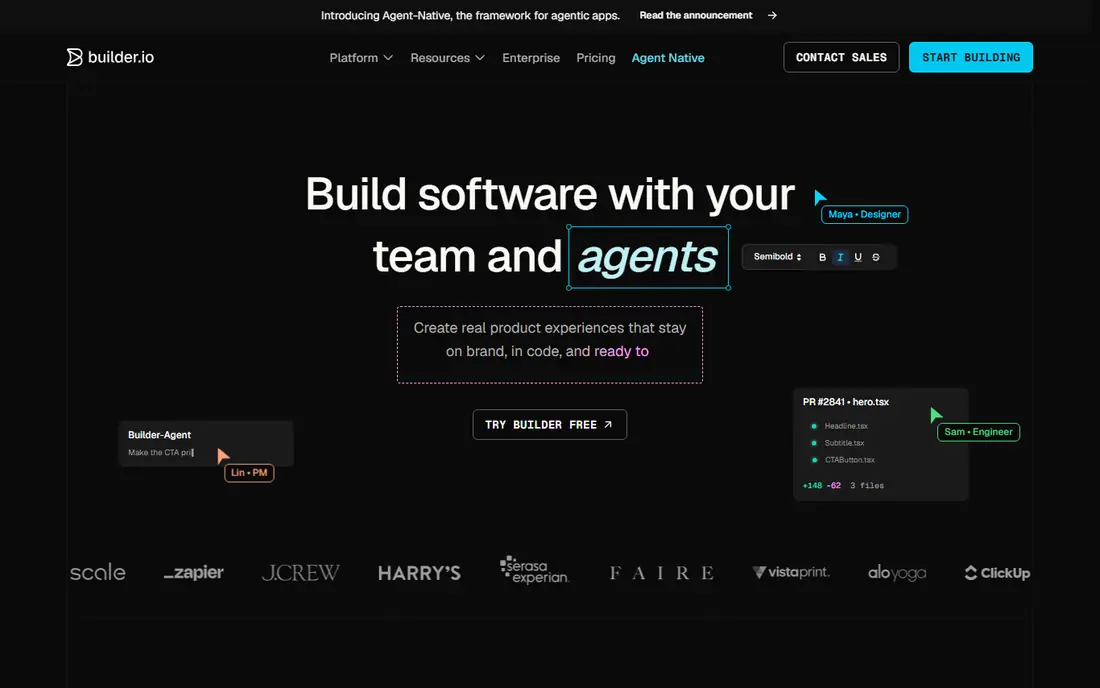
Builder.io's Visual Copilot is built for developers who want generated code that matches how their team already writes it. The Figma to code page lists web outputs including React, Qwik, Angular, Vue, Svelte, HTML and CSS, styling with Tailwind and CSS Modules, and mobile targets such as Kotlin, Flutter, SwiftUI and React Native. It also lists custom component mapping and integrations with Lovable, Cursor and Windsurf.
Pricing is per user per month for the Code product: Free is $0 with 60 agent credits, Pro is $24 with 500 credits, and Team is $40. Extra credits can be bought on Pro and Team in 500-credit blocks for $25.
The free plan will run dry fast, with a 15-credit daily cap and no on-demand top-ups. The pricing page also does not explain how its Fusion product works, so read the docs if that is what you are after.
- Figma plugin on every plan, including Free
- Many frameworks and Tailwind output
- Custom component mapping
- Free tier is capped at 15 credits a day and 60 a month
- On-demand credits are not available on Free
Anima says it is trusted by over 1.5 million Figma users, and Bolt's documentation says Bolt uses Anima to turn Figma designs into apps. Anima describes itself as turning designs, brand context and code into working software, starting from a prompt, a website clone, a Figma file or a screenshot.
Free includes 5 chat messages and 5 code generations, with one workspace. Starter is $20 per seat per month with 100 chat messages, 50 code generations and Figma-to-code in both directions. Pro is $40, Business starts at $150 per month, and Enterprise starts at $500 per month on annual billing.
The unit that matters is the code generation, and Anima counts every plugin export, Playground import, website clone, prompt or MCP use as one. If you iterate a lot, the 50 on Starter can vanish quickly.
- Figma plugin, website cloning and an MCP server
- Figma to code and back on paid plans
- API and SDK available
- Free plan allows only 5 code generations
- Every export, clone or MCP call counts as a generation
Locofy converts designs into front-end code using what it calls Large Design Model tokens, which are consumed whenever you convert frames. Its FAQ says results are best when designs are well structured, with grouped layers, clear names and Auto Layout.
The free tier is a seven-day trial of Hobby features with 2,000 tokens, after which the account converts to Hobby. Hobby is $40 per month for 2,000 tokens, individual use and one frame conversion at a time. Pro is $80 per month for 4,000 tokens and a 25-frame project limit, and it includes a free UIPro Pro account.
Check the privacy line before you upload client designs. Locofy states that on Hobby your content may be used to improve the platform, and on Pro it is never used to train or improve the platform.
- Exports developer-friendly code
- MCP for AI copilots
- Pro plan says content is never used for training
- Hobby converts one frame at a time with a 10-frame project limit
- Hobby content may be used to improve the platform
Bolt builds an app in the browser from a prompt, and its Figma guide shows two entry points. On the home page you click Import from Figma, connect your account and paste a frame URL, and Bolt generates a project from the layout. From the chat box you can also bring a frame into an existing project.
Free includes 1M tokens a month with a 300K daily limit and Bolt branding on websites. Pro is $18 per month billed annually with 10M tokens that roll over, a custom domain and no Bolt branding, and Teams is $27 per member.
Two details to note. Imports take a single frame, so copy a link to each screen. And on Teams plans with a design system, Bolt advises choosing the Screenshot option, because the Code option is not aware of your design system.
- Import Figma frames at the start or into an existing project
- 1M free tokens a month
- Pro tokens roll over
- Imports a single frame, not a whole Figma project
- Free plan has a 300K daily token cap
Lovable aims at people who want an app without writing much code. Its docs describe three Figma routes: a Lovable plugin run inside Figma, a Figma MCP connection for the desktop apps, and uploading a .fig file. The plugin works on all Figma plans but needs at least a Dev seat in your Figma organization, and the docs say the older Builder.io-based import was replaced.
The Free plan gives a daily grant of 5 build credits, up to 30 a month. Pro is $25 per month with 100 monthly credits, credit rollovers, custom domains and design systems, and Business is $50. Exporting from the plugin is free, but prompting with the design uses credits.
Credits are the catch: the pricing page says monthly plan credits expire two months after they are issued, and complex requests cost more than simple ones.
- Own Figma plugin exports frames and components
- Pro includes custom domains and design systems
- Free daily credits
- Figma plugin needs at least a Dev seat in your Figma organization
- Credits drive cost
Cursor is an AI code editor rather than an upload-a-design tool. Figma's MCP guide lists Cursor among supported clients for generating code from selected frames, extracting variables and components, and using Code Connect to keep output consistent with your codebase. That makes it a fit when you already have a repository and a design system.
Cursor's pricing page lists a free tier with limited agent and chat requests, Plus at $8 per month, Premium at $30, Super at $100 and Ultra at $200. The page says only Grok models are available on Plus, and that Premium and above bill third-party models separately at API list price.
You also manage the code yourself, so it rewards developers more than designers. Usage allowances refresh weekly, and heavy agent use will cost more than the headline price.
- Works inside your own project
- Supported by the Figma MCP server
- Premium adds cloud agents and automations
- Plus covers Grok models only
- Third-party models are billed at API list price
GitHub Copilot
Best for: Low-cost AI help inside the editor you already use
Copilot is the cheapest route here for developers who already work in VS Code or GitHub. Figma's MCP guide lists VS Code as a supported client, so Copilot can pull design context from Figma and help turn it into components.
The plans page shows Free at $0 with 2,000 completions and limited chat and agent use, Pro at $10, Pro+ at $39 and Max at $100. Pro includes $15 in monthly GitHub AI credits. MCP server integration, custom instructions and agents are available on Free.
Copilot does not give you a visual design-to-app flow, so expect to prompt and review in code. Pair it with Figma's MCP server if your designs live in Figma.
- Free plan includes 2,000 completions a month
- MCP server integration on every plan
- VS Code is a supported Figma MCP client
- Free plan is limited to entry-level models
- Usage-based AI credits apply on paid plans
How we picked these
We included tools that are live in October 2026 and that clearly take a design, a Figma frame or a prompt and produce code. For each one we read the vendor's pricing page, documentation and, where useful, Figma's own MCP guide, and we quoted only prices and limits shown there.
We did not run side-by-side code tests, so we do not claim one tool writes better code than another. Our ordering favors clear pricing, a usable free plan, documented Figma support and honest limits.
How to choose a design to code tool
Decide whether you need an app or code
App builders such as Figma Make, v0, Bolt and Lovable produce something you can run and host. Code assistants such as Cursor and Copilot work inside a project, so they suit teams with an existing codebase and conventions.
Prepare the design file
Locofy and v0 both advise structure: clear layer names, one screen per frame, Auto Layout, components and design tokens. Clean files produce cleaner code, no matter which tool you pick.
Check Figma seats and plan limits
Some Figma routes need a Dev or Full seat, and Figma applies its own rate limits to imports based on your plan and seat. Confirm which seat you need before you buy a tool subscription.
Check how your data is used
Compare privacy terms for client work. Locofy's Hobby plan says content may be used to improve the platform, and Cursor says privacy mode can be enabled so code data is not used for training. Review each vendor's current terms.
Sources
- https://www.figma.com/pricing/
- https://www.figma.com/make/
- https://help.figma.com/hc/en-us/articles/32132100833559-Guide-to-the-Figma-MCP-server
- https://v0.app/pricing
- https://v0.app/docs/figma
- https://www.builder.io/pricing
- https://www.builder.io/figma-to-code
- https://www.animaapp.com/pricing
- https://www.locofy.ai/pricing
- https://bolt.new/pricing
- https://support.bolt.new/integrations/figma
- https://lovable.dev/pricing
- https://docs.lovable.dev/integrations/figma
- https://cursor.com/pricing
- https://github.com/features/copilot/plans