Best Free Photo Editing Apps in 2026: 9 Apps Compared
By ToolNimba Editorial Team October 25, 2026 11 min read How we test

- Top pick
 Snapseed
quick, high-quality edits on a phone
Starting priceFreeCheck out SnapseedRead our review - Runner-up
 Adobe Photoshop Express
one-tap fixes, collages and social sharing
Starting priceFreeCheck out Adobe Photoshop ExpressRead our review - Also great
 Adobe Lightroom
presets, batch edits and RAW files on mobile
Starting priceFreeCheck out Adobe LightroomRead our review
How we researched this
We compared official pricing and feature pages, app store listings, privacy policies and public user reviews. Prices change, so check the provider's site before you pay.
Key takeaways
- Snapseed is the only app here whose App Store listing says it has no subscriptions, purchases, ads or watermarks, which makes it our pick for most people on a phone.
- GIMP, darktable and Photopea cost nothing for the full tool set, but all three expect you to learn a more complicated interface.
- Photoshop Express, Lightroom, Canva, Pixlr and Picsart are free to start, yet each one holds back AI tools or ad-free use behind a subscription.
- Prices vary by store and by country, so check the subscription screen before you pay for anything.
- If you shoot RAW files, Snapseed, Lightroom and darktable are the most practical choices on this list.
Quick comparison
| Name | Best for | Starting price | Free plan | |
|---|---|---|---|---|
| Snapseed | quick, high-quality edits on a phone | Free | Yes | Visit |
| Adobe Photoshop Express | one-tap fixes, collages and social sharing | Free | Yes | Visit |
| Adobe Lightroom | presets, batch edits and RAW files on mobile | Free | Yes | Visit |
 Canva | turning photos into social posts and graphics | Free | Yes | Visit |
 Photopea | Photoshop-style layers in a web browser | Free | Yes | Visit |
 GIMP | full-featured desktop editing at no cost | Free | Yes | Visit |
 Pixlr | fast browser edits with light AI tools | Free | Yes | Visit |
 Picsart | creative effects, stickers and AI experiments | Free | Yes | Visit |
 darktable | developing RAW photos on a computer | Free | Yes | Visit |
The best free photo editing apps
These nine editors all let you start without paying. We list them in the order we would suggest them to a typical reader, and we say plainly where the free version stops.
Snapseed is made by Google, and it is the app we would point most people to first. Its App Store listing describes 30+ tools and filters, says there are no subscriptions, purchases, ads or watermarks, and carries a 4+ age rating. That combination is rare among photo apps.
The toolset goes further than the price suggests. You get selective adjustments, healing, curves, HSL color, perspective correction and portrait tools, and the app supports non-destructive editing. It also handles RAW files, which many free apps skip.
The catch is the 4.0 redesign. Some recent App Store reviewers dislike the new layout, and there is no computer version to fall back on. If you want to edit on a laptop, look further down this list.
- No ads, subscriptions or watermarks per its App Store listing
- 30+ tools including curves and selective adjustments
- Opens JPG and RAW files
- Phone only, with no desktop version
- The 4.0 interface redesign draws complaints in recent reviews
Adobe Photoshop Express
Best for: one-tap fixes, collages and social sharing

Photoshop Express is the simplified phone and tablet cousin of Adobe's famous editor, and it suits people who want a good-looking result in a few taps. Its App Store listing covers filters, dehaze, cropping, blemish removal, grid collages and custom watermarks, plus video trimming and music tracks.
The app is free to download, and the listing shows a Premium subscription at $4.99 per month or $34.99 per year, along with a bundle that adds Adobe Express. Adobe's own product page confirms that premium features exist but does not state a price, so treat the App Store numbers as a guide. Recent AI additions such as generative fill and outfit swapping are also described in the listing, and some of them are iPhone only.
The honest drawback is the paywall pattern. You will see Premium prompts as you explore, and the long list of subscription variants in the App Store makes it hard to know which one you are buying.
- Easy presets, red-eye and blemish tools
- Collage maker and text overlays
- Supports RAW and TIFF uploads
- Newer AI tools sit behind Premium
- The App Store lists many subscription options, which can confuse buyers
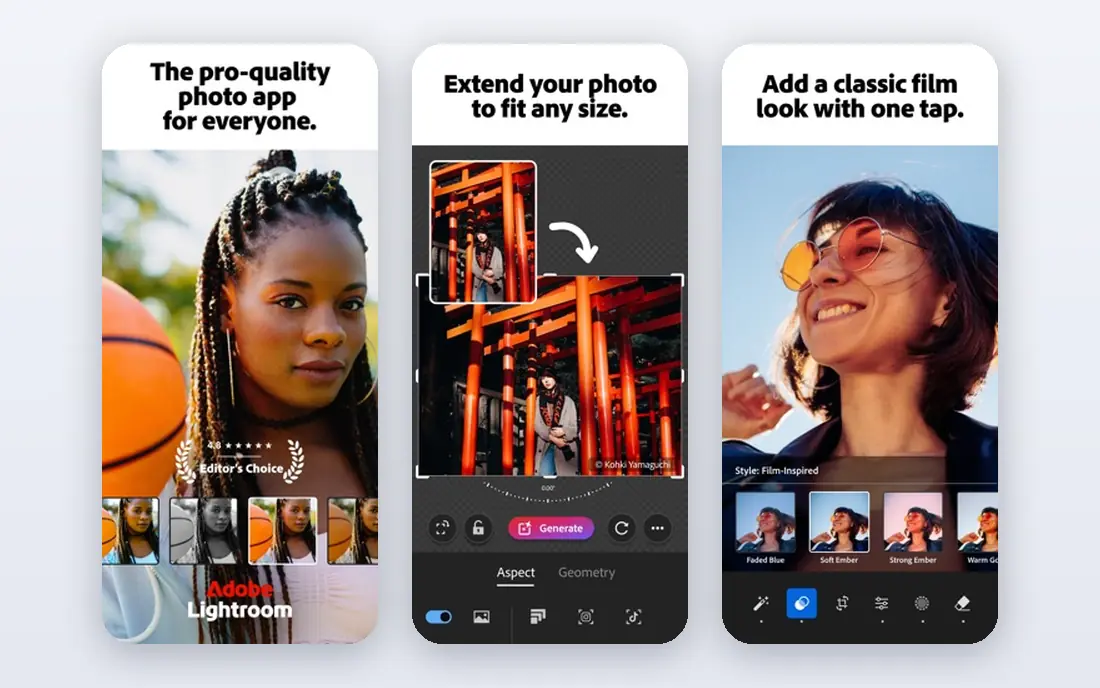
Lightroom on mobile is built around the photographer's workflow. Adobe says the free version includes presets and basic editing tools, and its App Store listing mentions batch editing so you can apply the same look to a whole set of photos. It also has an age rating of 13+ because of its community features.
Adobe names Generative Remove, Lens Blur and Adaptive Presets as premium features, though some can be tried in the free version. On Adobe's mobile page the Lightroom plan is listed at US$11.99 per month on an annual plan billed monthly, and that covers mobile, desktop and web.
That price is the main thing to weigh. Free Lightroom is a fine editor for color and light, but if you want object removal you either pay Adobe or use a different app from this list.
- Free presets and basic editing tools
- Batch editing across many photos
- Strong color and light controls
- Generative Remove and Lens Blur need a paid plan
- The paid plan is pricier than most apps here
Canva is a design tool first and a photo editor second, and that is the right way to think about it. Its App Store listing highlights photo editing, background removal, filters and collages, along with presentations, video editing and a large template library. Every user gets 5GB of storage.
The free tier is generous for casual use. Pro is a paid upgrade, and the App Store lists it at different prices (between $14.99 and $18.00 monthly, and between $119.99 and $143.99 yearly), so check the live price on Canva's site before you subscribe.
If your goal is to retouch a portrait or fine-tune a scenery shot, Canva is not the sharpest tool. If your goal is a finished Instagram post, a flyer or a slide with your photo on it, it saves time.
- Huge template library
- Background removal, filters and collage tools in one place
- Works on phone and web
- Some editing tools and premium assets require Pro
- Heavy for simple photo-only fixes
Photopea is the closest thing to Photoshop that runs in a browser tab. Its homepage lists layers, masks, adjustment layers, vector tools and AI background removal, and says it opens PSD, AI, SVG, PDF, HEIC, TIFF and many other formats.
According to Wikipedia, Photopea was created by Ivan Kutskir, the free version is supported by ads, and a Premium subscription removes them. Photopea's own accounts page confirms that Premium means no advertising but sends you to the in-app Account window for the price, so we cannot quote one here.
Photopea works best for people who already know Photoshop or are willing to learn it. A beginner who just wants to brighten a picture will find Snapseed less work.
- Layers, masks and adjustment layers with no download
- Opens PSD files and RAW formats like DNG, CR2 and NEF
- Files stay local unless you choose to save elsewhere
- The free version is ad-supported
- The interface feels crowded at first
GIMP is the long-standing free answer to paid desktop editors. The official site calls it free software for photo retouching, image composition and authoring, and it runs on GNU/Linux, macOS and Windows. At the time of writing the site shows version 3.2.6, released on 10 September 2026.
Nothing is held back. There is no premium tier, and the project asks only for optional donations. That makes it a safe pick for anyone who dislikes subscriptions on principle.
The trade-off is time. GIMP asks you to learn its tools, and the layout will feel unfamiliar if you come from a phone app. If you only need quick fixes, you will get results faster elsewhere.
- Free and open source with no account or subscription
- Runs on Windows, macOS and Linux
- Actively updated
- Steep learning curve
- Not designed for phones
Pixlr offers several editors, including Pixlr Editor and Pixlr Express, and its homepage says they work in web browsers, on iOS and Android, and on desktop. The free version needs no account or charge, and the paid plans add more content, advanced features, AI tools and ad-free editing.
On Pixlr's pricing page, Plus is $2.49 per month ($1.99 per month billed yearly) with 80 monthly AI credits. Premium is $9.99 per month ($7.99 yearly) with 1,000 AI credits. Those are among the lower paid prices in this roundup.
The page we checked did not describe what the free plan includes, and third-party sources disagree about daily save limits. We would test a few exports before relying on Pixlr for a deadline job.
- Works in a browser, on iOS and Android, and on desktop
- Free use with no required account for basic edits
- Low-cost paid plans
- Free use shows ads and limited AI credits
- Save and download limits are unclear
Picsart leans toward playful, shareable edits. Its App Store listing describes it as an all-in-one AI photo editor, video editor and design studio, with tools for retouching, enhancement, background removal and object removal.
On Picsart's pricing page, Pro is $10.5 per month when billed yearly, struck through from $15. The App Store listing shows a much longer menu of weekly, monthly and annual plans, so prices differ depending on where you subscribe. Weekly plans in particular can add up faster than they look.
Parents should note the 13+ age rating. The listing flags user-generated content, advertising, messaging and some mature themes, so younger teens should use it with care.
- Large set of AI tools including background removal and object removal
- Collage, sticker and text tools
- Also edits video
- Ads and a social feed are part of the app
- Its 13+ rating flags mature themes in user content
darktable is an open source photography workflow application and raw developer. Its site says it manages your digital negatives in a database, shows them in a zoomable lighttable and lets you develop and enhance raw images. The software is released under the GPL 3.0 license.
It is the best fit here for someone who shoots with a mirrorless or DSLR camera and wants a free alternative to paid RAW editors. Nothing is locked, and there are no accounts to create.
It is not for quick social media fixes. If you only edit phone photos, darktable is more software than you need.
- Free and open source under GPL 3.0
- Non-destructive RAW workflow
- Manages your photo library in a database
- Aimed at photographers, not casual users
- Takes time to learn
How we picked these
We built the list from official sources rather than hands-on testing. For each app we read the vendor's own website, pricing page and App Store listing, and we noted what the free version includes, what sits behind a subscription, the age rating and any ads. Where two sources gave different prices, we said so or wrote that you should check the website.
We included well-known names and a few open source options, left out apps that only work as paid trials, and kept the list to editors that are useful without paying. We did not rank by popularity alone.
How to choose a free photo editor
A free app is only a good deal if its limits do not get in your way. A few questions help.
Where do you edit most?
For phone photos, start with Snapseed, Photoshop Express or Lightroom. For a laptop or desktop, GIMP, darktable and Photopea give you more control. Canva and Pixlr sit in the middle because they work in a browser and on mobile.
What do you need the edit to do?
Simple fixes like crop, brightness and filters work in nearly every app here. Object removal, background removal and generative fill are the features most likely to be held back for paying users, so check them first if you need them.
Are you comfortable with ads and subscriptions?
Snapseed, GIMP and darktable do not push subscriptions. Photopea and Pixlr show ads until you pay, and Picsart, Canva and the Adobe apps use subscription prompts. Cancel before a free trial ends if you do not plan to keep it, and read the price on the store's own subscription screen.
Privacy and age
Photopea says files stay local unless you choose to save them to a service. Several mobile apps list user-generated content or social features, which is worth knowing before a child uses them.
Sources
- https://apps.apple.com/us/app/snapseed/id439438619
- https://support.google.com/snapseed
- https://www.adobe.com/products/photoshop-express.html
- https://apps.apple.com/us/app/adobe-photoshop-express-editor/id331975235
- https://www.adobe.com/products/photoshop-lightroom/mobile.html
- https://apps.apple.com/us/app/adobe-lightroom-photo-editor/id878783582
- https://apps.apple.com/us/app/canva-ai-photo-video-editor/id897446215
- https://www.photopea.com/
- https://www.photopea.com/api/accounts
- https://en.wikipedia.org/wiki/Photopea
- https://www.gimp.org/
- https://www.gimp.org/about/
- https://pixlr.com/
- https://pixlr.com/pricing/
- https://picsart.com/pricing
- https://apps.apple.com/us/app/picsart-photo-video-editor/id587366035
- https://www.darktable.org/